 | ||
Introduction
Welcome to the SCView Financial Dashboard, a cutting-edge tool designed to revolutionize your approach to financial management and data visualization. With our intuitive platform, you'll seamlessly integrate diverse financial data points and interactive elements, granting you real-time insights into your organization's financial landscape. Monitor cash flow, analyze year-to-date performance, and forecast future revenues and expenses with ease. Our dashboard empowers you with detailed financial oversight and enables strategic decision-making.
A. Problem Statement
In today's fast-paced business environment, managing vast amounts of financial data can be overwhelming, leading to delayed decision-making and potential inaccuracies in financial assessments. Organizations often struggle with disjointed data sources, lack of real-time visibility, and inefficient reporting mechanisms.
B. Solution
The SCView Financial Dashboard addresses these challenges by providing a unified platform for financial data visualization and management. With features like interactive data tabs, customizable reporting, real-time updates, and drill-down capabilities, users can effortlessly access and interpret critical financial data, leading to more informed and timely decisions. By integrating dynamic visual tools and configurable elements, the dashboard ensures that organizations can tailor the experience to their unique needs, optimizing financial oversight.
The dashboard provides an overview of the cash position using detailed and summary financial data. It features key components such as:
- Visual Displays: Current posting period and client information are displayed above interactive tabs.
- Functional Buttons: Buttons enable returning to the SCView website, refreshing Dashboard Data from USAS, and printing options for selected tabs.
- Information Sections: Includes notifications, a dashboard grid, and graphs for monthly revenue/expenses/ net income comparisons, among others.
- Specialized Charts and Data: View Top 10 Funds, Salary summaries, Maintenance of Effort, Stock/Bond information, STAR Ohio/PLGIT rates, and unemployment data specific to the client's county.
Five Year Forecast
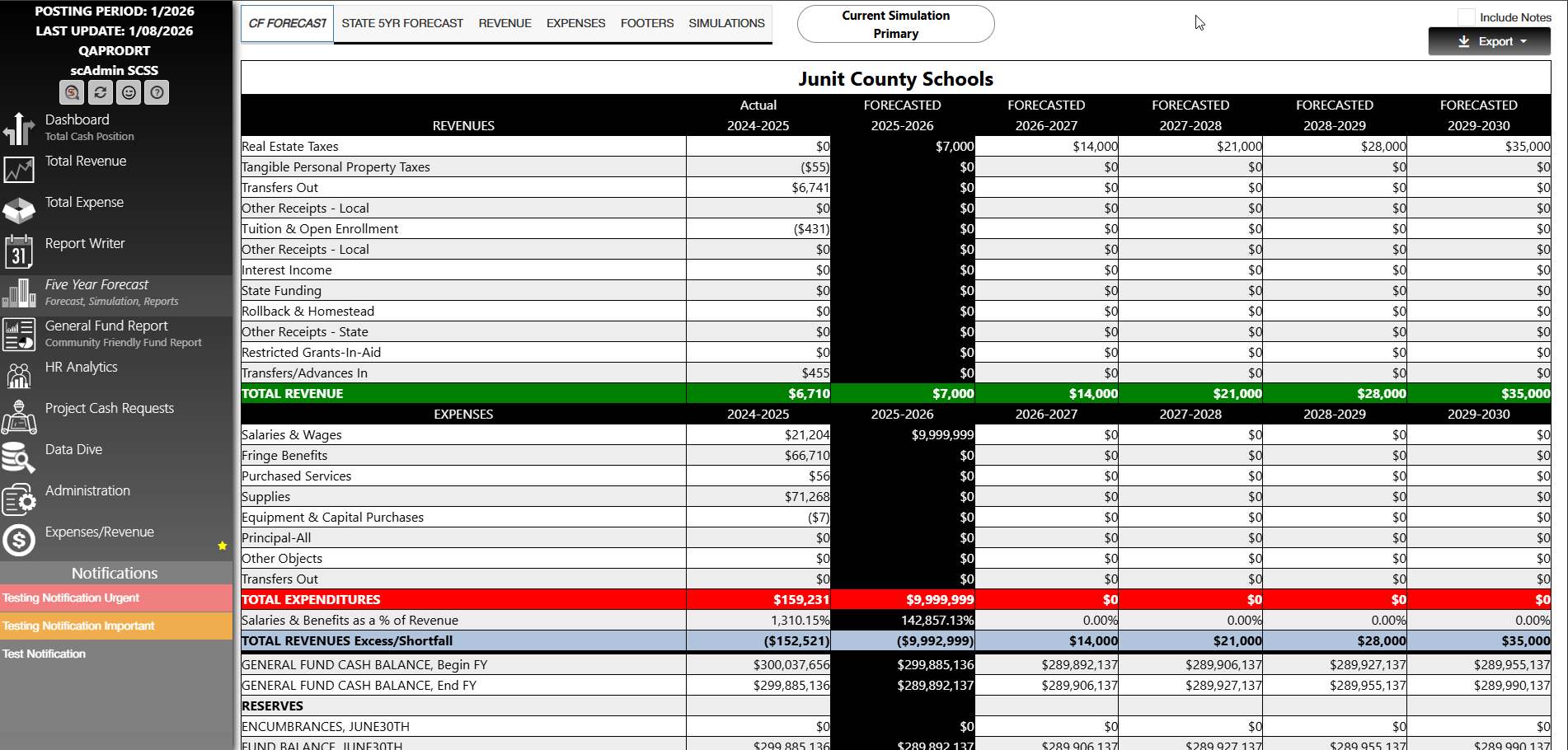
The five year forecast allows you to see forecasted revenue and expense with tools to adjust descriptions, validate forecasts against USAS/FIS data, and detailed simulations for assessment.
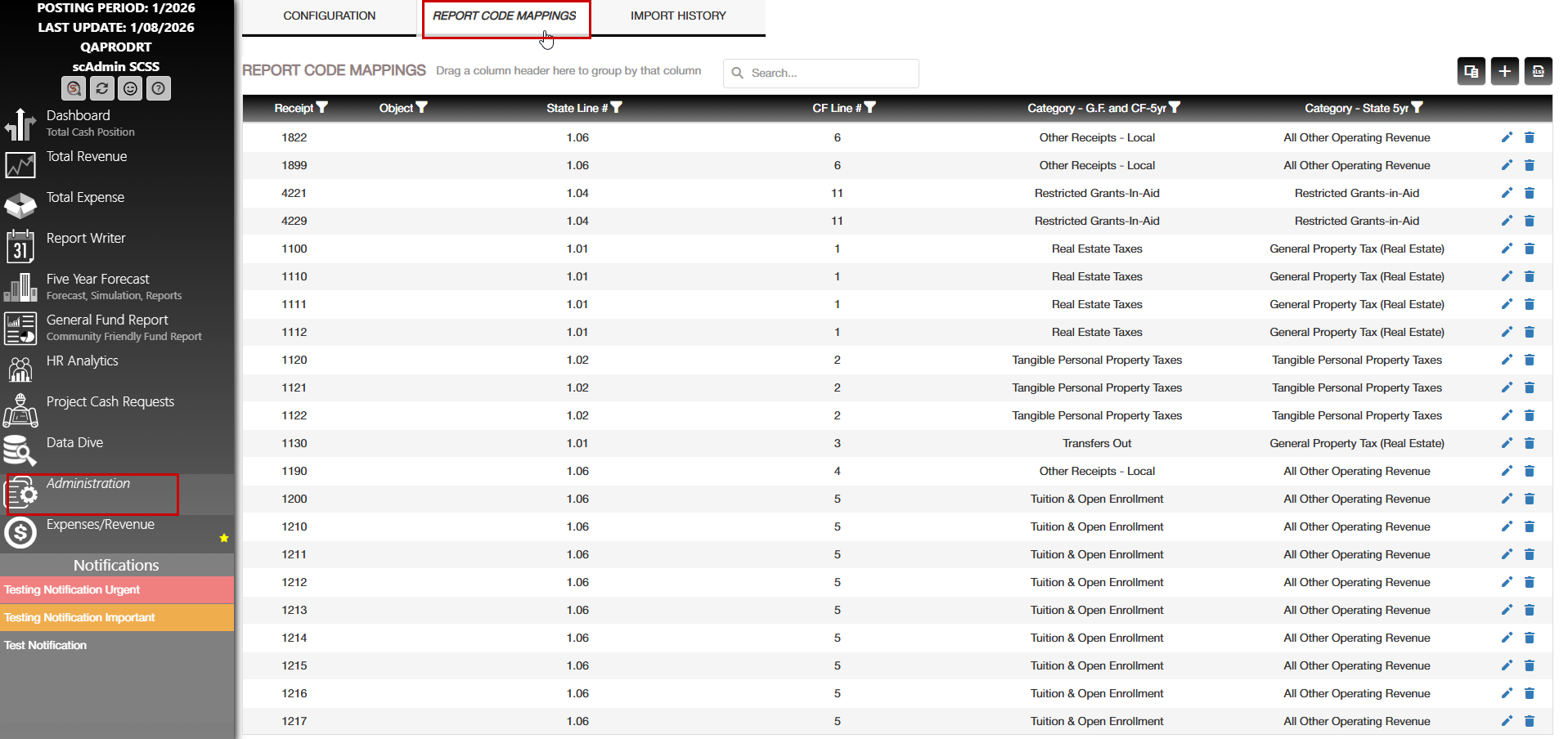
You can edit the description names by going to Admin > Report Code Mappings. On the upper-right corner of the page there is a button that opens Category Management. In that you'll see all the names for the categories and can toggle between CF/GF and State 5YR Report.
Each sub tab in the Five Year forecast tab can be exported to Excel. Each tab that is exported will be saved as that tabs name.
Percentages display both in-module and on export rounded to two decimal places.
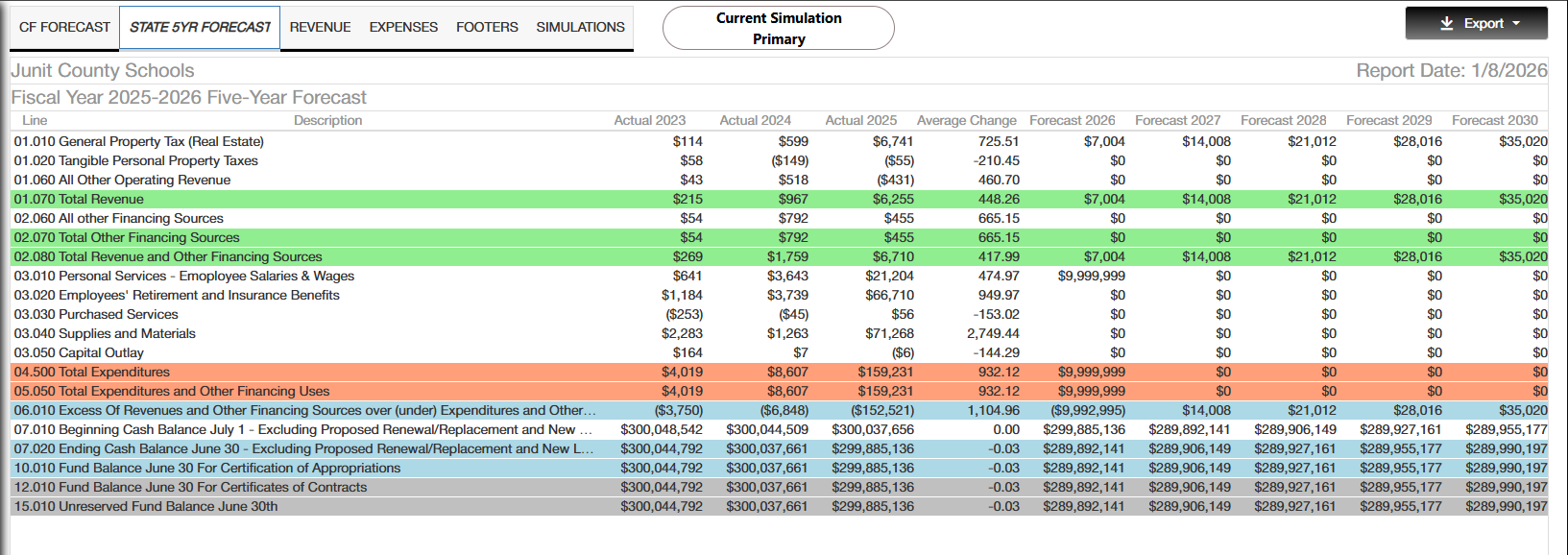
- State Five Year Forecast displays with color-coded highlighting by category.
- Total Revenue/Other financing sources: Green
- Total Expenditures/Other financing uses: Orange
- Excess of Revenue/Ending Cash Balance/Fund Balance: Light Blue
- Fund Balance Contracts/Unreserved Fund Balances: Grey
Revenue Tab, Expense Tab & Footers Tab
The Revenue tab defaults to the sub tab Real Estate. Active tabs are highlighted in a light green color. Data will display here that is set up with the Report code mapping in the administrator tab. Each sub tab that has data can have its forecasted data changed. Double click the field you wish to change to save the changes you made you'll need to hit the save icon in the top right of the page. If you need to revert your changes, you can click the undo button to revert back from any changes you made prior to saving. From the Revenue tab you can also switch between different Forecasts using the "Forecast configuration". Each tab also has a small export button in the top right that can be used to export the current tabs data into a excel sheet. You can select all data and or selected rows.
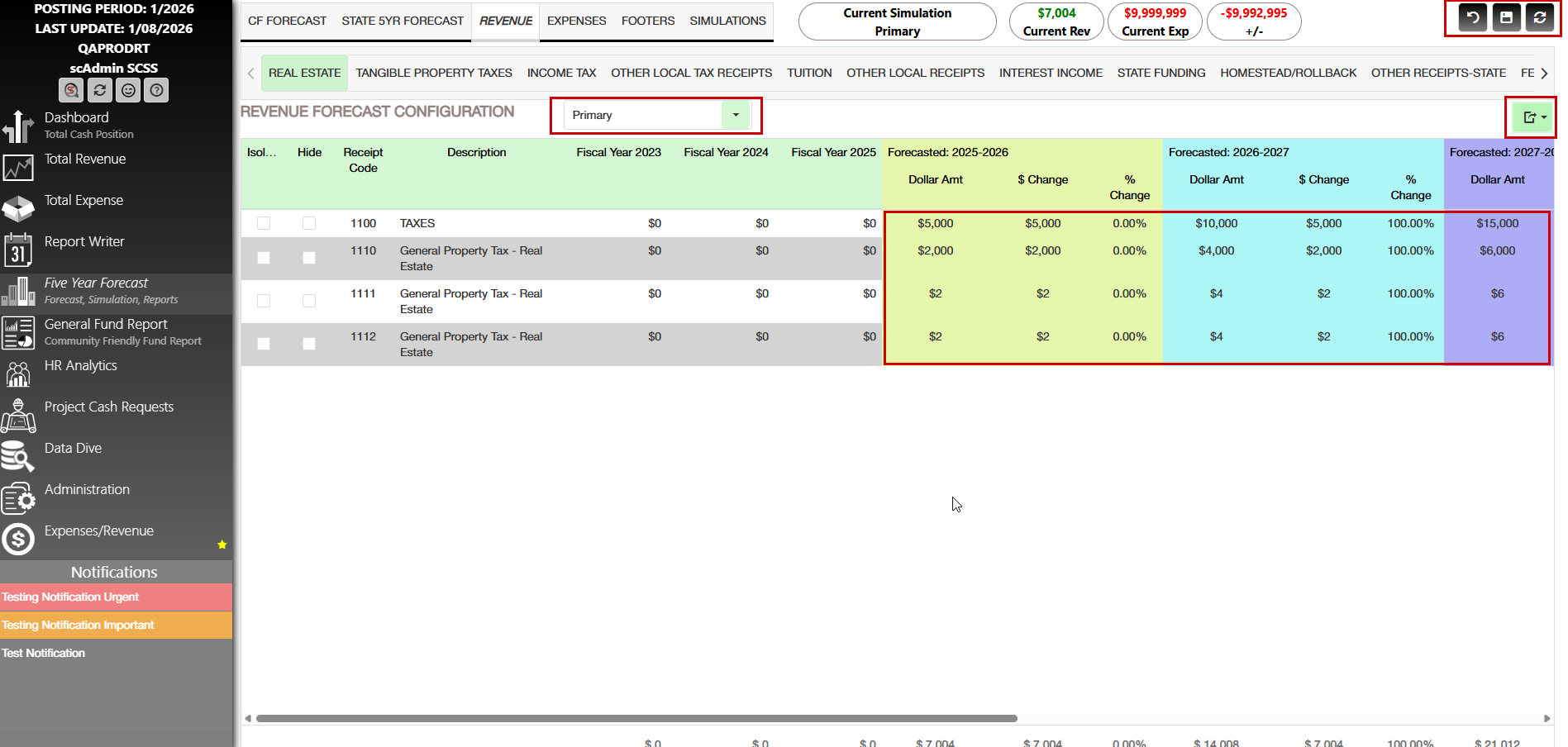
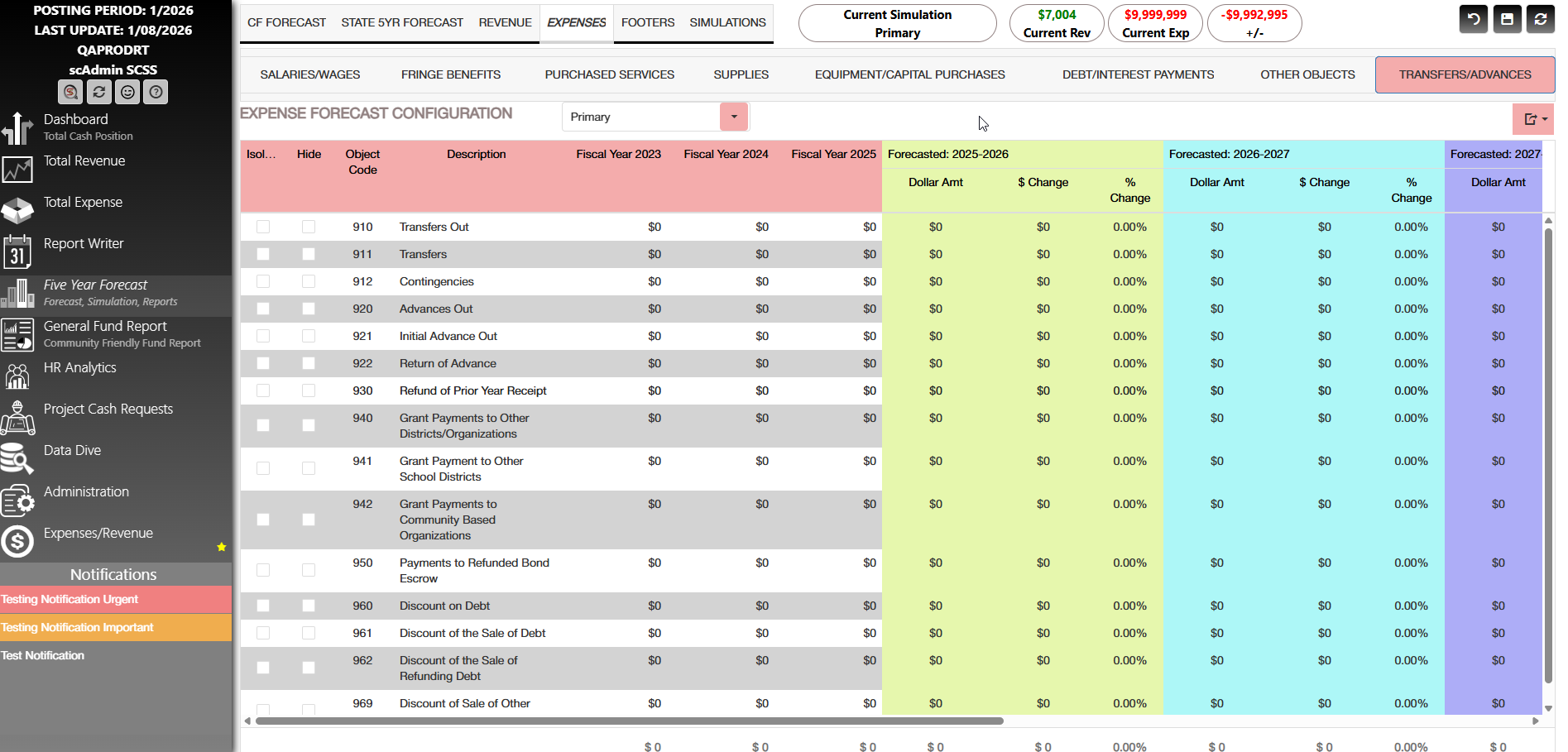
The Expense tab follows the same functionality as the revenue tab. The only difference is Active tabs are highlighted in a light red/pink. The data will display here that is set up with the Report code mapping in the administrative tab.
Simulations
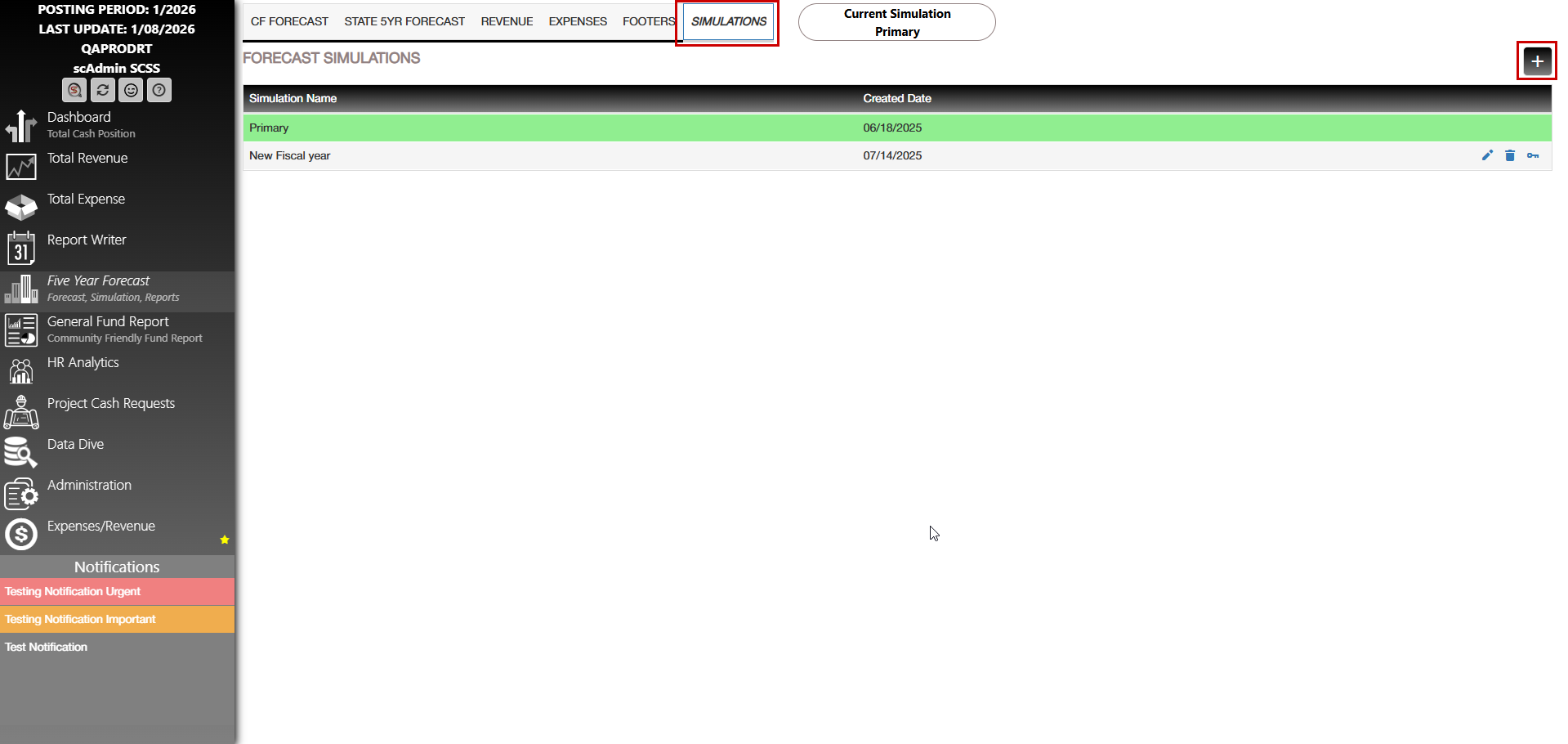
You can edit the simulations on the last tab of this page. Either click the plus icon to add one or use the pencil icon to edit an already existing one. If you are editing an already existing one, you will not be able to check or uncheck the New Fiscal Year box; however, you will be able to edit the name. Whichever simulation you have selected as your primary simulation will be highlighted green and display in the "Current Simulation". To make a simulation your primary click the "Key" icon.
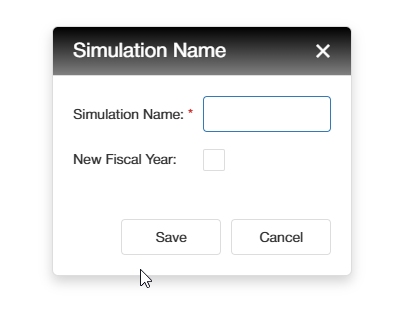
Clicking the Add (+) button will display a popup to allow you to enter a simulation name and either check or uncheck the "New fiscal year". When creating a simulation the "Simulation Name" field is the only required field. New Simulations can share the same naming but cannot be empty.
C. Best Practices
- Regularly Refresh Data: Utilize the functional buttons to frequently update the dashboard with the latest data from USAS to ensure you're working with the most current information.
- Leverage Custom Reporting: Take advantage of the customizable reporting tools to create targeted reports that cater specifically to your organization's needs. Use filters and groupings to refine your data further.
- Engage with Visual Tools: Use graphs and charts to gain quick insights into monthly and yearly financial trends. Visual tools can enhance the readability of complex financial data.
- Drill Down for Details: Utilize the drill-down functionality to explore detailed data beneath summary figures. This deeper dive can uncover insights that might be missed in a high-level overview.
- Monitor Real-Time Notifications: Stay vigilant with real-time updates and notifications. Keeping abreast of significant changes or alerts ensures proactive financial management.
- Customize Your Dashboard: Use the configurable elements to tailor the dashboard interface and functionalities to better meet your organizational needs, optimizing user experience and accessibility.
D. Troubleshooting
- Data Not Updating: Ensure that the dashboard is connected to the internet, and check if there's an issue with the USAS data source. Use the refresh button to attempt re-syncing the data.
- Incorrect Report Outputs: Revisit the custom report settings for any misconfigurations. Verify filters, groupings, and date ranges to ensure correctness.
- Display Issues: If graphs or charts are not displaying correctly, refresh the page or clear the browser cache. Ensure your browser is up to date for optimal performance.
- Access Problems: If users are unable to access specific dashboard features, verify user permissions and access rights in the administration settings.
- Notification Errors: Check the notification settings to ensure that alerts are properly configured and enabled.
Was this article helpful?
That’s Great!
Thank you for your feedback
Sorry! We couldn't be helpful
Thank you for your feedback
Feedback sent
We appreciate your effort and will try to fix the article