
 | ||
Introduction
This guide provides step-by-step instructions for system administrators to create and configure queues and queue action buttons within SCView workflows. Learn how to add queues, configure queue settings, and create action buttons that control document routing.
A. Problem Statement
Administrators often face challenges when there is a need to add new queues within workflows or configure queue action buttons to accommodate changing organizational processes. Without proper guidance, tasks such as setting up queue parameters, configuring action buttons, and understanding routing logic may seem complex.
B. Solution
To address these challenges, this guide outlines clear instructions for creating and managing queues and queue action buttons in SCView. It explains each queue and action button setting in detail, demonstrates how to configure document routing, and provides guidance on best practices for a smoother, more efficient workflow management experience.
There are times when you may need to add a queue to an existing workflow, add a queue action button, or allow a user to view items in a queue to approve items. Below are the steps to guide you through creating queues and queue action buttons.
Note: Adding a new queue or queue action button will require Admin access. If you feel
you should have access to this, please reach out to your district's site administrator.
Creating a New Queue
Queues represent stages within a workflow where documents reside until an action is taken.
1. Click Add Queue under the workflow to which you wish to add a new queue.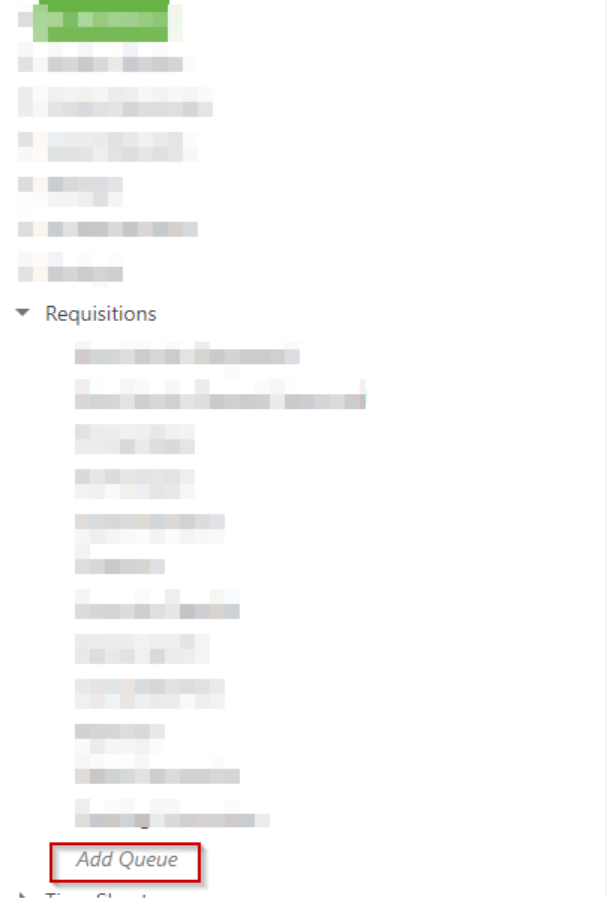
2. The Create Queue window will open, showing various options.
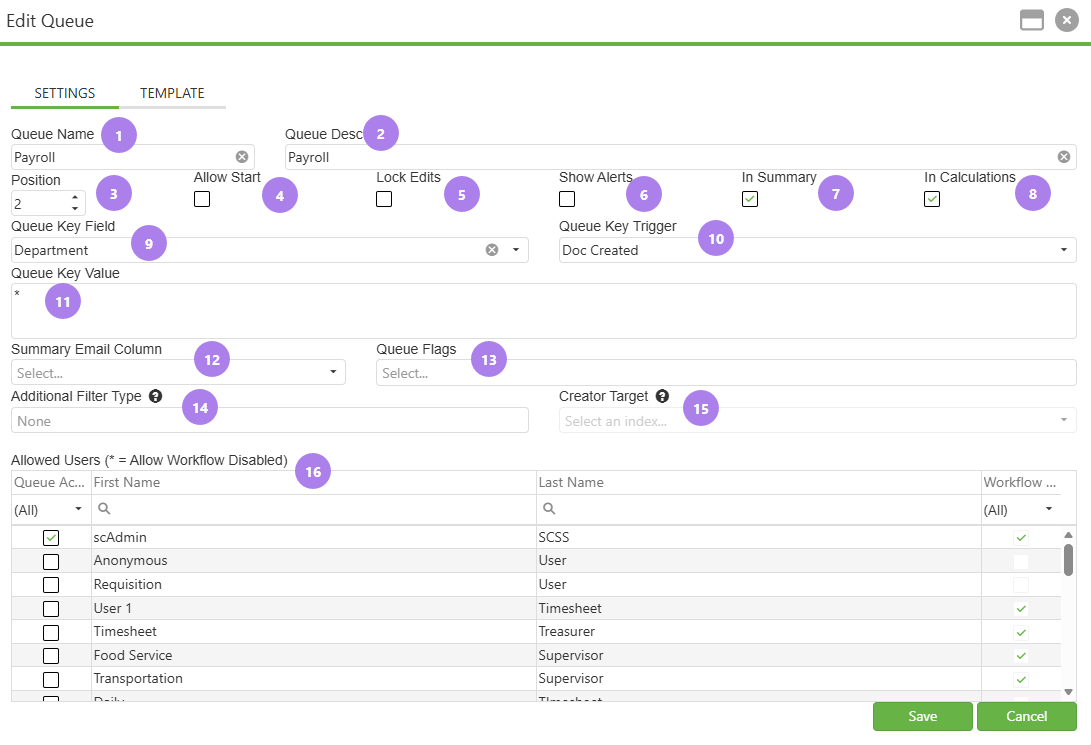
- Queue Name: Unique identifier name for the queue
- Queue Desc: Detailed description of queue purpose.
- Position: Numerical placement within the workflow.
- Allow Start: Check this if a document will start in this queue.
- Lock Edits: Restricts users from making edits while document is in this queue.
- Show Alerts: Used for notifications.
- In Summary: Documents in the queue will be included in the Workflow Summary email.
- In Calculations: Checks balances against what funds are available (Leave Balance, Requisition Account Balance, etc.)
- Queue Key Field (if Allow Start is checked): This field provides a dropdown to select an index value. The available dropdown options are dynamically populated from the Document Type Indexes of those document types allowed in the queue. Common Selections: DeliverToVendorNo for Requisitions, Department if USPS or Mileage, or a unique entry for forms.
- Queue Key Trigger (if Allow Start is checked): DocCreated.
- Queue Key Value (if Allow Start is checked): Vendor number for Requisitions, department name if USPS or Mileage, or a unique entry for forms.
- Summary Email Column: A field to evaluate when determining who should be sent the notification for this queue (this is not often used, as notifications are likely set within action buttons).
- Queue Flags: Used to set as an Archive queue or displaying documents in the queue on the calendar.
- Additional Filter Type: Used to filter the queue further. If User is selected, only the creator of a document can see it in the workflow queue. If Supervisor is selected, only individuals with Report View matching one of the creator's departments can see the docuemnt.
- Creator Target: Select a document type index. If its contents match an existing user's information, then the matched user is considered to be the document's creator. This is an override. For more information, see Workflow: Additional Filter Type and Creator Target.
- Allowed Users: Users you wish to have permission to this queue.
Note: User must also have proper Doc Type permissions and access to Workflow under their user.
3. If desired, create a Form Template for the queue by clicking the Template tab.
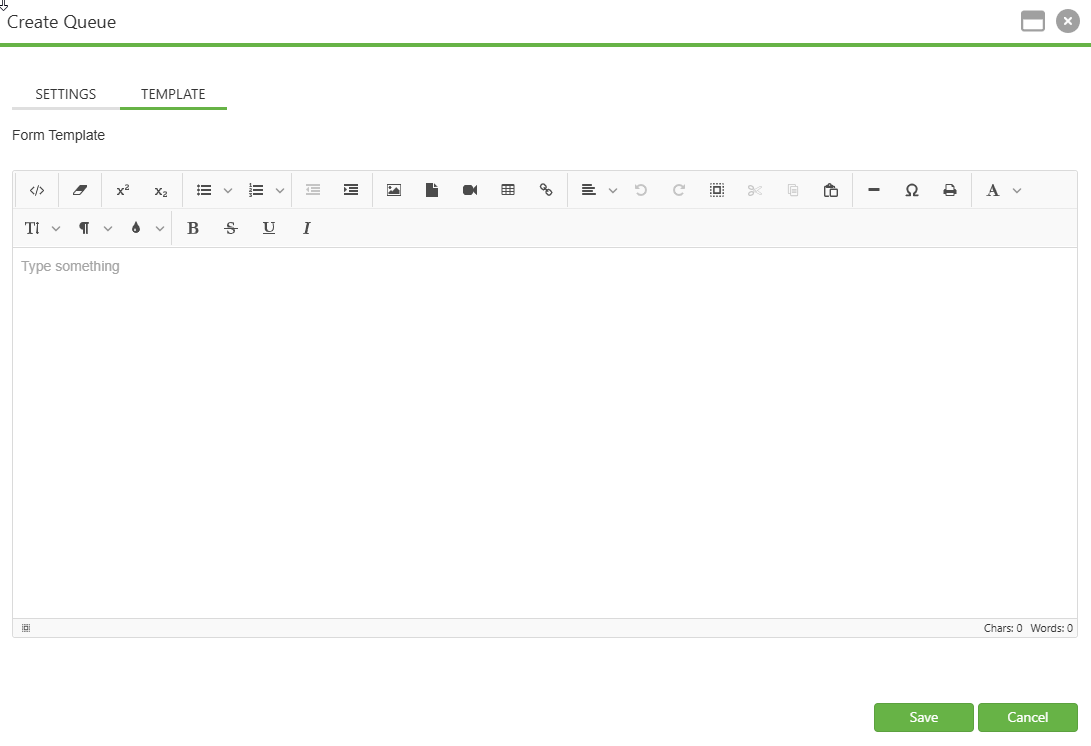
What is a Form Template? - A Form Template is a special webpage that can be accessed through notification emails sent out by SCView. An admin has complete control over the template and can customize it with a number of powerful, baked-in macros. This feature, called Workflow Forms, is usually used in the FIS portion of SCView, where the notification links allow administrative officers, like treasurers, to drill down to an executive summary of a financial packet with a single mouse click.
Macros
SCView features a number of baked-in macros for customizing a form template with useful components quickly and easily. These macros are:
{{DocumentImages}} = An image viewer showing the pages of the document and basic zoom controls
{{WorkflowHistorySmall}} = A control that shows the same history auditing items that are visible in Workflow
{{DatabaseText}} = Name of the database itself
{{DocumentsId}} = ID number of the document
{{DocumentSearchURL}} = Displays a direct link that can be used to return to the document
{{QueueName}} = The name of the queue containing the document
{{QueueDescription}} = The descriptive text of the queue containing the document
{{QueueActionNotes}} = Renders as an editable memo box
{{QueueActionButtons}} = Reproduces the queue action buttons usually seen in the top right corner of the Workflow UI; actions with Show in Form View = no are excluded.
{{QueueActionMenu}} = Reproduces the queue actions usually seen in the top right corner of the Workflow UI as a dropdown list instead; actions with Show in Form View = no are excluded.
{{QueueDate}} = The time at which the document entered the current queue
{{LineItems}} = Displays the line items of the document if the parent document type's LineItemSource = InvoiceLines; lines are editable and are saved when a queue action is applied via {{QueueActionButtons}} or {{QueueActionMenu}}.
Creating a new queue action button
1. Click Add Action to create an action button in the queue. 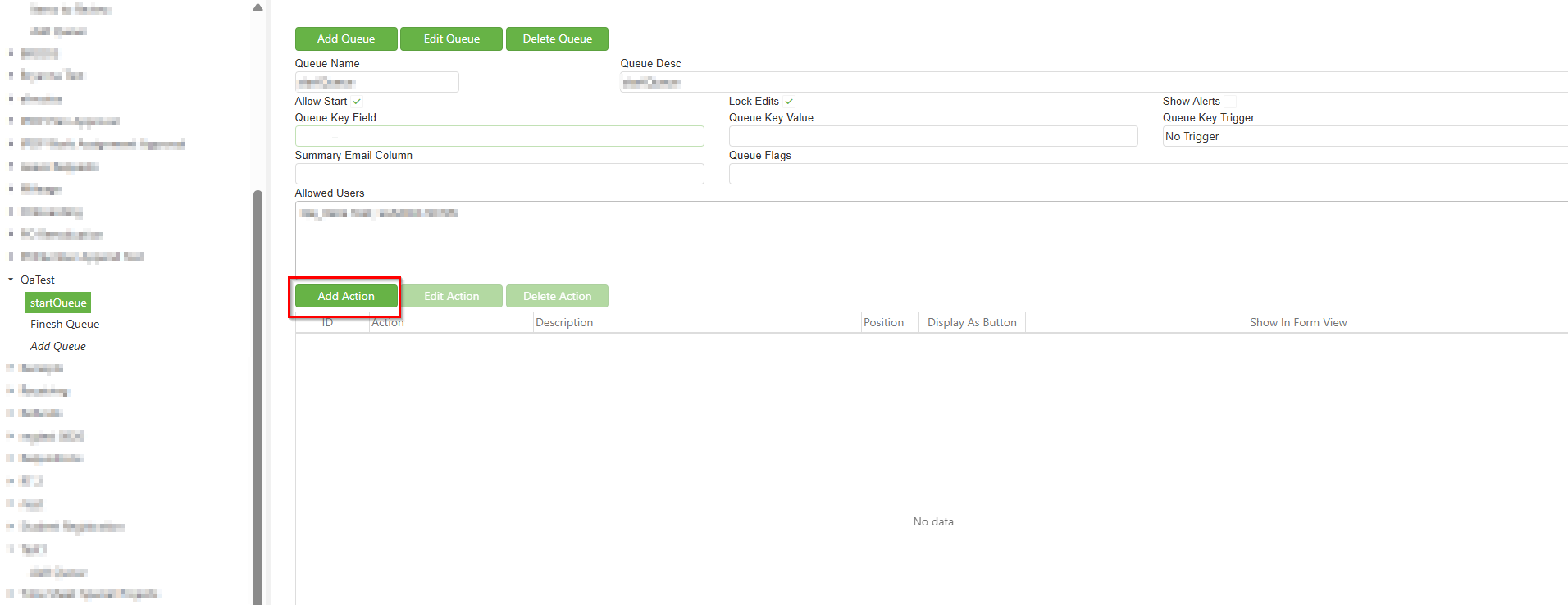
2. The Create Queue Action window will open, showing various options. Fill in desired settings and click Update and then Save.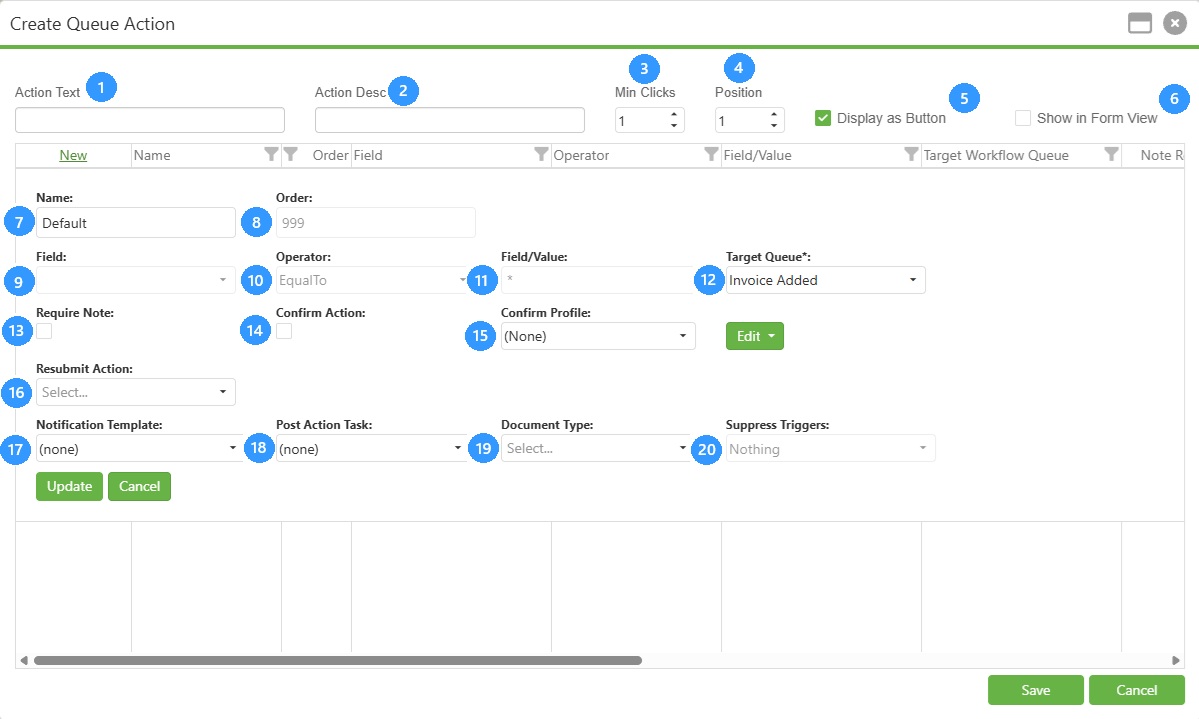
- Action Text: Name of button.
- Action Desc: Description of button function (usually same as name).
- Min Clicks: Minimum number of clicks of the action button required to perform the queue action (default is 1).
- Position: Placement of button.
- Display as Button: If unchecked, will not show as button but as a drop down.
- Show in Form View: If checked, the particular action will show in Workflow Form.
- Name: Name of action rule (usually Default unless multiple rules are added).
- Order: The order of operations for the rules.
- Field: Index to use in formula.
- Operator: Operator to use in formula.
- Field/Value: Value to use in formula.
- Target Queue: To which queue the button/action will send the document.
- Require Note: This requires approver to leave note upon clicking button.
- Confirm Action: If checked, will prompt pop-up to confirm action (This must be selected to Require Note).
- Confirm Profiles: Leave as (none).
- Resubmit Action: Documents returned from this queue will be resubmitted into the queue set here.
- Notification Template: Chosen email notification will send (within 1 hour) when button/action is clicked.
- Post Action Task: Append To always adds the pages to the end of the document. Prepend To always adds the pages to the beginning of the document. Whichever option you have selected determines the action taken.
- Document Type: The document type to which you wish to create the new copy.
- Suppress Trigger: Stops any of the selected triggers from firing when the action occurs.
3. Repeat these steps until all desired buttons/actions have been created.
Editing Queues and Queue Actions
After creating a queue or action button, you can modify its settings or delete it.
To edit a queue:
- Select the queue from the workflow in the left panel.
- Click Edit Queue.
- Modify the desired settings.
- Click Save.
To edit a queue action button:
- Select the queue containing the action button.
- Select the action button from the action list.
- Click Edit Action.
- Modify the desired settings.
- Click Update and then Save.
Available Queue Actions:
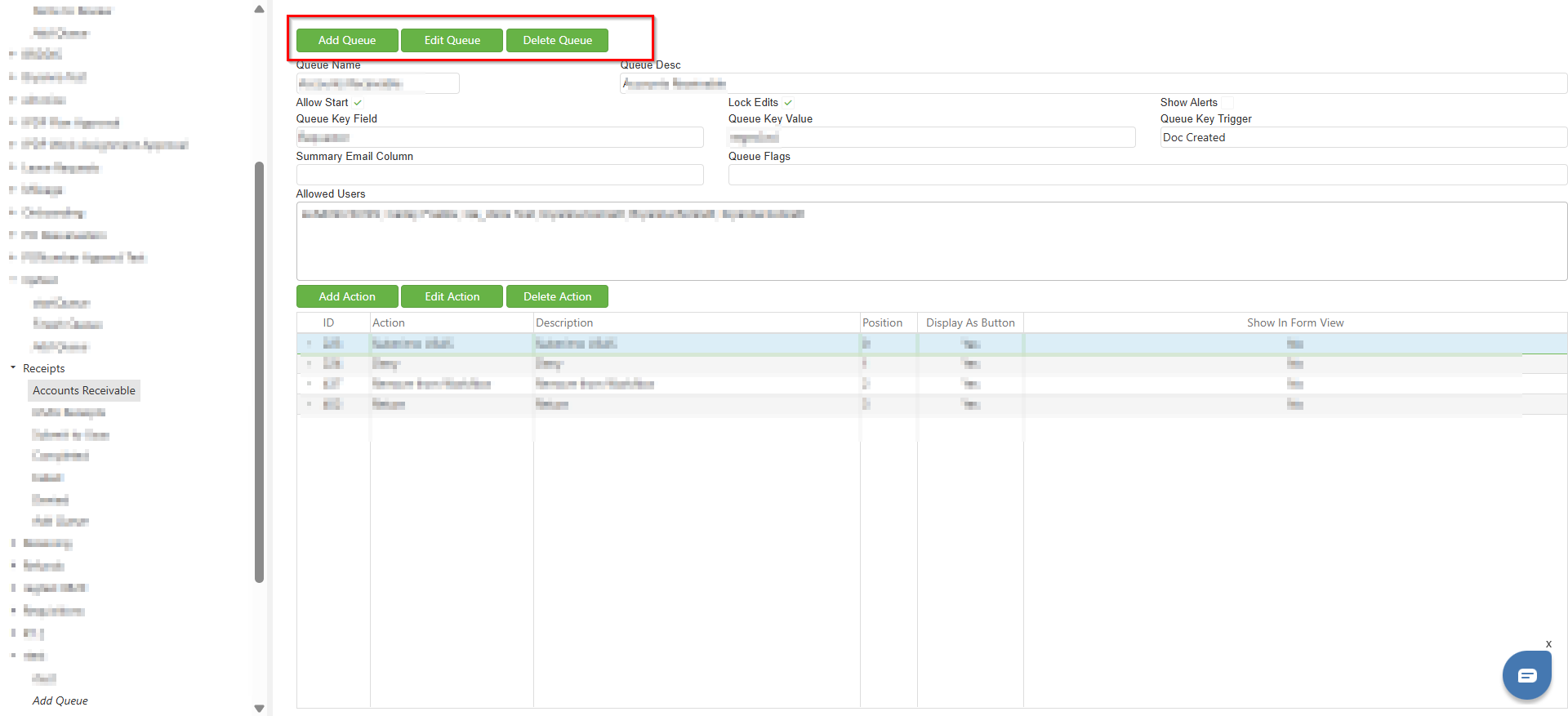
Add Queue - This button will allow you to create another queue within the workflow.
Edit Queue - This will pull up a similar window as when creating a queue, but will be labeled Edit Queue.
Delete Queue - This will permanently delete the queue.
Available Action Button Options:
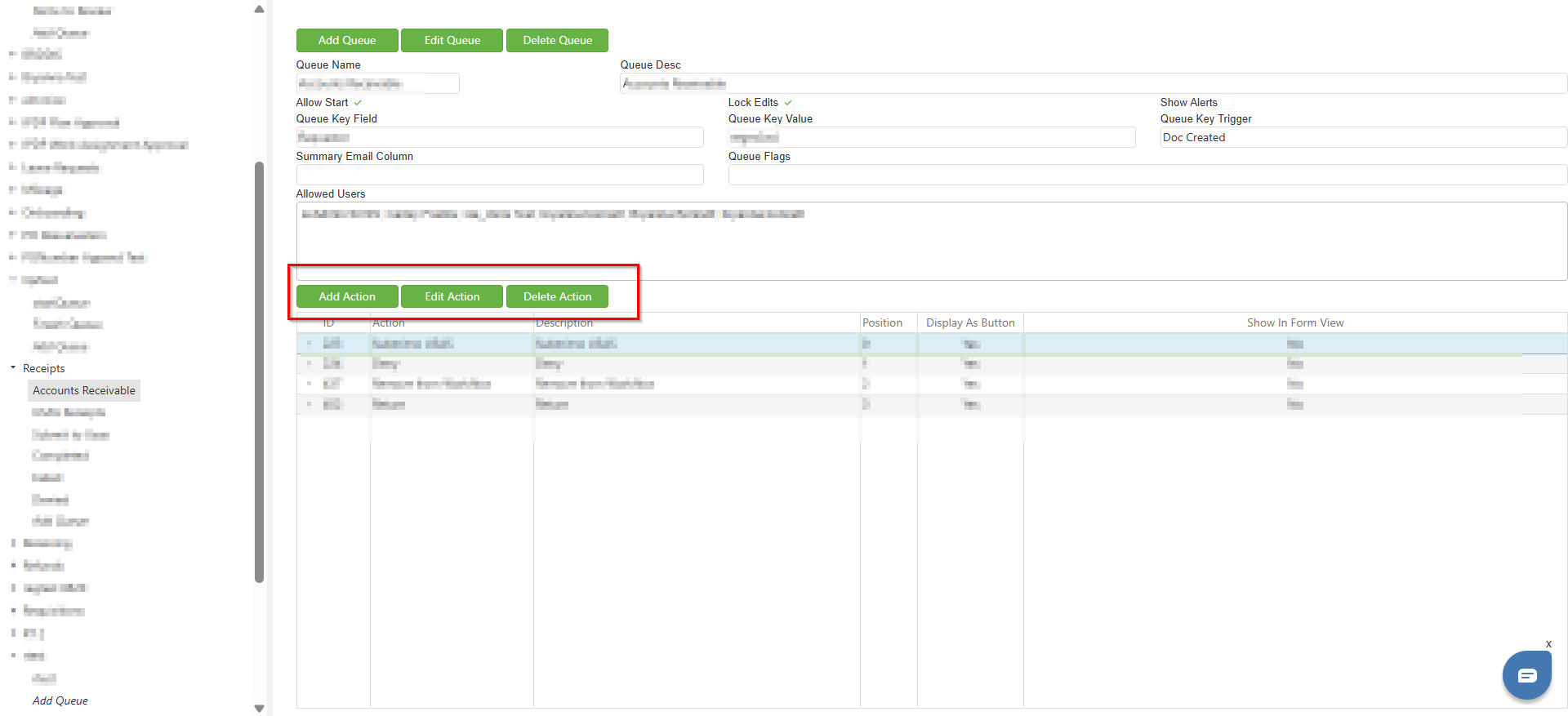
Add Action - This button will allow you to create another action button within the queue.
Edit Action - This will pull up a similar window as when creating an action, allowing you to modify settings.
Delete Action - This will permanently delete the action button.
C. Best Practices
Clear Naming Conventions:
- Use descriptive names for queues and action buttons that clearly indicate their purpose to avoid confusion and enhance ease of navigation (e.g., "01-Submitted", "02-Manager Review", "Approve", "Return for Revision").
Logical Queue Positioning:
- Number queues sequentially to reflect the actual workflow progression. This makes it easier to understand the document flow.
Button Labels:
- Use action-oriented labels that clearly describe the outcome when the button is clicked (e.g., "Approve", "Deny", "Submit to Finance").
Permission Management:
- Only grant queue access to users who need it for their role. Regularly review and update permissions as job functions change.
Notification Configuration:
- Configure notification templates thoughtfully to ensure users receive timely and relevant alerts without being overwhelmed by unnecessary emails.
D. Troubleshooting
Problems with Queue Actions:
- If action buttons do not perform as expected, ensure that the settings align correctly with the intended workflow path, and double-check that all target queues exist and are active.
Min Clicks Configuration Issues:
- If Min Clicks is set to a value greater than 1, the Target Queue cannot be set to the current queue and the Confirm Profile must be set to (None).
Users Cannot See Queue or Take Actions:
- Verify user is added to the queue's Allowed Users. Confirm user has proper Doc Type permissions. Ensure Workflow access is enabled in user profile.
Require Note Not Working:
- To use Require Note, you must also check Confirm Action. Ensure both options are enabled for the note requirement to function properly.
Documents Not Routing Correctly:
- Verify the Target Queue is set correctly in the action button configuration. Check that the Field, Operator, and Field/Value settings in the rule configuration are correct. Ensure the target queue exists and is active within the workflow.
Notifications Not Sending:
- Confirm a Notification Template is selected in the action button settings. Note that email notifications send within 1 hour of the action being clicked. Verify the user has a valid email address configured in their profile.
E. Related Articles.
Workflow: Overview
Workflow Rules: Allow Attachments to Requeue on Submit
Conclusion
Efficient management of queues and queue action buttons within SCView is crucial for ensuring smooth document routing and approval processes. By following the guidelines provided in this guide, administrators can confidently configure queues and action buttons to meet organizational needs. With these best practices and troubleshooting tips, you can enhance the functionality and responsiveness of your SCView workflow setup, promoting a more organized and productive workflow environment.