 | ||
Introduction
This article provides an overview of the process for importing contacts to the Manage Contacts grid. Users often experience import errors due to incorrect file formats, improper column header naming, or column ordering issues—leading to failed imports or mismapped data. This guide outlines the correct steps and best practices to ensure a successful contact import.
A. Problem Statement
Users frequently encounter errors when importing contacts due to incorrect file formats, improper column header naming, or column ordering issues. These errors result in failed imports, data mapping to wrong fields, or the need to manually re-enter contact information.
B. Solution
To follow along with this guide, please use the main navigation bar to navigate to Tools > Manage Contacts.
Step 1: Click Import Contacts
To begin, click the green Import Contacts button located on the right, above the Manage Contacts grid. This will call up the Import Contacts popup.
Image: Manage Contacts Import Contacts

Step 2: Select or Drop Contacts File
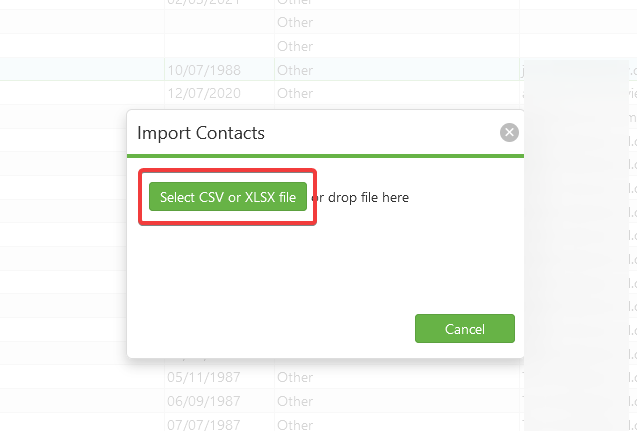
The Import Contacts popup contains a green button labeled "Select CSV or XLSX file". Click this button, then select a file to upload. Only .csv and .xlsx files are acceptable file formats for this process.
Image: Import Contacts Popup
NOTE: The choice of header names in the spreadsheet file uploaded is important, as
SCView maps columns of data in the spreadsheet to its own columns based on those names.
If creating your own spreadsheet for import, please follow the guidelines listed below
to select appropriate column headers.
Contact ID - Header containing "Id"
First Name - Header containing "First" or "Given"
Middle Name - Header matching "mi" or containing "Middle"
Last Name - Header contains "Surname", "Last", or "Family"
Date of Birth - Header matching dob or containing "Birth"
Email - Header containing "Email" or "E-mail"
Phone - Header containing "Phone" or "Cell"
Category - Header containing "Category"
Step 3: Verify Contacts
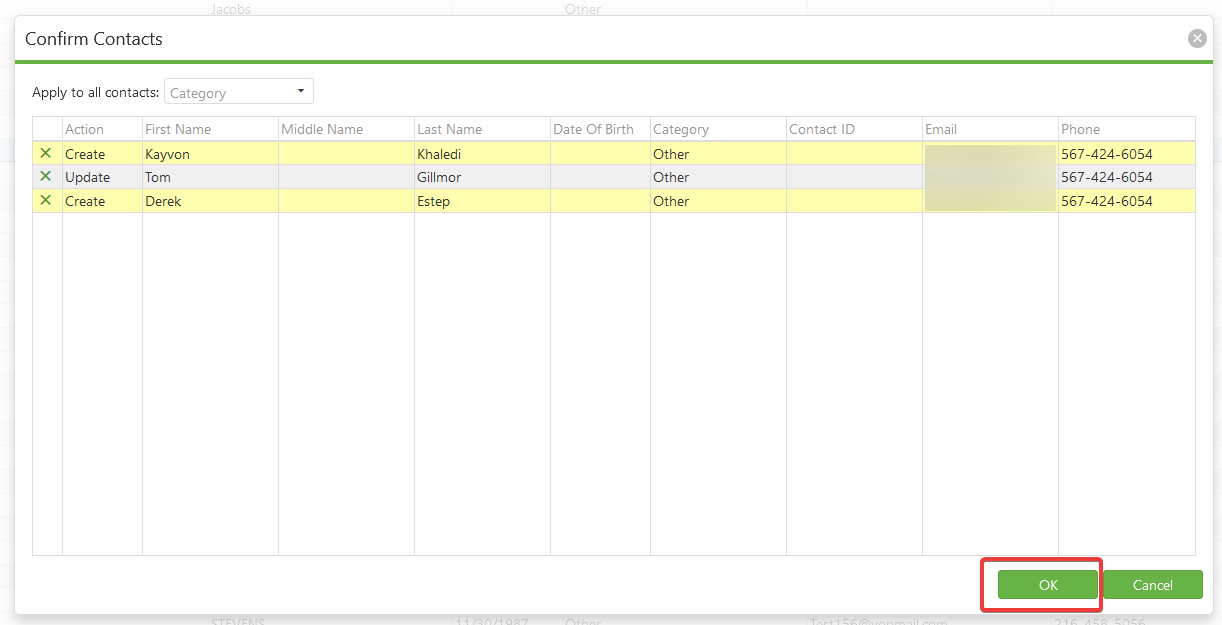
Once the chosen file is uploaded, the Confirm Contacts popup appears. This is dominated by a grid showing how the Manage Contacts import function has parsed the provided spreadsheet. Look over the data rows presented and verify that they feel correct. If any edits need to be done, simply click a field and make the edit directly in the grid.
3. Verify contacts. Any edits that need to be made can be done by double clicking a field. Click OK to upload.
NOTE: For the Action field, if it says Update, it means the contact already exists
with the same name. We can change to Create or Ignore if needed.
Image: Confirm Contacts Popup
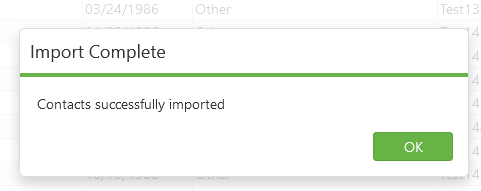
Once the file has been loaded, we will receive a popup confirming they have successfully been uploaded. Contacts will now be found in the Contact Manager screen.
Image: Import Confirmation Dialog
C. Best Practices
- Place the Contact ID column first in your import file. This ensures that SCView correctly maps the Contact ID data and prevents conflicts with other column headers during the import process.
- Use only .csv or .xlsx file formats. These are the only acceptable file types for importing contacts. Other formats will not be recognized by the system.
- Follow the recommended header naming conventions. SCView maps spreadsheet columns based on header names. Using headers that contain the specified keywords (e.g., "First" or "Given" for First Name, "Email" or "E-mail" for Email) ensures accurate data mapping.
- Review and verify your data before finalizing. Always use the Confirm Contacts popup to review how your data has been parsed and make any necessary edits directly in the grid before completing the import.
D. Troubleshooting
- If an import results in middle names populating the Contact ID column, this is likely because the import file has the Contact ID column after the Middle Name column. Under current matching rules, the "id" in "Middle" will trigger a match for the "Contact ID" column because we look for it first. Having the Contact ID column all the way to the left will ensure this doesn't happen.
E. Related Articles
Manage Contacts: Contacts Manager
Manage Contacts: Group Management
Manage Contacts: Contact Categories
Conclusion
By following the import process outlined above, you can efficiently add multiple contacts to SCView in just a few steps. Remember to format your spreadsheet headers correctly and verify all data before finalizing. This streamlined approach saves time and ensures your contact data is accurately imported into the system. Start importing your contacts today to keep your contact management organized and up-to-date.
Was this article helpful?
That’s Great!
Thank you for your feedback
Sorry! We couldn't be helpful
Thank you for your feedback
Feedback sent
We appreciate your effort and will try to fix the article