 | ||
Introduction
The Job Management System provides a streamlined interface for creating, managing, and editing employment opportunities within your organization. This comprehensive platform allows administrators to organize jobs by department, maintain consistent posting standards, and efficiently manage the entire job lifecycle from creation to expiration. The system features persistent user preferences, intuitive filtering capabilities, and a straightforward workflow that ensures all job postings meet organizational requirements while remaining accessible to qualified candidates.
A. Problem Statement
Organizations often face significant challenges in managing job postings across multiple departments, resulting in inefficient recruitment processes and missed opportunities. Without a centralized system, administrators struggle with inconsistent job posting formats and incomplete information that leads to candidate confusion and poor application quality. The lack of department-based organization makes it difficult to track and manage positions across various divisions, while the absence of persistent user preferences means valuable time is lost reconfiguring filters and settings when switching between devices or sessions.
B. Solution
Create a new Job
Step 1: Select the department under which the job should be created by clicking once on the department under the Department category (for instance: Athletics is selected since the user wishes to create a job for the Athletics department).
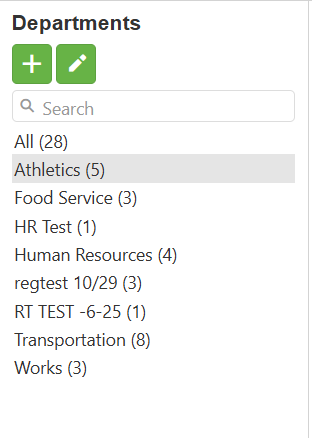
When clicking on the required department, all previously created jobs for that department are shown on the right side.

Managing Your Filter Preferences
- Persistent Filter/Sort Settings: Your filtering and sorting preferences are automatically saved to your profile and restored even after logging out, clearing browser cache, or accessing from different devices
- Clear Filter Button: Quickly reset all active filters while maintaining your saved preferences
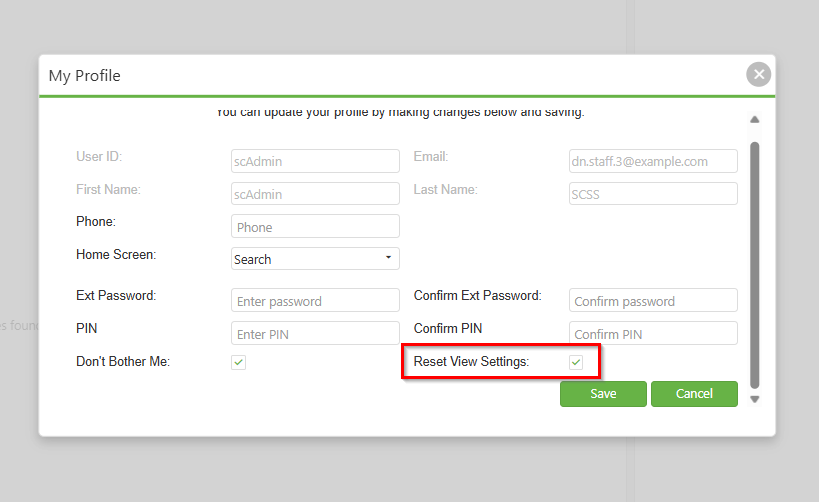
- Reset View Settings: A profile option to restore default view settings when needed
- Independent Tab Filtering: Filters on the Jobs tab operate independently from the Candidates tab
Clear Current Filters
- Click the green Clear Filter button to temporarily remove all active filters while maintaining your saved preferences for future sessions.

Reset to Default View
To permanently reset your view preferences:
- Navigate to My Profile
- Check the Reset View Settings checkbox
- Click Save
- Refresh the page
This will:
- Clear all saved filtering and sorting preferences
- Reset the Posted column to sort by newest first (default)
- Return all columns to their default sorting order
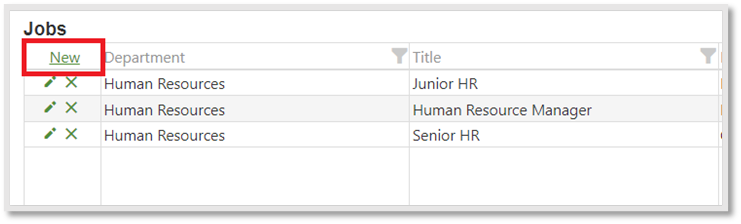
Step 2: Click on the New hyperlink which is on the Job Page’s Grid as illustrated below by the red outlined box.
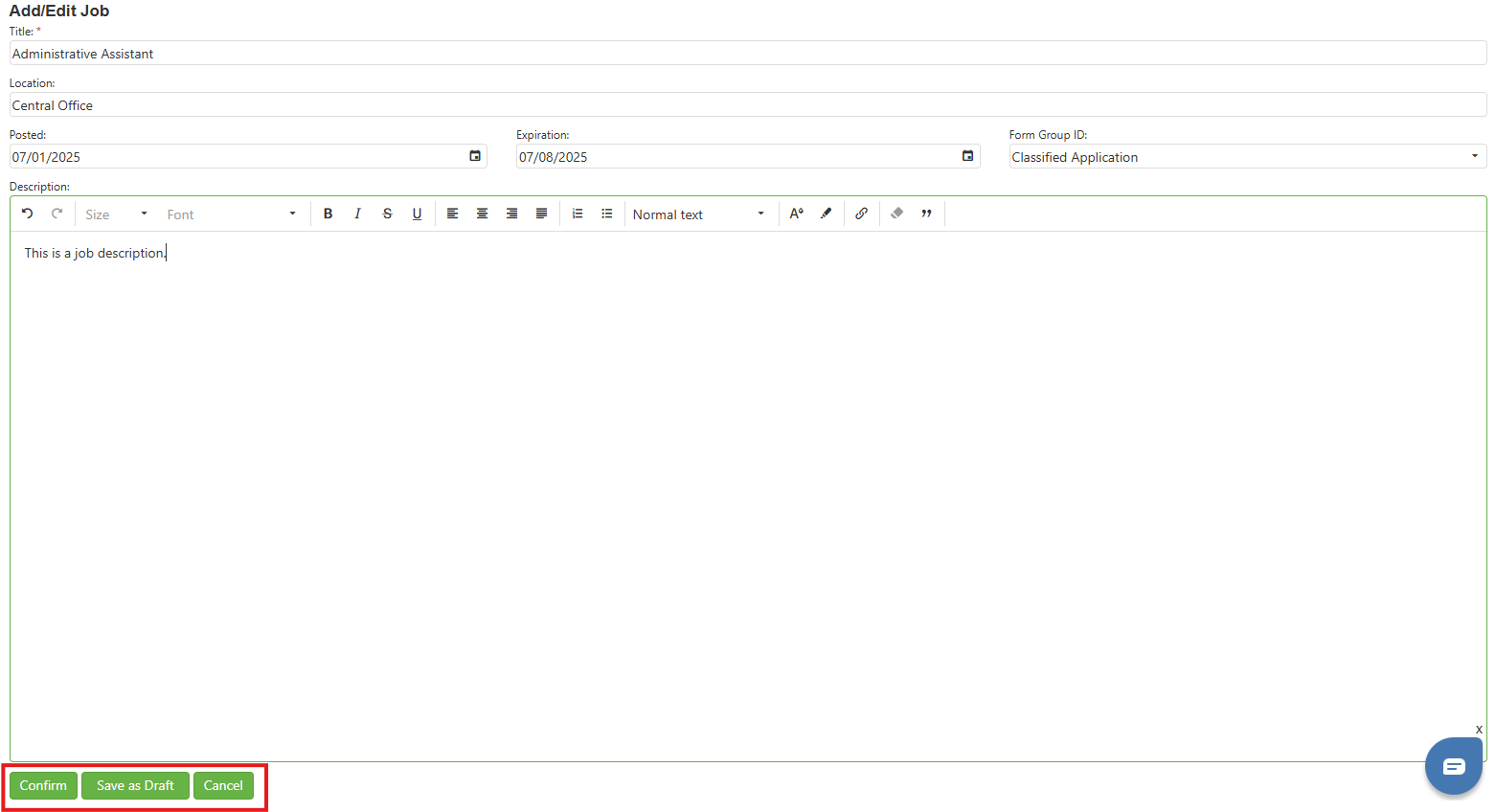
Step 3: Complete the following fields:
Note: All required fields have an asterisk (*). Required fields are required by both Confirm and Save as Draft. In addition to those marked, Confirm requires Posted, Expiration, and Form Group ID.- Title*: Type the job name along with the title (designation of the post) (for instance: Human Resource Manager).
- Location: Type the location where the job will be performed (for instance: Norwalk, Ohio).
- Posted: Select the date and time at which the job is posted on the Seeker View page using the Date Picker icon
 .
. - Expiration: Select the date and time at which the job posting should be expired using the Date Picker icon

- Form Group ID: Select the type of contract the candidate will be classified under during their period in the organization using the dropdown box. This list will be in alphabetical order.
- Description: Type the Description (Job Description, Salary, Roles and Responsibilities and etc.) required for the Job.
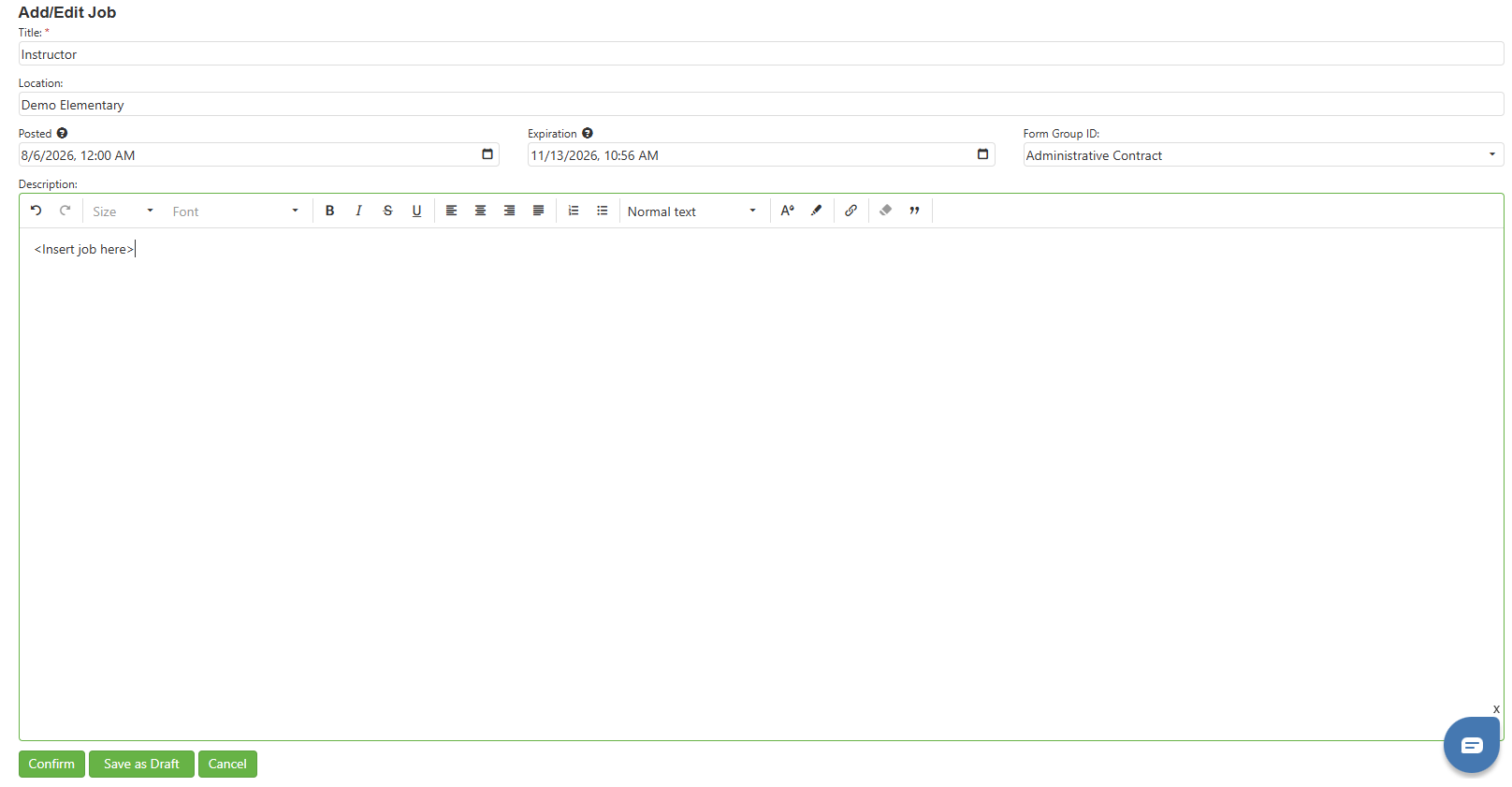
Step 4: Click on the Confirm button to add the job OR Click on the Cancel button if the user does not wish to add the job OR Save as Draft to finish later.
Edit an existing Job
Step 1: Select the Edit (pencil) icon which is on the Job page’s Grid (as indicated below by the red outlined box) to edit an existing job.

Step 2: Make the necessary changes to the Job posting and click on the Confirm button to save the changes OR click on the Cancel button if the user does not wish to save the changes. To save changes without submitting the job, use the Save as Draft button.
C. Best Practices
- Always select the correct department first before creating a new job to ensure proper categorization and visibility to the right team members
- Complete all required fields marked with asterisks (*) and use descriptive job titles that include both the role name and designation for clarity
- Set realistic posting and expiration dates using the date picker tools, considering your recruitment timeline and organizational needs
- Utilize the Save as Draft feature when you need to gather additional information or get approvals before publishing the job posting
D. Troubleshooting
- Cannot save a job posting: Verify all required fields (marked with *) are completed; for Confirm action, also ensure Posted, Expiration, and Form Group ID fields are filled
- Previously created jobs not visible: Check your filter settings and use the Clear Filter button to temporarily remove all filters, then verify you've selected the correct department
- Job not appearing on Seeker View page: Verify the Posted date is current or in the past, the Expiration date hasn't passed, and the job was Confirmed rather than Saved as Draft
- Cannot find Form Group ID option: Form Group IDs are listed alphabetically in the dropdown; scroll through the entire list or contact your administrator if the required option is missing
E. Related Articles
Conclusion
The Job Management System provides a robust, user-friendly solution for organizations to efficiently manage their recruitment processes. By following the outlined procedures and best practices, users can create professional job postings, maintain organized department structures, and ensure consistent candidate experiences.
Was this article helpful?
That’s Great!
Thank you for your feedback
Sorry! We couldn't be helpful
Thank you for your feedback
Feedback sent
We appreciate your effort and will try to fix the article