
 | ||
Introduction
SCView seeks to be everything an organization needs to organize itself, and as organizations have different opinions on how best to do that, SCView happily supports all of those opinions at once. Within the Leave module, three methods of time entry are supported, and each of these can potentially have different rules if the organization uses Hours or Days as the Leave unit of record. Suffice it to say, things can get complicated rather quickly.
This guide will assist the user in identifying which method of Leave time entry is used by their organization, and then instruct the user on how to use that method for both Daily and Hourly leave.
A. Problem Statement
This guide is meant to help users that are unsure how to input Leave Lines at their organization, or have other questions about how Leave functions, but cannot ask the appropriate question because they are unsure which Leave entry type is in use.
B. Solution
To make use of this guide, add a Leave Line to a Leave Request and compare the Modify Leave Amount popup to the images included below in Steps 1, 2, and 3, with particular attention paid to the circled rows. The image whose circled row matches that same row in your Modify Leave Amount popup is the Leave time entry method that your organization uses. Read that Step, as well as Step 4, for full details on how to input time for a Leave Line.
This guide assumes that the user has some familiarity with the Add/Edit Leave popup. If necessary, cross reference with Leave: How to Use the Leave Form for additional details.
Step 1: "Classic" Time Entry
Classic Time Entry is the simplest Leave time entry method supported by SCView. It is automatically enabled if neither Partial Time Entry (Use 'Partial Time' Time Entry setting), nor Full Time Entry (Use Time Entry setting), are enabled in Admin > Site Settings > Payroll.
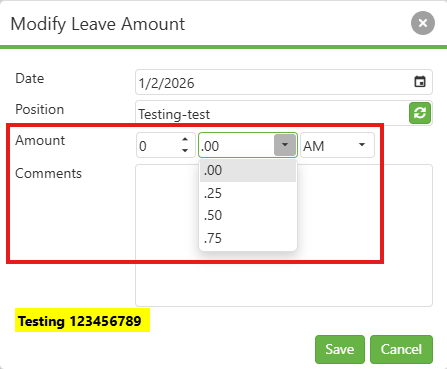
When adding a Leave Line with Classic Time Entry, the Modify Leave Amount popup looks like the image below. The Amount row, which contains three fields, sets the amount of leave being requested.
- First Field - This field sets the number of "leave units" being requested. If the user's Leave is measured in Days, then a 1 requests a full day; conversely, if the user's Leave is measured in Hours, then a 1 requests a full hour.
- Second Field - This field sets fractions of a "leave unit". The exact fractions allowed are set by database admins, so your dropdown may vary. Using the image below as an example, selecting 0.25 requests a quarter of a day if the user's Leave is measured in Days, or a quarter of an hour if it is measured in Hours.
- Third Field - This field is a dropdown that selects AM or PM. Since Classic Time Entry does not actually indicate when a Leave will happen, but rather merely how many hours is being requested, it clarifies whether the Leave requested is in the morning (AM) or the afternoon (PM).
Image: Classic Time Entry Leave Line Entry
Step 2: "Partial" Time Entry
Partial Time Entry is the middle ground Leave time entry method supported by SCView. It is less restrictive than Full Time Entry, but collects more information than Classic Time Entry. Partial Time Entry is enabled if the Use 'Partial Time' Time Entry setting is enabled in Admin > Site Settings > Payroll.
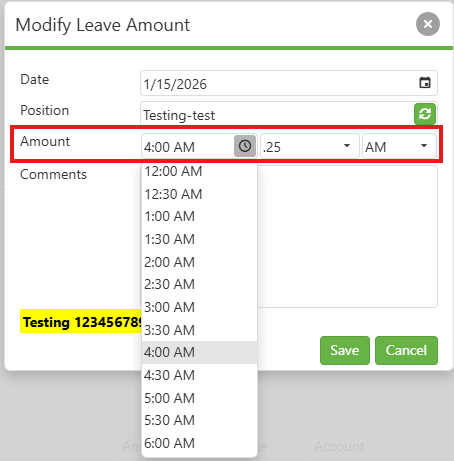
When adding a Leave Line with Partial Time Entry, the Modify Leave Amount popup looks like the image below. The Amount row, which contains three fields, sets the amount of leave being requested.
- First Field - This dropdown field sets the beginning of the user's Leave. Simply select the time of day that corresponds to the beginning of the Leave Line. For example, a user with a 9-5 schedule taking half a day off in the morning will begin by setting this field to 9:00AM.
Please note that the graduation of the first field's dropdown is set by database admins; your dropdown may measure time in quarter hours, hours, or even every five minutes. Our example, below, has graduations of every thirty minutes. - Second Field - This dropdown field sets the fraction of day the user is requesting off. For example, if the user requests 0.25, this will be interpreted as 0.25 days for a user whose Leave is measured in Days, or 2 hours for a user whose Leave is measured in Hours.
- Third Field - This dropdown field designates the Leave as primarily taking place in the AM or PM hours.
Image: Partial Time Entry Leave Line Entry
Step 3: "Full" Time Entry
Full Time Entry is the most restrictive Leave time entry method supported by SCView. Full Time Entry is enabled if the Use Time Entry setting is enabled in Admin > Site Settings > Payroll.
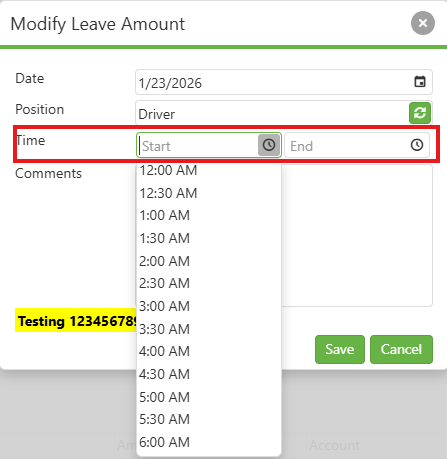
When adding a Leave Line with Use Time Entry, the Modify Leave Amount popup looks like the image below. The Amount row, which contains two fields, sets the amount of leave being requested.
- First Field - This dropdown field sets the beginning of the user's Leave. Simply select the time of day that corresponds to the beginning of the Leave Line.
- Second Field - This dropdown field sets the end of the user's Leave. Simply select the time of day that corresponds to the end of the Leave Line.
Please note that the graduation of the dropdowns is set by database admins; your dropdowns may measure time in quarter hours, hours, or even every five minutes. Our example, below, has graduations of every thirty minutes.
The system will take the strictly-defined Start and End times provided by the user and calculate a number of days for a user with Leave measured in Days, or a number of hours for a user with Leave measured in Hours, as appropriate.
Image: Full Time Entry Leave Line Entry
Step 4: Time Entry Validation
Time Entry Validation is an additional feature enabled by the Enable Time Entry Validation setting in Admin > Site Settings > Payroll. When this feature is enabled, submission of a Leave request will fail if the total number of hours requested across all of the user's Leave Requests is greater than the number of Hours Per Day the user works daily, as defined by USPS.
Image: Failing Time Entry Validation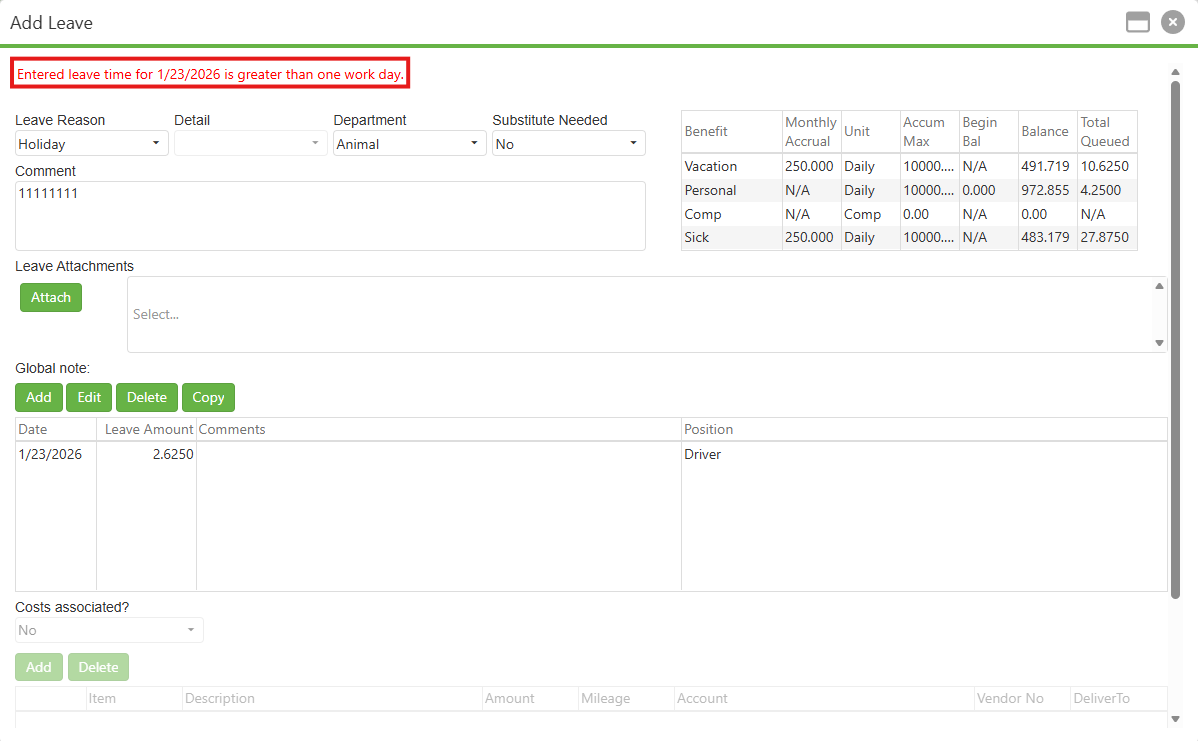
C. Best Practices
- Make it a priority to learn what your organization uses as its standard Leave unit: hours or days. If using Classic Time Entry, this massively alters how the user is expected to use the Modify Leave Amount form.
- The spacing of the Time fields in Partial Time Entry and Full Time Entry should be aligned with Payroll if rounding is used. For example, if hourly employees have their start and end times rounded to the nearest quarter hour, then both Full Time Entry fields and the first Partial Time Entry field should be set to use graduations of every 15 minutes.
D. Troubleshooting
- Leave submission can be blocked by validation against taking too many hours in a single day, or by not having enough Leave left. Pay attention to the error message, and contact a local Admin, or Support, if a red error message does not make sense.
- The Amount (or Time for Full Time Entry) fields require the rest of the Modify Leave Amount popup to be filled out before they become enabled. Remember to set the Date and your Position before trying to get to the nitty gritty of your hours off.
E. Related Articles
Leave: How to Use the Leave Form
Conclusion
You have now identified which Leave time entry method your organization uses—Classic, Partial, or Full. With this knowledge, you can accurately submit leave requests, avoid common errors, and help colleagues who may be confused about the system. If you encounter issues beyond what this guide covers, remember to check the error messages carefully and contact your local administrator or Support for help. Understanding your organization's specific Leave entry method is the key to efficiently managing your time off in SCView.