 | ||
Introduction
The Department Management feature within the SCView Hiring Module enables school administrators and HR personnel to organize and categorize job openings by department. This functionality is essential for structuring your school's recruitment efforts, streamlining the application process, and ensuring proper routing of job postings through appropriate approval channels. By organizing positions into departments such as Food Service, Human Resources, or Accounting and Finance, schools can maintain a clear hiring structure that reflects their organizational needs.
A. Problem Statement
School districts and educational institutions face unique challenges when managing multiple job openings across various departments. Without a properly configured departmental structure in the hiring system, schools struggle with difficulty organizing and categorizing diverse job postings from teaching positions to support staff roles. This creates confusion for applicants trying to find relevant positions within their area of expertise and leads to inefficient approval workflows when new departments are added without proper integration.
B. Solution
The SCView Hiring Module's Department Management system addresses these educational staffing challenges by providing a comprehensive suite of tools designed specifically for school recruitment needs.
Create a new Department
Note: If you intend to add new departments after the initial setup, you may require assistance from our Support team to ensure these departments are correctly integrated and assigned to an approver. If you are not familiar with creating or modifying workflows, we highly recommend seeking support to facilitate this process.
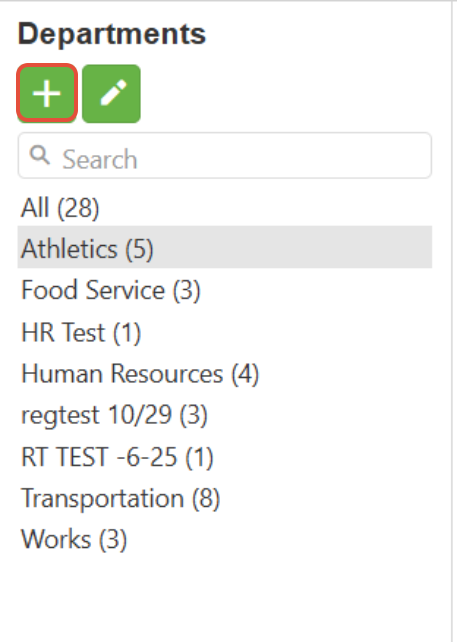
Step 1: Select the Add (+) icon in the left corner of the screen as illustrated below by the red outlined box.
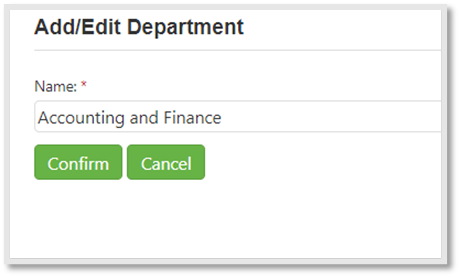
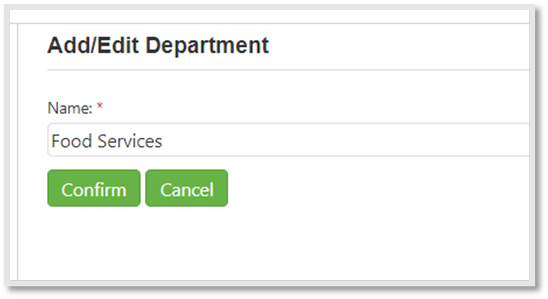
Step 2: Enter the required name on the textbox (for instance: Accounting and Finance) and click on the Confirm button to add the Department OR Click on the Cancel button if the user does not wish to add the new Department.
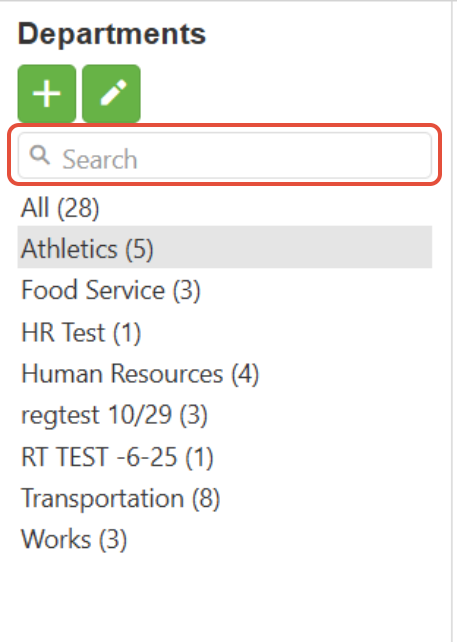
Note: All the created Departments will be listed beneath the search bar of the Departments. 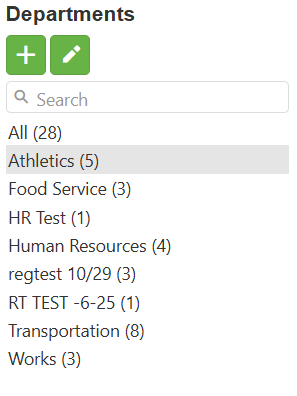
- All (28) indicates that, in total, twenty-eight Jobs have been created.
- Department (#) refers to the number of jobs created for that specific Department. For instance: 3 jobs have been created for the Food Service Department and 4 jobs have been created for the Human Resources Department.
Edit an existing Department
Step 1: Select the Edit (pencil) icon as indicated below by the red outlined box to edit an existing Department.
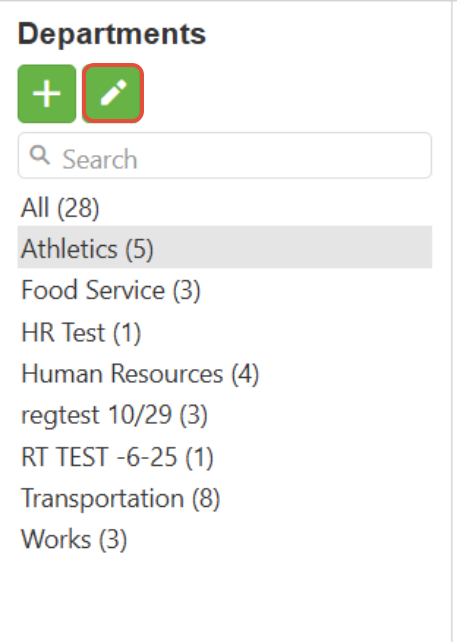
Step 2: Having clicked on the Edit button, the selected Department name will appear on the textbox. Make the necessary changes to the department name and click on the Confirm button to save the changes OR click on the Cancel button if the user does not wish to save the changes.
Search for a Department
Enter the name of the Department that the user wants to search on the search bar as indicated below by the red outlined box.
C. Best Practices
- Align with School Structure: Create departments that mirror your school's actual organizational chart (e.g., Elementary Education, Special Education, Athletics, Maintenance, Transportation)
- Standardize Department Names: Use consistent naming that applicants will recognize (e.g., "Food Service" rather than "Nutrition" or "Cafeteria")
- Coordinate with HR and IT: Always contact Support when adding departments after initial setup to ensure proper integration with approval chains
- Consider Applicant Perspective: Name departments in ways that make sense to external job seekers browsing your openings
D. Troubleshooting
- Department name doesn't reflect recent school reorganization: Use the Edit function to update department names and ensure all active job postings are reviewed after changes
- Cannot find a specific department for a specialized position: Verify the exact department name using the search function or consider if the position might fall under a broader departmental category
- Job count appears incorrect for a department: Refresh the page to update the counter and verify that positions are correctly assigned to departments in the job creation process
E. Related Articles
Conclusion
The Department Management feature in the SCView Hiring Module is a critical component for maintaining an organized and efficient school recruitment system. By properly configuring departments that reflect your school's structure—from teaching positions to support staff roles—you create a more navigable experience for both job seekers and internal stakeholders. Remember that the success of your hiring process depends on well-organized departmental categories and properly configured approval workflows. When adding new departments or making significant changes, always engage with our Support team to ensure seamless integration and maintain the integrity of your hiring workflows.
Was this article helpful?
That’s Great!
Thank you for your feedback
Sorry! We couldn't be helpful
Thank you for your feedback
Feedback sent
We appreciate your effort and will try to fix the article