
 | ||
Introduction
Effective campaign management requires continuous monitoring and the flexibility to make real-time adjustments. The Campaign Details feature provides administrators with a comprehensive dashboard to track participant progress, manage contacts, and ensure successful campaign completion. This powerful tool transforms complex multi-contact campaigns into manageable workflows by offering granular visibility into each participant's status and providing intuitive controls for campaign optimization.
A. Problem Statement
Organizations often struggle with tracking the progress of multi-participant form campaigns, leading to incomplete submissions, missed deadlines, and administrative bottlenecks. Without proper visibility into individual participant statuses, administrators cannot identify who needs follow-up, which campaigns are stalled, or when intervention is required. Additionally, the inability to make dynamic adjustments—such as adding new contacts or resending invitations—can result in campaign inefficiencies and reduced completion rates.
B. Solution
Provide a detailed explanation of the solution to the problem. This should include step-by-step instructions to help the reader understand how to solve the problem.
View Campaign Details
- To monitor the progress or make changes, click on an active campaign and select Campaign Details.

- This view allows you to see each contact’s status (Started, Completed, Not Started, In Progress, Cancelled, Skipped or Ready to Submit) and provides options to adjust the campaign or add contacts as needed.

Campaign Details Terminology
- Not Started - The user has yet to initiate the form campaign.
- In Progress - The user has begun the form campaign but has not yet completed it.
- Completed - The user has fully completed and submitted all required parts of the form campaign.
- Ready to Submit - The user has completed all necessary forms but has not yet finalized the submission.
- Pending Review - The submitted forms are currently under review in the workflow process.
- Cancelled - An administrator or authorized staff member has terminated the campaign for either the entire group or an individual participant.
- Skipped - This status applies to individuals who were removed from the Manage Contacts page, resulting in their automatic exclusion from ongoing campaign activities. Such entries will be marked as Skipped in the Campaign Details.
Campaign Details Buttons
- Edit Campaign - This button reopens the Form Campaign Wizard, except previously entered information is already present. This effectively makes the Form Campaign Wizard function in an Edit capacity. Follow Steps 3-8, above, for instructions on each individual field.
- Invite Contact - This button brings up the Invite Contact popup, which allows for a convenient way to add a single contact to an existing form campaign. Simply choose the desired contact from the dropdown dialog and click OK to confirm.
 When a contact is added to a Form Campaign, by either the use of Invite Contact or by adding contacts on a second pass through the Form Campaign Wizard, the following toast message will appear on the screen. These new contacts will have Form Campaign materials sent to them within 15 minutes.
Right-Click Options
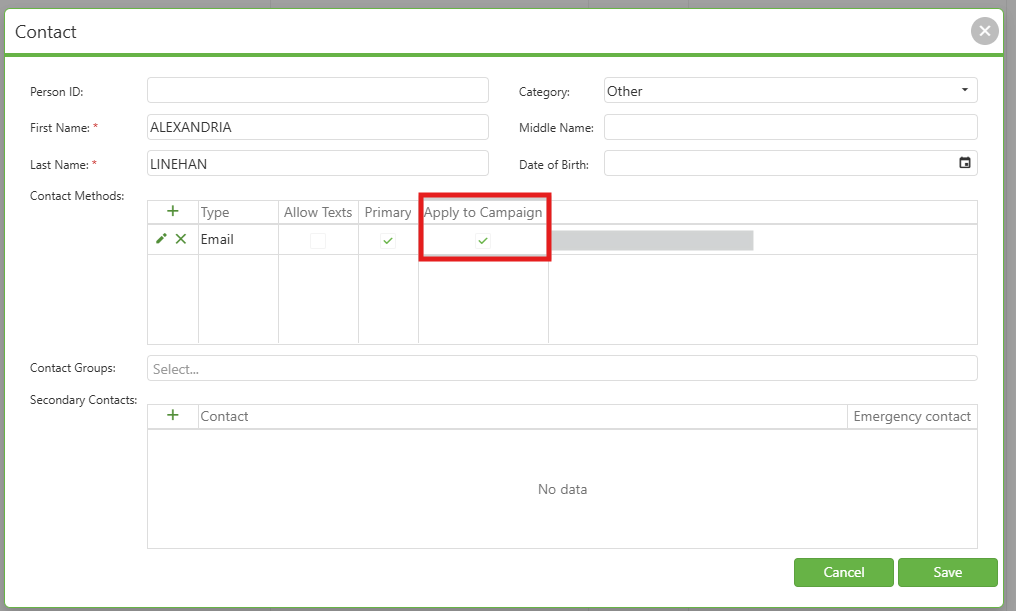
- Edit Contact - This allows you to go and update the contact's information. If you change the email, be sure to click Apply to Campaign and resend the email so that the user will be notified for their forms.
- Cancel - You can either cancel to all users or the user that you currently have selected.
- Resend invitations - You can either resend to all users or the user you currently have selected.
- Copy invitation Link - This allows you to see how the user's forms look in the portal.

C. Best Practices
- Regular Monitoring: Review campaign statuses daily to identify participants requiring follow-up or assistance
- Proactive Communication: Use the "Resend Invitations" feature for participants showing "Not Started" status after initial deadlines
- Strategic Contact Management: When editing contact information, particularly email addresses, always use "Apply to Campaign" and resend invitations to ensure proper delivery
- Incremental Additions: Utilize the Invite Contact feature for adding individual participants rather than restarting campaigns
- Documentation: Use the "Copy Invitation Link" feature to preview participant experiences and provide direct support when needed
D. Troubleshooting
- Contacts showing "Skipped" status: This occurs when contacts are removed from the Manage Contacts page. Re-add the contact using the Invite Contact feature if their participation is still required
- Email changes not reflected in campaign: After editing contact information, always click "Apply to Campaign" and resend the invitation to update the recipient address
- New contacts not receiving materials: Allow up to 15 minutes for automatic delivery. If issues persist after this timeframe, use the right-click "Resend Invitations" option
E. Related Articles
Form Campaigns: Form Campaign Manager
Form Campaigns: Creating a Form Campaign
Conclusion
The Campaign Details monitoring and update system empowers administrators with the visibility and control necessary for successful campaign execution. By combining comprehensive status tracking with flexible management tools, organizations can maximize completion rates, reduce administrative overhead, and ensure timely form submissions. The intuitive interface and automated processes create a streamlined experience that scales effectively from small targeted campaigns to large-scale organizational initiatives, ultimately driving better outcomes through improved participant engagement and administrative efficiency.