
 | ||
Introduction
Managing leave within organizations involves various configurations to accurately track and handle employee leave requests. In addition to the bevy of global site settings, SCView provides user-specific settings that control how Leave interacts with that specific user. These settings, accessible only by admins, play a crucial role in how leave requests are processed, approved, and recorded.
A. Problem Statement
Administering leave requests can be complex, given the diversity in employee contracts and organizational policies. Problems arise when leave settings are not configured properly, leading to issues such as inaccurate leave balances, improper handling of leave spanning multiple pay periods, or incorrect posting of leave types to accounting systems like USPS. This can result in payroll discrepancies, dissatisfaction among staff, and potential legal issues.
B. Solution
To follow along with this guide, please use the main navigation bar to navigate to Admin > Users.
Step 1: Users Detail Tab
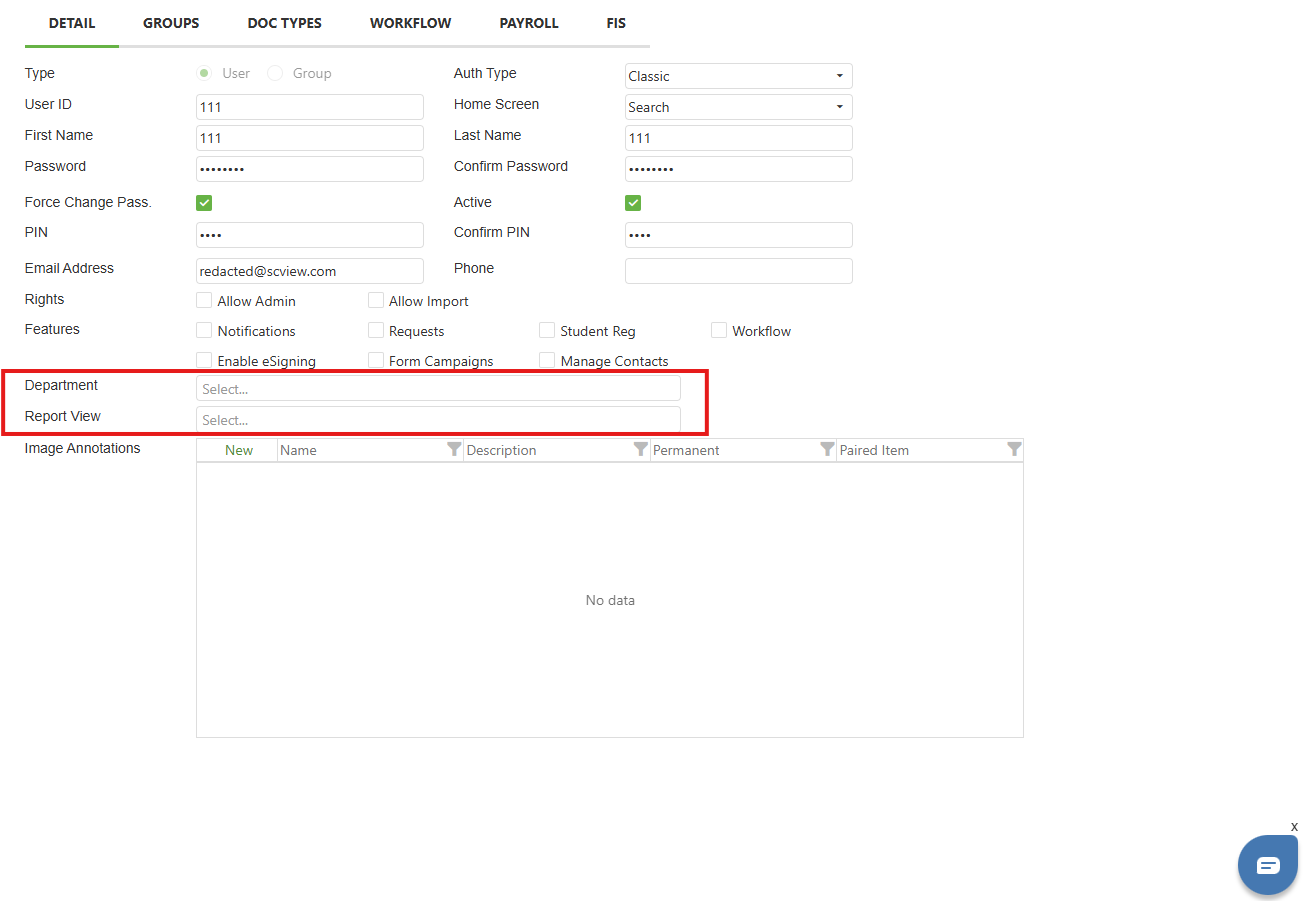
Some User Settings on the Detail tab apply to Leave. These are:
Department - Used to decide to which workflow to send the Leave, Time Sheet, or Mileage Request. This option is selected on each request form.
Report View - Enter the department name in order to allow this user to view a report for Leave or Mileage for only users in that department. This is effectively a more granular version of the Unrestricted permission, which gives access to all other users' documents in a specific document type.
Image: Users Detail Tab
Step 2: User Payroll Tab
Some User Settings on the Payroll tab apply to Leave. These are:
Image: Users Payroll Tab
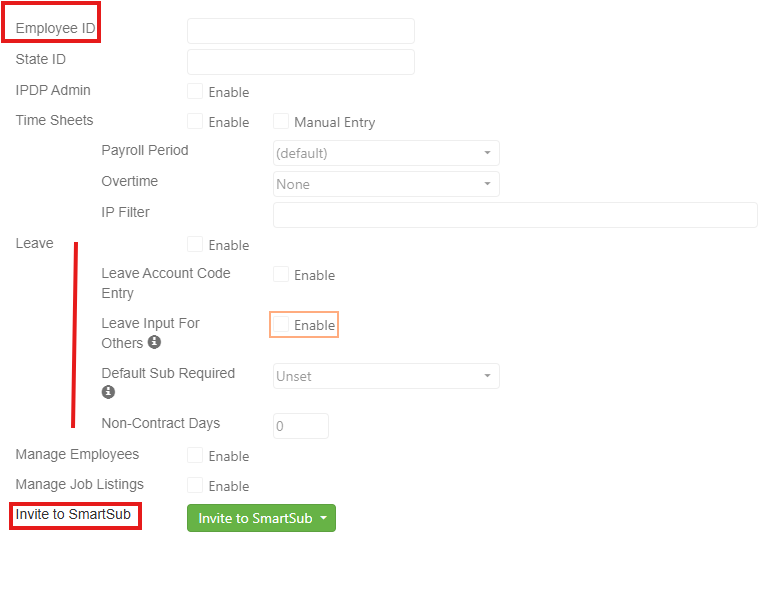
Employee ID - USPS User ID to pull the user's USPS positions and leave types
Leave - If enabled, allows user to enter Leave Requests under Tools > Leave Requests
Leave Account Code Entry - Allows the user to input account codes for Costs Associated with Professional Leave requests
Leave Input For Others - When enabled, gives the user the ability to create Leave requests for other employees in a Department in the user's Report View list; the other user must have an Employee ID. This setting can be inherited through groups.
Default Sub Required - Sets the default value of the Substitute Needed field in a Leave request (Yes = yes, No = no, and Unset = use the most recent choice); If unset at the user level, any Groups assigned to the user take precedent. If a user has multiple Groups that disagree, then Yes beats No and Unset, while No beats Unset. For example, if a user has three groups, one with Yes, one with No, and one with Unset, then the user will be treated as though Yes were selected.
Non-Contract Days - The maximum amount of non-contractual time off the user can take
Invite to SmartSub - Sends an invite to the user to be regular staff, a substitute, or both in SmartSub
C. Best Practices
- The Report View setting is meant for individuals who have need to see the Leave requests of all individuals in a specific Department. If an individual has need to see everything, use the Unrestricted permission for the Leave document type.
- Ensure Department settings are correctly configured before assigning Report View permissions
- Regularly review user permissions to ensure they align with current organizational roles
D. Troubleshooting
- If more than one user is experiencing a problem with the Leave module, the issue is likely present in Site Settings. Conversely, if one user is experiencing a problem with the Leave module, it makes sense to check relevant User settings first.
- Verify the Employee ID is correctly entered for USPS integration issues
- Check that the Leave checkbox is enabled if a user cannot access Leave Requests\
- Confirm Department assignment if workflow routing issues occur
E. Related Articles
Conclusion
SCView's Leave settings offer robust options for managing the complexities of leave administration effectively. By adhering to best practices and utilizing the troubleshooting guide, administrators can configure these settings to support seamless leave management systems. Proper implementation not only simplifies administrative processes but also enhances overall employee satisfaction and compliance with regulatory standards, facilitating a well-organized and compliant workplace.