
 | ||
Introduction
This guide explains how to copy an existing Leave Request in SCView. Copying a Leave Request is useful when you need to submit similar or recurring leave patterns, such as weekly appointments or annual vacation schedules. By copying an existing request, you can save time by reusing the same leave structure with updated dates, rather than manually creating each request from scratch.
A. Problem Statement
Users who submit recurring Leave Requests with similar patterns—such as weekly medical appointments, consistent training schedules, or annual vacation blocks—often find themselves repeatedly entering the same information. This repetitive data entry is time-consuming and increases the risk of errors. The Copy Leave Request feature addresses this issue by allowing users to duplicate an existing request and update only the dates, streamlining the submission process for recurring or similar leave needs.
B. Solution
To follow along with this guide, please use the main navigation bar to navigate to Tools > Leave Requests.
Step 1: Select a Leave Request to Copy
Creating a copy of a Leave Request requires an existing Leave to copy. From the Leave Manager, please find the Leave Request that you desire to copy and left click it to select it. For details on how to operate the Leave Manager, refer to Leave: Leave Manager Guide.
Step 2: Begin to Copy the Selected Leave Request
Once the desired Leave Request is selected, there are two methods to initiate the copy.
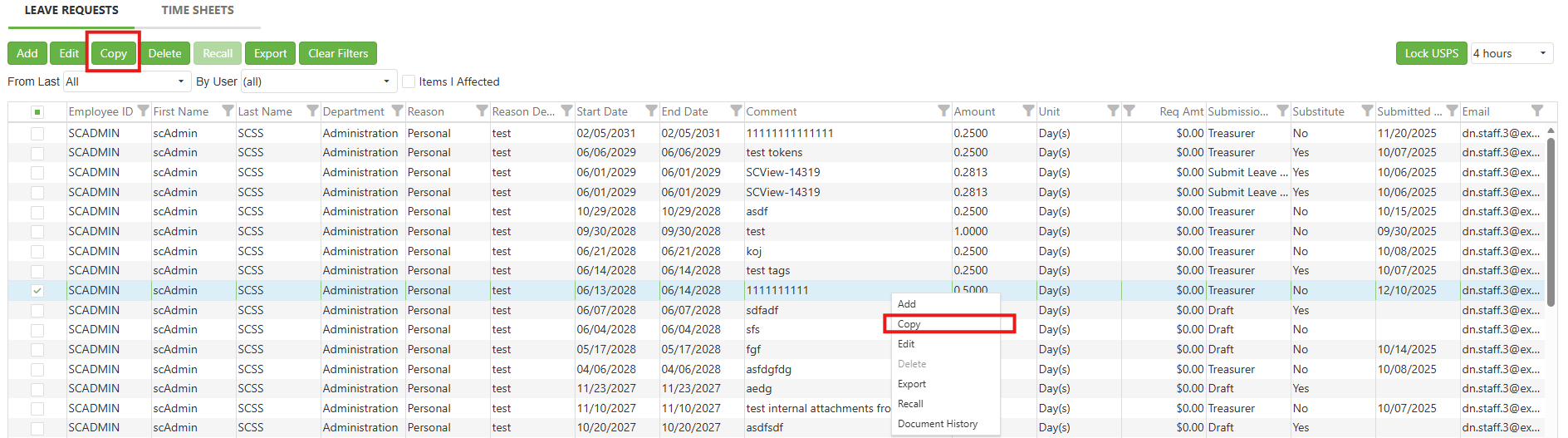
Method 1 - With the desired Leave Request selected, click the "Copy" button found at the top of the screen.
Method 2 - Right click the desired Leave Request and select "Copy" from the context menu.
Image: Location of Method 1 and Method 2 Copy Buttons
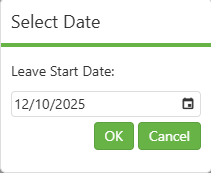
Regardless of which method is chosen, the Select Date popup appears. Simply select the date that corresponds to the first day of Leave desired from the copy and click OK.
Image: Select Date Popup
Step 3: Fill out the Copy Leave Form
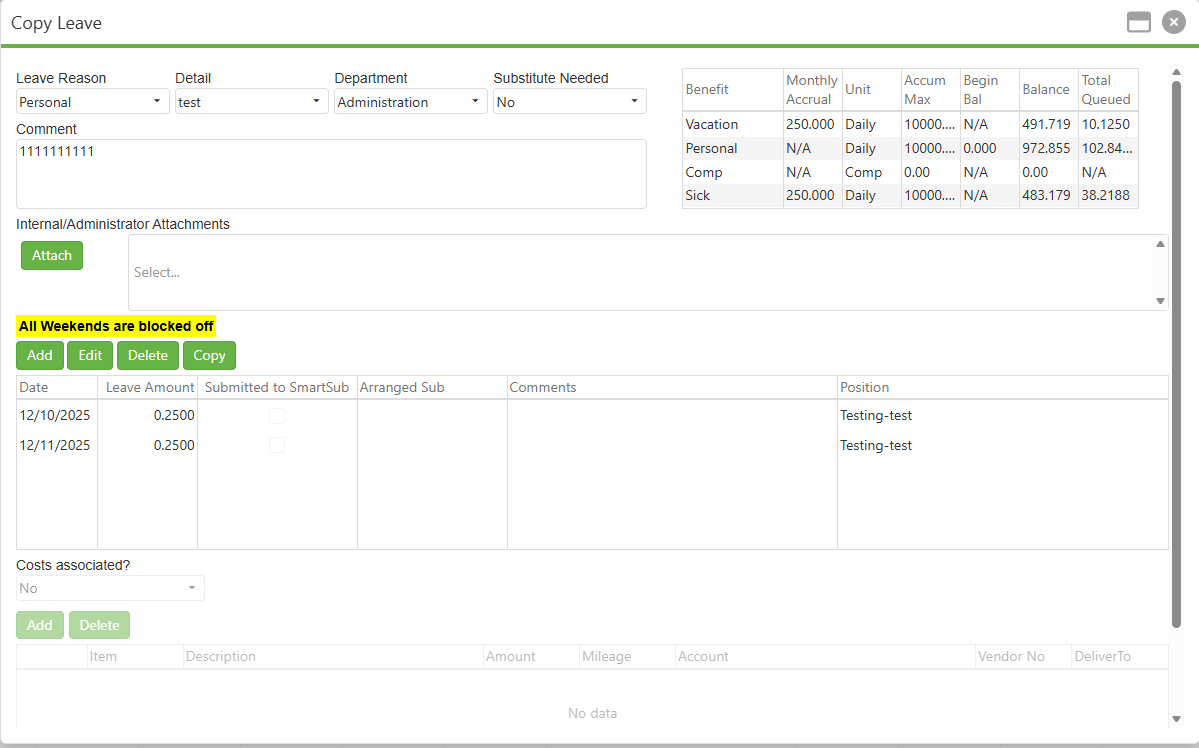
Once done with the Select Date popup, the Copy Leave popup appears. We can see that all details present in the original Leave Request have carried over- as is befitting of a copy- and that the date selected on the Select Date popup has become the date for the first Leave Line present in the request. All other Leave Lines have intelligently updated themselves relative to the selected date. For example, if the user chooses 11/1/25 for the Select Date popup, and the copied Leave Request contains two lines that are a week apart, then the copy will contain 11/1/25 and 11/8/25 as its Leave Lines. This is a powerful tool for setting up complex Leave Line clusters once and only once, such as an annual vacation request.
The only content that does not carry forward from the original is attachments. On the logic that last month's Leave likely requires different contextual documents, SCView drops attachments from the original Leave Request when making a copy.
Simply attach new documentation, if necessary, and review the form for accuracy. Click Submit in the bottom right corner of the Copy Leave form to submit the Leave Request; this is the same process as for a new or edited Leave Request. The Leave Request will enter the system as normal.
Image: Copy Leave, Showing Select Date of 12/10/25 Updating Two Leave Lines to 12/10 and 12/11
C. Best Practices
- The Copy Leave Request feature is a powerful timesaver, but it does make the user beholden to old data. If in doubt about whether something should be Copied, don't. Simply make a New one instead.
- Remember that attachments are not copied—always add new supporting documentation when required
D. Troubleshooting
- When copying Leave Requests, please be aware that the old Leave Request was validated in the past. Any process or policy changes will not be reflected in a copy made from the original. To that end, there comes a point at which a Leave Request can simply be too antiquated for its Copies to pass validation. When this happens, the user should not try to clean up the copied request but should rather start a New one.
E. Related Articles
Leave: How to Use the Leave Form
Conclusion
Copying a Leave Request in SCView is an efficient way to handle recurring or similar leave patterns. By selecting an existing request, choosing a new start date, and reviewing the automatically updated Leave Lines, you can submit duplicate requests in a fraction of the time required to create new ones manually. Remember to attach current documentation and verify that all information is accurate before submission. While this feature saves significant time for recurring leave needs, always start fresh with a new Leave Request if the original is outdated or if policies have changed. For more information on managing your leave, refer to the related articles on the Leave Manager and Leave Form.