
 | ||
Introduction
If you've received an email requesting your electronic signature through SCView, this guide is for you. Whether you're new to digital signatures or simply need a refresher, we'll walk you through the entire process—from finding the request in your inbox to clicking that final "submit" button. By the end of this guide, you'll be able to confidently complete any eSigning request that comes your way.
A. Problem Statement
As organizations transition to paperless workflows, users are increasingly required to provide electronic signatures on digital forms. However, many users are unfamiliar with the eSigning process and may struggle to locate eSigning requests, understand the signature interface, or complete the required fields correctly. Without clear guidance, users may inadvertently decline requests, miss important emails, or fail to submit properly completed forms, causing workflow delays and requiring additional follow-up from administrators.
B. Solution
This guide assumes that another individual has already produced an eSigning Request to which the user must respond. If looking for a guide on how to produce such a request, please see eSigning: Dashboard and Create a New Request.
Step 1: Find the eSignature Request Email
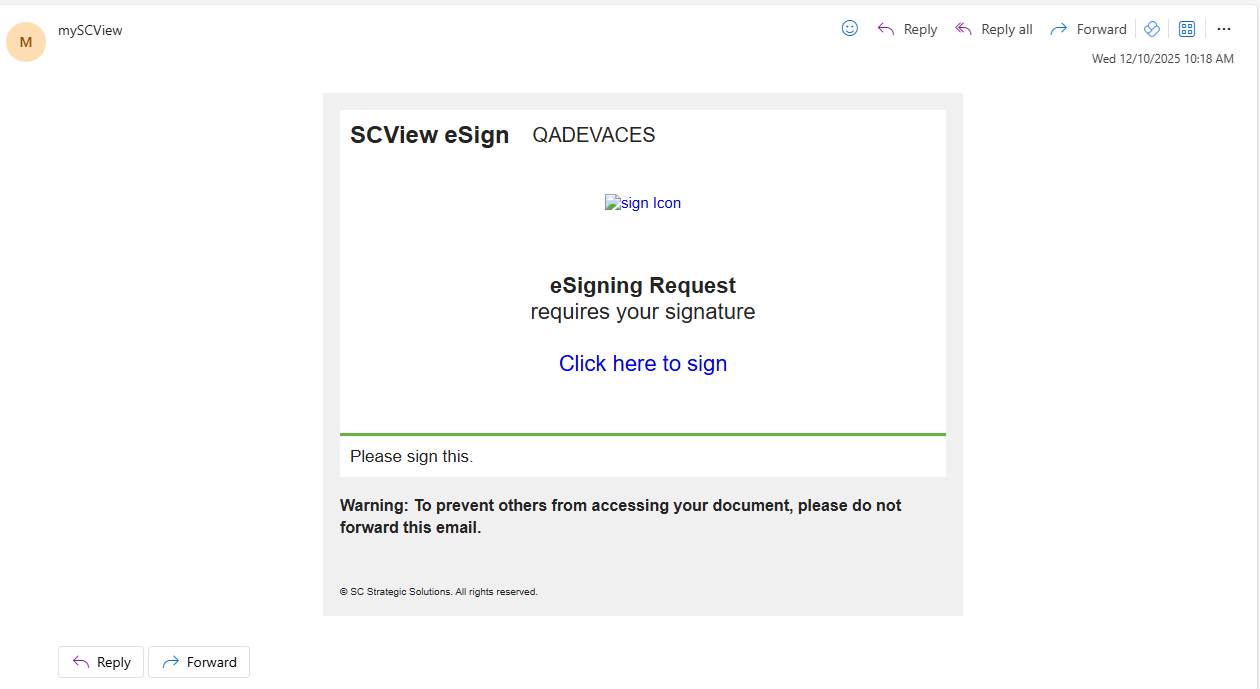
When an eSignature Request is made, those individuals whose attention is required are sent email requests. These generally arrive within a couple of minutes. Please use your usual email client to look through your emails for the request email from mySCView. It should look like the image below.
Once satisfied that the email is legitimate, please click the blue "Click here to sign" link to proceed to the next step.
Image: eSigning Request Email
Step 2: Breakdown of the eSigning Request Signature Screen
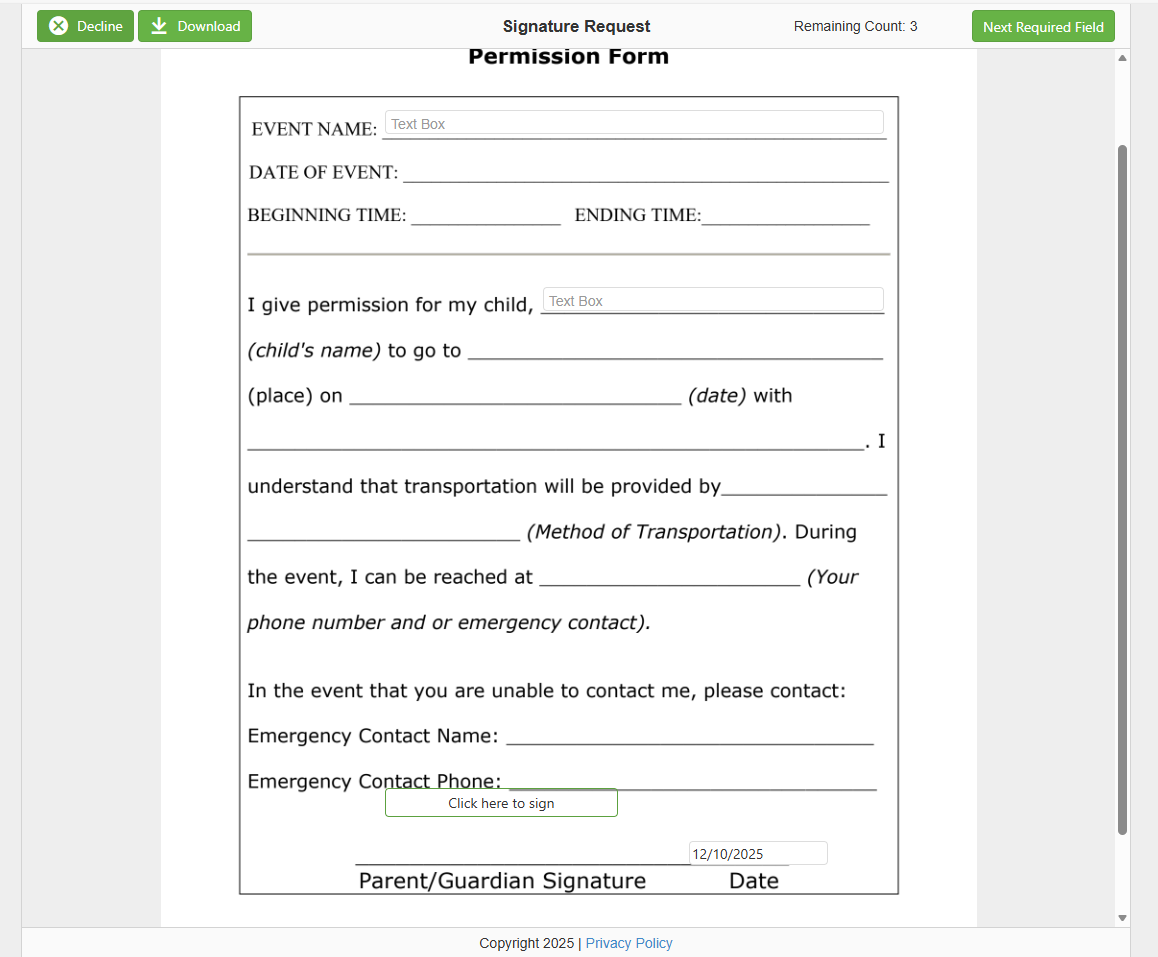
Clicking the "Click here to sign" link directs the user to the eSigning Request Signature Screen. Let's go over all of the items present on this screen.
Decline - If the user clicks the Decline button, this signifies the user's intent not to sign the form because something on it is unacceptable. As eSigning assumes that unanimous consent is required, this will also end the eSigning campaign for all other users who have yet to weigh in.
Download - This downloads the eSigning form. If downloaded before all individuals sign the form, then a form with no signatures is generated. If downloaded after all individuals sign the form, then a form with ALL of the signatures is generated.
Remaining Count - The remaining count is the number of required fields that are still blank. On our example, below, the signature, initial, and text box fields are all required, so the count is 3.
Next Required Field - Clicking the Next Required Field button begins interaction with the next required field. This is useful on complex forms where it is unclear which fields are the required ones.
This guide will assume that the user wants to fill out the form rather than hit the Decline button, though no is always an option. Fill out all required fields and get the Remaining Count to reach 0 in order to proceed to the next step.
Image: eSigning Request Signature Screen
Step 3: Submitting the Completed eSigning Request
At this point, the Remaining Count is now 0, and the eSigning Request Signature Screen has changed to illustrate that it is now ready to submit. Let's take a look!
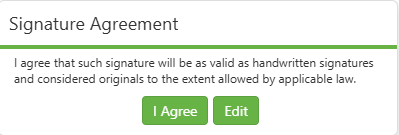
The biggest change is that the Finalize Signatures button has now appeared. Clicking it will begin the process of submitting the eSigning Request. When this button is clicked, a final confirmation dialog opens (Image: Signature Agreement, below), and if the user selects "I agree" in response to this dialog, then the user's approval is locked in. Congratulations, you're done!
Image: eSigning Request Signature Screen When Ready to Submit
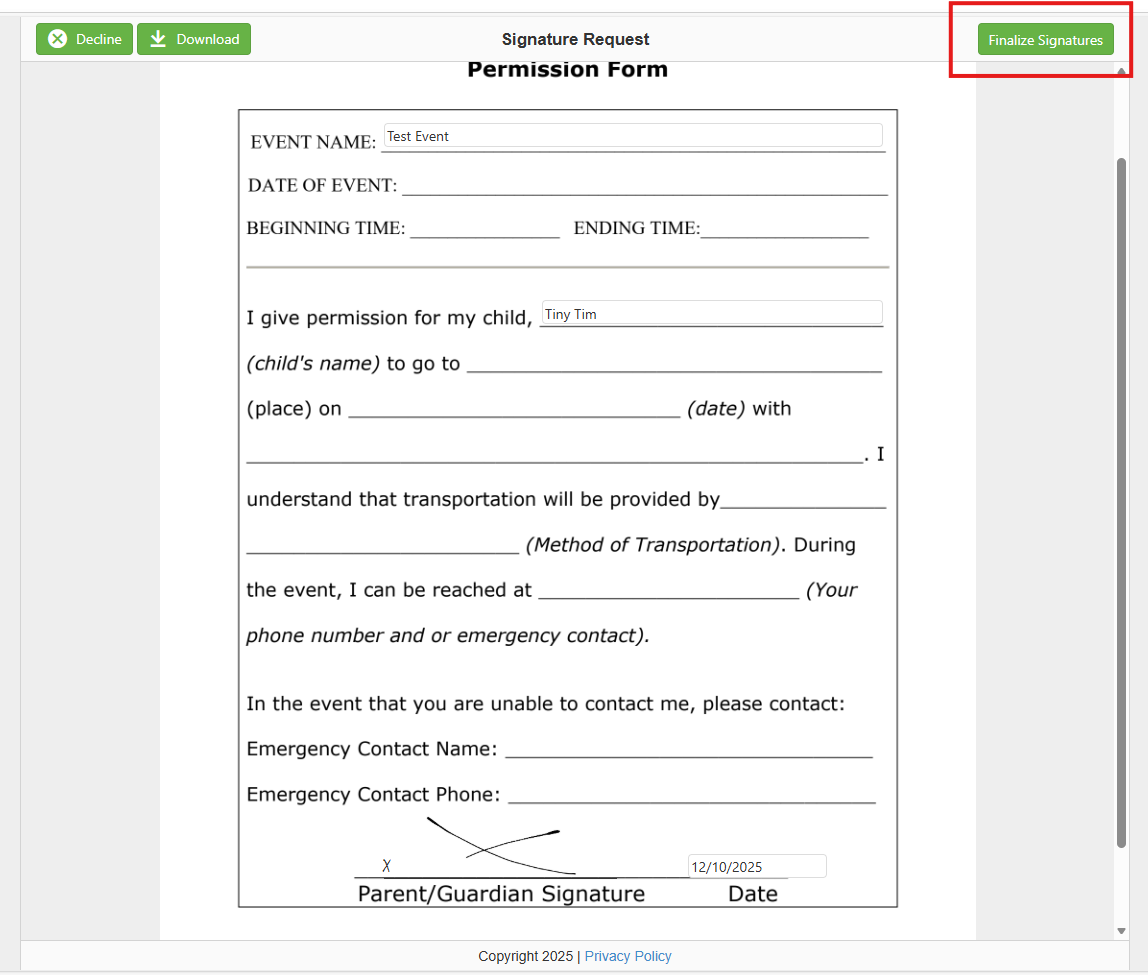
Image: Signature Agreement
C. Best Practices
- eSigning requests are reliant upon email addresses for delivery. If you have multiple work email addresses, try to have all of your eSigning requests get routed to a single one of them so that nothing gets lost.
- Always read and review the entire document and verify the sender's legitimacy before beginning the signature process.
- Use navigation tools, click "Next Required Field" to ensure you don't miss any mandatory fields, especially on lengthy or complex forms.
- Save your records, download and save the fully signed document immediately after all parties complete signing for your personal records.
D. Troubleshooting
- All emails sent by SCView are recorded in an Administrator tool called the Mail Manager. If the link to an eSigning Request is lost, that link can be recovered through this tool. Alternatively, a new copy of the email can be sent from the eSigning Manager.
E. Related Articles
eSigning: Dashboard and Create a New Request
Conclusion
Completing an eSigning Request in SCView is a straightforward process: locate the email request, click the signature link, fill out all required fields until the Remaining Count reaches zero, and finalize your submission. By following these steps, you can efficiently approve documents and keep workflows moving forward. Remember to consolidate your eSigning requests to a single email address to avoid missing important requests, and don't hesitate to contact your administrator if you need to recover a lost link through the Mail Manager. With electronic signatures becoming the standard for business approvals, mastering this process ensures you can fulfill your responsibilities quickly and securely.