
 | ||
Introduction
This guide will walk you through the seamless process of converting any Workflow document into an eSigning request with just a few clicks. You'll learn how to leverage Workflow's search and filtering capabilities to locate documents quickly, then route them for signature while maintaining full control over the approval process. By the end of this guide, you'll be able to automate document routing based on signature outcomes, ensuring your documents move through the correct channels without manual intervention.
A. Problem Statement
After locating a document in Workflow that requires a signature, users may be unsure of the most efficient path to create an eSigning request. This can lead to extra navigation, duplicate searches, or missed opportunities to leverage integrated functionality.
B. Solution
To follow along with this solution, please click Workflow on the main navigation bar to navigate to the Workflow page.
Step 1: Find the Document that Needs to Be Signed
An eSigning request requires a document to be signed, so our first order of business is to find that document.
Select the Workflow queue in which you are interested and look through the documents found in that queue for your target document. For specifics on basic interactions and how to operate Workflows, see Workflow: Overview.
After selecting the target document, a document image will present itself in the bottom right frame once it is ready. Please be patient, as large documents can take some time to generate.
Image: Workflow Document Image Location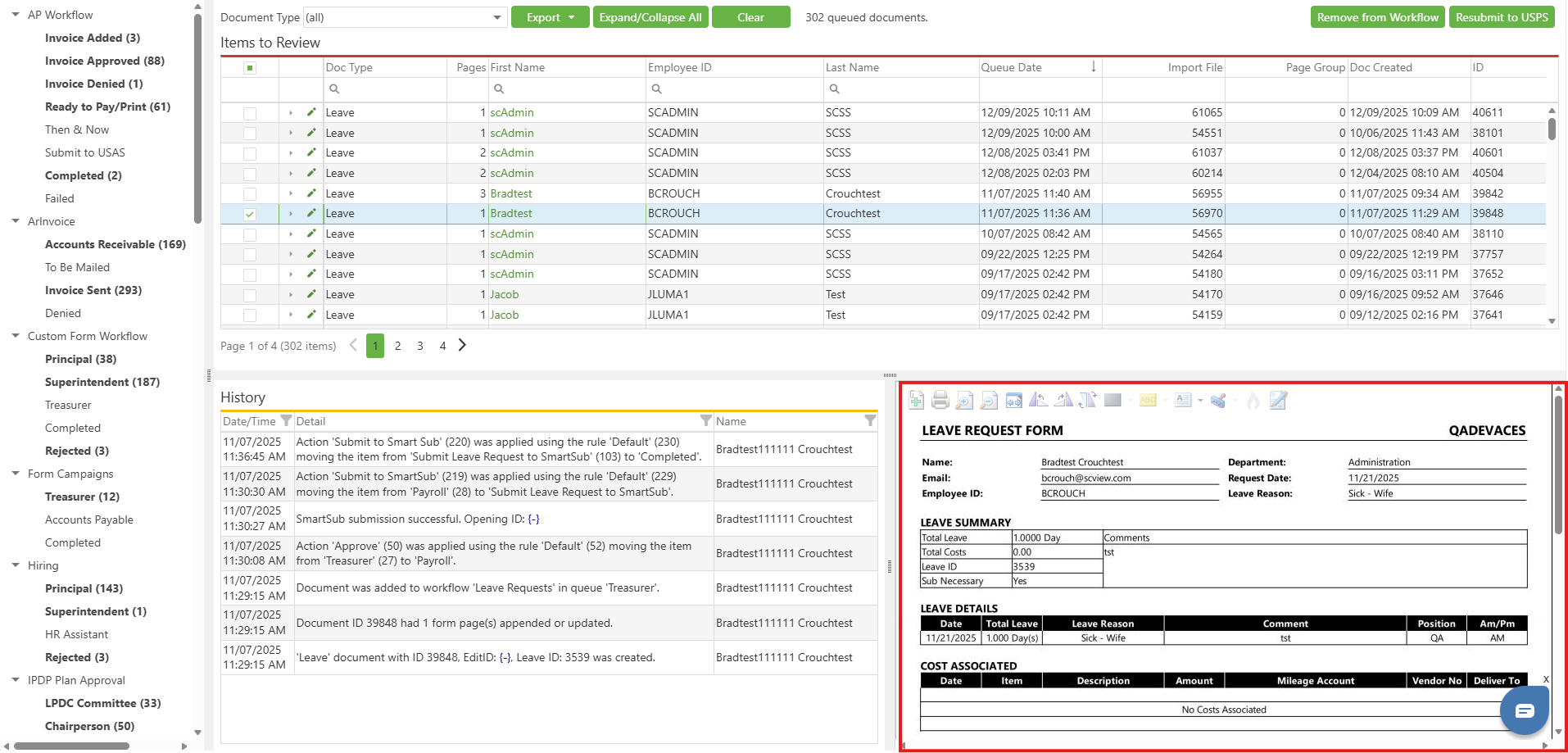
Step 2: Sending the Selected Document to eSigning
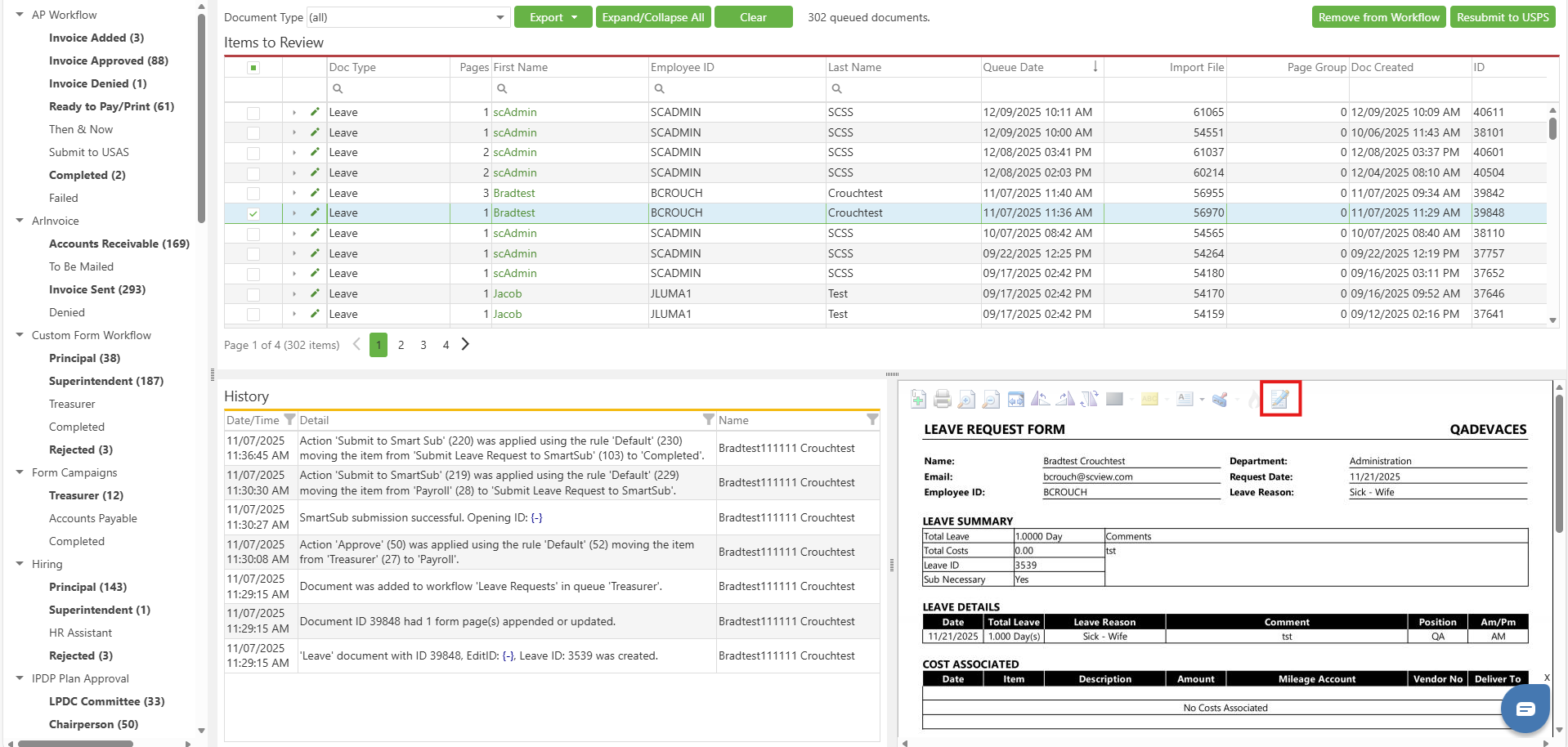
Now that we have isolated the document that needs a signature added, sending it to eSigning is as easy as pressing a button. Specifically, it's the paper-and-pencil button at the far right end of the icon buttons present at the top of the main document image. Simply press that button, and the eSigning wizard will launch in another tab with your selected document as the target file.
Image: The Add Signature Request Button
Step 3: Fill out the eSigning Request
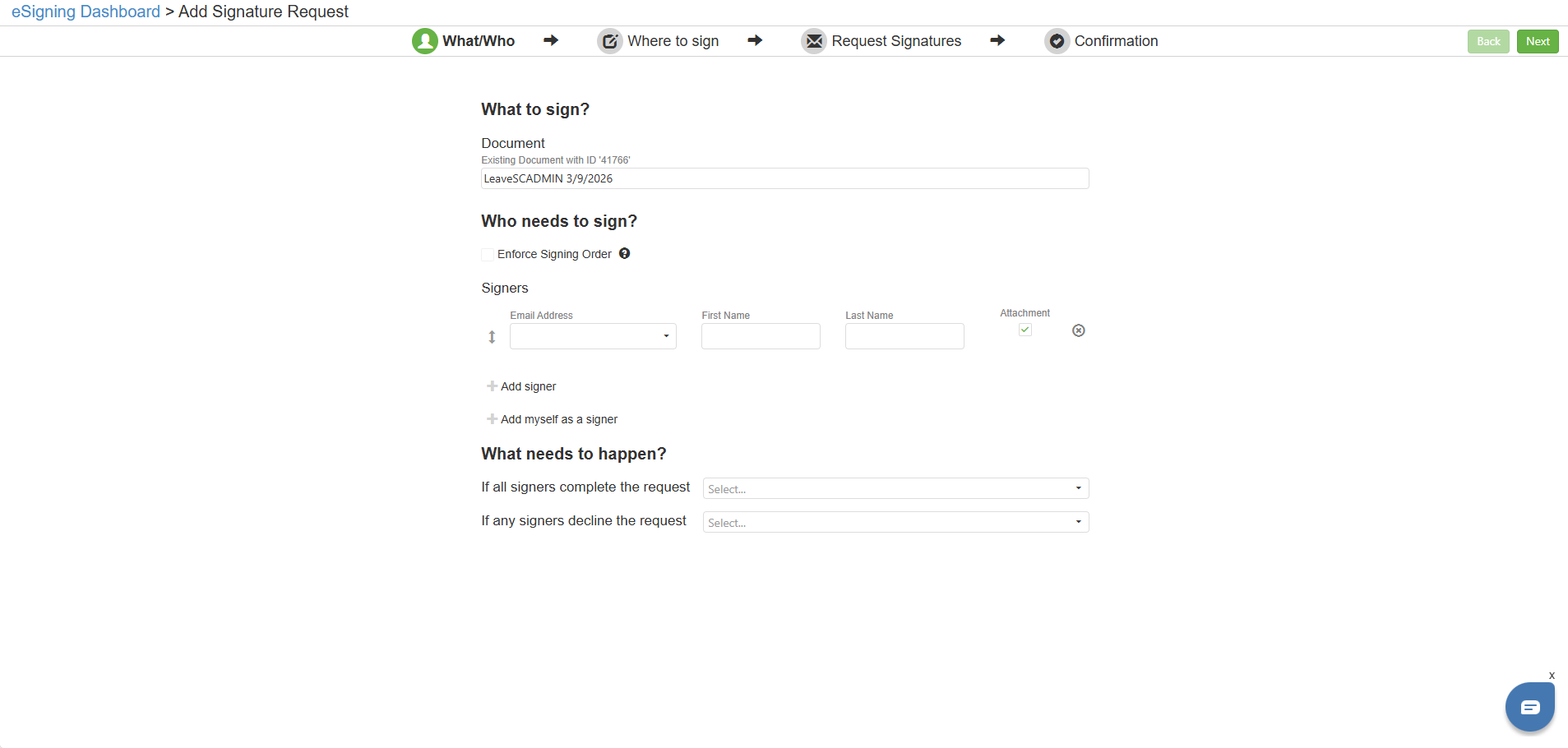
The eSigning wizard is now open, with the document found via Workflow selected as the document to sign. When creating an eSigning request from Workflow, the "What needs to happen?" section appears on the first page of the wizard. This allows the user to select Workflow queue movements that trigger if ALL signers agree to the document, or if ANY signer refuses to sign. Refer to the image below for how this looks in the application. With these options, eSigning becomes even more powerful, as it allows signers to impact the document automatically.
To complete the eSigning request, please refer to article eSigning: Dashboard and Create a New Request.
Image: Document from Workflow in an eSigning Request
C. Best Practices
- For document types that frequently require manual eSignature requests, please be sure to maintain strong Search controls. Define appropriate fields and constraints so that the document to be signed can be singled out efficiently.
- Preview documents before sending to verify you have the correct version
D. Troubleshooting
- An eSignature request requires a page that can accept a signature field. Non-templated, pageless documents cannot be used to make an eSignature request.
- If the Add Signature button isn't visible, check that you have permissions for both Workflow and eSigning modules
- Large files may take up to 60 seconds to appear—be patient before refreshing
E. Related Articles
eSigning: Dashboard and Create a New Request
Conclusion
Creating eSigning requests from Workflow simplifies your document workflow by eliminating unnecessary navigation. By following these three steps—finding your document, clicking the Add Signature Request button, and completing the eSigning wizard—you can quickly route documents for signature. Start using this feature today to streamline your eSigning processes.