
 | ||
Introduction
Managing overtime across different employee types can be complex—some employees are salaried, others hourly, and daily overtime rules may apply differently based on individual timesheet structures. This guide demonstrates how SCView's Overtime system simplifies this complexity by automatically integrating with USPS data to generate accurate timesheets. You'll learn how to configure Overtime settings in User Manager, leverage Groups for efficient management, and avoid common validation errors.
A. Problem Statement
Overtime is a topic that hits employees differently. Many employees are on salary, others are hourly, and if Daily overtime rears its head, then employees with different timesheet structures can trigger overtime differently. SCView provides a convenient Overtime system that integrates with incoming USPS data to return appropriate timesheets to give back to USPS.
B. Solution
To follow along with this guide, please navigate to Admin > Users with the main navigation bar.
Step 1: Select a User and Go to Payroll
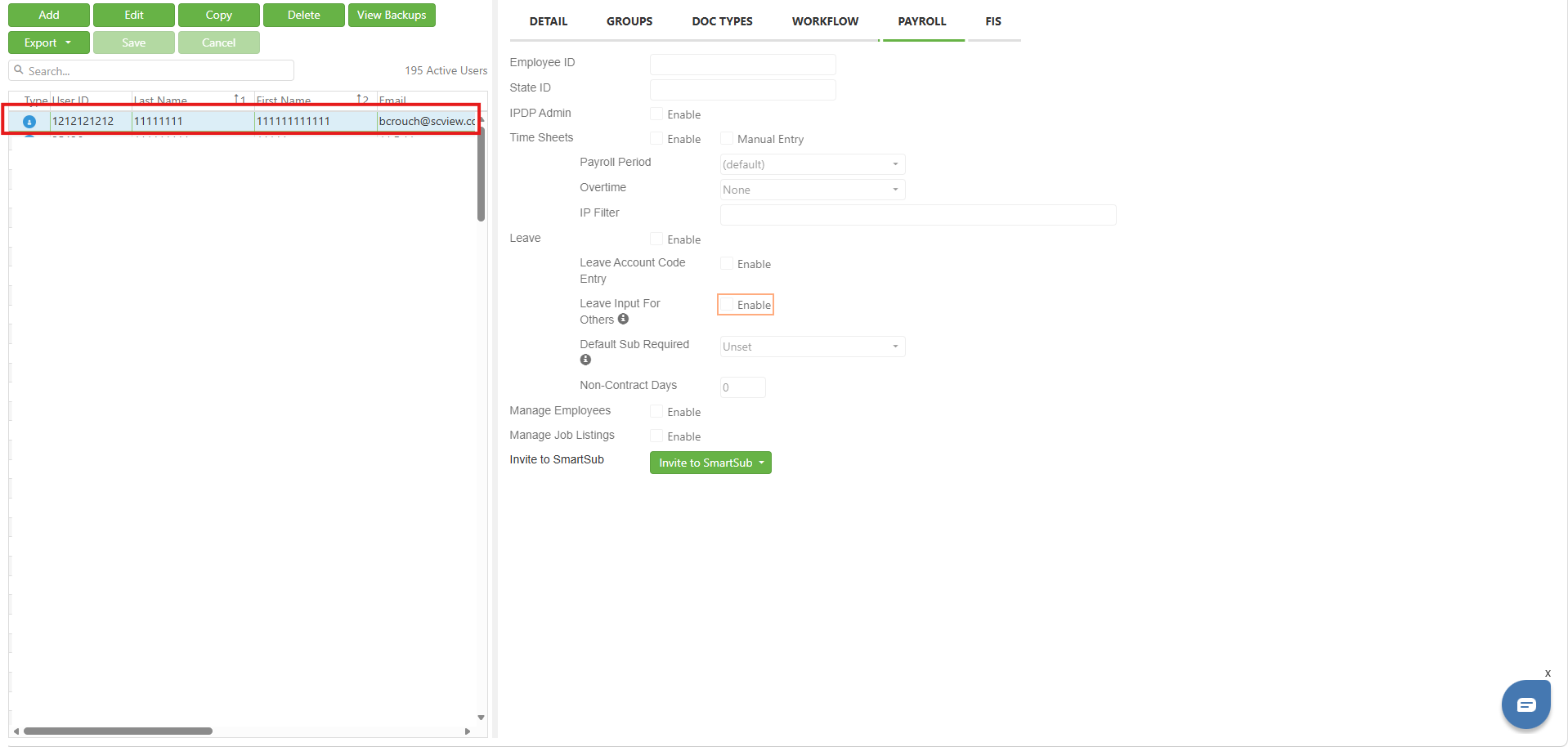
Upon arriving at the User Manager page, select the user whose Overtime settings need checked/changed. Once the user is selected, click the Payroll tab in the top right area of the screen. The Overtime setting is now visible.
Image: Select User, Then Select Payroll Tab
Step 2: Understanding the Time Sheets - Overtime Dropdown
The Payroll tab contains a dropdown labeled Overtime. It has the following options:
None - The user does not receive Overtime. This is for salaried employees, and individuals on specific contracts.
Weekly - The user is paid Overtime for hours over 40 hours per week.
WeeklyAndDaily - The user is paid overtime for hours over 40 per week, and for hours over the user's Hours Per Day as reported for each of their positions by USPS.
To set the desired Overtime scheme, simply edit the user, select the desired value, and Save.
Step 3: Groups and Overtime
Groups also get involved with a user's Overtime settings. Just like a user, a selected Group displays the same Overtime dropdown under the Payroll tab. The following rules dictate the interaction between User Overtime and Group Overtime:
- If the User's Overtime is Weekly or WeeklyAndDaily, then we ignore the Overtime settings of any Groups the user has.
- If the User's Overtime is None, then we look to the Groups. If a Group assigned to the user has Overtime of Weekly or WeeklyAndDaily, then that user is set to that overtime scheme.
Note: If a User's Overtime is None, and two different Groups, one with an Overtime of
 Weekly and one with an Overtime of WeeklyAndDaily, are assigned to that user, then
 you will be unable to save your changes to that user because this would effectively
 give the user both types of Overtime at once. This fails validation.
C. Best Practices
- Groups are extremely valuable for setting the Overtime rules for entire classes of employees at once. Consider putting employees into Overtime groups based on job title.
- As Group Overtime can cause validation errors down the road, it is best leveraged in its own Groups to reduce the chance that multiple are assigned to the same user.
- Create separate Groups specifically for Overtime management rather than mixing Overtime settings with other permission-based Groups.
- Consider naming your Overtime Groups clearly (e.g., "OT-Weekly-Hourly" or "OT-None-Salaried") to prevent confusion when assigning users.
- Regularly audit users with "None" Overtime settings to ensure their Group memberships haven't inadvertently changed their Overtime eligibility.
D. Troubleshooting
- The only Overtime-based validation failure is when a user's Groups disagree. If unable to save a user after changing their Overtime, check the user's groups to see if Weekly and WeeklyAndDaily are being assigned to the user at the same time.
- If timesheets are calculating incorrectly, verify that the user's "Hours Per Day" field is properly set in their position data from USPS—this directly impacts WeeklyAndDaily calculations.
- When a user reports missing Overtime, first check if their individual Overtime setting is "None" and whether they belong to any Groups with Overtime settings.
- If Group Overtime changes don't seem to take effect, ensure the user's individual Overtime setting is set to "None" to allow Group inheritance.
- If validation errors persist after removing conflicting Groups, try saving the user with Overtime set to "None" first, then re-adding the desired Groups one at a time.
E. Related Articles
Conclusion
You now have the knowledge to effectively configure and manage Overtime rules in SCView. By leveraging the power of Groups for bulk settings and understanding how User-level overrides work, you can establish a streamlined Overtime management system that scales with your organization. Your next steps should be to review your current employee classifications, create appropriate Overtime Groups, and verify that all users have the correct settings applied. With these configurations in place, SCView will automatically handle the complex task of generating USPS-compliant timesheets, saving your organization time and reducing payroll errors.