 | ||
Introduction
This article explains how sensitivity levels affect the visibility of document indexes in search result grids within SCView. Learn how to understand and work with high and low sensitivity fields when searching for documents, and how these security features protect confidential information while maintaining system usability.
A. Problem Statement
Organizations need to protect sensitive information while still allowing users to search for and work with documents effectively. Without proper controls, confidential data such as social security numbers, salary information, or personal details could be exposed to unauthorized users in search results. Users need a way to search for documents while the system automatically protects sensitive fields based on configured security levels.
B. Solution
SCView implements a sensitivity level system that controls how document indexes appear in search result grids. This feature is configured in the Document Type Manager and automatically applies protection based on the sensitivity level assigned to each index field.
Understanding Sensitivity Levels:
Step 1: Access Document Type Manager Configuration
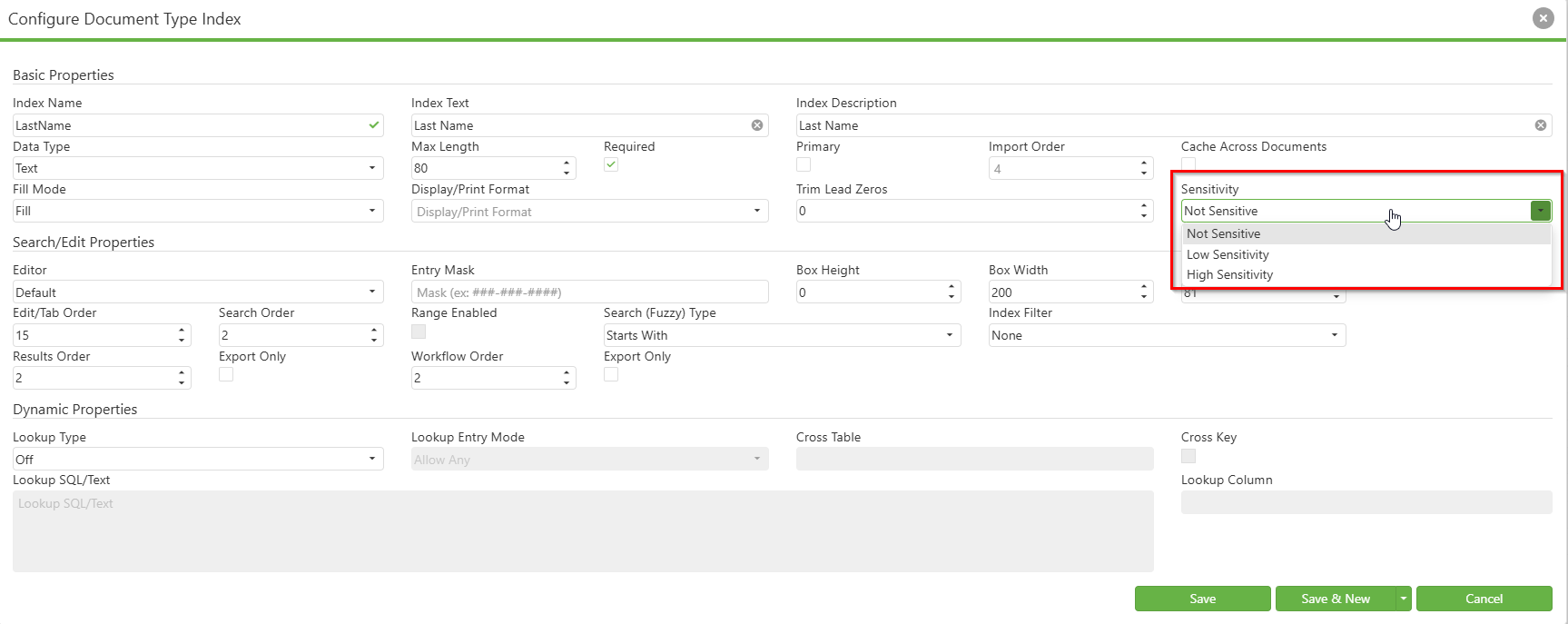
Navigate to the Document Type Manager and select the document type you want to configure. Locate the Sensitivity dropdown in the index configuration panel. You will see four options:
- Not Sensitive (default)
- Low Sensitivity
- High Sensitivity
Step 2: Configure Sensitivity Levels
For each index field in your document type:
- Select "Not Sensitive" for fields that can be displayed normally to all users
- Select "Low Sensitivity" for fields that should be partially masked but still visible
- Select "High Sensitivity" for fields that should be completely hidden from search results Click Save to apply the configuration
Step 3: Understanding Search Result Display
When users perform a search:
- Fields marked as "Not Sensitive" display normally in the search result grid
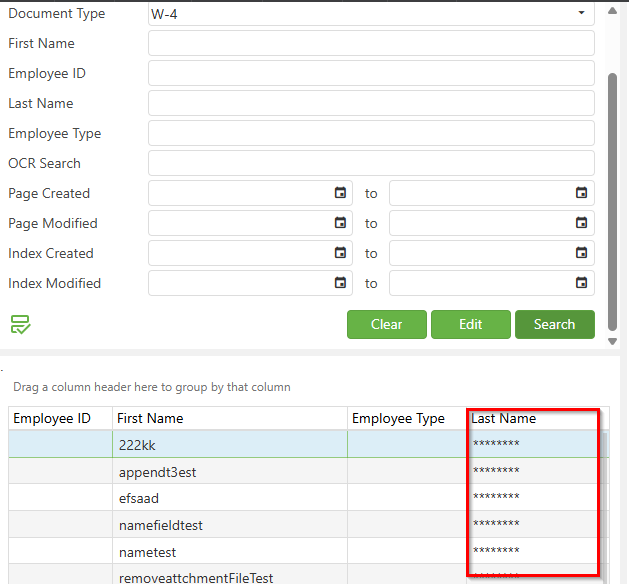
- Fields marked as "Low Sensitivity" appear as asterisks (******) in the search result grid
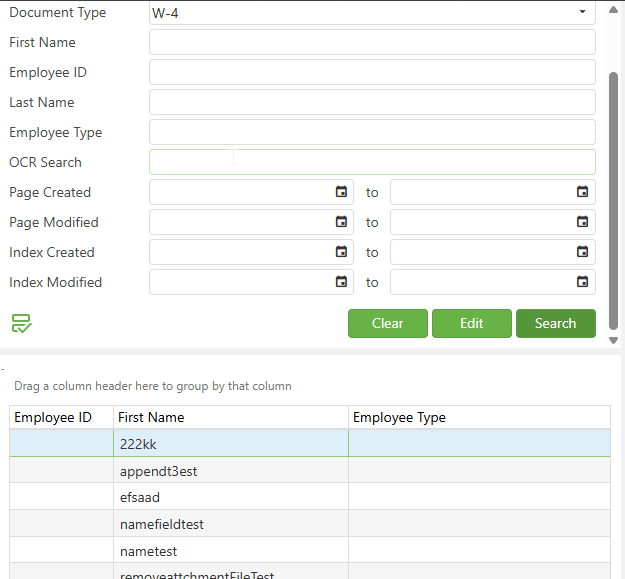
- Fields marked as "High Sensitivity" do not appear in the search result grid at all
Step 4: Revealing Low Sensitivity Data
To view the actual data for low sensitivity fields:
- Double-click on the document row to open it
- Click the Eye icon in the toolbar to temporarily reveal starred fields
- The data will be visible while the Eye icon is activated
C. Best Practices
- Configure sensitivity levels during initial document type setup to ensure consistent protection
- Use High Sensitivity for data that should never appear in search results, such as SSN or financial account numbers
- Use Low Sensitivity for data that users need to know exists but shouldn't see in list views, such as employee IDs or partial account information
- Regularly review and update sensitivity settings as compliance requirements change
- Train users on how sensitivity levels work to avoid confusion when fields appear masked or missing
- Document which fields have sensitivity levels applied for future reference
- Test sensitivity settings with different user roles to ensure appropriate access levels
D. Troubleshooting
- Check if the fields are configured with High Sensitivity in the Document Type Manager. These fields are intentionally hidden from search results.
- This indicates Low Sensitivity fields. Use the Eye icon when viewing the document to reveal the data if you have permissions.
- Clear browser cache and refresh the page. Ensure the Document Type Manager changes were saved properly.
- This is expected behavior. Sensitivity levels work in conjunction with user permissions to control data visibility.
E. Related Articles
Search: Overview
Custom Forms: Sensitivity Levels
Conclusion
The sensitivity levels feature in SCView provides a robust security layer for protecting confidential information in search results. By properly configuring High and Low sensitivity levels in the Document Type Manager, organizations can maintain data security while ensuring users can effectively search for and work with documents. This feature automatically protects sensitive data without requiring manual intervention, making it an essential tool for compliance and data protection. Remember to regularly review your sensitivity configurations and train users on how to work with masked fields to maintain both security and productivity in your document management workflows.
Was this article helpful?
That’s Great!
Thank you for your feedback
Sorry! We couldn't be helpful
Thank you for your feedback
Feedback sent
We appreciate your effort and will try to fix the article