
 | ||
Introduction
The User Manager Workflow tab provides administrators with a centralized view of all workflow queues accessible by each user in the system. This new feature addresses a long-standing administrative challenge by bringing transparency to workflow permissions management. Located within the familiar Users interface, the Workflow tab presents queue assignments in an intuitive grid format that supports filtering and sorting, making it easy to audit and understand user access across your organization's workflow structure.
A. Problem Statement
Previously, database administrators had no easy way to view which workflow queues were assigned to specific users. Only the users themselves could see their own queue access, creating visibility challenges for administrators managing workflow permissions.
B. Solution
In order to enhance control over workflow queue access, SCView introduces the Users > Workflow tab. This new feature displays all workflow queues to which the user has access in a convenient, filterable grid. To follow along, please navigate to Admin > Users.
Step 1: Finding the Workflow Tab
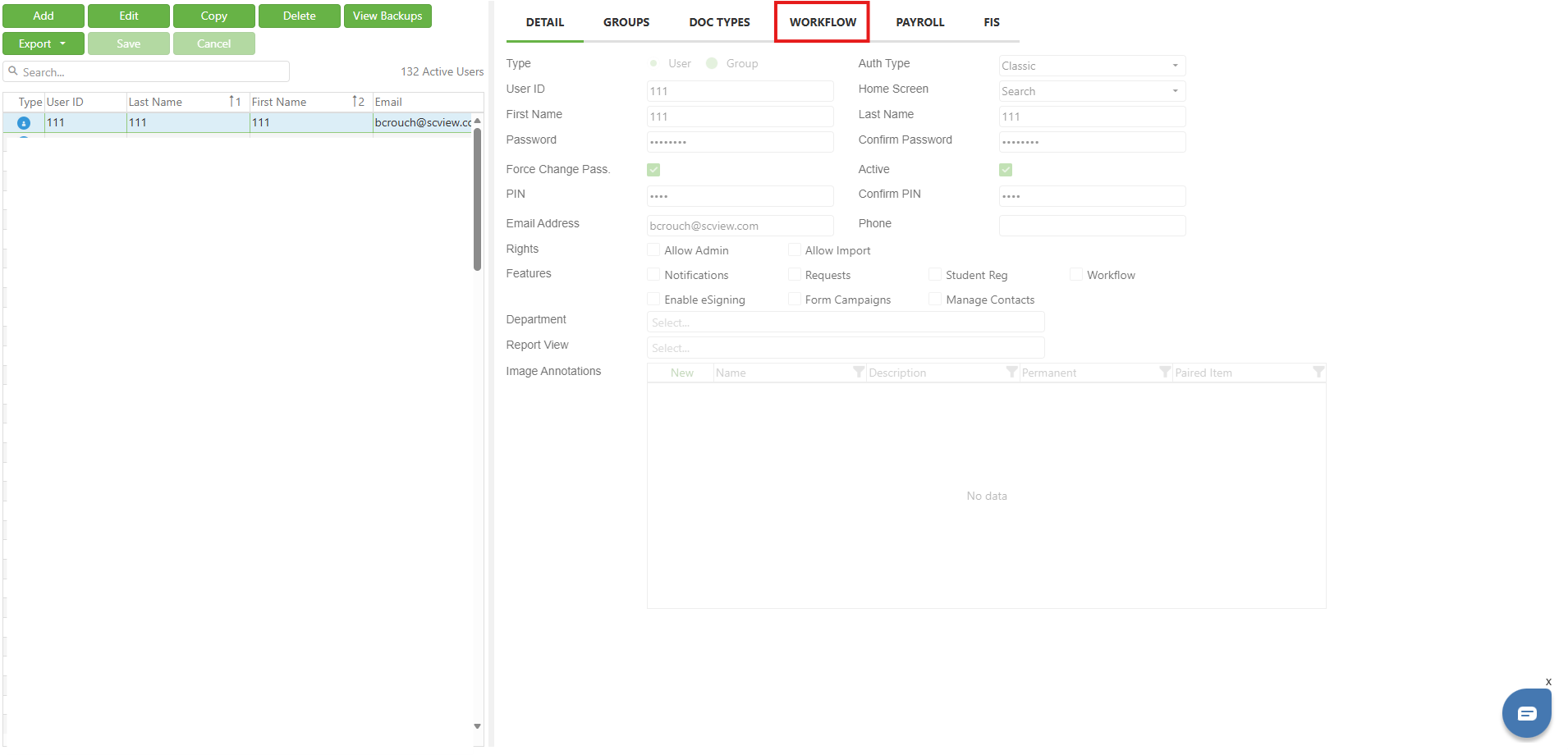
The Workflow tab can be found at the top of the right side of the screen, among the various "recipe tab" buttons already present in that area.
Image: Location of the Workflow Tab
Step 2: Using the Workflow Tab
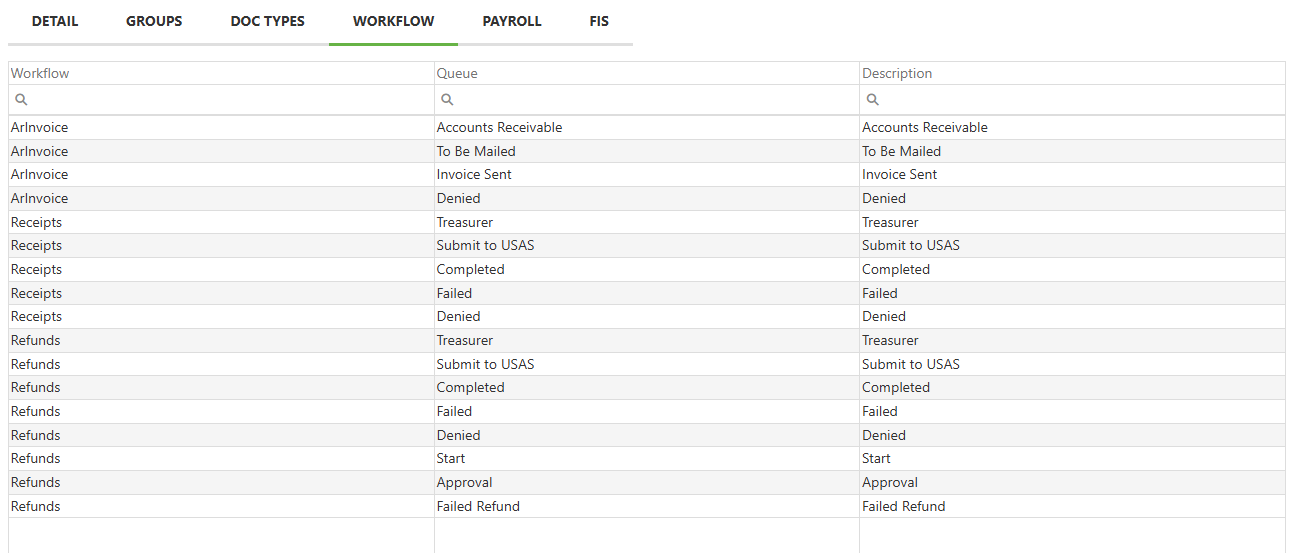
With the Workflow tab selected, the user can see all Workflow queues assigned to the currently selected user. Simply click a user in the list on the left to change to viewing that user's information. Please note that as workflow queue provisioning is performed at a User level in SCView, no information will display if a Group is selected.
The Workflow tab is dominated by a grid with three columns. Each row represents a single workflow queue to which the user has access.
- Workflow - This is the name of the Workflow containing the queue to which the user has access. As it is fairly common for different Work
- Queue - This is the name of the queue to which the user has access.
- Description - This is the description that your organization has given the queue to which the user has access. Queue description is set in Admin > Workflow and its default is the same as the queue name.
For example, if there is a workflow with five individual queues, and the user has access to four of them, then four rows with that workflow name will appear in the Workflow tab.
Image: The Workflow Tab
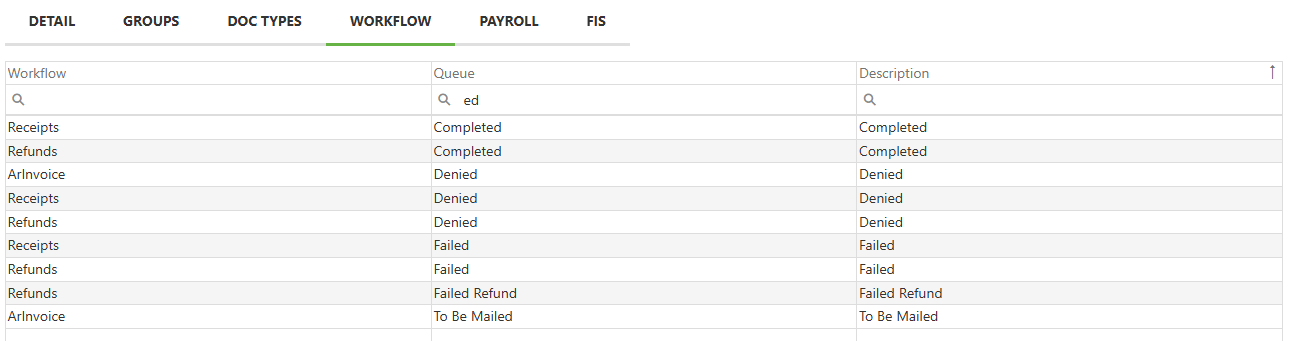
The Workflow tab is read only. Each column may be filtered by typing partial terms into the magnifying glass field found underneath each column header. Clicking a column header will sort the grid by that column alphabetically, and if clicked again, reverse alphabetically.
Image: Filtering Queue by "ed" and Sorting Description Alphabetically
C. Best Practices
- Add meaningful descriptions to your workflow queues in Admin > Workflow to help administrators quickly understand each queue's purpose
- Review user workflow access regularly using the filtering capabilities to ensure appropriate permissions
- Use the sorting features to group related workflows together for easier analysis
- Document complex queue purposes in the description field to improve system understanding across your team
D. Troubleshooting
- Only Users have access to workflow queues. If no information is displayed, then a group may be selected.
- Workflow queue access is assigned at the user level only—the tab will remain empty when viewing groups\
- Check that the selected user has been assigned to at least one workflow queue
- Ensure you have the appropriate administrative permissions to view user workflow assignments
E. Related Articles
Conclusion
The User Manager Workflow tab represents a much easier way to read all of the workflow queues to which a user has access than was previously available. Administrators no longer need to check each queue individually or make use of the API; the information is simply there to view. This feature represents our resolve to deliver an ever-improving user experience.