
 | ||
Introduction
When your time off spans across multiple pay periods, the "Split into Pay Periods" feature ensures your Leave Requests align perfectly with your organization's payroll processing schedule. This automated Payroll Site Setting intelligently divides multi-day requests at pay period boundaries, creating separate requests for each affected period while preserving all your original request details. In this guide, you'll discover how to recognize when a split will occur, understand exactly where your request will be divided, and learn how to manage the resulting separate requests. Whether you're planning extended vacation time or requesting leave around pay period transitions, mastering this feature will help you submit requests confidently and track them effectively through the approval process.
A. Problem Statement
Some organizations find value in setting a policy that forces Leave to follow Payroll in lockstep. If all Leave items comfortably slot into existing payroll date structure, it can smooth out both processing and archiving of past items. SCView supports this outlook with the "Split into Pay Periods" Payroll Site Setting, accessible by database admins. This tool automatically forces Leave Requests items to slot into no more than one Payroll period at a time, but, as with all automated systems, they should be understood by those who interact with them to reduce confusion and actually realize the time savings that they promise.
B. Solution
To follow along with this guide, please navigate to Tools > Leave Requests. This guide assumes that the "Split into Pay Periods" Payroll Site Setting has been enabled in your environment. If it is not, and you have reason to believe it should be, please contact your organization's database administrator; otherwise, try a more general Leave guide.
Step 1: Start a new Leave Request
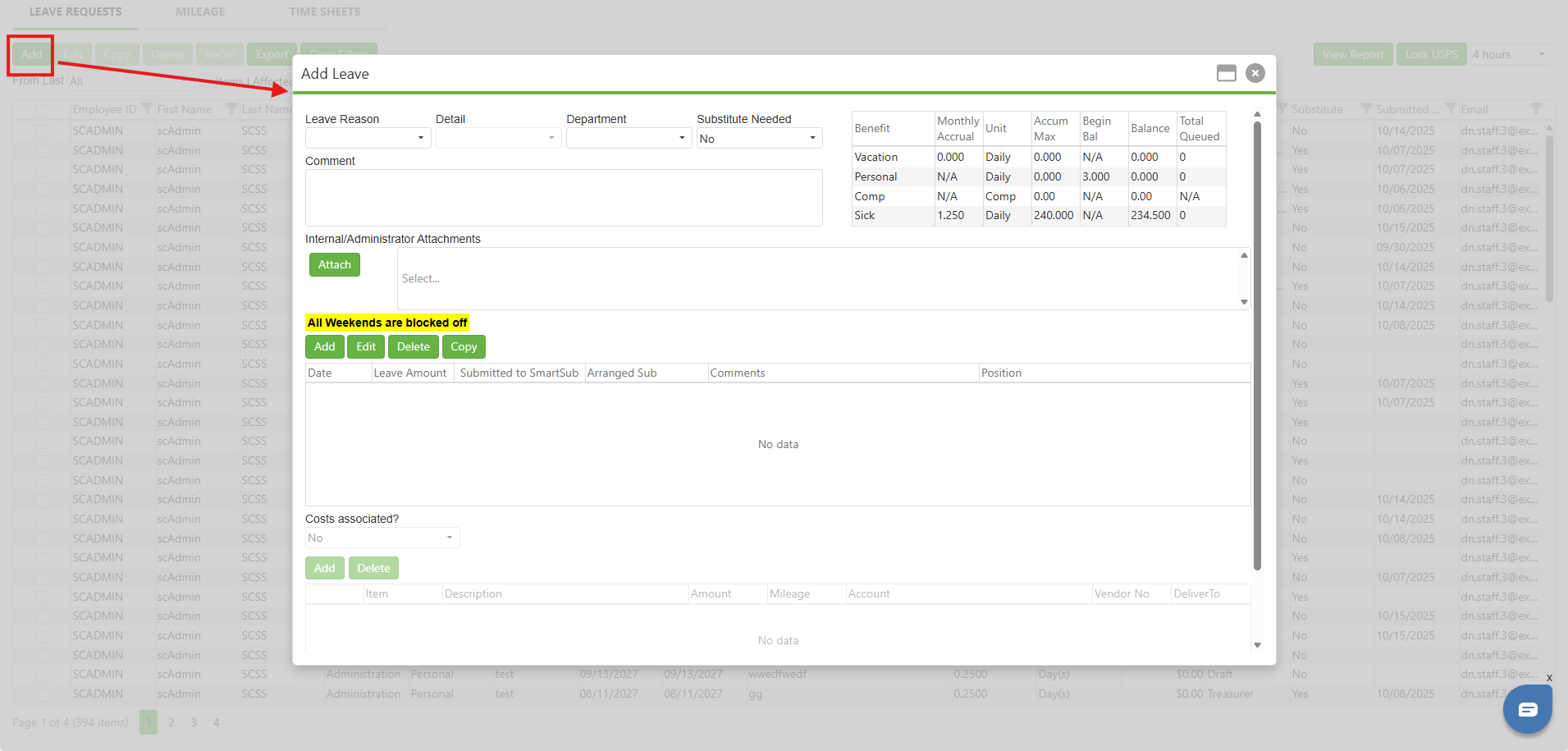
Upon arriving at the Leave Manager, please click the Add button to bring up the Add Leave popup. With "Split into Pay Periods" enabled, there is no visual tell as soon as the user brings up the popup. Your Add Leave popup may look slightly different; if so, this is because of other settings present in the database from which the example image has been taken, not because of "Split into Pay Periods".
Image: Add Button Calls the Add Leave Popup
Step 2: Cause a Pay Period Split
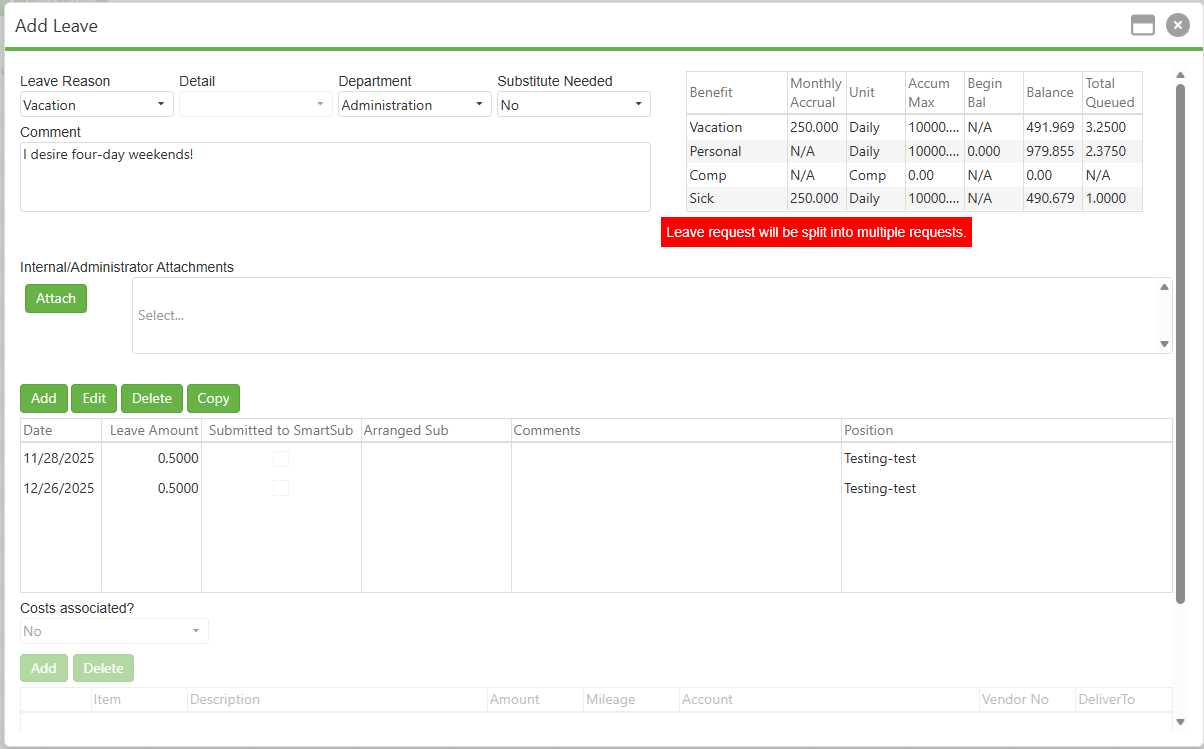
In this example, we have realized that both Thanksgiving and Christmas are on Thursday in 2025. This gives us an excellent chance to secure two four-day weekends! We create a Vacation Leave Request seeking to capitalize on easy four-day weekends, and when the day after Christmas is added to the request, our request looks like the image below.
Because Black Friday and the day after Christmas are in different pay periods, "Split into Pay Periods" has triggered, and is warning us that it will split our request into multiple requests so that each request is in only one pay period.
Note: If the user has a Custom Pay Period defined in Admin > Users, this will
take precedence over the organization's default Pay Period. Split into Pay Period
uses the first/last days of pay period to determine how to slice Leave Requests.
Image: Split into Pay Periods Triggered
Step 3: Submitting the Leave Request
When we submit the Leave Request by clicking the Submit button in the bottom right corner of the popup, we return to the Leave Manager. With a cursory look, we can see our request has split into two. Look carefully at the dates. One of them is for Black Friday, and the other is for the Day after Christmas. In this way, we have one request for the Thanksgiving pay period, and one for the Christmas pay period.
Image: Two Requests Made from Our Request

C. Best Practices
- With Split into Pay Periods, you will not have your Leave requests in two pay periods at once, but you can still have multiple requests in a single pay period. Follow organization guidelines, and submit all leave in a block, if requested.
- Using distinctive comments can help filter for Leave requests that have been split.
D. Troubleshooting
- If your split Leave Requests are hard to find, filter by submission date. As they were all submitted on the same second, they should cluster together nicely!
- Check the status of all split requests individually, as approval may be handled separately for each pay period.
- If you can't locate all parts of a split request, use the date range filter to search for each pay period affected by your original request.
- Verify that the total number of days across all split requests equals your originally intended time off.
- If the split warning doesn't appear when expected, confirm with your database administrator that "Split into Pay Periods" is enabled.
- Remember that cancelled or denied portions of split requests don't automatically affect the other portions—manage each request independently.
- When viewing your Leave balance, note that split requests may impact different pay period balances at different times.
E. Related Articles
Conclusion
You now understand how the "Split into Pay Periods" feature automatically divides multi-day Leave Requests that span across pay period boundaries. By recognizing the visual warning when this split will occur and knowing where to find your separated requests after submission, you can plan your time off more effectively. This automated feature ensures your Leave Requests align seamlessly with your organization's payroll processing schedule while maintaining the flexibility to request time off across important dates like holidays. With these mechanics in mind, you can confidently submit Leave Requests knowing they will be properly organized for both your reference and your organization's administrative needs.