 | ||
Introduction
The Workflow Confirm Action screen serves as the critical bridge between SCView and SmartSub, enabling seamless substitute teacher management through integrated leave request processing. This guide provides comprehensive instructions for accessing and utilizing the SmartSub Confirm Action popup, walking you through the validation process and real-time submission feedback system. By mastering this interface, you'll be able to efficiently submit leave requests to SmartSub while maintaining data integrity and avoiding common workflow pitfalls. Whether you're new to SmartSub integration or looking to optimize your current process, this article will equip you with the knowledge needed to confidently manage substitute assignments through SCView's workflow system.
A. Problem Statement
As the point of greatest connection between SmartSub and SCView, the Workflow Confirm Action popup requires special attention. Understanding how this popup works, and how to use it, will ensure that the integration of employee Leave with temporary employee work assignment proceeds smoothly.
B. Solution
To follow along with this solution, please navigate to Workflow and proceed to the Workflow queue normally used for submitting to a third-party service, like an HRIS platform. This is usually the payroll queue but may vary for organizations that have substantial customization in their solutions.
Step 1: Find a Leave Request to Submit
Select a Leave request to submit, then click the Submit to SmartSub action button on the Workflow page. This will bring up the Confirm Action screen.
You may use the Smart Sub Status column to help you decide which records to send to SmartSub. This column displays one of three values in each row:
- None - None of the Leave lines in this Leave Request have been sent to SmartSub.
- Partial - Some of the Leave lines in this Leave Request have been sent to SmartSub.
- Full - All of the Leave lines in this Leave Request have already been sent to SmartSub.
Note: The Smart Sub Status column is state-based, meaning it doesn't care how the Leave Request was submitted, just that it has been. Both AutoPost and manual submission are compatible.
Image: Workflow Submit to SmartSub and Smart Sub Status Column

Step 2: Initial Validation
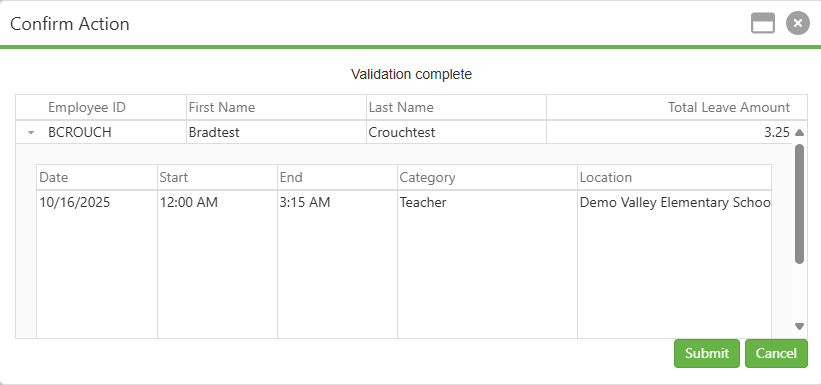
A Confirm Action popup will appear and perform initial validation on the SmartSub submission. This validation checks to make sure that the selected Leave Request was performed by an individual with a SmartSub account, that all necessary data fields were filled in, and so on. The Confirm Action popup will look similar to the image below if initial validation passes.
Image: Confirm Action Initial Validation
Step 3: Submit to SmartSub
After initial validation passes, simply click the Submit button. The Leave request will submit to SmartSub in real time, and the Employee ID field will light up green (successful), orange (warning), or red (failure) based on the response from SmartSub. If all submissions are green (successful) or orange (warning), submissions will proceed to the next queue.
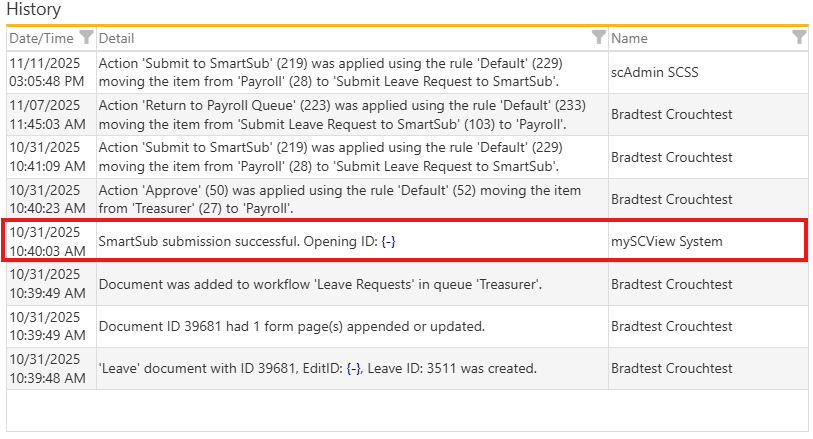
An auditing record of each submission, both successful and unsuccessful, to SmartSub can be found:
- in Workflow History
- in Document History
- in Admin > Auditing
Image: Example of a Workflow History record
C. Best Practices
- It is best to submit to SmartSub before an HRIS system, such as USPS. This is because SCView locks editing after submitting to an HRIS system, but does not lock editing after submission to SmartSub. Errors caught late will require less effort to repair if caught after SmartSub and before HRIS as opposed to after HRIS and before SmartSub.
D. Troubleshooting
- If the Submit to SmartSub button is not present, and if SmartSub integration is enabled on your database, then first check other Leave Requests queues on the off chance that the incorrect queue was chosen. If no queue has a Submit to SmartSub button, it can be created by following this article: Workflow: Setting up SmartSub Submission in Workflow.
- SCView supports automatic submission to SmartSub! If a fresh Leave request reports that it has already been submitted to SmartSub, and if the Leave request is two weeks in the future or less, check Admin > Site Settings > Payroll to double-check auto-post settings. The work may have already been done.
- If no Confirm Action popup appears when the Submit to SmartSub button is clicked, this means the queue action did not have the Confirm Action checkbox checked when it was set up.
- If the Smart Sub Status column is not appearing, please go to Document Type Manager and give the index of the same name a Workflow Order value. This will make it appear in Workflow. If your organization does not have access to the Document Type Manager, please request this from Support.
E. Related Articles
Workflow: Setting up SmartSub Submission in Workflow
Conclusion
With a thorough understanding of the SmartSub Confirm Action popup and its role in the workflow process, you now possess the tools to effectively manage the intersection between employee leave requests and substitute teacher assignments. The real-time validation and color-coded feedback system ensures transparency at every step, while the best practices and troubleshooting guidelines help you avoid and resolve common issues. As you implement these procedures in your daily operations, you'll find that the integration between SCView and SmartSub transforms what was once a complex coordination challenge into a streamlined, efficient process that benefits both your permanent staff and substitute workforce. Your organization is now positioned to maintain continuity of operations with minimal administrative burden and maximum visibility into substitute coverage status.
Was this article helpful?
That’s Great!
Thank you for your feedback
Sorry! We couldn't be helpful
Thank you for your feedback
Feedback sent
We appreciate your effort and will try to fix the article