
 | ||
Introduction
The addition of SmartSub integration to your SCView database includes a number of new fields in the Leave module that collect the information that SmartSub requires. This guide goes over all SmartSub-related fields added to the Leave Request form to help you acclimate to the new functionality present therein.
A. Problem Statement
With the integration of SmartSub into the SCView Leave module, users may encounter confusion regarding new fields, required data, and changes in workflow. Specifically, determining when a leave request is sent to SmartSub, understanding the role of substitute-related fields, and managing attachments can present challenges.
B. Solution
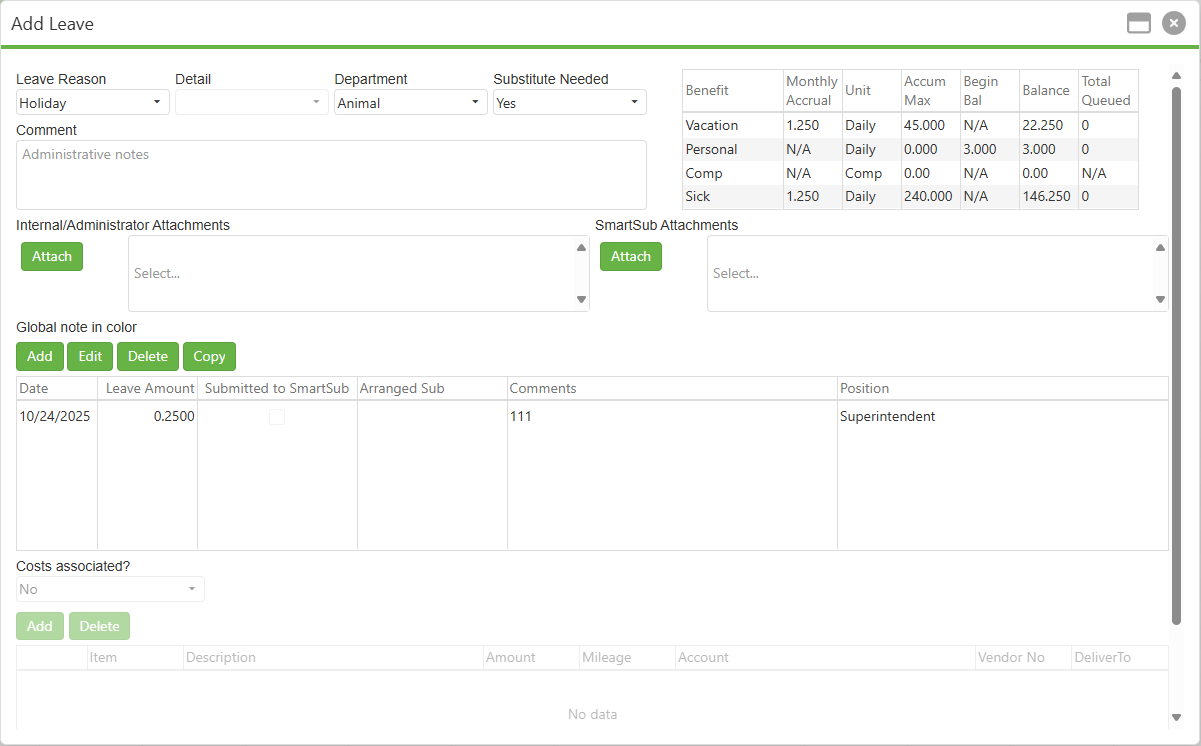
To follow along with this guide, please navigate to Tools > Leave Requests and click the Add button to bring up a new Leave Request form.
Image: Add Leave with SmartSub Enabled

Leave Reason, Detail, Department - These fields are unchanged when SmartSub is enabled.
Substitute Needed - If Substitute Needed is set to No, then the Leave Request will NOT be sent to SmartSub. If it is set to yes, then the Leave Request WILL be sent to SmartSub.
When Substitute Needed is set to Yes, several changes trigger in the Add Leave form. First, the attachments box splits into two halves: Internal/Administrator Attachments and SmartSub attachments. Any attachments placed in Internal/Administrator Attachments will be handled as they always have in SCView; meanwhile, any attachments placed in SmartSub attachments will be added to the SmartSub opening when that is created. Finally, the Location and Category fields are only enabled in the Modify Leave Amount popup if Substitute Needed is set to Yes. We will discuss these fields later.
Comment - When SmartSub is enabled, a comment is required in the comment field, even if no substitute is needed for that particular Leave opening.
Image: Add Leave with Substitute Needed Set to Yes
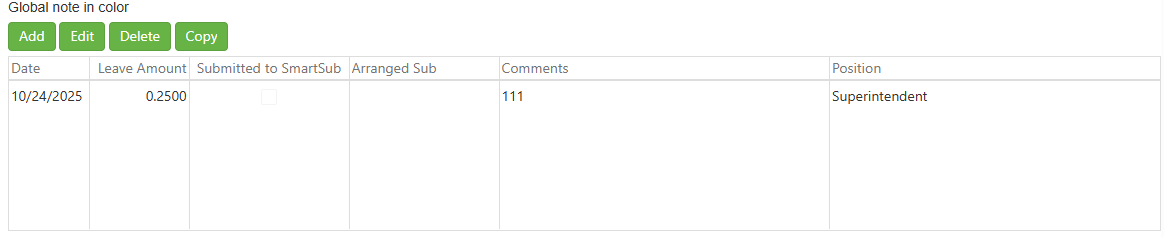
Leave Line Grid - Two columns have been added to the grid that displays the individual leave lines for your Leave Request.
First, the Submitted to SmartSub column features a checkbox that checks itself once that individual line is posted to SmartSub. If you attempt to edit a leave line that has already been sent to SmartSub, you will receive a reminder that it has already been submitted, and changes made in SCView will not be reflected in SmartSub. You will also need to change it there. This can be useful, as you can fix an error before submitting it to your HRIS platform of choice.
Secondly, the Arranged Sub column contains the name of the substitute assigned to fill the opening created by the Leave line. Selecting a sub is optional.
Image: Leave Line Grid with SmartSub Enabled
Modify Leave Amount - The Modify Leave Amount Subpopup has been modified heavily to include all of the information needed by SmartSub.
Date, Position - These fields are unchanged.
Location - Drawn from SmartSub, the Location dropdown allows the user to select where the SmartSub opening will be located. This field is disabled if Substitute Needed is No.
Category - Also drawn from SmartSub, the Category dropdown allows the user to select what kind of opening is being made by this Leave Request. This allows SmartSub to filter by the correct type of substitute, be it teachers, substitute bus drivers, or something else entirely.
Amount - This field is unchanged.
Sub Time - SCView supports Full Time Entry, Partial Time Entry, and Classic Time Entry options for its Leave module. If a SmartSub-enabled database also uses Classic Time Entry, then the Sub Time field appears. Simply input the exact time when the range the sub will be required. This field appears because Classic Time Entry is vague, a number of hours in the AM or PM with no start or end times, and Sub Time eliminates any guessing that would otherwise be in the SmartSub opening due to this.
Comments - When submitting to SmartSub, a comment is required.
Arranged Sub - Once all of the fields necessary to choose which substitute list the user needs are filled out, the Arranged Sub field enables. Here, a substitute can be selected for the opening from a list of qualified replacements,
Image: Modify Leave Amount Subpopup

C. Best Practices
- Editing a Leave Request from Substitute Needed No to Yes requires a number of alterations to the Leave itself to make sure SmartSub gets all of the information it needs. If doing so, be sure to look over each individual Leave line in particular, as the Modify Leave Amount Subpopup controls much of the information being sent.
- Arranged Subs are optional. If you are unsure who to use, put off the decision for later, in SmartSub itself.
- Place files intended for SmartSub in the "SmartSub attachments" section. Internal/Administrator attachments are not sent to SmartSub.
D. Troubleshooting
- Leave Requests that find a way to submit to SmartSub without a Leave Line comment will post the employee's position name to SmartSub as a fallback.
- Arranged Subs are only "penciled in" until a SmartSub opening is made. If another Leave Request with the same substitute for the same time period reaches SmartSub first, then the second request will revert to not having a substitute assigned when it gets submitted to SmartSub.
E. Related Articles
Leave: How to Use the Leave Form
Conclusion
With a clear understanding of the SmartSub-integrated Leave Request form, you are now equipped to efficiently manage substitute teacher assignments directly within SCView. The new fields and features covered in this guide—from the Substitute Needed toggle to the dual attachment system and enhanced Leave Line Grid—work together to streamline your substitute management process while maintaining full visibility and control. By following the best practices outlined above and understanding how each field functions, you can ensure seamless communication between SCView and SmartSub, reduce administrative overhead, and minimize disruptions to your educational operations. As you become more familiar with these integrated features, you'll find that coordinating substitute coverage becomes a more intuitive and efficient part of your daily workflow.