
 | ||
Introduction
Integrating SmartSub submission into your Leave Requests workflow ensures seamless communication between SCView and external services. This guide provides clear, step-by-step instructions to help you configure SmartSub within your SCView database, modify your workflow, and enable efficient leave request processing.
A. Problem Statement
As an external service, SmartSub must be configured for use with your SCView database before the two tools can communicate with each other.
B. Solution
Step 1: Determine Your Leave "After Approval, Before Submission" Workflow Queue
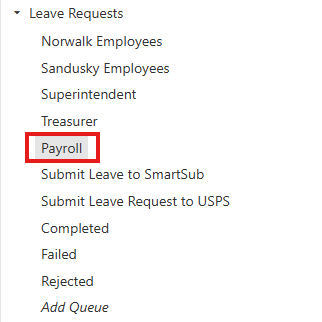
To begin, please navigate to the Admin > Workflow page, and look for your existing Leave Requests workflow. Within the Leave Requests workflow, determine the queue that represents the point after all approvals have been made on a Leave request, but before it has been posted to an external system, like USPS. Our example in this article identifies the Payroll queue for this role. It is after the locational secretary, Superintendent, and Treasurer approval queues, but before the submit to USPS and SmartSub queues.
Image: Our Example "After Approval and Before Submission" Queue is Payroll
Step 2: Create the "Submit Leave to SmartSub" Queue
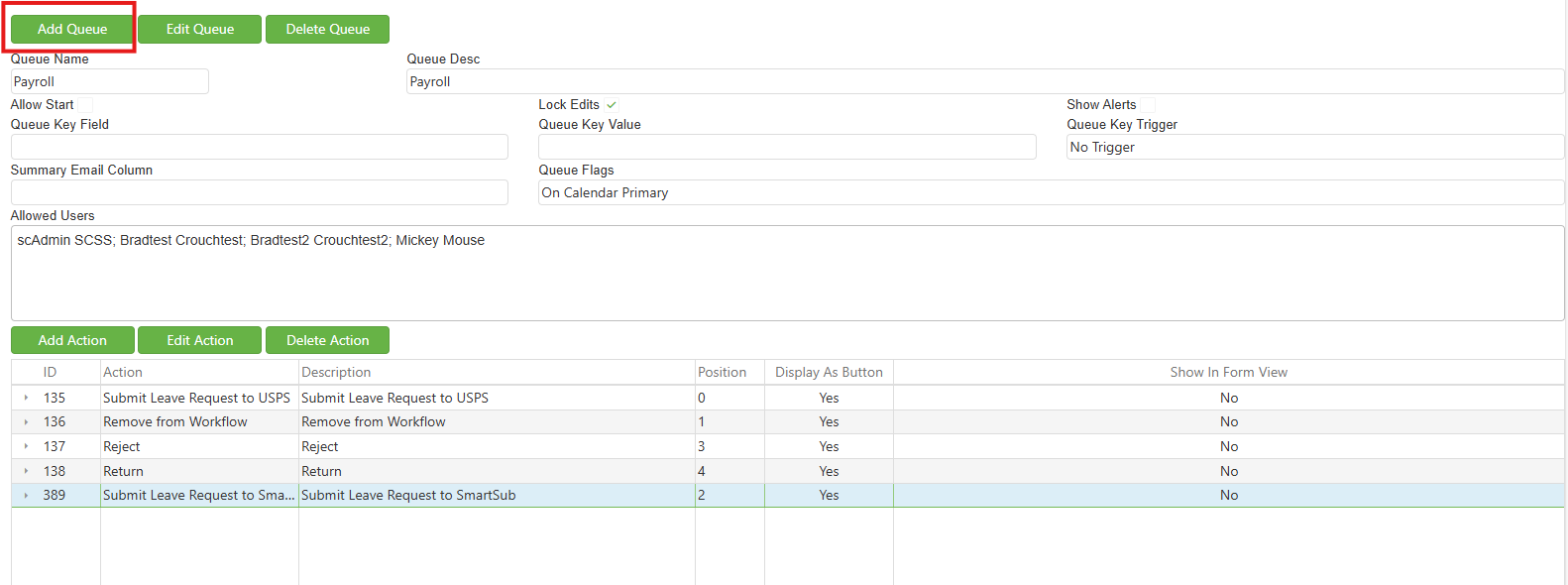
Now that you know which queue will be the point of attachment for your new SmartSub queue, let's create it! With any queue in the Leave Requests workflow selected, click the "Add Queue" button.
Image: Location of the "Add Queue Button"
This will call up the Create Queue dialog.
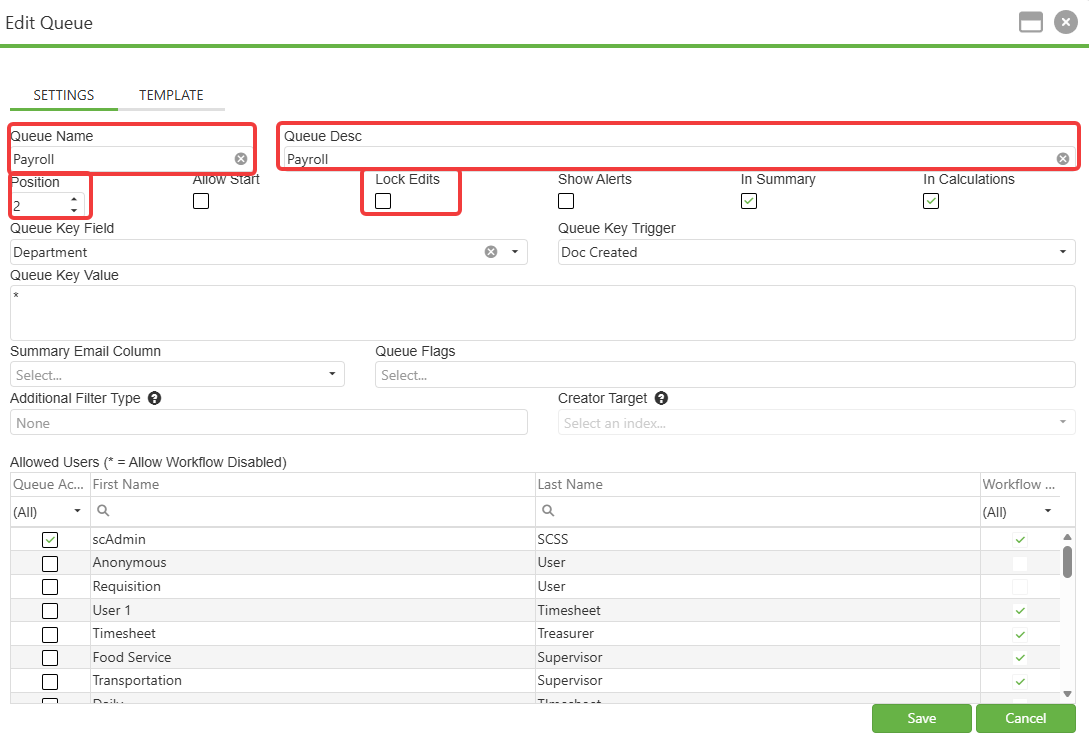
Please fill out the Queue Name and Queue Desc fields. We recommend "Submit Leave to SmartSub", "Submit Leave Request to SmartSub", or similar as a Queue Name for the sake of alignment with your existing HRIS service queue.
Enabling "Lock Edits" is recommended, as the new queue we are making will represent a point at which a Leave Request has been submitted to SmartSub, but can still be submitted to an HRIS service. Locking edits ensures that both third-party tools receive the same Request.
Finally, count your Leave Request workflow queues and stop when you get to your "After Approval and Before Submission" queue. Input a Position value that is one greater than your count. This will make the new queue you are creating appear just underneath the queue that will interact with it, which will keep your workflow easy to read and maintain.
Optionally, you may set Allowed Users now. Copying the access list from your "After Approval and Before Submission" queue is likely to be what you want, but your needs may vary.
Image: Create Queue Settings
Step 3: Add the Submit to SmartSub Queue Action
At this point, you should now have a brand new SmartSub queue in your Leave Request workflow; however, it does not interact with the rest of the workflow yet. First, we need to have existing workflow queues connect to our new queue.
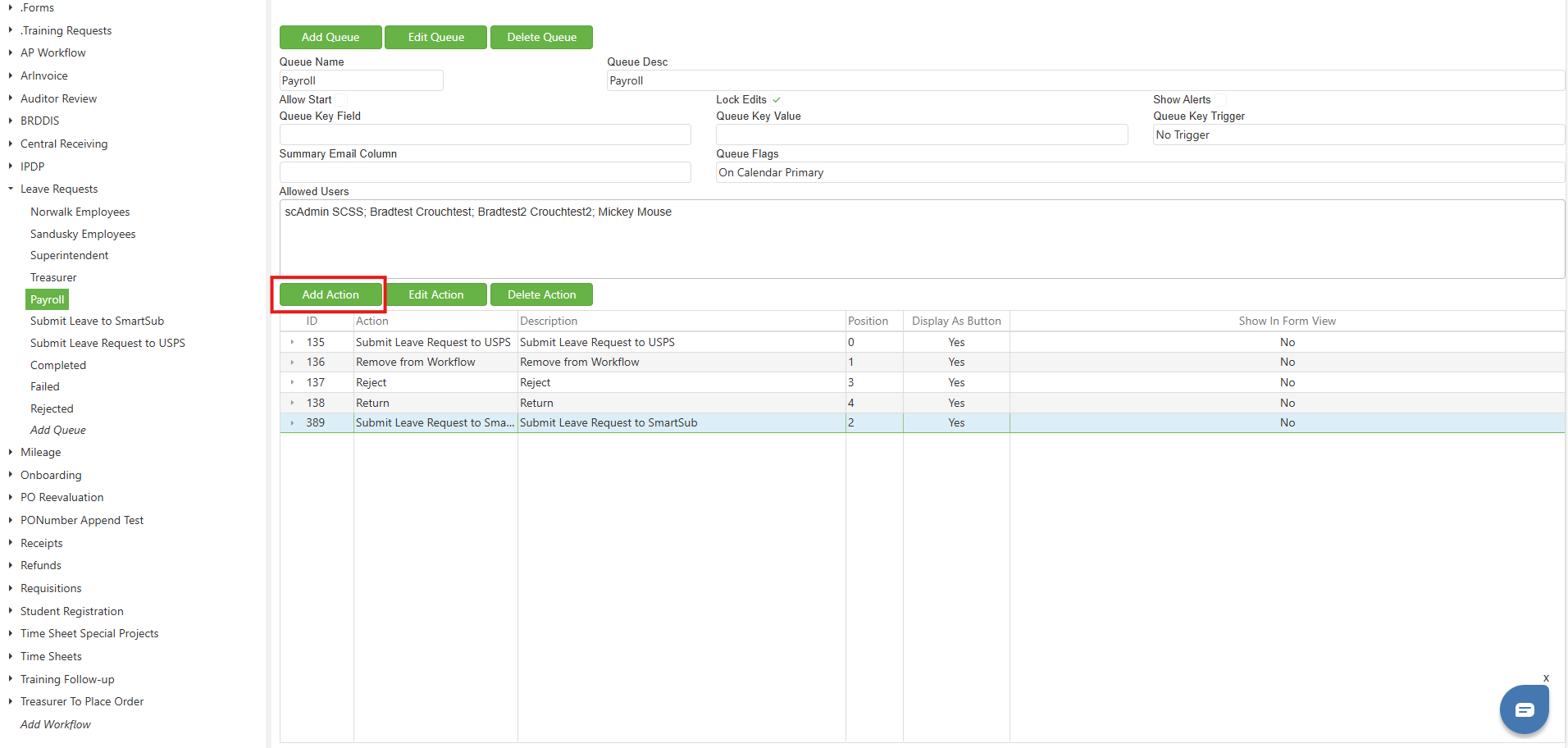
Please click your "After Approval, Before Submission" workflow queue. As a reminder, for our example, this is the Payroll queue. Once the proper queue is selected, click the "Add Action" button.
Image: The Add Action Button
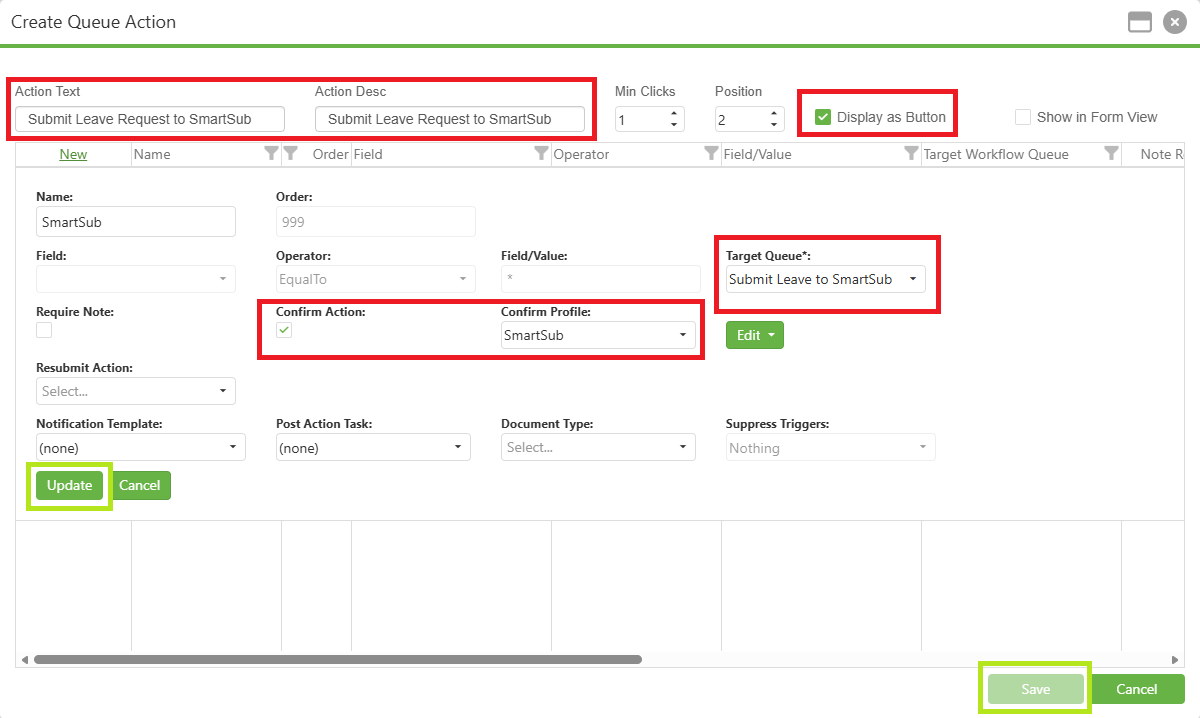
Clicking "Add Action" brings up the Create Queue Action button. Please do the following on this popup:
- Fill out the Action Text and Action Desc fields. We will use "Submit to SmartSub" for our example.
- Make sure the Display as Button option is checked.
- Set Target Queue to the queue you made in Step 2.
- Check the Confirm Action button.
- Set the Confirm Profiles dropdown to SmartSub.
When all of these fields and settings are ready, click the Update button, then the Save button (both circled in green).
You have now made it so you can submit Leave Requests to SmartSub and have SCView prevalidate your submissions!
Image: Create Queue Action
Step 4: Add Actions to the Submit to SmartSub Queue
At this point, we have the ability to push Leave Requests to SmartSub, but the Submit to SmartSub queue is currently a holding queue with no actions attached to it. We must add basic actions to the queue in order to integrate it with our existing wofkflow fully.
Much like before with Step 3, we will first select the Submit Leave to SmartSub queue, then click the Add Action button.
Image: Add Action Button
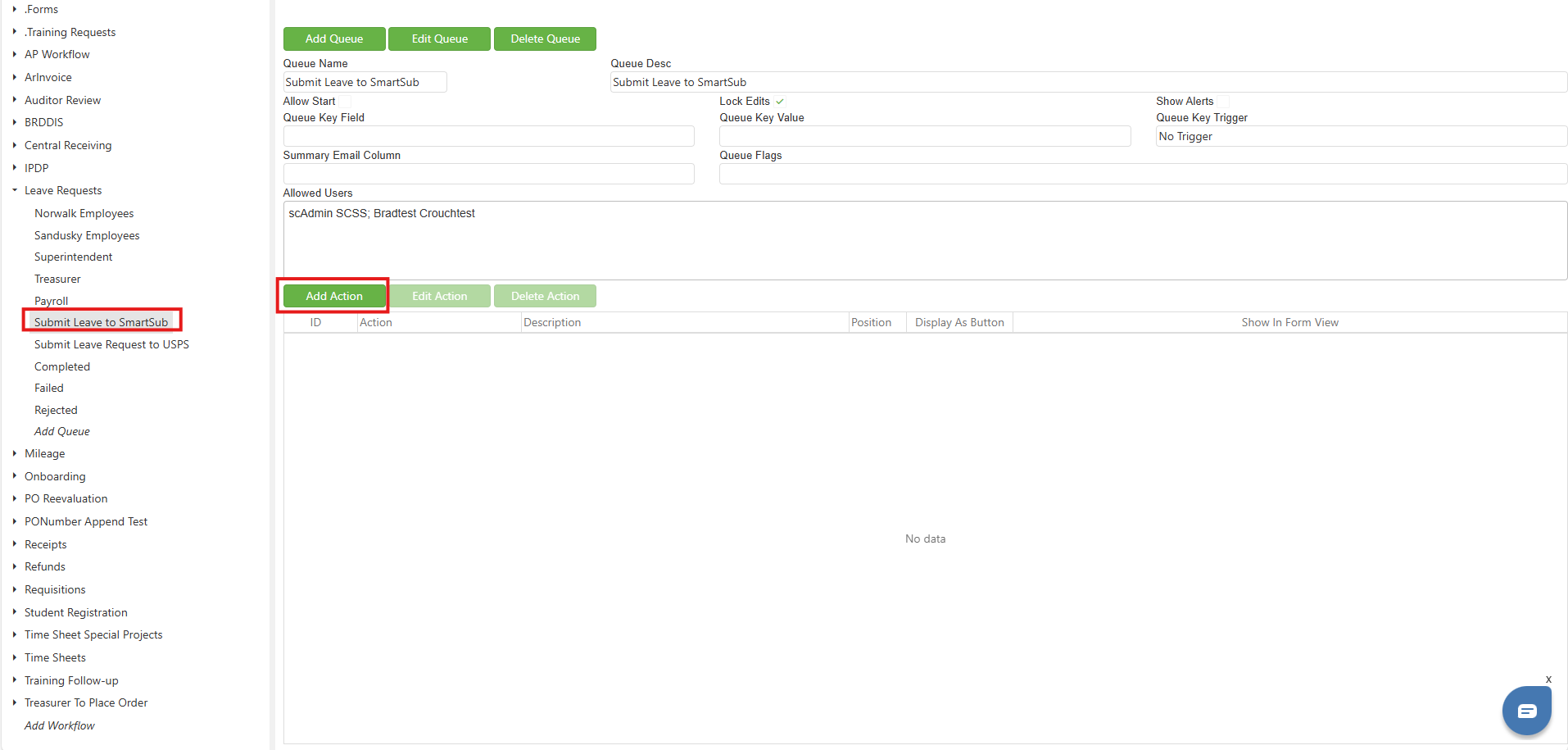
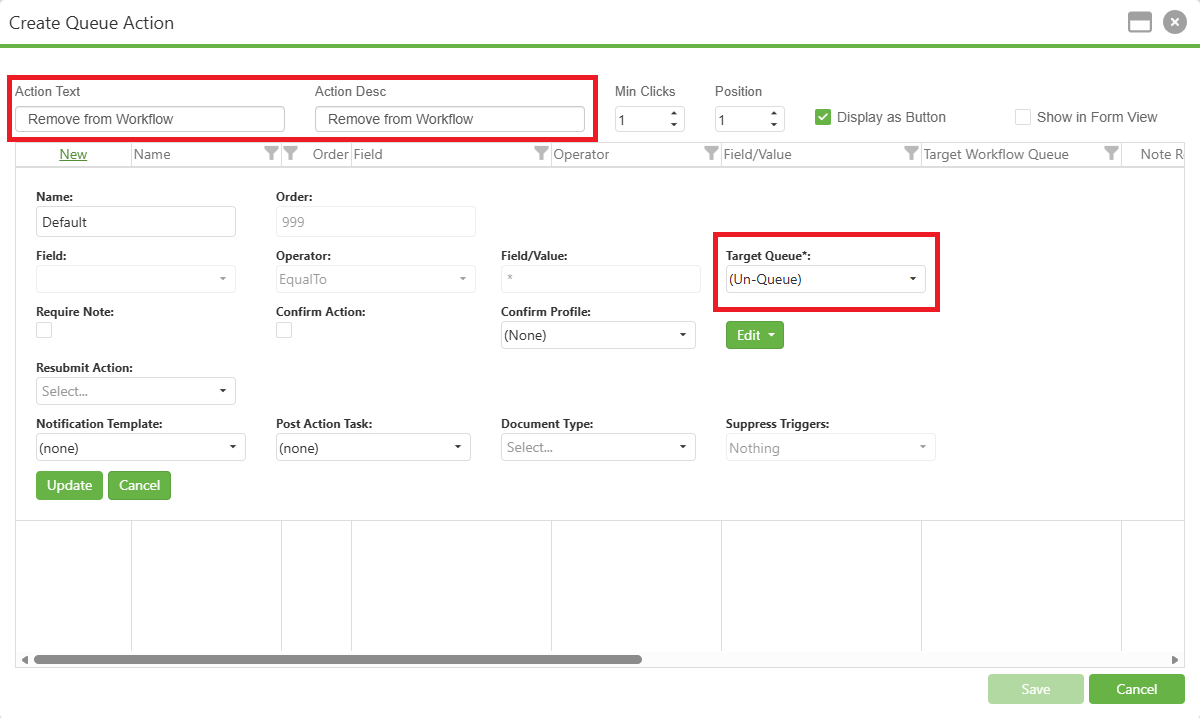
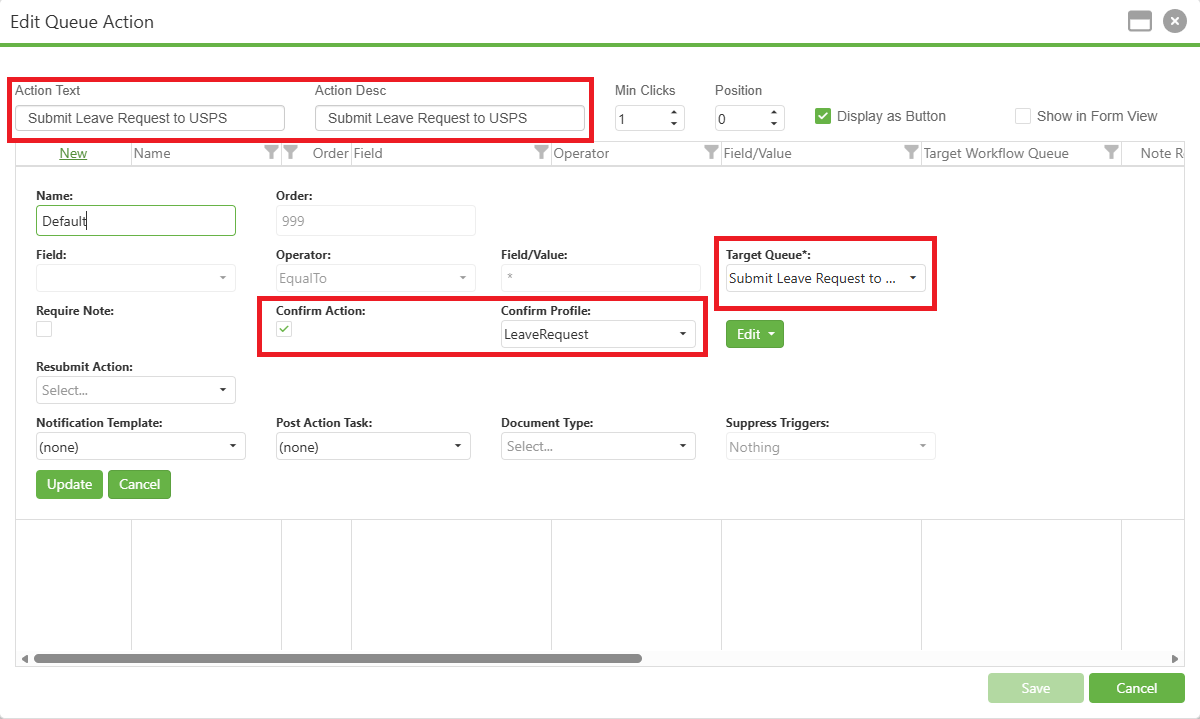
We will be adding three actions to the page. For each action, set the circled values to match, then click Update and Save, like we did in Step 3.
Remove from Workflow - Our simplest action will kick a Leave request out of workflow. Set Action Text and Action Desc to label your button as you like, then set Target Queue to (Un-Queue).
Image: Remove from Workflow Setup
Submit Leave Request to USPS - It is very likely that a Leave Request that goes to SmartSub will also be desired in USPS. We are putting USPS submission after SmartSub submission because USPS is treated as more final by the application.
To set up this action, set Action Text and Action Desc to label your button as you like, set Target Queue to Submit Leave Request to USPS (or whatever name you use for your USPS queue), and be sure to set Confirm Profiles to LeaveRequest with the Confirm Action checkbox checked.
Image: Submit Leave Request to USPS Setup
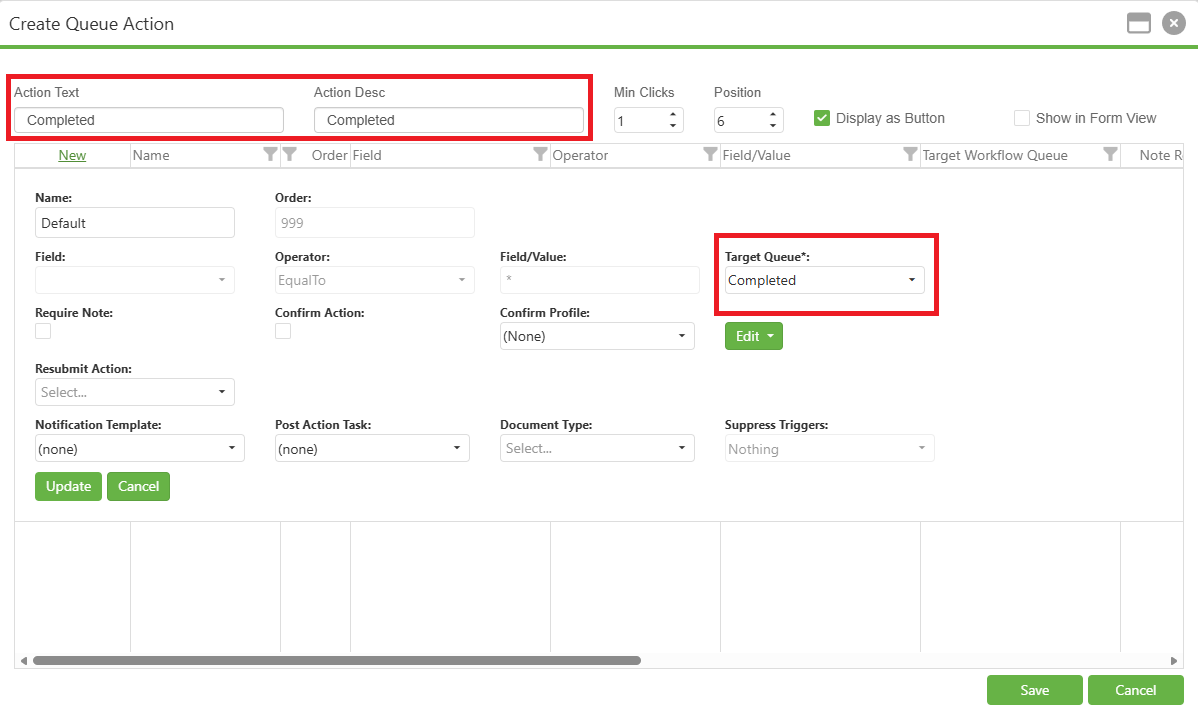
Completed - If we don't want to submit to USPS, but we also don't want to remove the request from the workflow, we need the option to send the request to a Completed queue.
To set up this action, set Action Text and Action Desc to label your button as you like, then set Target Queue to Completed (or whatever it is you use to store finished Leave Requests).
Image: Completed Setup
C. Best Practices
- This is a heavy topic. Should you be feeling overwhelmed, please contact Support. We will be happy to set up your SmartSub workflow integration for you!
D. Troubleshooting
- If documents are going to the SmartSub queue without being validated, you forgot to click the Confirm Action checkbox when creating that action button.
- If a SmartSub submission fails completely, it will not move to the next queue. Successful and partially successful submissions will go to the next queue.
E. Related Articles
Conclusion
By following the steps outlined in this guide, you have successfully integrated SmartSub submission into your Leave Requests workflow, creating a robust bridge between SCView and your substitute management system. The new SmartSub queue and its associated actions now provide your organization with streamlined processing capabilities, automated validation, and flexible routing options for leave requests requiring substitute coverage. With proper queue positioning, action configurations, and validation settings in place, your workflow will efficiently handle the journey from initial leave request through approval, SmartSub submission, and final HRIS processing. As you begin using this enhanced workflow, remember that the pre-validation feature will help catch errors early, while the multiple action paths ensure you maintain control over each request's final destination. Should you encounter any challenges or need assistance optimizing your configuration, the Support team remains available to help you maximize the benefits of your SmartSub integration.