
 | ||
Introduction
The SCView Receipt and Refunds Settings provide essential configuration options for managing receipts, refunds, and financial workflows within the system. These settings enable administrators to customize and streamline receipt/refunds processing, ensuring efficient and accurate financial record-keeping.
A. Problem Statement
Organizations often struggle with standardizing receipt management, tracking funding methods, and maintaining consistent workflow processes. Without proper configuration, this can lead to inconsistent data entry, manual errors, and reduced operational efficiency.
B. Solution
Step 1:
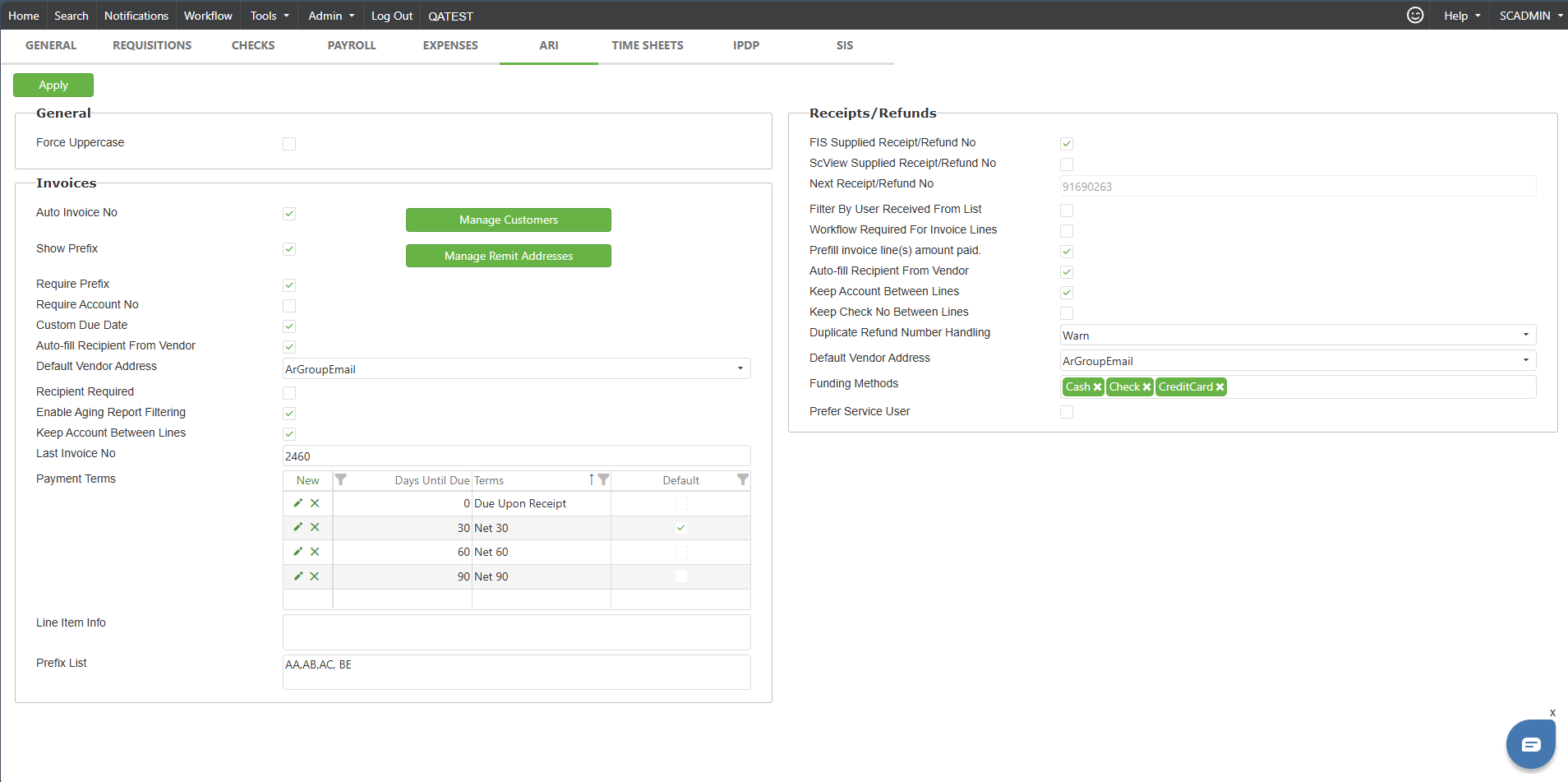
Login to the site and navigate to Admin -> Site Settings ->ARI
Step 2:
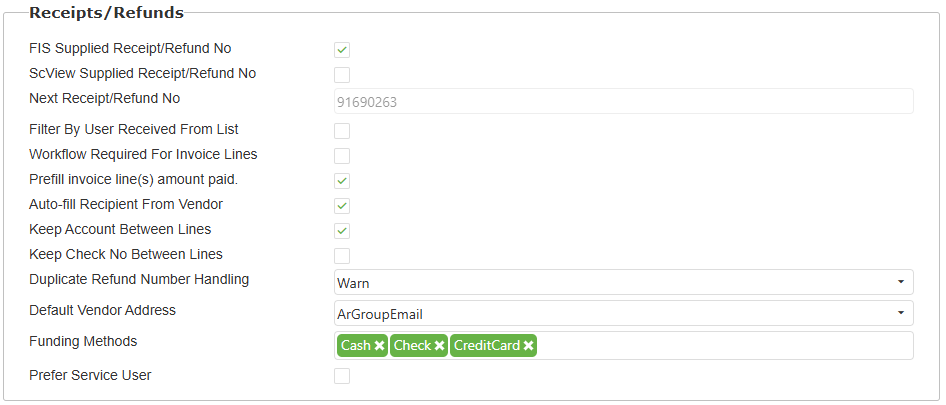
- FIS Supplied Receipt/Refund No: FIS will automatically assign your receipts a number.
- SCView Supplied Receipt/Refund No: SCView will auto assign the receipt a number when created.
- Next Receipt/Refund No: If SCView supply number is checked, it will pull from this list.
- Workflow Required for Invoice Lines: the invoice has to be in the workflow to show in the ar invoice lookup
- Prefill invoice line(s) amount paid: When using Add Invoice Line, the Receipt amount field will show the full amount if checked. If unchecked, that field will come through as 0.
- Auto-fill Recipient From Vendor: This will auto fill the "Received From Email" field based on the vendor information.
- Keep Account Between Lines: This will keep the account code if you are adding more than one line to a receipt or refund.
- Keep Check No Between Lines: This will keep the check number if you are adding more than one line to a receipt or refund.
- Duplicate Refund Number Handling: Just the message that is shown if a duplicate number is used.
- Default Vendor Address: Vendor email to use when autofill recipient from vendor is enabled
- Funding Methods: The funding methods that show when filling out a receipt, you can add or remove to this list based on what is allowed.
- Prefer Service User: If a user has the EXT name filled out under the user settings, if this box is checked it will ignore the what the users' settings is there and listen to SCView settings.
C. Best Practices
- Carefully review and select appropriate auto-fill settings
- Consistently maintain vendor information
- Regularly update funding methods
- Ensure workflow requirements are clearly defined
- Use systematic approach to receipt number management
D. Troubleshooting
Common Configuration Issues:
- Verify auto-numbering settings are correctly implemented
- Check vendor email configurations
- Validate workflow requirements
- Confirm funding method selections
- Validate user preference settings
Configuration Recommendations:
- Enable "Keep Account Between Lines" for multi-line entries
- Use "Auto-fill Recipient From Vendor" to reduce manual data entry
- Set clear duplicate receipt number handling procedures
E. Related Articles
Conclusion
Properly configured ARI Settings enhance financial transaction management, reduce manual errors, and provide a standardized approach to receipt processing. Regular review and optimization of these settings will contribute to more efficient and accurate financial operations.