 | ||
Introduction
To enhance the system's functionality by integrating a new feature termed "minimum clicks option" for queue actions. This feature must enforce a mandatory requirement of a predetermined number of approvals (clicks) before an item can complete an action or progress from the queue.
A. Problem Statement
Our current system only allows for single-user approvals per queue, which lacks the necessary oversight for certain sensitive or critical actions. The new feature should ensure that an item only progresses after receiving the required number of approvals, with each user being able to contribute only one approval.
B. Solution
This instructional guide does not explain or show the process of creating a new queue or action in a workflow. This guide solely explains the steps necessary to setup a multiple clicks action.
Prerequisites
Before configuring Minimum Clicks, ensure:
- You have administrative access to Workflow configuration
- The queue action already exists
- The Target Queue is set to a different queue (not the current queue)
Step 1:
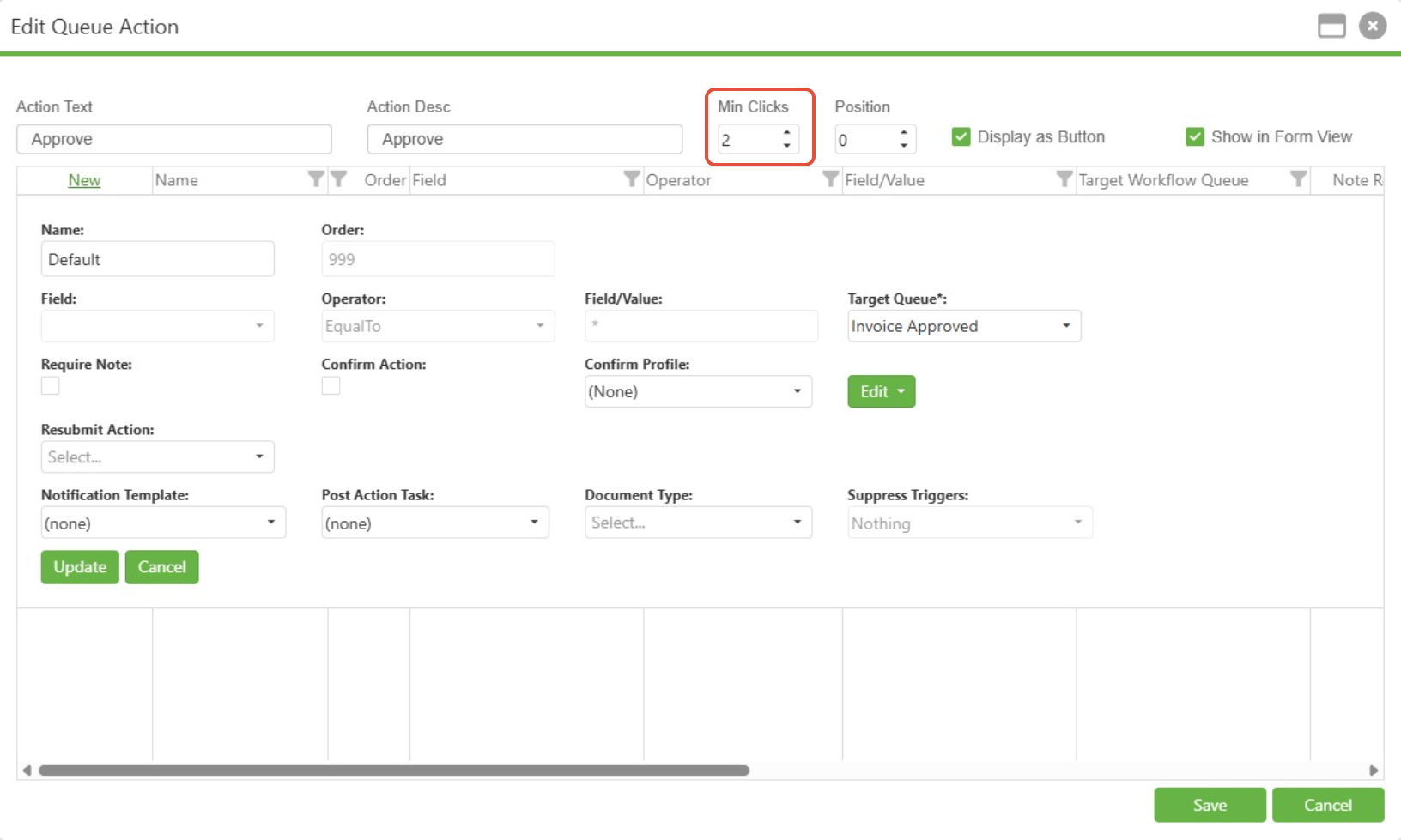
In the Workflow queue action setup, adjust the Min Clicks setting to the desired amount. There cannot be a custom Confirm Profile selected and the Target Queue must not be set to the current queue.
C. Best Practices
- Set appropriate approval counts: Match the Min Clicks value to your organization's compliance requirements. Avoid setting unnecessarily high values that may delay processing.
- Use descriptive action names: Clearly name actions (e.g., "Approve - Requires 2 Reviews") so users understand the approval requirements.
- Consider user availability: Ensure enough qualified users are available to meet the minimum approval requirements to prevent workflow bottlenecks.
- Review periodically: Regularly audit Min Clicks settings to ensure they still align with business requirements.
D. Troubleshooting
- Cannot save action with Min Clicks > 1. The target Queue is set to the current queue. To correct this, change the Target Queue to a different queue.
- Cannot save action with Min Clicks > 1. Confirm Profile is selected. To correct this, set Confirm Profiles to (None).
- Action completes with single approval. Min Clicks value is set to 1. To correct this, increase Min Clicks to the required number.
Users cannot approve items due to insufficient user permissions. To correct this, verify users have appropriate queue access.
E. Related Articles
Workflow: Queues & Queue Actions
Conclusion
By implementing the new multiple approval feature, we will significantly enhance the queue management system to address clients' needs for greater security and shared decision-making. This enhancement will ensure that critical or sensitive actions within the queue are thoroughly vetted through a collective approval process, thereby minimizing risks associated with unilateral decisions. The success of this feature will be marked by seamless integration across platforms, a robust auditing mechanism, and positive client feedback, ultimately leading to improved trust and satisfaction with our system's capabilities.
Was this article helpful?
That’s Great!
Thank you for your feedback
Sorry! We couldn't be helpful
Thank you for your feedback
Feedback sent
We appreciate your effort and will try to fix the article