
 | ||
Introduction
When utilizing the SCView platform to manage form submissions, it’s important to ensure that images generated from these forms display correctly. Occasionally, you might encounter an issue where a placeholder message appears instead of the expected form image. Here's a straightforward solution to resolve this common problem:
A. Problem statement
After submitting a form on the SCView platform, users may sometimes find that, instead of the actual form image, a placeholder message is displayed. This issue typically occurs due to the image not generating correctly within the expected time frame.
B. Solution
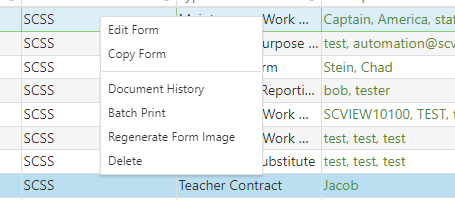
To resolve the issue of the placeholder message appearing instead of the form image, users need to edit the form and then right-click to select "Regenerate Form Image." This action triggers a task that refreshes the page image. After waiting approximately 90 seconds for the image to regenerate, users should refresh their screen, which should then display the correct form image.
Step 1:
Access the "My Forms" page on the SCView site via the tools dropdown menu.
Step 2:
After you have submitted a form and waited the 90 seconds for the image to generate, if you notice a placeholder message in place of the form image, you will need to make an edit to the form and then right click and select Regenerate Form Image.
Step 3:
This will fire a task that will refresh the page image. Once you have waited the 90 seconds for the image to generate you can refresh your screen and the image should show correctly.
C. Best Practices
- Allow Full Image Generation Time: After submitting a form, wait at least 90 seconds to allow the image to fully generate before checking its presence.
- Regenerate If Necessary: If a placeholder message is displayed instead of the image, proceed to:
- Make a minor edit to the form.
- Right-click on the form and select "Regenerate Form Image" to initiate an image refresh task.
- Refresh Browser: After another 90 seconds post-regeneration attempt, refresh your browser to ensure the correct display of the form image.
- Consistency in Process: Adhering to this systematic approach each time ensures reliable and accurate image generation from submitted forms.
D. Troubleshooting
- Initial Wait Time: Ensure that you have allowed a full 90 seconds for the image to generate after form submission. Premature checks might lead you to believe the process has failed when it's still ongoing.
- Repeat if Necessary: If the problem persists after following the above steps, repeat the process to ensure that no step was overlooked or insufficiently executed.
- Seek Assistance: Should these steps not resolve the issue, contact SCView support for further assistance. There might be underlying issues with the platform or specific form settings that require professional intervention.
E. Related articles
Conclusion
In conclusion, efficiently managing form image generation on the SCView platform involves understanding and implementing a few key procedures. By allowing sufficient time for image processing, adeptly using the "Regenerate Form Image" feature in cases where placeholders appear, and ensuring a final refresh of your browser, most issues related to image display can be effectively resolved. Following these recommended steps will not only mitigate common challenges but also enhance your overall experience with the SCView platform. Should recurring issues persist, reaching out to support will ensure any deeper technical problems are addressed, maintaining the reliability and effectiveness of your document management processes.