
 | ||
Introduction
In order to effectively manage users on the site, it's essential to have admin permissions. This guide provides step-by-step instructions for viewing, managing, and restoring users, including how to handle inactive and deleted accounts. Whether you're looking to reactivate a user or simply check on account statuses, this resource will help you navigate the admin interface with ease. Follow the outlined steps to ensure a smooth user management experience.
A. Problem statement
Admins often encounter challenges when managing user accounts, particularly when trying to identify inactive or deleted users. Without a clear understanding of how to access and restore these accounts, the user management process can become cumbersome, leading to inefficiencies and potential disruptions in access for users who need to be reactivated.
B. Solution
To address these challenges, this guide provides detailed, step-by-step instructions for viewing, managing, and restoring user accounts. By following the outlined procedures, admins can efficiently show or hide inactive and deleted users, restore accounts, and reactivate users as needed. This streamlined approach enhances the overall user management experience, ensuring that all users maintain appropriate access levels.
Viewing Users
1. Ensure Admin Permissions: Confirm that you have administrative permissions to view users. If not, contact an existing administrator.
2. Access Users:
- Navigate to Admin > Users.
Inactive Users
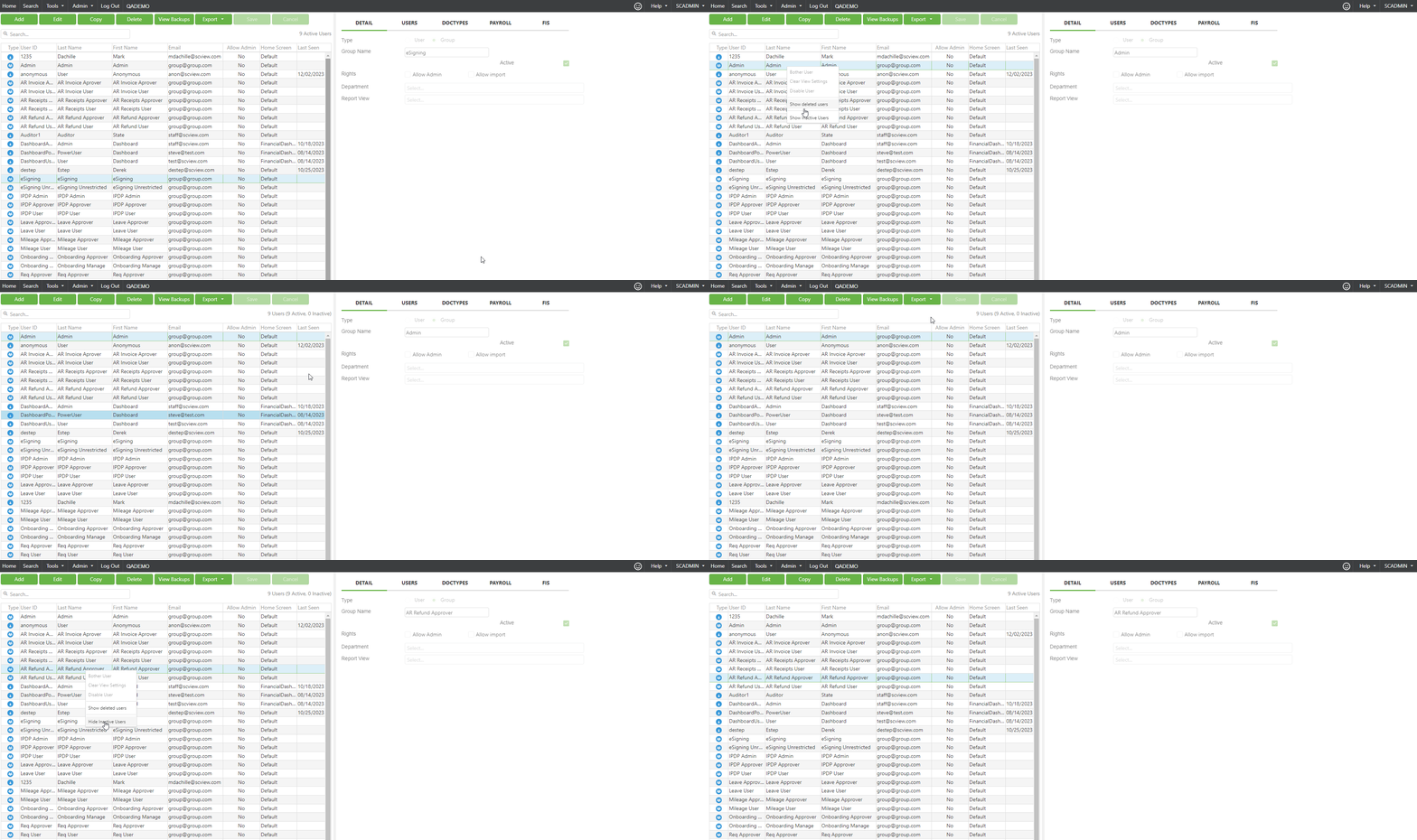
1. Show Inactive Users:
- Right-click on the user grid.
- Select Show Inactive Users from the context menu.
2. View Inactive Users:
- Inactive users will be displayed in the grid, appearing greyed out.
- An inactive user count will appear at the top of the user count.
- Inactive users will now be searchable.
3. Hide Inactive Users:
- Right-click on the user grid again.
- Choose Hide Inactive Users to remove them from view.
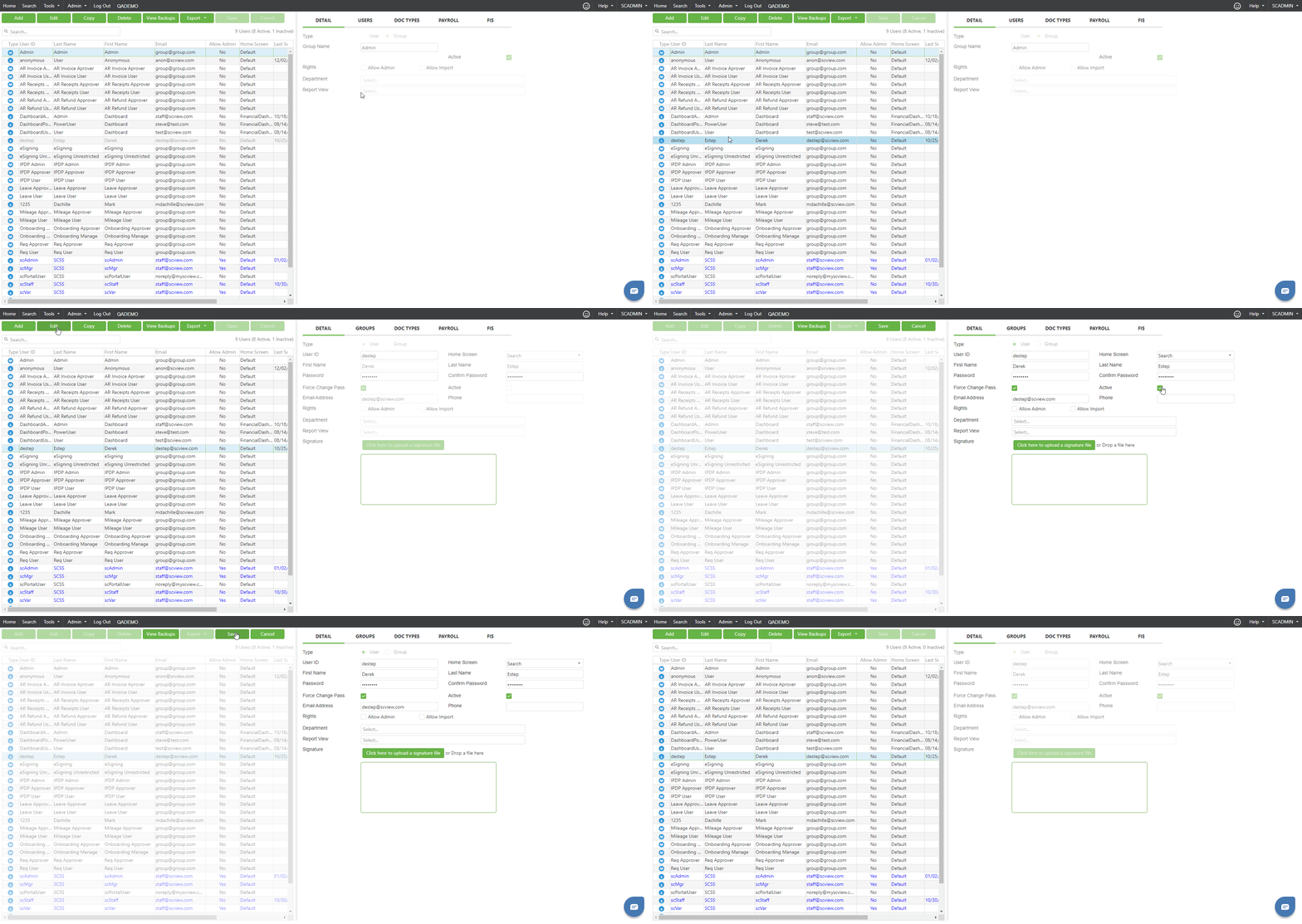
4. Mark a User as Active:
- Click Edit for the specific user.
- Check the Active box.
- Click Save to apply changes.
Deleted Users
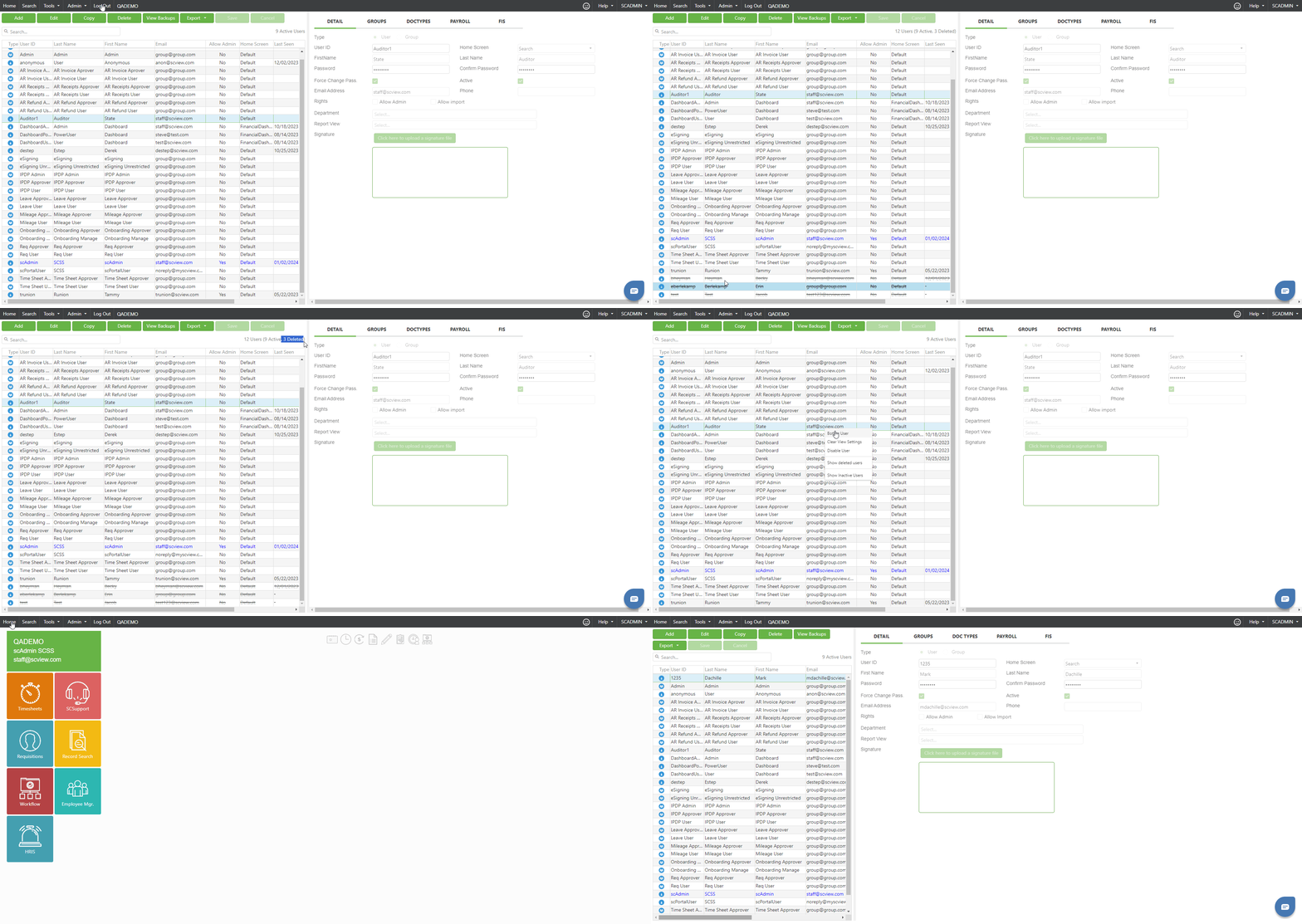
1. Show Deleted Users:
- Right-click on the user grid.
- Select Show Deleted Users from the context menu.
2. View Deleted Users:
- Deleted users will display in the grid with a line crossed through them.
- They can be found at the bottom of the grid.
- A deleted user count will appear at the top.
3. Hide Deleted Users:
- Right-click on the user grid.
- Choose Hide Deleted Users to remove them from view.
- Note: Deleted users will auto-hide once you leave the page.
Restore a User
1. Restore a Deleted User:
- Ensure Show Deleted Users is selected.
- Select the user you wish to restore from the grid.
- Click the green Restore button. 
- A prompt will ask if you are sure you want to restore the user. Click Yes.
2. Make User Active Again:
- The restored user will be highlighted in the grid (not yet active).
- Click Edit for the user.
- Check the Active box.
- Set a temporary password.
- Check the Force Password Change option.
- Click Save to finalize the changes.
These steps should help you navigate user management effectively!
C. Best Practices
To ensure effective user management, it is essential for admins to regularly review and update user statuses. Best practices include:
Regular Audits: Periodically assess user accounts to identify inactive and deleted users, ensuring that your user database remains up-to-date and secure.
Clear Documentation: Maintain thorough records of user account changes, including reactivations and restorations, to facilitate smooth transitions and improve accountability.
User Communication: Communicate any changes in user status clearly to affected individuals, ensuring they are informed about reactivations or password changes.
Training and Support: Provide ongoing training for admin users on the management tools and processes, enhancing their ability to navigate the system effectively.
By implementing these best practices, admins can foster a more organized and responsive user management environment.
D. Troubleshooting
In the event of issues arising during user management, follow these troubleshooting steps to resolve common problems:
Access Issues: If you cannot view users, confirm that you have the necessary admin permissions. If not, reach out to a current admin for assistance.
Inactive or Deleted Users Not Displaying: Ensure that you have selected the appropriate options to show inactive or deleted users. Right-click on the user grid and select Show Inactive Users or Show Deleted Users as needed.
Restoration Failures: If you encounter difficulties restoring a deleted user, verify that you are selecting the correct user and confirming the restoration prompt. Remember, the restored user will not be active until you update their status.
Changes Not Saving: If changes do not save, check for any required fields that may be incomplete, such as setting a temporary password or checking the "Active" box.
User Search Functionality: If you cannot find a user through the search feature, ensure that you are searching for the correct name or email and that inactive users are visible if applicable.
By following these troubleshooting steps, you can quickly resolve common issues and maintain efficient user management.
E. Related articles
Users: Add New User - Copy User Feature
Conclusion
Effective user management is crucial for maintaining a secure and organized site environment. By following the outlined procedures for viewing, managing, and restoring user accounts, admins can ensure that all users have the appropriate access they need. Regularly reviewing user statuses, implementing best practices, and troubleshooting issues promptly will enhance overall efficiency and user satisfaction. With these tools and strategies in place, admins are well-equipped to handle user management tasks with confidence and ease.