 | ||
Introduction
The Job Search and Management system provides comprehensive tools for efficiently locating, organizing, and managing job postings within your organization's database. This versatile platform offers multiple search methods, from simple text searches to advanced filtering options, ensuring users can quickly locate specific positions regardless of database size. Beyond searching, the system includes powerful management features such as copying, pausing, archiving, and deleting jobs, giving administrators complete control over the job posting lifecycle. With intuitive dropdown filters, sortable columns, and right-click context menus, the system accommodates various user preferences and workflow styles while maintaining data integrity and organizational standards.
A. Problem statement
Organizations managing large volumes of job postings face significant operational challenges that can impede recruitment efficiency and effectiveness. Without robust search capabilities, administrators waste valuable time scrolling through extensive lists to find specific positions, while the lack of flexible filtering options makes it difficult to analyze jobs by status, department, or posting date. The absence of job lifecycle management tools creates additional complications, as organizations cannot temporarily pause positions during hiring freezes or budget reviews without completely deleting the posting and losing all associated data.
B. Solution
To address these challenges, we provide a clear and structured guide for users to effectively manage departments and job postings within the system. By following the step-by-step instructions for creating, editing, searching, and deleting departments and jobs, users can streamline their recruitment processes. This structured approach enhances efficiency, ensures accurate data management, and ultimately supports better hiring decisions.
Search for a Job
Method 1
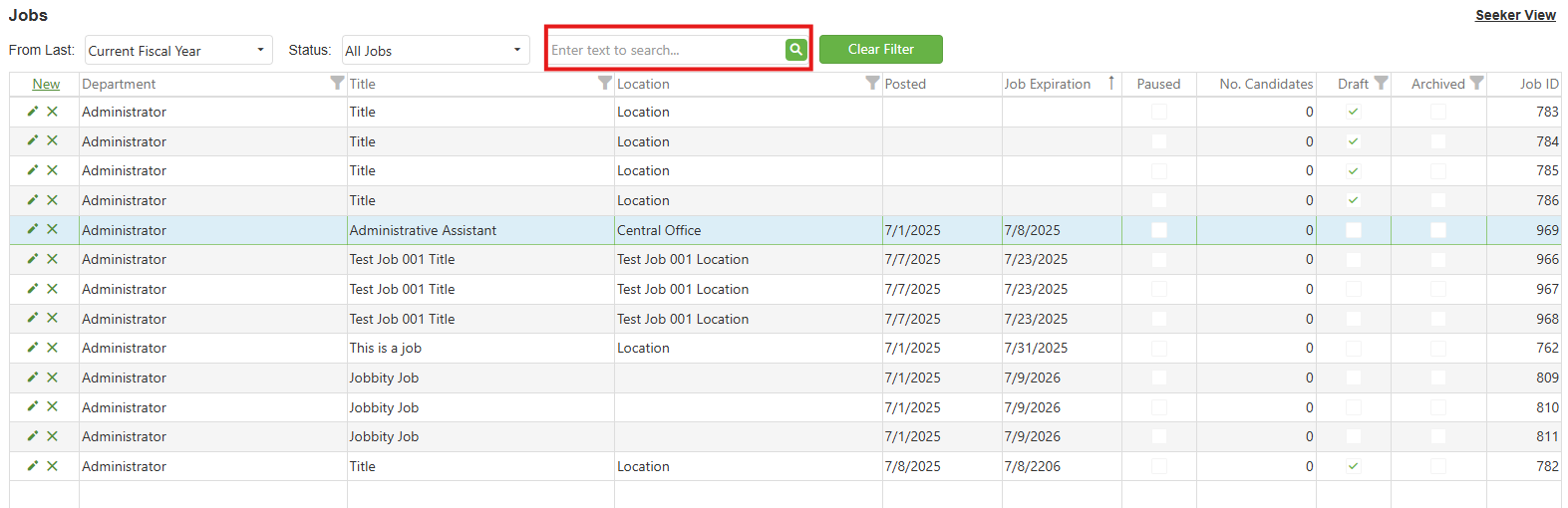
Enter the name of the job that the user wants to search on the search bar as indicated below by the red outlined box.
Method 2.1
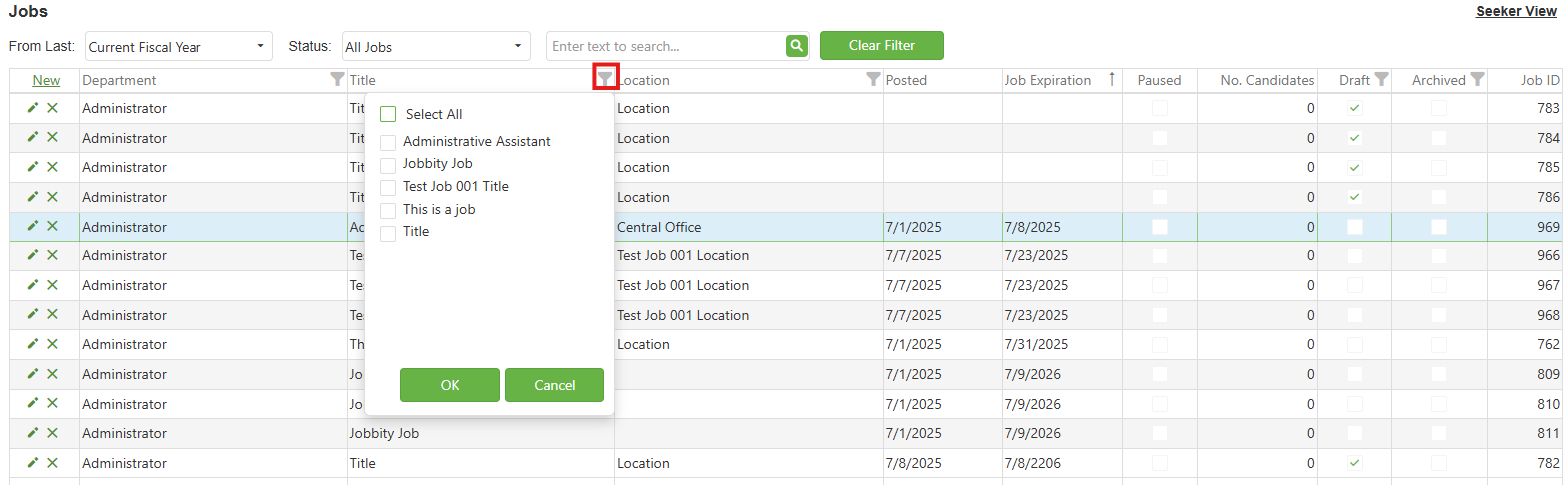
Step 1: Click on the Filter  icon (For instance: The user wants to filter by the Title).
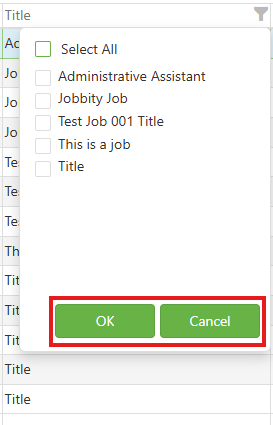
Step 2: Select the appropriate Title by clicking on the checkbox (For instance: The user wants to filter by Junior HR). Select the OK button to complete the search OR Select the Cancel button if the user wishes to cancel the filter.
Note: The user can use the above steps to filter only the following fields from the Job Page’s grid:- Department
- Title
- Location
- Posted
- Job Expiration
- Paused
- No. Candidates
- Draft
- Archived
- Job ID
Method 2.2
Step 1: Click on one of the headers of the Job Page’s grid (For instance: The user wants to filter by Posted).
An upward arrow ↑ will be displayed when the cell is clicked, indicating that the selected column has been filtered in an ascending order.
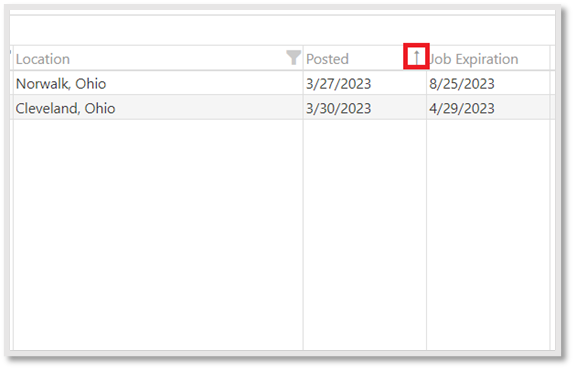
When clicked again on the cell, a downward arrow ↓ will be displayed, indicating that the selected column has been filtered in a descending order.
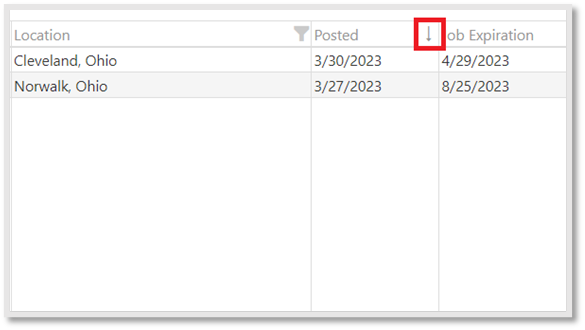
Note: All columns can be filtered. Method 3
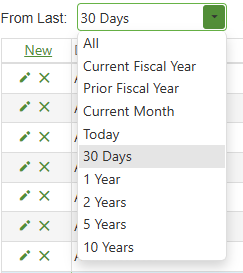
Our final method of filtering jobs is to use the dropdowns found just above the Jobs Grid.

Step 1: Select a time constraint from the From Last: dropdown. This dropdown filters out jobs in the Job Grid whose Posted date does not fit within the criteria chosen.
Step 2: You can also select a status constraint from the Status: dropdown. This dropdown filters out jobs whose Status does not match the criteria chosen.
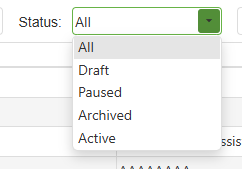
Status Types:
- All - All jobs are displayed.
- Draft - Drafts are jobs that have not yet been formally submitted. The Draft status is one-way. Once removed, it cannot be regained.
- Paused - A paused job has been temporarily put on hold. The Paused status can be added or removed at will.
- Archived - An archived job has been permanently put on hold. The Archived status is one-way. Once added, it cannot be removed.
- Active - An active job has a job expiration date that is in the future.
With these two tools put together, you can filter jobs by time and function, making it easy to pare an enormous selection of job openings down to a manageable few.
Copy an existing Job
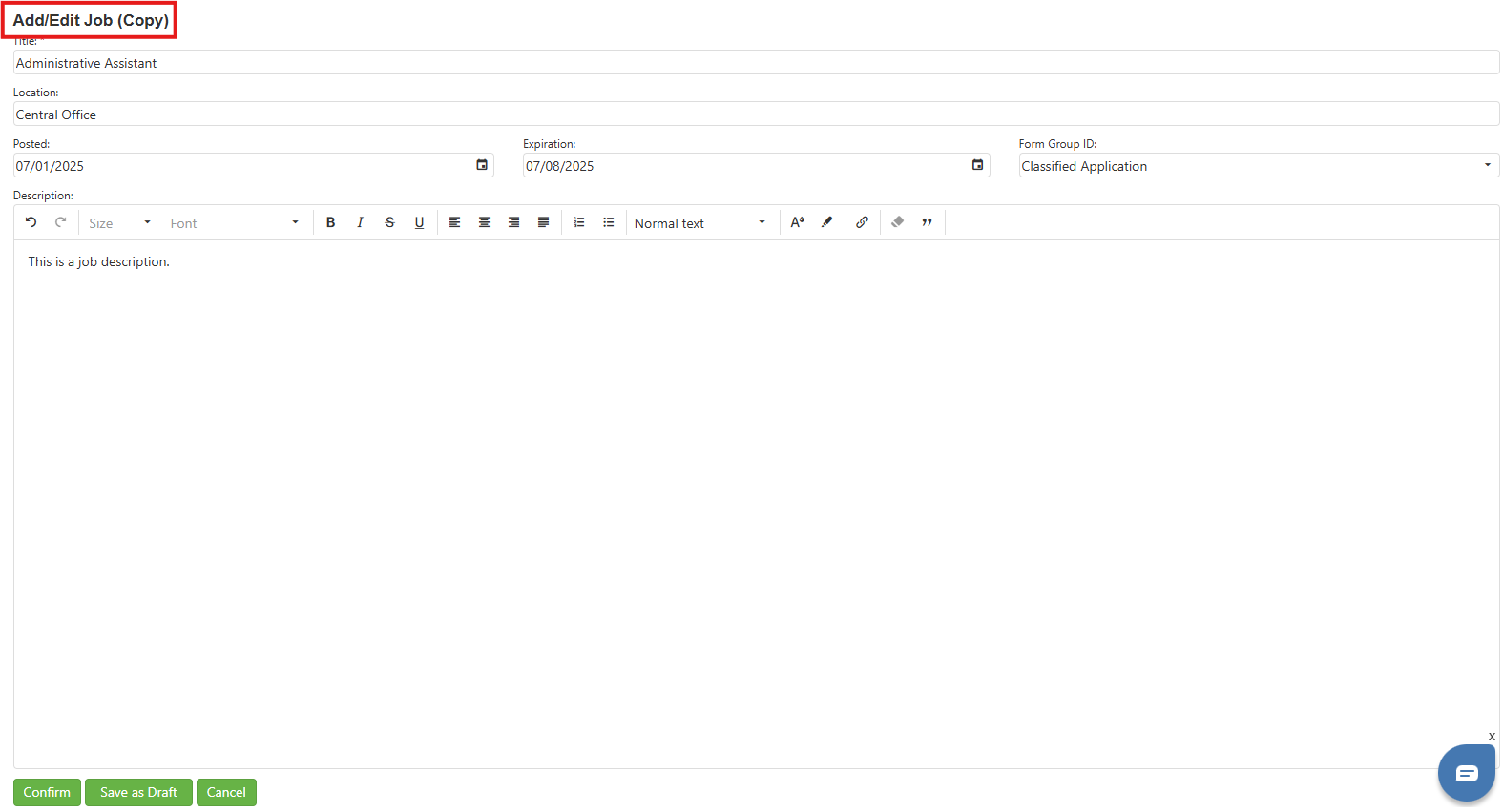
Step 1: In the Jobs page Grid, right click the job to be copied and select Copy Job from the context menu.
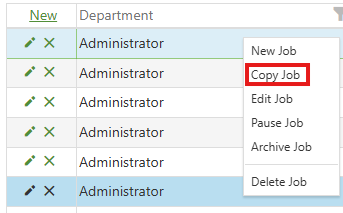
Step 2: Proceed as though Creating a New Job. The only difference is that fields are prepopulated with the values of the copied job.
Pause an existing Job
Step 1: In the Jobs page Grid, right click the job to be Paused and select Pause Job from the context menu.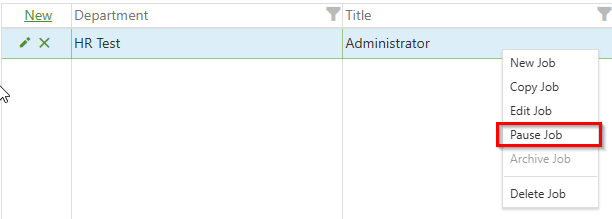
Step 2: The job put on hold should now appear with a checkmark in the 'Paused ' column's checkbox. . This status label confirms that the job is now temporarily inactive.
Unpause an existing Paused Job
Step 1: In the Jobs page Grid, right click the paused job to be Unpaused and select UnPause Job from the context menu. Step 2: This action triggers the system to prepare the job post for re-activation. The job post that previously marked as paused should now be unchecked. This absence of a check mark indicates that the job post is active again and no longer on hold.
Archive an existing Job
Note: Archiving a job is permanent and removes it from Seeker View. To "undo" archiving,
copy the job to create a brand new instance of that job. The copy will not be archived.
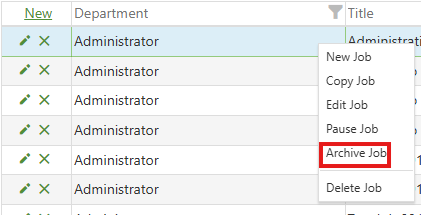
Step 1: In the Jobs page Grid, right click the job to be archived and select Archive Job from the context menu.
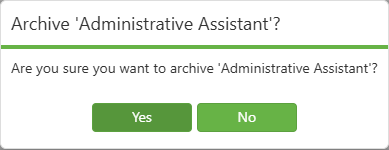
Step 2: Confirm your selection in the resulting confirmation popup
Step 3: In the Job Grid, The job selected for archiving should now appear with a checkmark in the 'Archived' column's checkbox. The presence of this checkmark confirms that the job post has been successfully archived.

Delete an existing Job
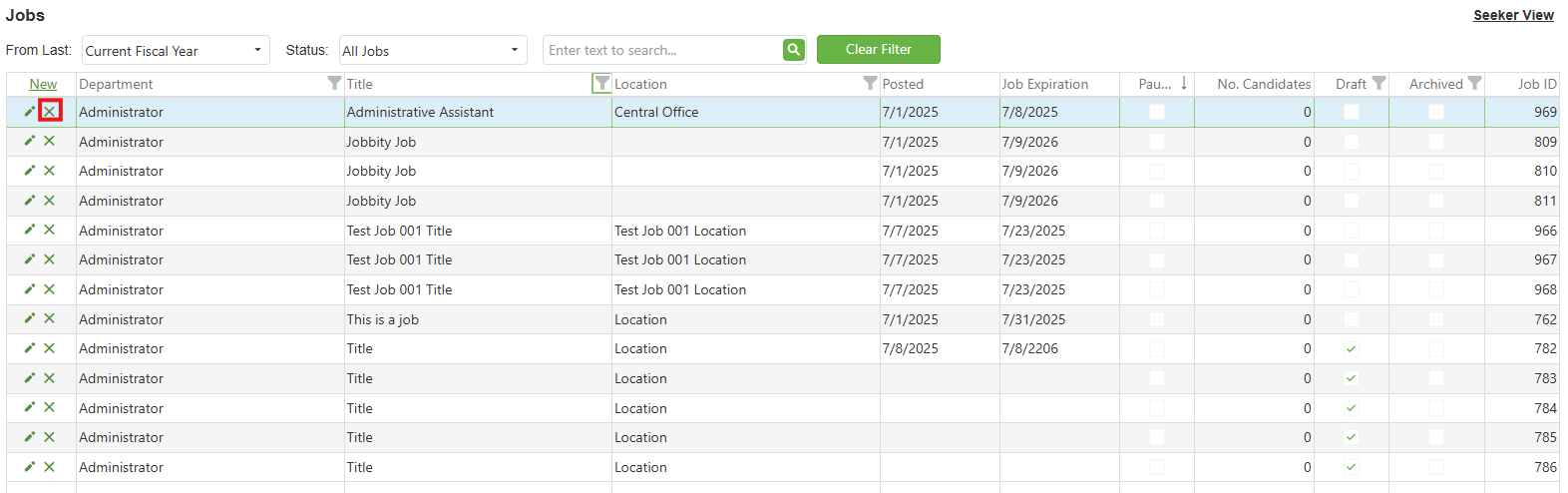
Step 1: Select the Delete (X) icon, which is on the Job Page’s grid as indicated below by the red outlined box, to delete an existing job.
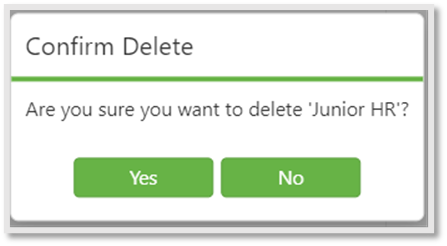
Step 2: Click on the Yes button to delete the selected job OR click on the No Button if the user does not wish to delete the selected job.
C. Best Practices
- Use combination filtering methods by applying both time constraints (From Last dropdown) and status filters simultaneously to quickly narrow down large job lists to relevant positions
- Pause jobs instead of deleting during temporary hiring freezes or budget reviews, as the pause status is reversible while deletion is permanent and archiving is one-way
- Copy existing jobs for similar positions to maintain consistency in job descriptions and requirements while saving time on data entry for recurring or similar roles
- Archive completed positions rather than deleting to maintain historical records for compliance, reporting, and future reference while keeping the active job list clean
- Regularly review filtered results and use the column sort arrows to organize data in meaningful ways, such as sorting by Posted date to prioritize newer or older positions
D. Troubleshooting
- Cannot find specific job in search: Clear all active filters first, then try using Method 1 (text search) with partial job titles, or check if the job might be archived or have a different status than expected
- Filter results not showing expected jobs: Verify the time constraint in "From Last" dropdown isn't excluding older postings, and ensure the Status dropdown is set to "All" or the appropriate status type
- Unable to unpause a job: Confirm the job is actually paused (checkmark in Paused column) and not archived, as archived status is permanent and cannot be reversed
- Accidentally archived a job: Since archiving is permanent, use the Copy Job function on the archived position to create a new instance with all the same information
- Column sorting not working properly: Click the column header twice to toggle between ascending (↑) and descending (↓) order, and ensure no conflicting filters are applied that might affect the display order
E. Related articles
Conclusion
The Job Search and Management system empowers organizations with comprehensive tools to efficiently handle their recruitment database regardless of size or complexity. By offering multiple search methods, flexible filtering options, and intuitive management functions, the platform adapts to various workflow preferences while maintaining data integrity and organizational standards. The system's thoughtful design, featuring reversible pause states and permanent archiving options, ensures administrators can confidently manage job postings throughout their entire lifecycle without fear of data loss.
Was this article helpful?
That’s Great!
Thank you for your feedback
Sorry! We couldn't be helpful
Thank you for your feedback
Feedback sent
We appreciate your effort and will try to fix the article