 | ||
Introduction
This feature allows users to transform applications or other employee files into form group invitations, facilitating the process of sending out multiple invitations simultaneously. While commonly utilized for hiring and onboarding, this functionality can be applied in various contexts. To learn more about setting up this feature, please reach out to our Support Team. When sending an invitation, a confirmation dialog box will appear, prompting you to select a Form Group and User Type—options include Anonymous, Existing, and New User. Each User Type has specific requirements and benefits, ensuring a tailored approach to inviting employees to complete their packets efficiently.
A. Problem statement
Users often face challenges when trying to convert applications or employee files into form group invitations, particularly when needing to send invitations to multiple recipients simultaneously. This can lead to confusion and inefficiencies in the hiring and onboarding process, as well as difficulties in managing user access and invitations for different types of employees.
B. Solution
To address these challenges, the system provides a streamlined feature that enables users to easily convert applications and employee files into form group invitations. This feature allows for the selection of multiple user types—Anonymous, Existing, and New User—making it simple to invite various employees according to their needs. By utilizing the confirmation dialog box to specify the Form Group and user type, users can efficiently send out personalized invitations, improving the overall onboarding experience and workflow. For further assistance in setting up this feature, users can contact the Support Team.
Step 1: Access the Feature
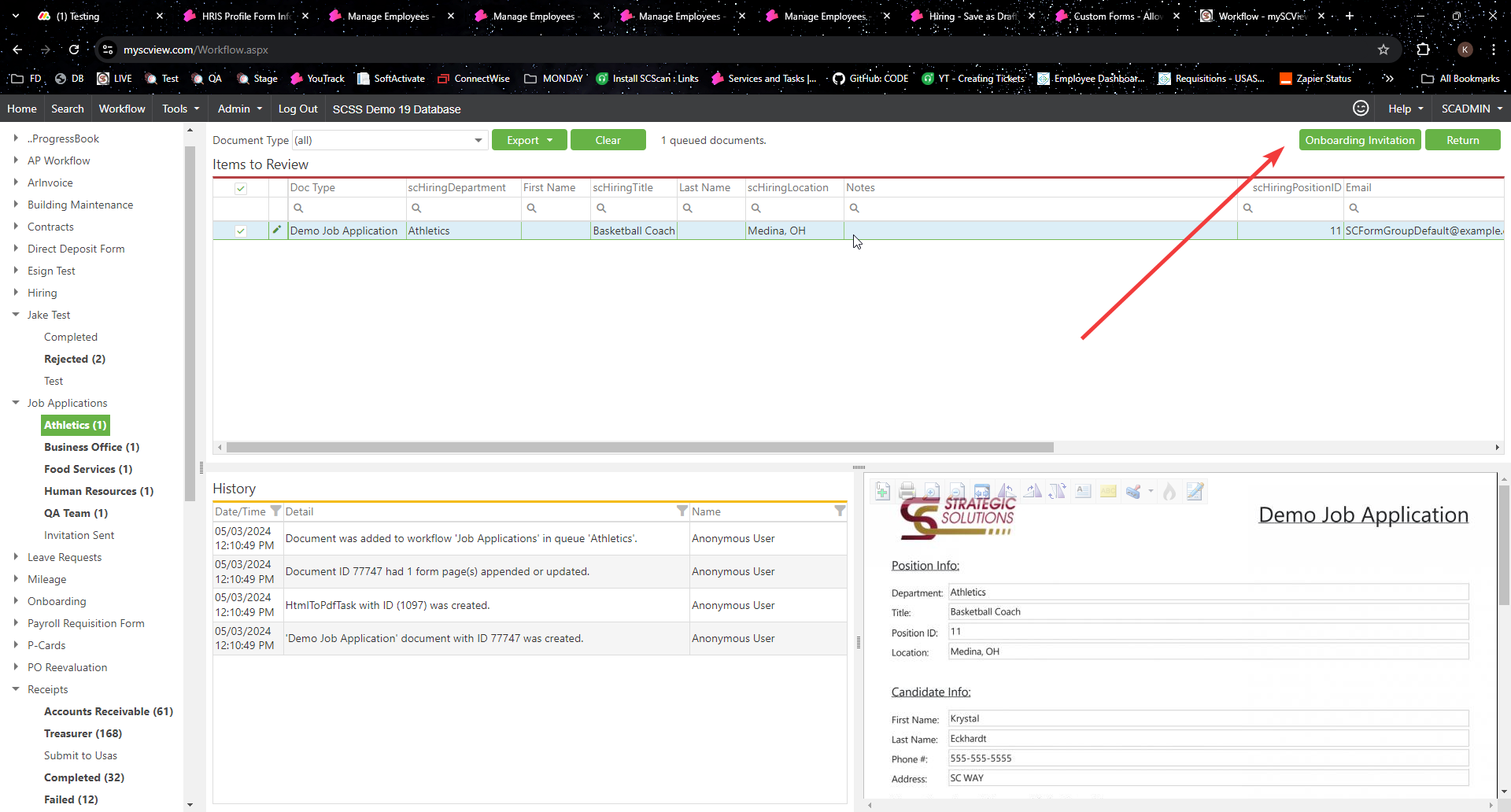
- Navigate to the application or employee files you wish to convert into a form group invitation.
Step 2: Click the Action Button
- Click on the action button to initiate the invitation process. A confirmation dialog box will appear.
Step 3: Choose Form Group
- In the confirmation dialog, select the desired Form Group from the dropdown menu. Only Form Groups containing one or more forms will be available for selection.

Step 4: Select User Type
- Choose the appropriate User Type:
- Anonymous: For inviting employees who do not need to log in to myscview.com. They will receive a unique link to fill out the packet.
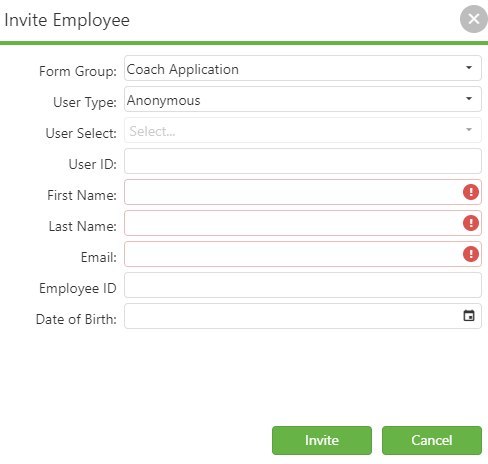
- Existing: For inviting employees who already have a username. Select the user from the dropdown, which will auto-fill their User ID, First Name, Last Name, and Email. Employee ID will also populate if applicable.

- New User: For creating a new user while sending the invitation. Enter the desired User ID, and the invitation email will include their new username and temporary password.

- Anonymous: For inviting employees who do not need to log in to myscview.com. They will receive a unique link to fill out the packet.
Step 5: Enter Email Address
- Ensure an Email address is entered in the confirmation window. If it does not auto-fill, you must manually enter it.
Step 6: Confirm and Send
- After filling out the necessary fields, click the 'OK' button. This action will send the invitation packet to the selected user(s).
Step 7: Follow Up
- Check to confirm that the invitations have been sent successfully and monitor any responses or follow-up actions needed.
C. Best Practices
To ensure an efficient and effective process when sending form group invitations, follow these best practices:
1. **Identify User Needs**: Before sending invitations, determine the appropriate user type—Anonymous, Existing, or New User—based on the employee's requirements for accessing the forms.
2. **Use Clear Form Groups**: Choose a well-defined Form Group that aligns with the specific purpose of the invitation, making it easier for recipients to understand their tasks.
3. **Double-Check Email Addresses**: Always verify that the email address entered for each user is correct to avoid delivery issues. If it does not auto-fill, ensure it is entered manually.
4. **Personalize Invitations**: Utilize the confirmation dialog to customize invitations where possible, enhancing the recipient's experience and encouraging timely responses.
5. **Follow Up**: After sending invitations, monitor their status and follow up with recipients if necessary to ensure they have received and understood their tasks.
By adhering to these best practices, you can streamline the invitation process and improve engagement with your onboarding efforts. For additional support, reach out to our Support Team.
D. Troubleshooting
If you encounter issues while sending form group invitations, start by ensuring you’ve selected the correct User Type—Anonymous, Existing, or New User—based on the recipient’s needs. Verify that the email addresses entered are accurate, as typos can prevent delivery. Also, confirm that the chosen Form Group is set up correctly and accessible. After clicking the 'OK' button, look for confirmation messages to ensure the invitation was sent successfully. If problems persist, or if you need further assistance, please contact our Support Team for help. Following these steps will help you troubleshoot common issues and maintain a smooth invitation process.
E. Related articles
Onboarding: Submit New Employees to USPS
Conclusion
In summary, the ability to convert applications and employee files into form group invitations enhances the onboarding process by allowing for efficient communication with multiple recipients. By selecting the appropriate User Type, verifying email addresses, and ensuring the proper setup of Form Groups, you can streamline the invitation process. Remember to monitor for confirmation messages to confirm successful submissions. If you encounter any challenges, our Support Team is available to assist you. Utilizing these steps will facilitate a smoother onboarding experience and help ensure that all necessary forms are completed accurately and on time.
Was this article helpful?
That’s Great!
Thank you for your feedback
Sorry! We couldn't be helpful
Thank you for your feedback
Feedback sent
We appreciate your effort and will try to fix the article