 | ||
Introduction
Welcome to the guide on the SCView Manage Employees page. This page within the Onboarding module is an essential tool for HR professionals and administrators looking to effectively manage employee onboarding and form submissions. By navigating through this guide, you will gain insights into how to manage onboarding invitations efficiently within the SCView platform.
A. Problem statement
Organizations often face challenges in efficiently managing employee onboarding processes and document submissions. Traditional methods are frequently time-consuming, prone to human error, and difficult to track. The lack of a streamlined system can lead to delays in new hire onboarding, incorrect data entry, and inefficient communication between HR and employees.
B. Solution
To follow along with this guide, please use the main navigation bar to navigate to Tools > Manage Employees OR click the Employee Mgr. button from the Home dashboard page. If looking for how to create new employee invitations within Manage Employees, please refer to article Onboarding: Manage Employees New Invites.
Image: Methods to Access Manage Employees

Step 1: The Manage Employees Grid
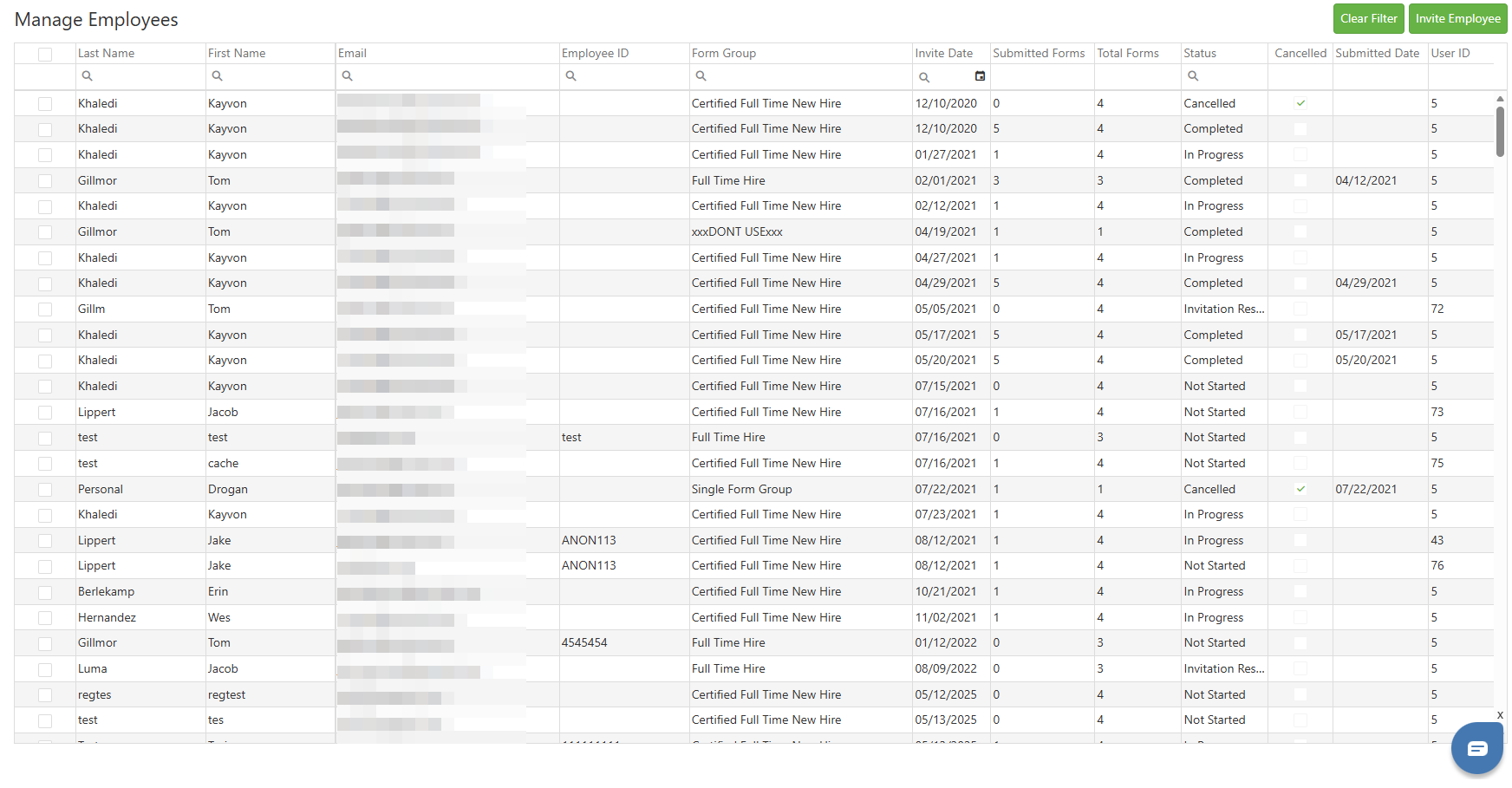
Even more so than other pages, the Manage Employees manager is utterly dominated by its data grid. Each line in this grid tracks a form group (usually an onboarding packet) sent to a specified individual; it will dynamically update with that individual's progress through the packet. Let's break down the columns of the Manage Employees Grid to show what gets tracked and how.
Last Name - The invitee's last name
First Name - The invitee's first name
Email - The email address to which the onboarding packet invite is sent
EmployeeID - The invitee's EmployeeID, if it exists and is known
Form Group - The name of the Form Group / Onboarding Packet sent to the invitee
Invite Date - The date the invite was created
Submitted Forms - How many individual forms the invitee has submitted to the organization
Total Forms - How many individual forms are in the Form Group sent to the invitee
Status - The current status of the invite
- Not Started - The invitee has not touched the form group packet yet.
- In Progress - The invitee has interacted with the form group packet, usually by submitting a form or saving a draft.
- Completed - All required forms have been submitted.
- Cancelled - The invite to fill out the form group has been rescinded by somebody within the organization
- Invitation Resent - The invitation email has been resent, and no action has been taken by the invitee.
Cancelled - Checked if an invite has been cancelled
Submitted Date - The date the form group was completed
User ID - The User ID of the invitee, as tracked by the Users module, or the ID number for anonymous (usually ID: 5 for newer clients) if no user exists
Image: Manage Employees Grid
Step 2: Filtering and Sorting the Manage Employees Grid
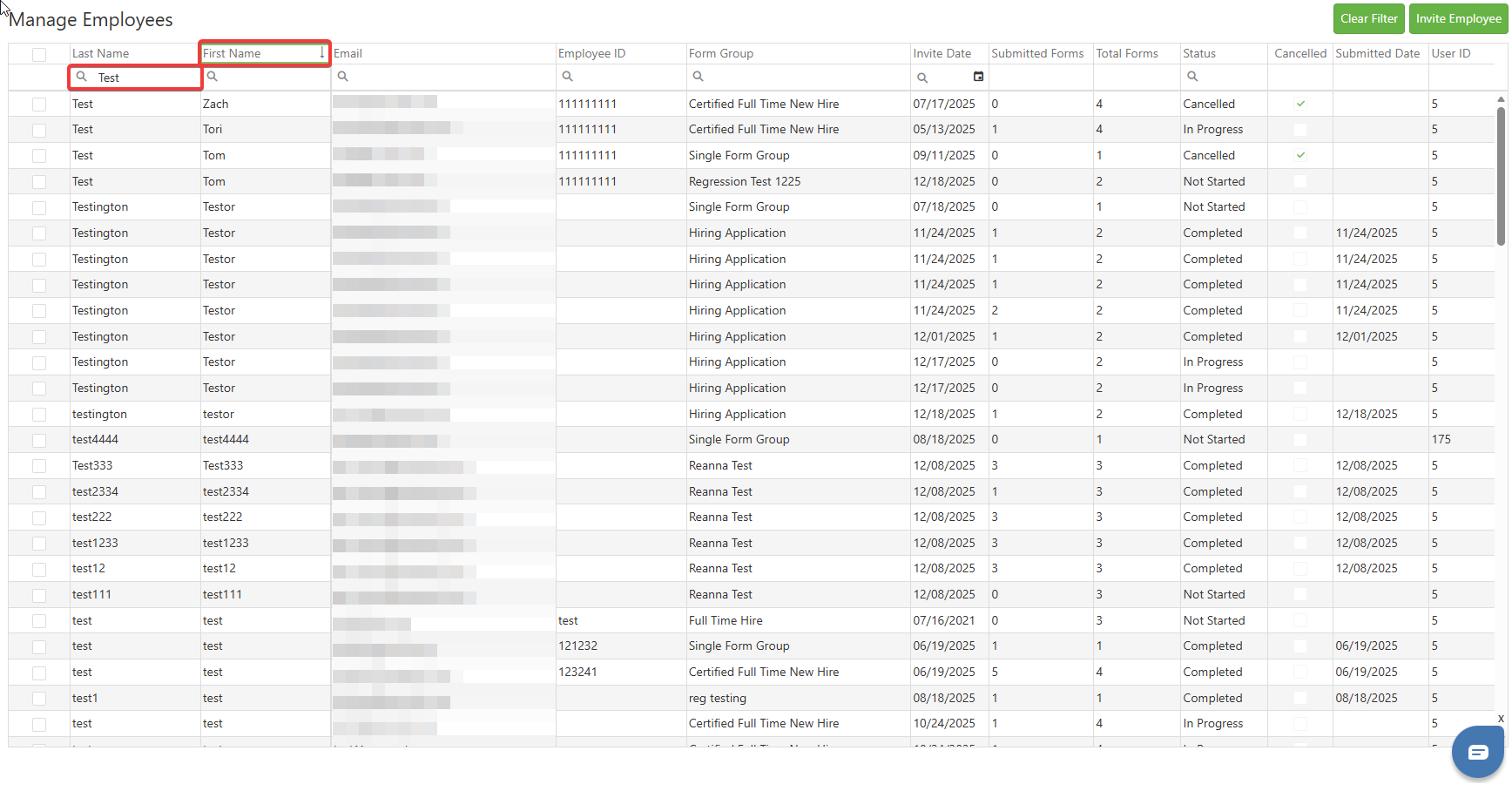
The Manage Employees grid supports standard SCView filtering and sorting features. Click a column header to sort the grid by that column's data in alphabetical order, then click again to set to reverse alphabetical order instead. Columns marked with a magnifying glass support filtering by search terms. In the image below, we are filtering Last name by the word "Test", while also sorting by First Name in reverse alphabetical order. The end result is every last name contains "Test", and the First Names start at the letter Z.
Clicking the green Clear Filter button located in the top right of the Manage Employees Manager will reset all filters and sorts imposed upon the grid.
Image: An Example of Manage Employees Grid Filtering and Sorting
Step 3: Managing Invitations
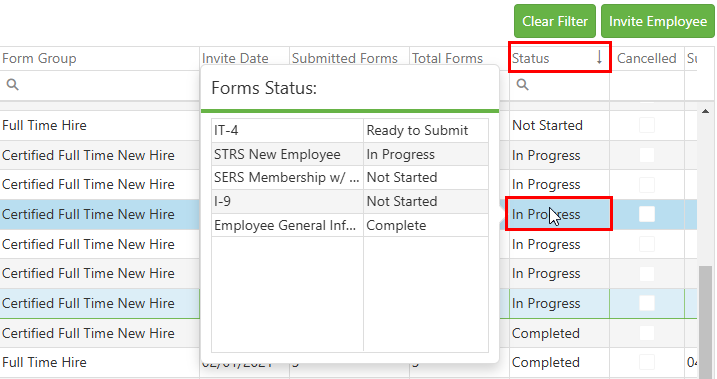
After invitations have been sent, you will be able to track the progress under the Manage Employees page by hovering your mouse over an invitation under the Status column. This will show you the status of each document being filled out, as well as where it is in Workflow if it has been submitted.
Image: Manage Employees Status Hover Over
You can easily manage your sent invitations by right-clicking on an invitation and selecting one of the following:
Image: Manage Employees Context Menu
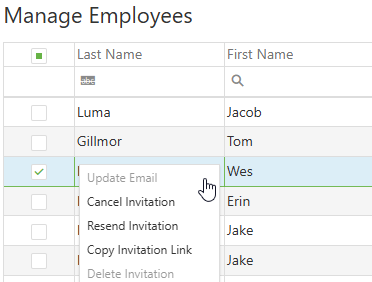
- Update Email – This allows you to change the email address that was used to send the initial invitation. If done, you must then click Resend Invitation. You are not able to change the email address if the employee has already started their packet.
- Cancel Invitation – This will stop the user from being able to fill out the forms when loading the link from their invitation email.
- Resend Invitation – This will resend the invitation email based on the current email address listed for their invitation.
- Copy Invitation Link – This copies the invitation link to your clipboard for that employee. You can then paste the link into your browser to see exactly what they would see from their invitation link. This should only be used for viewing purposes.
- Delete Invitation– Deletes the invitation. The invitation must be cancelled before this option can be selected.
C. Best Practices
- Secure Your Credentials: Always ensure your login credentials are secure. If using SSO, ensure that your organizational policies for single sign-on are followed.
- User Permissions: Verify that you have the necessary permissions to access the Manage Employees page. Contact your administrator to update your permissions if needed.
- Accurate Data Entry: Input accurate details for each user. This includes their names, email addresses, and the correct Form Group designation as this ensures they receive and complete the appropriate packet.
- Monitor Invitations: Regularly check the status of sent invitations to ensure timely submission and to provide assistance if needed.
- Utilize the Filter Functions: Use the Clear Filter button to clear any unwanted filters and ensure the correct view of the employee status list.
D. Troubleshooting
- Logging In Issues: If facing issues during login, refer to the guide provided or check if you’re entering the correct username, password, and database information.
- Invitation Issues: In case an employee does not receive an invitation email: First, verify the email address is correct. Update and resend the invitation if necessary.
- Issues with Form Group Selection: Ensure the correct Form Group is chosen for each employee. This step is crucial as it dictates the forms they are required to complete.
- Technical Support: For issues that cannot be resolved through these steps, contact SCView Support for further assistance.
E. Related Articles
Manage Contacts: Contacts Manager
Onboarding: Manage Employees New Invites
Conclusion
The SCView Manage Employees page is an indispensable tool for efficiently managing the employee onboarding process. By following the outlined best practices and troubleshooting tips, HR professionals can streamline the onboarding workflow and enhance communication with employees. With SCView, organizations can reduce administrative overhead and ensure a more organized and error-free onboarding experience.
Was this article helpful?
That’s Great!
Thank you for your feedback
Sorry! We couldn't be helpful
Thank you for your feedback
Feedback sent
We appreciate your effort and will try to fix the article