
 | ||
Introduction
With the Onboarding module, you can submit new employees for creation in USPS. If you have this module but aren’t set up to submit to USPS, please reach out to support at support@scview.com for assistance—there’s no extra charge for this.
In this example, we’ll use the "Employee General Information" form. Keep in mind that the name of the form may differ from what you’re using for USPS submissions. The most commonly submitted form to USPS is the general profile form, which is the first document new hires fill out.
A. Problem statement
How to submit a new employee to USPS.
B. Solution
Follow the steps below, if you are still having trouble after that feel free to reach out to support, we are more than willingly to help out!
Step 1:
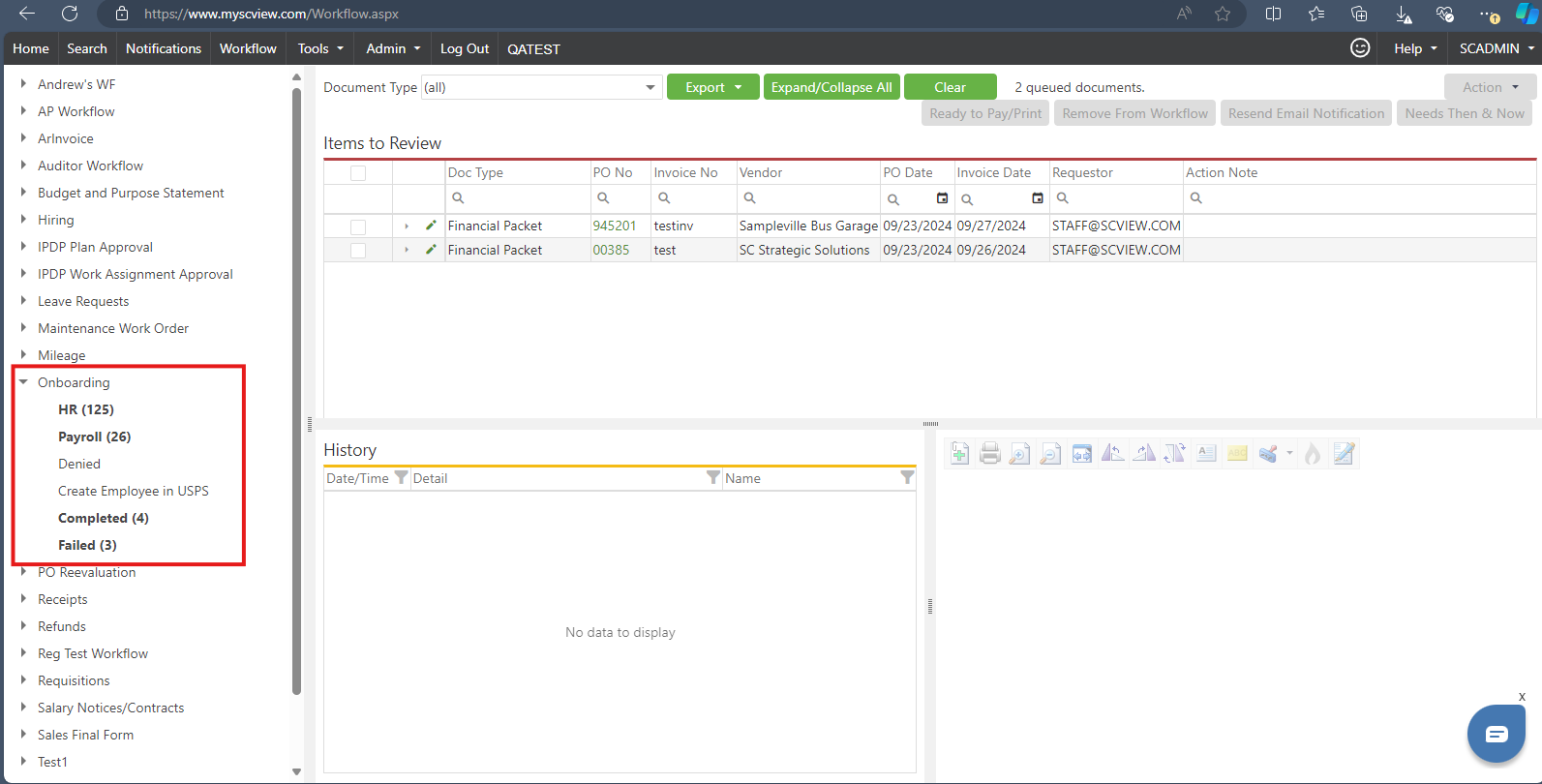
Go to the Workflow queue containing the Onboarding document type that needs to be submitted to USPS.
Step 2:
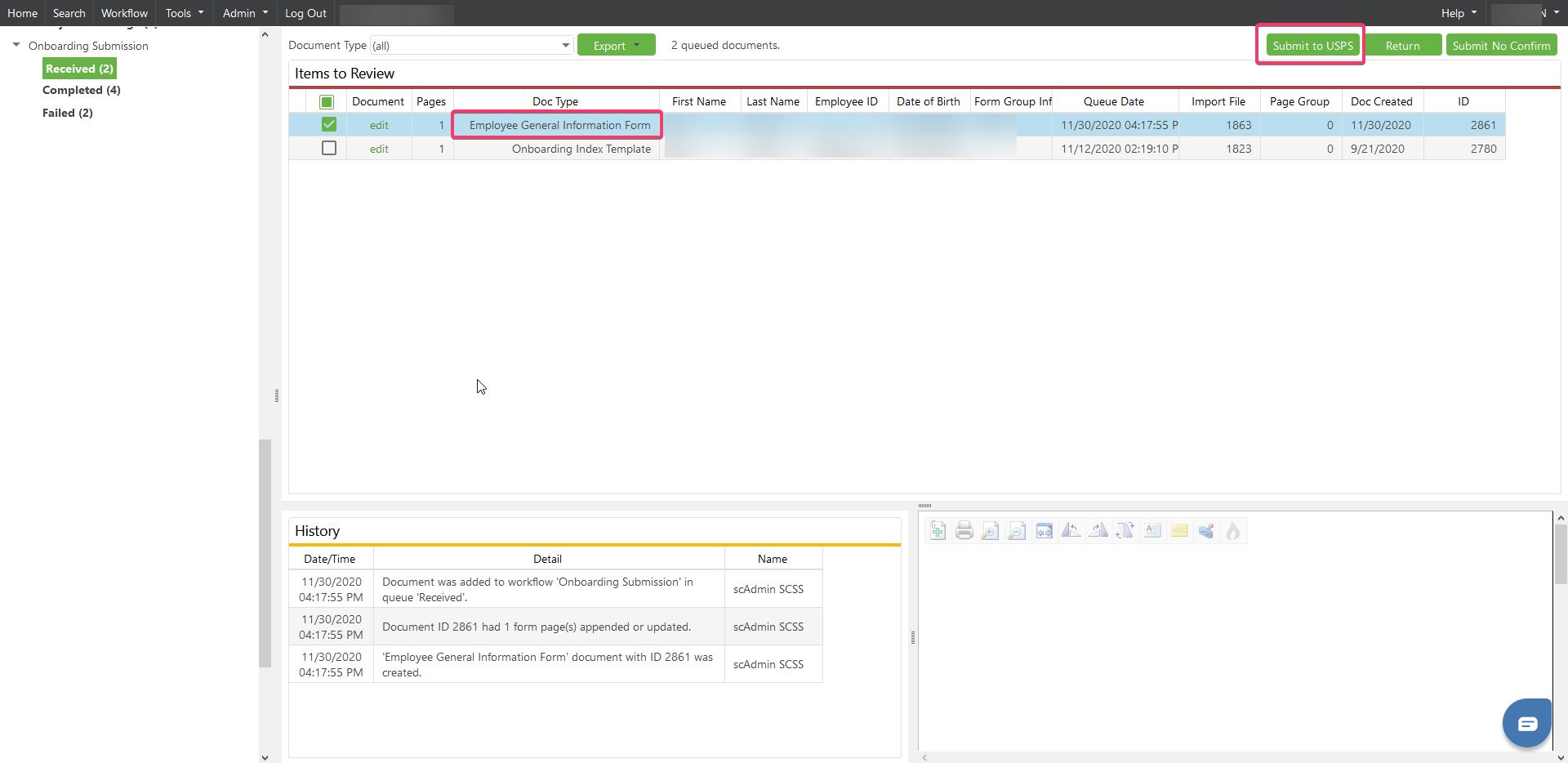
Select the document(s) you wish to submit to USPS and click "Submit to USPS"
Note: Workflows and the Submit to USPS button may differ based on your current setup.
Step 3:
Verify information on the confirmation and click "OK"

Step 4:
Document(s) submitted will go into a hidden queue similar to Requisitions, Leave, Invoices, or Time Sheets. The document(s) will go to completed if successful or failed if unsuccessful. Submission to USPS should not take any more than 15 minutes.
To check the document status:
- Without refreshing the page, switch to a different queue. This will refresh all tree node document counts.
- Check if the document(s) have moved to either queue.
- If the document(s) have not moved, refresh the page and check again/
- If the document(s) still have not moved to either queue after 15 minutes, please reach out to support via chat, email, or phone and we will look into it for you.
C. Best Practices
Clicking between queues to see if the document moves, and or waiting 15 minutes before worrying about if a document didn't make it to USPS
D. Troubleshooting
- Not seeing the same buttons? They can differ from database to database, as they are customizable and can be named based on with the client asks for.
- Document not moving? Without refreshing the page, switch to a different queue to refresh the tree node document counts. If the document(s) still haven't appeared in either queue after 15 minutes, refresh the page and check again. If the issue persists, please contact support via chat, email, or phone, and we'll assist you.
E. Related articles
Employee Invitation: Send from Workflow
Conclusion
The Onboarding module allows you to submit new employees for creation in USPS. If you have access to this module but aren't set up for USPS submissions, you can contact support at support@scview.com for assistance at no extra cost. The most commonly submitted form is the "Employee General Information" form, although the name may vary. To submit a new employee, first navigate to the Workflow queue containing the relevant onboarding document. Select the document(s) and click "Submit to USPS." After verifying the information on the confirmation screen, click "OK." The submitted documents will enter a hidden queue, similar to other processes, and should complete within 15 minutes. If they do not appear in either queue after this time, contact support for help. Best practices include checking different queues for document status and waiting 15 minutes before expressing concerns. Note that button appearances may vary by database, as they are customizable. If you experience issues, support is available via chat, email, or phone.