
 | ||
Introduction
In a digital environment where document management is crucial, efficiency in handling multiple records simultaneously is a significant advantage. SCView offers a feature known as "batch edit," which allows users to edit two or more documents at the same time, streamlining the modification process and saving valuable time.
A. Problem Statement
Managing vast amounts of documents individually can be labor-intensive and time-consuming. Without the capability to edit multiple documents simultaneously, users may face challenges in maintaining consistency and accuracy across records, especially when similar changes need to be applied to several documents.
B. Solution
The batch edit feature in SCView addresses this issue by enabling the simultaneous editing of multiple documents. This functionality not only enhances productivity but also ensures uniformity in document updates. However, it's important to note that this feature needs to be activated by support staff, so initial setup requires administrative communication with the SCView support team.
With batch edit, you're able to edit 2 or more documents at the same time.
NOTE: This must be enabled by the support staff. If you would like this enabled,
please have an admin of your database reach out to support via email to get enabled.
1. From Search, select 2 or more documents. You can do this by holding CTRL and clicking on the documents from search.
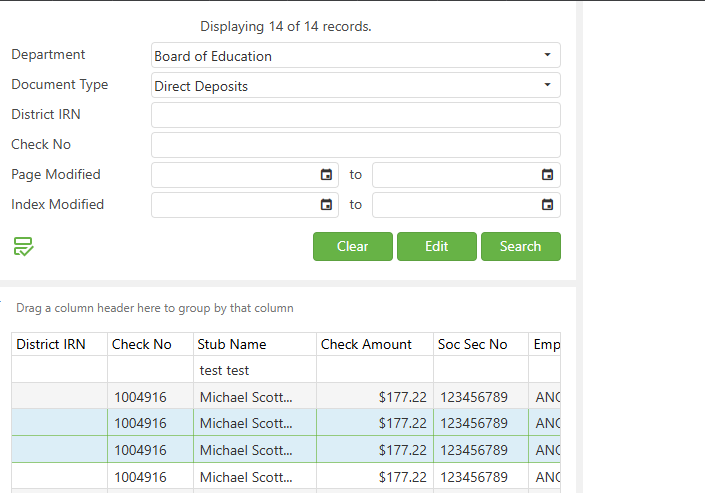
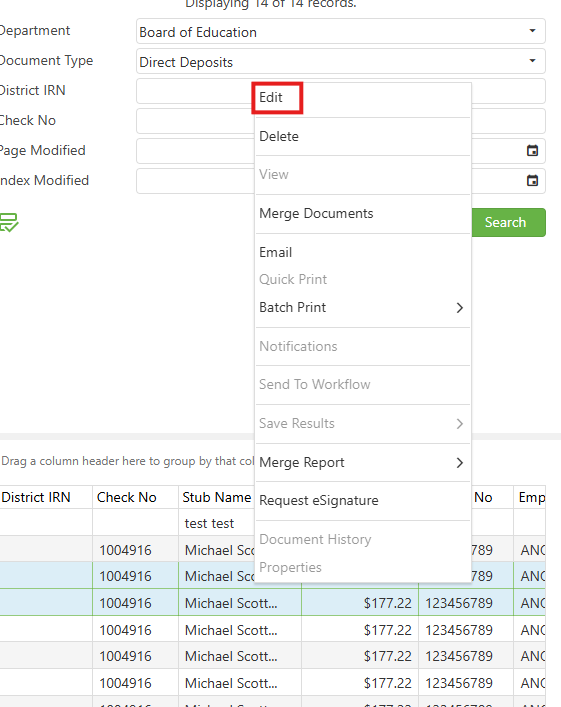
2. Right click any of the documents that are in blue and click 'Edit'.
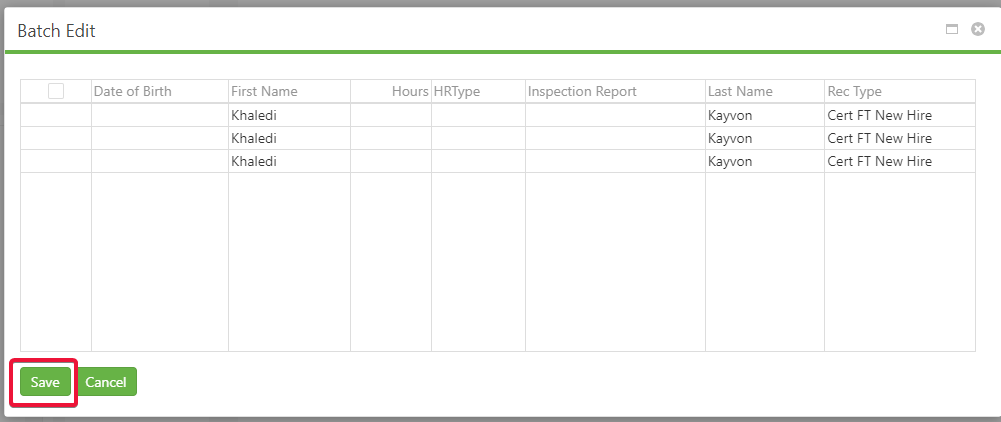
3a. In the pop-up, make changes as needed.
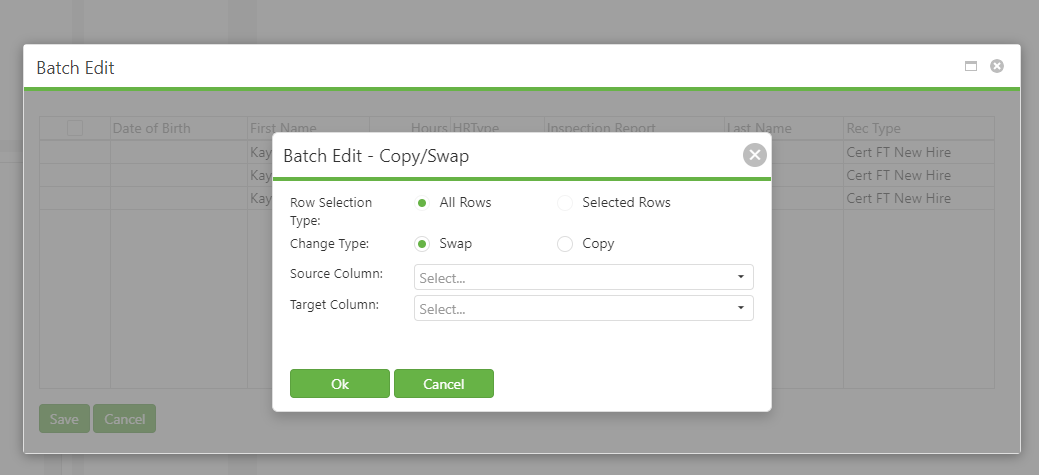
3b. If you right click a column, will get options of 'Copy Down' & 'Copy/Swap Columns'
Copy Down: Will copy selection down
Copy/Swap Columns: Gives pop-up box of different changes that can be made.
NOTE: If no rows have a checkbox next to them, only option is 'All Rows'
3c. After all changes have been made, click 'Save'.
C. Best Practices
- Enable Feature: Ensure the batch edit feature is enabled by having your database admin contact SCView support.
- Document Selection: Use the CTRL key to select multiple documents efficiently in the search view. Ensure that the correct documents are selected to avoid unintended changes.
- Use of Editing Tools: Familiarize yourself with tools like 'Copy Down' and 'Copy/Swap Columns' for effective mass editing. These tools are helpful in applying one change to multiple documents or swapping data between columns.
- Validation of Changes: Always review the changes in the preview or summary section (if available) before saving to prevent errors.
D. Troubleshooting
- Feature Not Available: If the batch edit option is not visible, first confirm with your admin whether the feature has been enabled. If not, request activation through SCView support.
- Incorrect Editing: If incorrect information is applied to documents, utilize the undo feature if available, or manually revert the changes before saving. Always make edits carefully and verify before finalizing.
- Technical Issues: If batch edit operations are not processing correctly (e.g., changes not saving), check for software updates, refresh the session, or contact SCView support for assistance.
E. Related Articles
Search: OCR Search Functionality
Search: Paste Document to a New Document
Conclusion
Batch editing in SCView is a powerful feature designed to simplify the management of multiple documents, enabling quick and consistent updates across an array of records. By following best practices and ensuring the correct setup, users can effectively leverage this feature to enhance productivity and maintain data accuracy in their document management processes. As with any powerful tool, careful handling and proper user training are crucial to fully benefit from batch edit capabilities without compromising data integrity.