
 | ||
Introduction
In today's fast-paced digital environment, efficient communication is key for maintaining successful business operations. Email serves as a crucial tool for interaction, especially between users and vendors. Occasionally, emails may fail to reach their intended recipients due to various reasons like spam filters, server issues, or simply being overlooked. This guide is designed specifically for administrators who need to handle such incidents efficiently by resending emails.
A. Problem Statement
Administrators often face challenges when notified by a user or vendor that an important email has not been received. Identifying whether an email was sent and effectively resending it can become a time-consuming task if not managed properly. This scenario needs a straightforward solution to verify and resend emails seamlessly.
B. Solution
The solution involves using a document management system with built-in notification logs. Administrators can utilize this feature to quickly check the email's status and resend it if necessary. This guide outlines clear steps to find the document in question, verify the email's dispatch status, and resend the email efficiently if it was not sent or received.
If user or vendor says they need an email resent, this guide will show you how to do so.
NOTE: Must be an admin to follow the steps outlined in this guide.
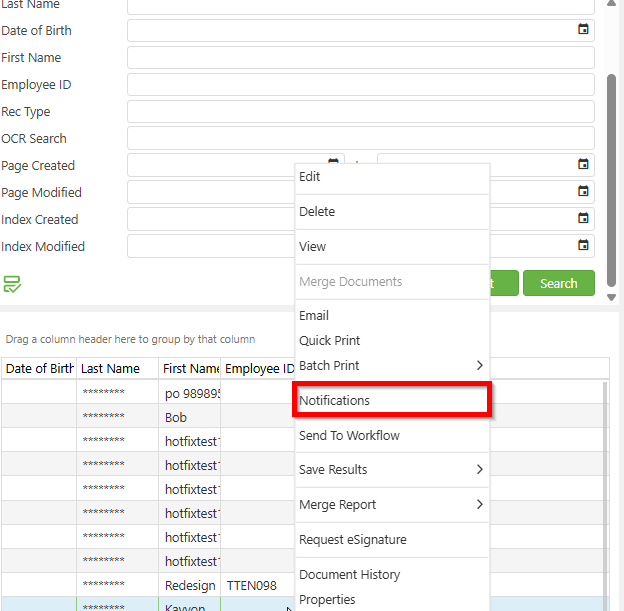
1. From Search, find the document you wish to know if email was sent out and right click and click "Notifications".
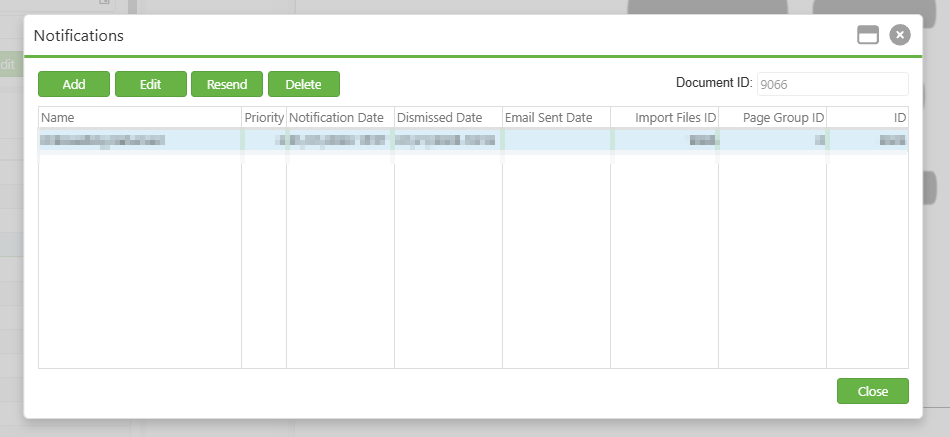
2. In the Notifications pop-up, in the "Email Sent Date" column, is where you can see when it was sent out. If it is blank, means an email was not sent out and cannot be resent. Select the email you wish to resend and click "Resend". An email will go out within 1 hour.
C. Best Practices
- Regular Monitoring: Administrators should regularly monitor the notification logs to ensure all critical communications are sent as intended.
- Verification: Always verify the 'Email Sent Date' before attempting to resend an email. This helps in maintaining the reliability of communication.
D. Troubleshooting
- Email Not Sent Initially: If the "Email Sent Date" column is blank, it indicates that the email was not sent. Use the "Resend" option to send the email.
- Email Not Received but Sent: Check if the correct email address was used. Confirm there are no issues on the recipient’s end, like spam filters blocking the email.
E. Related Articles
Conclusion
Resending an email efficiently when a user or vendor reports they haven’t received it, is vital for maintaining smooth business operations. By following the steps outlined in this guide, administrators can handle such requests quickly and effectively. This approach not only ensures that communications are reliable and up-to-date but also enhances overall productivity and user satisfaction.