
 | ||
Introduction
In modern workplaces, SCView, a document management system, plays a critical role in sending automated notifications via email to ensure seamless operational communication. Nevertheless, there are occasional instances where emails might not reach their intended recipients. To address this issue, this guide is tailored for administrators, providing them with the steps to verify whether an email was successfully sent from the SCView system.
A. Problem Statement
Administrators often encounter situations where either users or vendors report not receiving expected emails. Given the vital nature of some communications, verifying the delivery status of such emails is crucial to avoid miscommunications and disruptions in operations. Identifying and addressing the root cause of such issues can be tedious without a clear understanding of the system's functionalities.
B. Solution
The solution involves utilizing the SCView system to track and verify the delivery status of emails. By following a structured process, administrators can quickly determine if an email was sent, whether it successfully left the system, or if it failed during the sending process. This guide outlines each step to achieve this, from locating the document concerned to tracking the email’s status in the Admin-Mail Manager.
Within SCView, the system can automatically send a notification (email). This guide will show you how to verify if one was sent successfully.
NOTE: Must be an admin to follow the steps outlined in this guide.
If you know the date the email was sent, please skip to step # 3
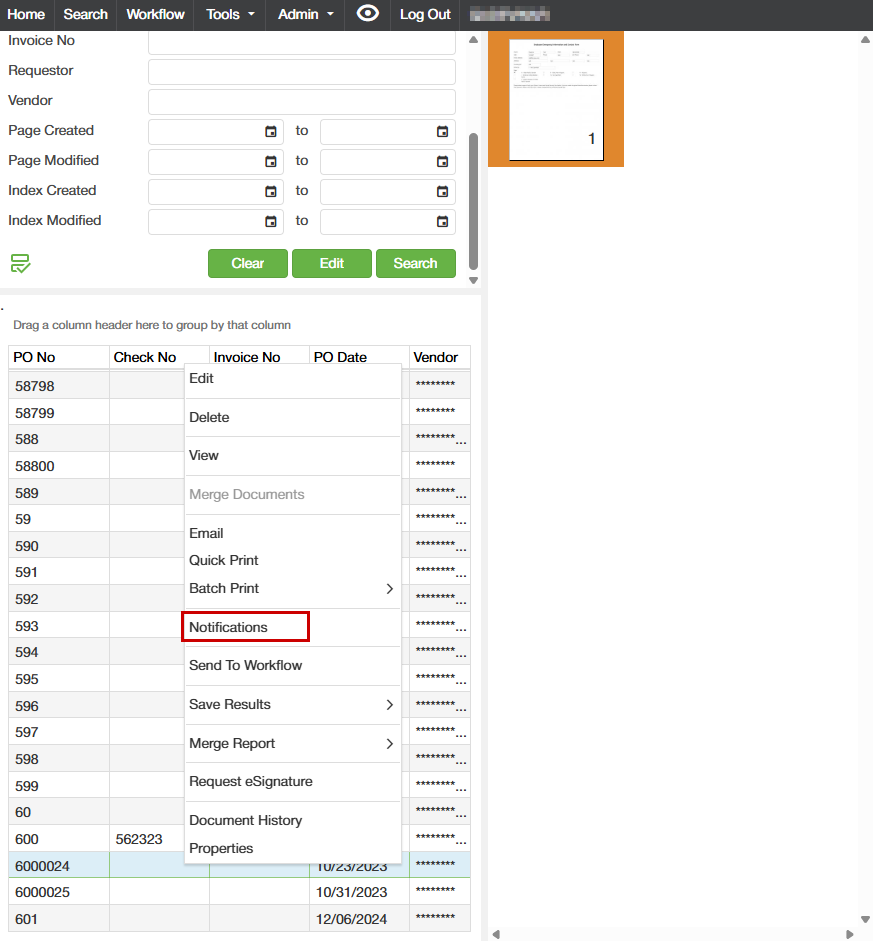
1. From Search, find the document you wish to know if email was sent out and right click and click "Notifications".
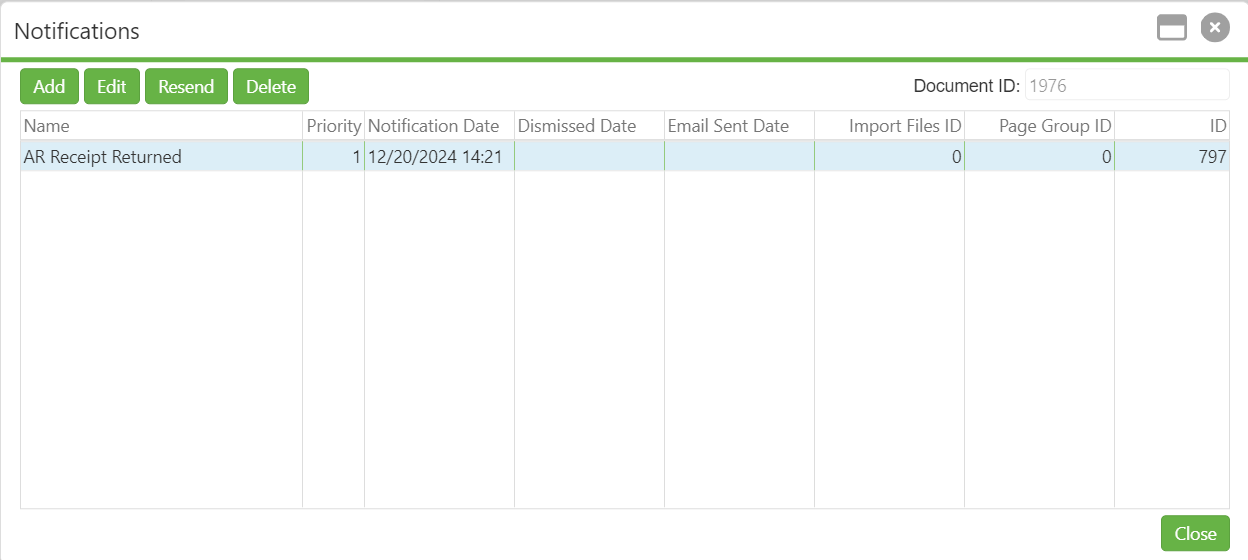
2. In the Notifications pop-up, in the "Email Sent Date" column, is where you can see when it was sent out. If it is blank, means an email was not sent out. In the screenshot below, for "PO Notify Requestor", an email was sent out.
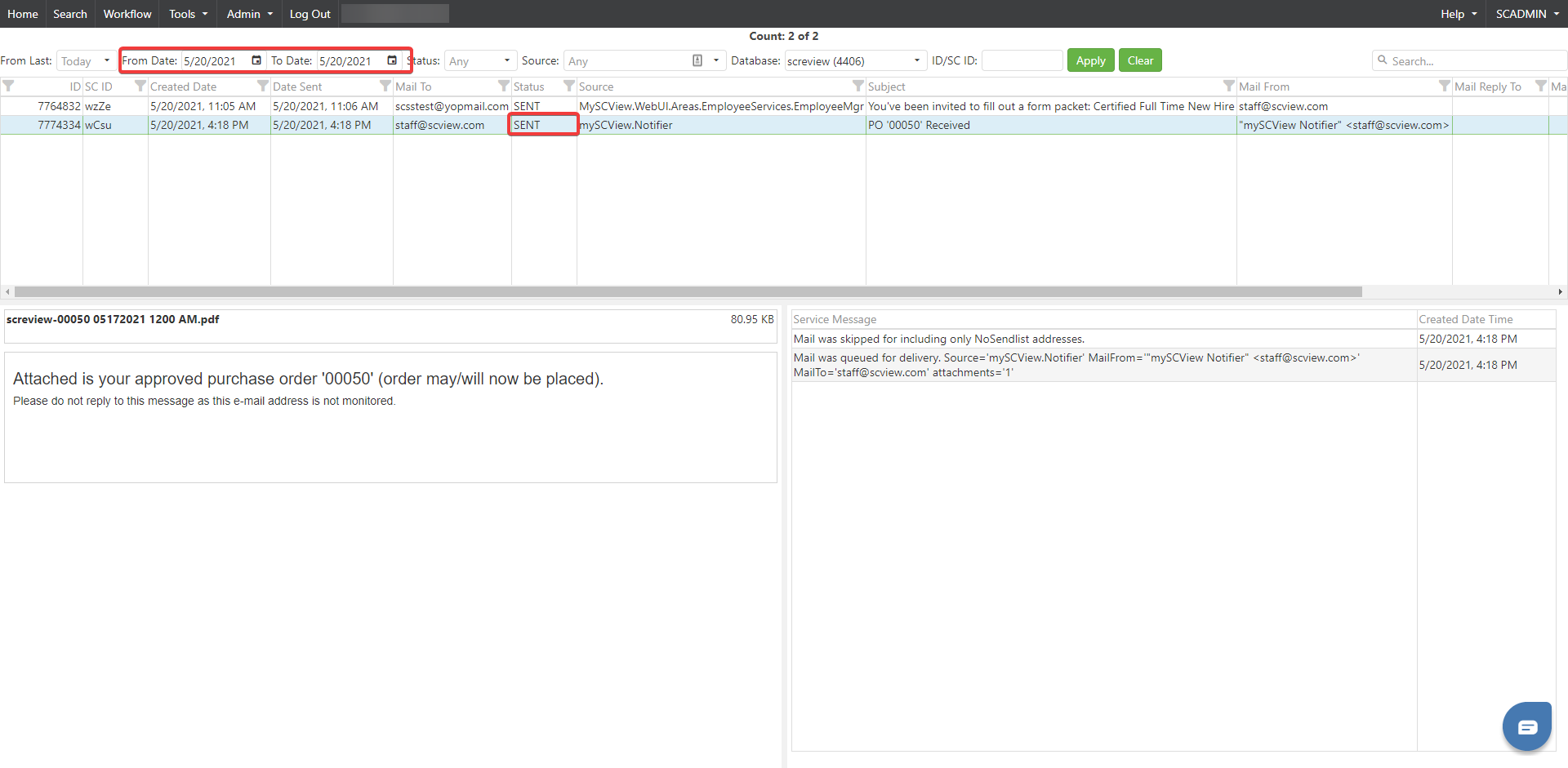
3. Go to Admin-Mail Manager. Put the date that was found in Step #2 in the "From Date" and "To Date" and click "Apply". In the results, if status shows as "SENT", means left our system successfully. If shows as "FAILED", means there was an issue trying to email it from our system.
NOTE: If user or vendor says did not receive an email and status was "SENT", they will need to have their IT dept trace the email as it may have been blocked by spam or deleted on accident.
To resend an email, please follow guide the guide by clicking here
C. Best Practices
- Regular Checks: Periodically review the status of critical emails to ensure they are being sent as expected.
- Documentation: Keep a log of all verifications and actions taken for reference and future audits.
- Inform Users: Educate users and vendors about potential email issues, such as spam filters, that might prevent emails from being received.
D. Troubleshooting
- Status ‘FAILED’: If the email status shows ‘FAILED’, verify network and SMTP server settings in SCView, and resend the email.
- Email Not Sent: If the "Email Sent Date" is blank, ensure that the document’s notification settings are configured correctly to send emails.
- Status ‘SENT’ but Not Received: Advise the recipient to check their spam folder and consult their IT department to trace the missing emails, as they may have been blocked or deleted inadvertently.
E. Related Articles
How to resend an email : SC Strategic Solutions
Conclusion
Verifying whether an email has been successfully sent from SCView is a crucial skill for administrators, ensuring that vital communications are not unduly disrupted. By following the steps outlined in this guide, administrators can swiftly determine the status of an email, take appropriate action if issues are found, and thereby uphold the integrity and efficiency of workplace communications. This process not only resolves issues more effectively but also enhances trust and reliability among users and vendors interacting with your system.