
 | ||
Introduction
The Form Campaigns Module in SCView is a comprehensive tool designed to streamline the creation, management, and tracking of form-based campaigns. Located under Tools > Form Campaigns in your dashboard, this module provides a centralized hub for all campaign-related activities, enabling users to efficiently distribute forms, monitor responses, and analyze campaign performance. Whether you're conducting surveys, collecting feedback, or gathering data, the Form Campaigns Manager offers an intuitive interface that simplifies the entire campaign lifecycle.
A. Problem statement
Organizations often struggle with managing multiple form campaigns simultaneously, leading to challenges such as difficulty tracking campaign status, inability to filter campaigns by specific criteria, lack of visibility into campaign performance metrics, confusion about which campaigns are active or inactive, and time-consuming manual processes for creating and editing campaigns. Without a centralized system, teams may experience campaign overlap, missed deadlines, and inefficient resource allocation, ultimately impacting data collection efforts and organizational goals.
B. Solution
The Form Campaigns Module addresses these challenges by providing a unified management interface with robust filtering and search capabilities. Users can easily filter campaigns by user, date range, and status, while the search function enables quick location of specific campaigns using keywords. The module offers multiple methods for campaign creation (New Campaign button, grid button, or right-click option) and comprehensive campaign management through intuitive icons and right-click menus. Real-time status indicators clearly show active and inactive campaigns through checkboxes, while the Campaign Details feature provides in-depth analytics on reach and completion rates.
Access the Form Campaigns Module:
Navigate to Form Campaigns:
- Go to Tools > Form Campaigns from your dashboard.
Understanding the Form Campaigns Manager Screen:
Familiarize Yourself with the Interface:
- The Form Campaigns manager screen allows you to filter, edit, and create new form campaigns. You can:
1. User: Toggle to show all campaigns or campaigns by selected users.
2. Date: Filter campaigns by start and end dates.
3. Status: Filter to show all, inactive, or active campaigns.
-if the Active column checkbox is checked it means the campaign is currently active.
4. Search: Use keywords to search for specific campaigns.
5. New Campaign: Create a new campaign.
- You can also use the new button in the top left corner of the grid as well, or the right click option.
6. Campaign Details: View detailed information about the campaign’s reach and completion status.
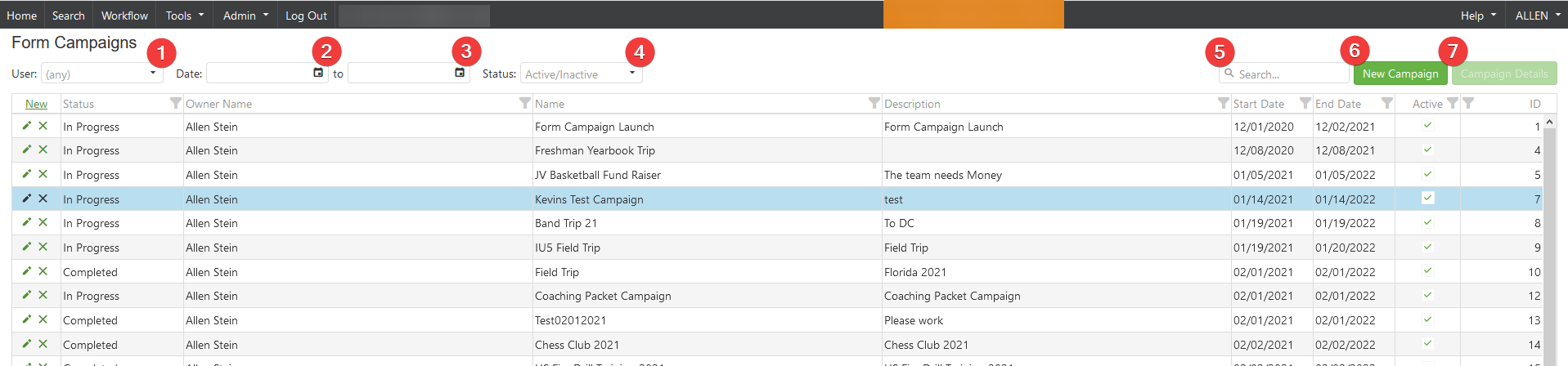 Using the pencil icon will also allow you to edit a specific form campaign. When clicking it with open up the wizard to allow you to make any edits you need.
- The x icon is for delete any campaigns. Please keep in mind that this will permanently delete the campaign from SCView.
Right Click Options on Grid:
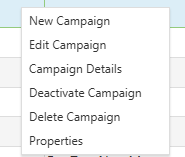
- New Campaign: Create a new campaign.
- Edit Campaign: Edit an existing campaign.
- Campaign Details: View detailed information about the campaign’s reach and completion status.
- Deactivate/Activate Campaign: This will make the campaign either active (allowing users to fill it out) or inactive (not allowing users to fill it out).
- Delete Campaign: Remove the campaign from SCView.
- Properties: Will show a popup that will provide information such as, General, Contacts, Email, Filters, and Forms.
C. Best Practices
- Regular Status Reviews: Periodically check campaign statuses to ensure active campaigns are running as intended and deactivate completed campaigns to maintain a clean workspace.
- Utilize Filtering Options: Take advantage of the multi-level filtering system (User, Date, Status) to quickly locate specific campaigns and manage workload efficiently.
- Leverage Search Functionality: Use descriptive keywords when naming campaigns to make them easily searchable later.
- Review Before Deletion: Always verify campaign data has been exported or is no longer needed before using the delete function, as deletions are permanent.
- Use Properties for Quick Information: Access the Properties option through right-click to quickly view comprehensive campaign information without opening the full editor.
D. Troubleshooting
- Cannot find a specific campaign: Use the Search function with relevant keywords, or adjust filter settings (User, Date, Status) to broaden your search criteria.
- Campaign Details not loading: Refresh the page, clear browser cache, or try accessing through the right-click menu instead of the main interface.
E. Related Articles
Form Campaigns: Creating a Form Campaign
Form Campaigns: Monitor and Update Campaign
Conclusion
The Form Campaigns Module in SCView provides a powerful, user-friendly platform for comprehensive campaign management. By centralizing all campaign-related functions in one accessible location, it eliminates common organizational challenges and enhances operational efficiency. The combination of intuitive navigation, flexible filtering options, and detailed analytics empowers users to create, monitor, and optimize their form campaigns effectively. Following the best practices outlined and understanding the troubleshooting solutions ensures teams can maximize the module's potential while maintaining data integrity and campaign success. With its robust feature set and straightforward interface, the Form Campaigns Module stands as an essential tool for any organization seeking to streamline their data collection and campaign management processes.