
 | ||
Introduction
The SCView Virtual Printer is a powerful feature that streamlines the process of importing and indexing documents directly into the myscview system. This virtual printer functionality allows users to efficiently manage and organize digital documents by transforming any printable document into an indexed file within myscview. This document serves as an instructional guide and resource for users who need to utilize the SCView Virtual Printer for document management.
A. Problem Statement
In many organizations, the handling and organization of digital documents can become cumbersome, especially when documents are in various formats and are stored across different platforms. Users may face challenges in efficiently uploading and indexing documents into the myscview system, which can lead to mismanagement of essential records, lack of accessibility, and decreased productivity.
B. Solution
The SCView Virtual Printer provides a convenient solution for importing and indexing PDF documents directly into myscview. The following step-by-step instructions will guide users through utilizing the virtual printer effectively:
- Preparing the Document for Upload:
- Open the PDF you wish to send to myscview on your computer. Alternatively, if you would rather not open the document, you can right-click on the PDF file and select "Send to SCView," which will automatically initiate the upload process beginning with step 4 of these instructions.
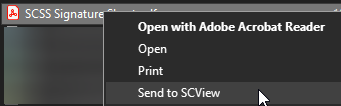
- Open the PDF you wish to send to myscview on your computer. Alternatively, if you would rather not open the document, you can right-click on the PDF file and select "Send to SCView," which will automatically initiate the upload process beginning with step 4 of these instructions.
- Initiating the Virtual Printer:
- If the document is already open, navigate to the printing options in your PDF viewer.
- From the printer selection dropdown within the print dialog, select "SCView Virtual Printer."
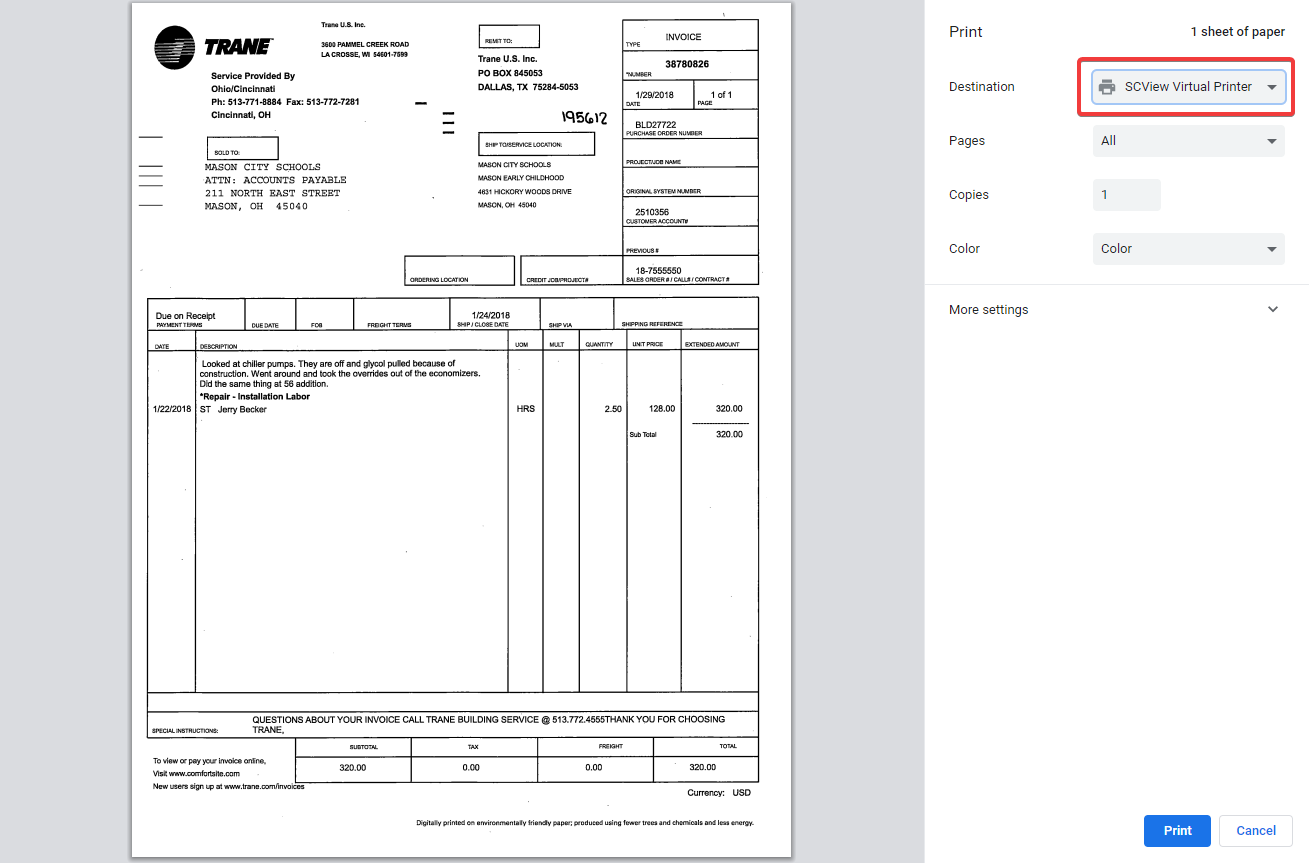
- If the document is already open, navigate to the printing options in your PDF viewer.
- Logging into myscview:
- Once the SCView Virtual Printer is selected, a prompt will appear requesting your myscview login credentials.
- Enter your login information to gain access to the indexing and upload features.
- Once the SCView Virtual Printer is selected, a prompt will appear requesting your myscview login credentials.
- Indexing the Document:
- After logging in, you will be presented with several fields to complete the indexing process.
- Select the import mode, department, and document type corresponding to the document you are uploading.
- Fill in all the required index fields with relevant information to ensure proper categorization and retrievability of the document within myscview.
- After logging in, you will be presented with several fields to complete the indexing process.
- Uploading the Document:
- Once all necessary information is accurately filled out, click the "upload" button to send the PDF to myscview.
- You should receive a confirmation once the upload is successful.
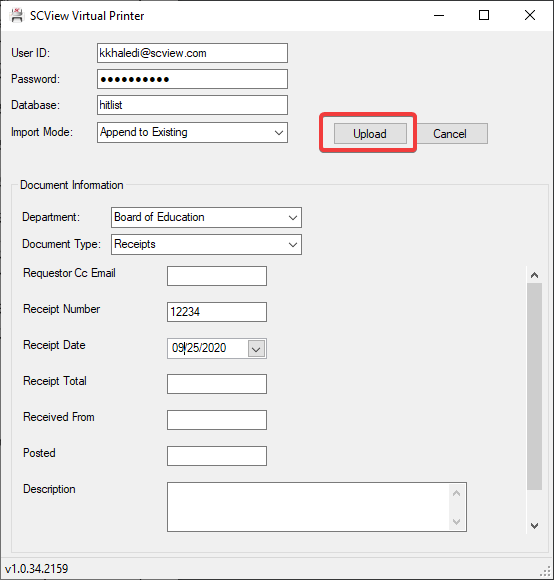
- Once all necessary information is accurately filled out, click the "upload" button to send the PDF to myscview.
- Accessing Documents Post-Upload:
- To view your uploaded documents, visit myscview.com and navigate to the search feature to locate your file.
Remember that users must have "Create" permissions for any document type they will be uploading. It is important to note that the Virtual Printer cannot be used for document types that have a Form Template applied to them. If you face any issues during this process, please consult the Troubleshooting section or reach out to the SCView support team for assistance.
C. Best Practices
- Ensure you have the Virtual Printer installed by reaching out to support@scview.com if it’s missing.
- Verify you have all the necessary permissions, including "Allow Import" and create permissions for the required document types.
- Use a consistent and clear naming convention for indexing fields to ensure easy retrieval and organization.
- Double-check the department and document type selected to prevent misfiling.
- Fill out all the mandatory index fields accurately to facilitate efficient document search capabilities.
- Regularly update your login credentials and ensure that they are secured.
- Stay informed about document types that are incompatible with the Virtual Printer, particularly those with an associated Form Template.
D. Troubleshooting
- If the SCView Virtual Printer is not appearing in the printer dropdown menu, verify that it is correctly installed and configured on your computer.
- In case of issues with login information, check your credentials and reset your password if necessary.
- If documents fail to upload, confirm that all required index fields are filled and that you have the proper permissions set in myscview.
- Should you encounter any persistent problems, contact the SCView support team for assistance.
E. Related Articles
Conclusion
The SCView Virtual Printer extends the capabilities of document management within an organization's existing workflow, allowing for seamless integration of digital documents into myscview. By following the steps outlined in this document and adhering to the best practices for virtual printing, users can easily migrate documents into the system with the correct indexing and permissions. Effective use of the SCView Virtual Printer ensures that documents are organized, accessible, and secure, thereby enhancing overall productivity and document control.