
 | ||
Introduction
In the realm of financial transactions, Purchase Orders (POs) serve as formal, official orders issued by a buyer committing to pay the seller for the supply of specific goods or services to be delivered in the future. This document provides intricate details on managing POs within a comprehensive system, ensuring that users can monitor, modify, and report on these crucial documents effectively.
A. Problem Statement
In any financial management system, keeping track of Purchase Orders is vital to ensure accurate budgeting, spending, and supply chain management. End users require reliable tools to view the latest PO statuses, submit requests for modifications or closures, and communicate effectively with financial departments. Without these capabilities, organizations might confront issues such as overspending, lack of accountability, and mismanagement of resources.
B. Solution
The system provides a series of tools to manage POs efficiently. The following steps guide users on how to perform each action:
Viewing PO Details
- Log in and navigate to Tools > Requisitions or Purchase Orders.
- Locate the desired PO and click on "PO Details" to pull up the latest information from the USAS.
- A separate browser window opens and displays details such as remaining balance, filled amounts, and invoices paid against the PO. Note that this display is read-only.

Refreshing POs
- Access Tools > Purchase Orders.
- Right-click the desired PO and select "Refresh PO from USAS," choosing between "Auto Refresh" or "Force Refresh."
- Auto Refresh - Updates the PO with new information if changes are detected in the USAS.
- Force Refresh - Updates the PO image in the system regardless of changes.
- After the completion notification appears, the PO information is updated in SCView.
Modifying/Closing PO or Adding a Note
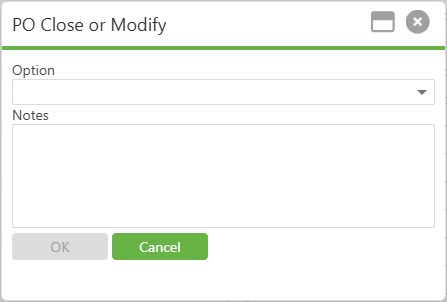
- Right-click on the target PO in the PO manager and select "Add Note to PO."
- Depending on the need, choose either "Add Note," "Close," or "Modify" and provide the necessary details for the request. These options add an entry in the audit history or send the PO to a workflow queue if configured.
Emailing a PO
- Users can email a PO directly from the PO manager screen to facilitate rapid communication.
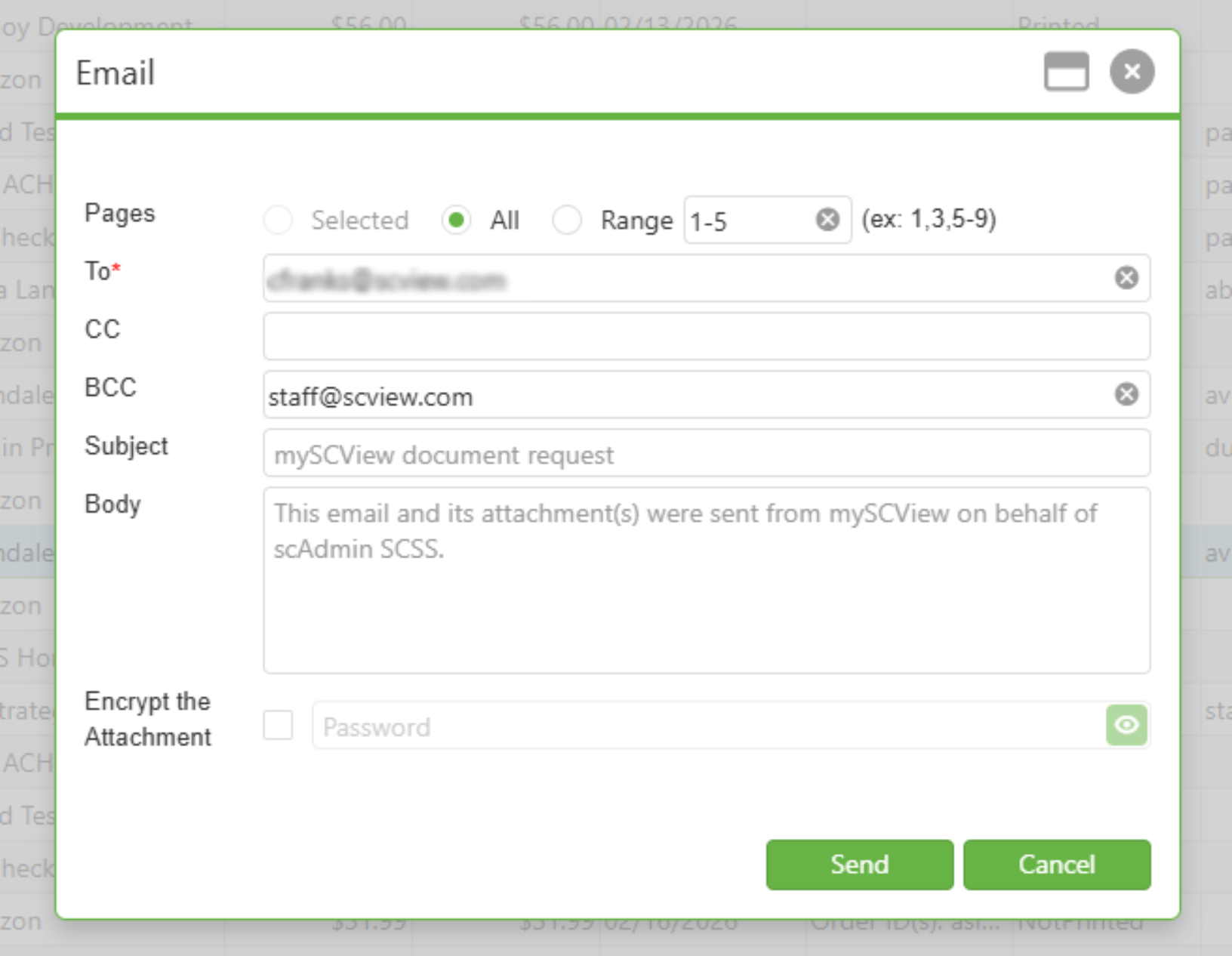
- Right click a Purchase Order and select "Email". This will display a popup where you may input the information that will be contained in the email.
- By checking 'Encrypt the Attachment,' you can set a password that recipients must enter before viewing the file.
NOTE: The user who enters the password is required to remember the password, we are not storing this password anywhere on the site.
Changing Owner
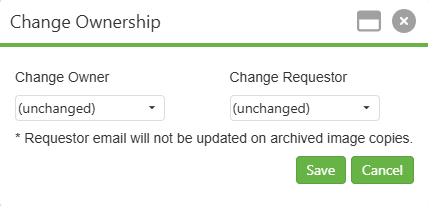
- The ownership of a PO and its linked requisition can be transferred to another user for better management of responsibilities.
- More information on how this is done can be found here.
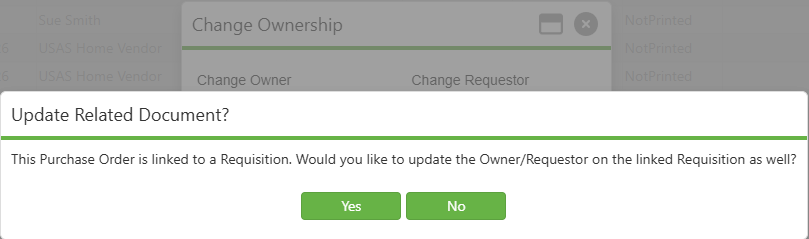
- If you are changing the Owner of a Requisition and it has a PO Number linked to it, you will be asked if you would like to change the owner of the Purchase Order as well. Clicking Yes will update both and clicking No will only update the Requisition. This also works the same way if you were to change the owner of a PO, you will be asked if you'd like to update the Requisition the PO is tied to.
Exporting Data
- Valuable PO data can be exported for external review, reporting, or tracking needs.
Printing POs
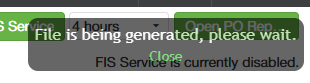
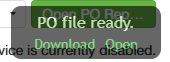
Selecting a PO or multiple and selecting the Print PO will have a "File is being generated, please wait." popup display in the right corner of the screen. When all PO files are ready for download and or to be opened the status will change to "PO file ready". From there you will be able to download and or open.
Marking POs with Specific Print Status
- POs can be categorized by their print status, including "Not Printed," "Printed," "Emailed," and "Faxed," for better document control.
- This can be done by right clicking the PO, hovering "Mark As", and selecting the desired status.
Status changes only apply to POs marked as "Not Printed" in the system.
C. Best Practices
- Regularly refresh POs to ensure information is up to date.
- Track all modifications and notes within the PO audit history for transparency and accountability.
- Use the export function to create backup data and external reports.
- Email POs directly from the system for faster processing and communication.
- Organize POs by print status to streamline document management.
D. Troubleshooting
If issues arise:
- Verify user permissions to ensure the necessary access for performing actions.
- Confirm that the Ext Name in myscview.com matches the user account in USAS for viewing PO details.
- Check the workflow queue setup to confirm that modify/close requests are properly routed.
- If PO refresh actions fail, confirm network connectivity and server status.
E. Related Articles
Users - Change owner or requestor
Conclusion
Proper management of Purchase Orders is critical for efficient financial operation. The detailed steps and additional features outlined above empower users to maintain control over POs, resulting in improved budget tracking, resource management, and inter-departmental communication. Through attentive usage of the system's tools, users can navigate common financial challenges and sustain the organizational flow of goods and services.