
 | ||
Introduction
SCView provides a seamless solution for managing and sharing documents electronically by enabling users to directly email documents from within the system. With enhanced security features, users can now encrypt attachments to ensure sensitive documents remain protected during transmission. This functionality is crucial for efficient communication and secure distribution of necessary documents to relevant parties.
A. Problem Statement
Users may encounter issues in accessing or utilizing the email feature due to inadequate permissions, resulting in their inability to search for or send documents via email. Additionally, organizations need to ensure sensitive documents are protected when shared externally, requiring encryption capabilities to maintain data security and compliance requirements.
B. Solution
To address these issues, users must ensure they have the appropriate permissions granted by their system administrators. By enabling permission settings that allow document searching and emailing, users can fully utilize SCView's capabilities to streamline their document handling processes. The new attachment encryption feature provides an additional security layer, allowing users to password-protect documents before sending them via email.
Through SCView, you can email documents directly from the system with optional encryption. Below are the steps to show you the process to do this.
Note: If you are unable to search or email, this is due to permissions on your account. Please contact your admin to give your account rights to do so. 1. Login to your SCView Database 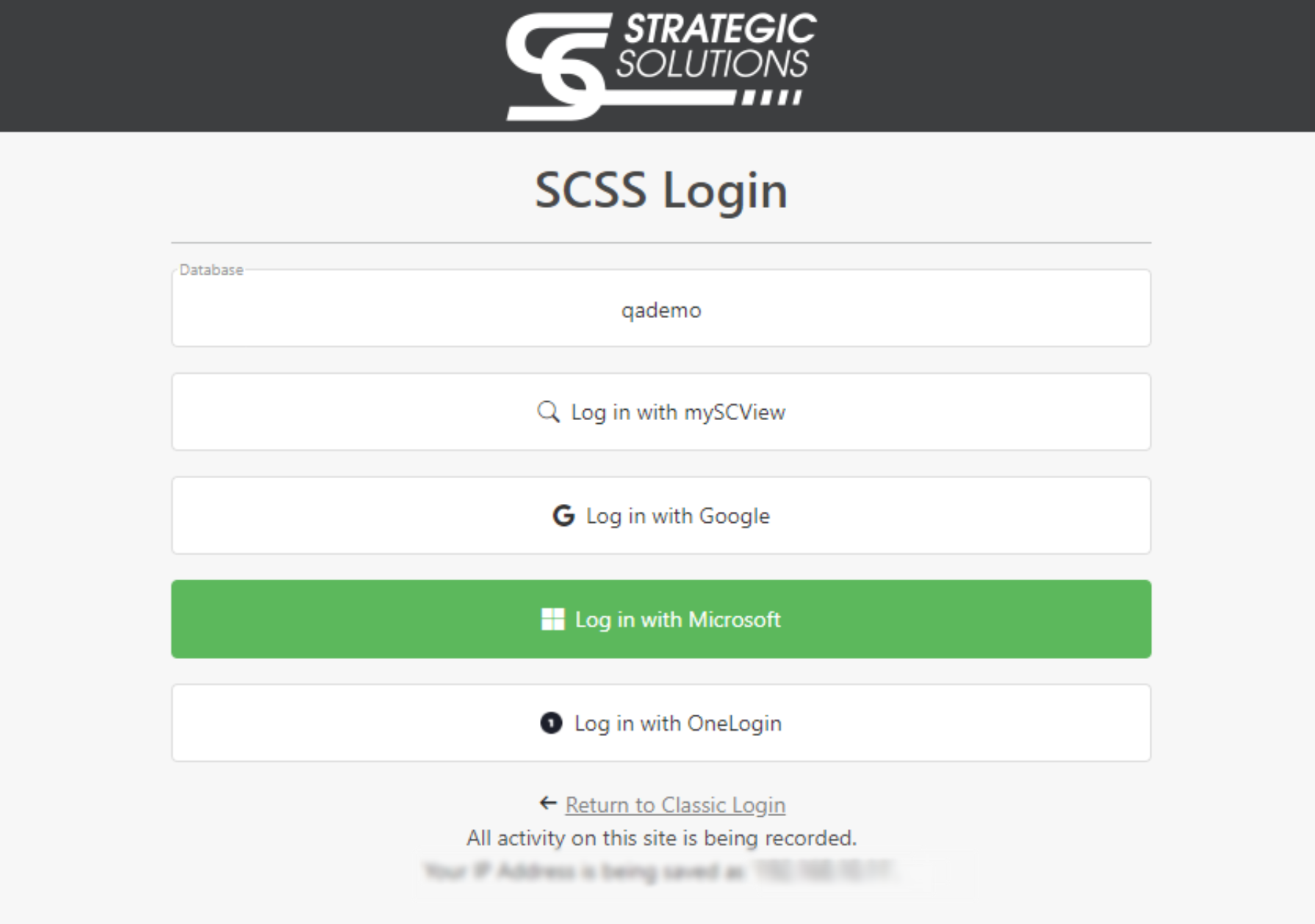
2. Click on Search in the top menu.
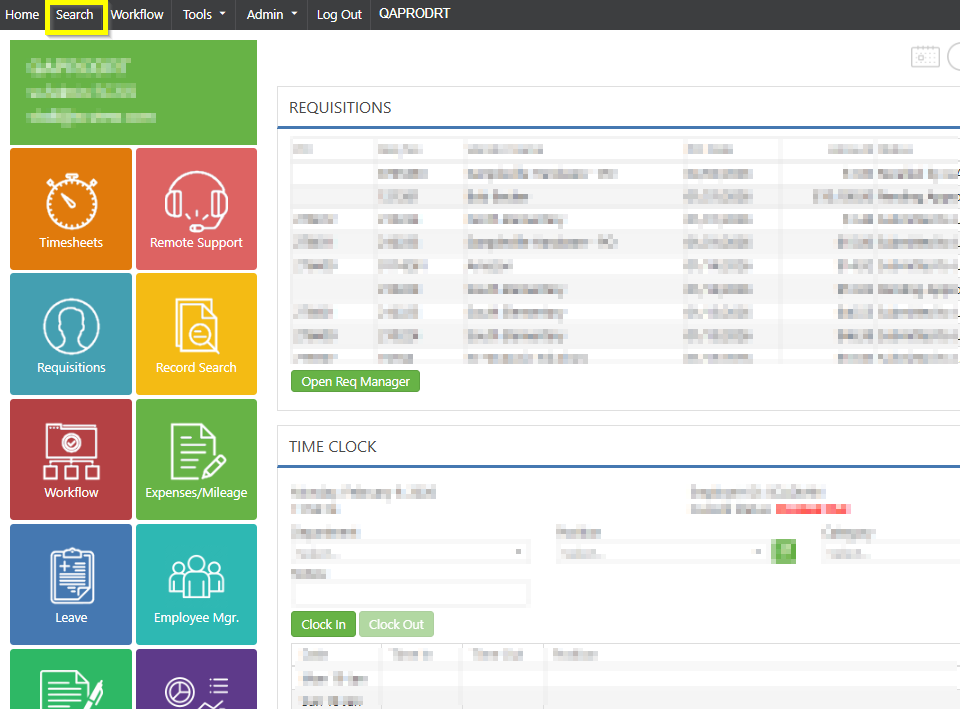
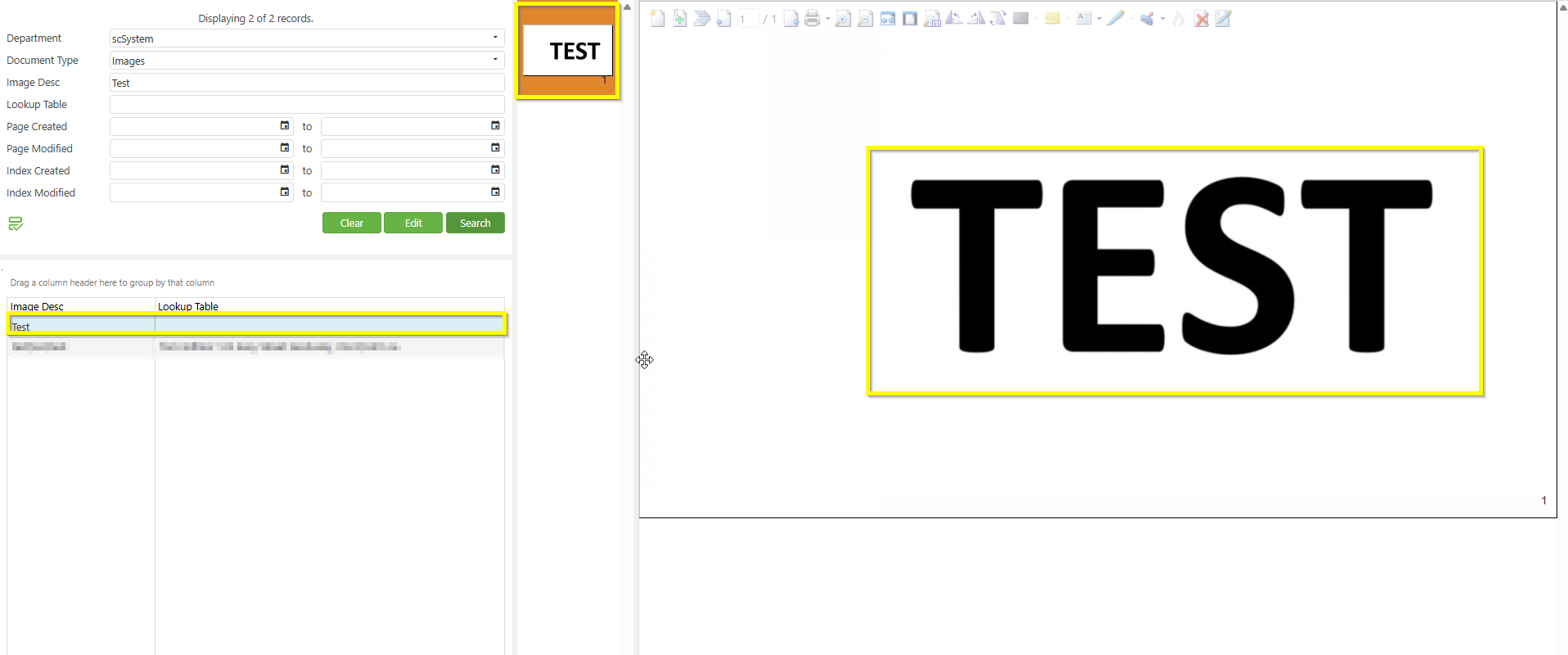
3. If you have a particular item you are looking for, you can filter the search based on department, document type, or image description. After you have entered the desired information, click on Search
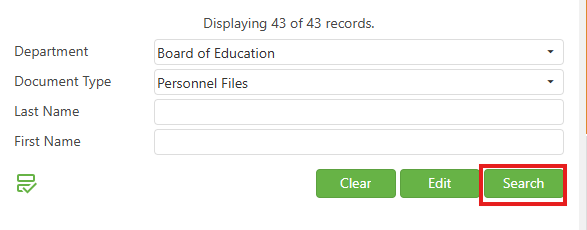
4. If any documents meet your entered criteria, you will see them in the results.
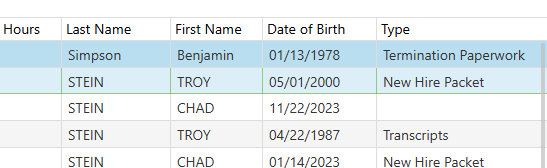
5. Double click on the document title so that you can preview it in the right-hand pane.
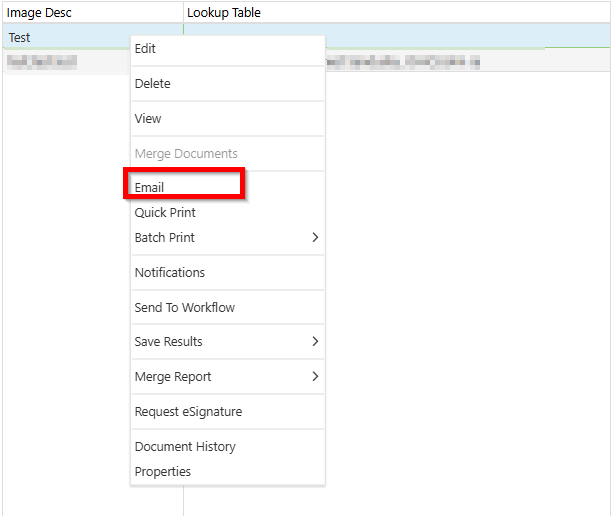
6. After the correct document is selected, right-click on the document title and select "Email"
7. A new popup window where you can enter the appropriate values for the email. Emailing multiple contacts will need a semi-colon in between addresses, with no spaces in between. Once you have entered all the desired information, click on the "Send" button.
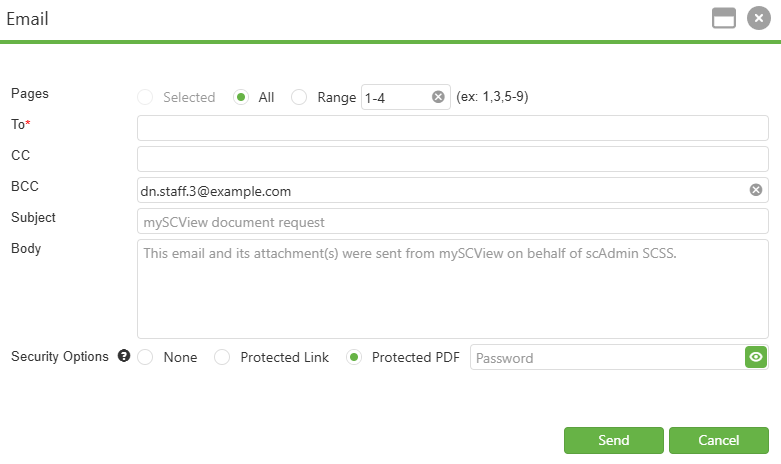
Security Options:
- None - No protections are placed upon the emailed file.
- Protected Link - The file is not emailed. Instead, the recipient gets a password-protected link to the document. The document itself, once retrieved, has no additional security put upon it.
- Protected PDF - The file is emailed. The document has a security password put upon it.
- Password - If Protected Link or Protected PDF are selected, this field is enabled and required. The value input is the password that will bypass the protections.
For Standard Emails (without encryption):
- Enter recipient information
- Add multiple recipients using semi-colons with no spaces between addresses
- Click the "Send" button
For Encrypted Emails:
- Select the Protected Link or Protect PDF radio button
- Enter a strong password in the enabled password field
- Share the password with recipients through a separate or secure communication channel
- Click the "Send" button
8. After clicking send, the recipient will receive the email within a few minutes.
For encrypted attachments: When recipients attempt to access the document, they will be prompted to enter the encryption password. The document cannot be accessed without the correct password.
C. Best Practices
- Accurate Emailing: When sending documents to multiple recipients, ensure that email addresses are entered correctly, using a semi-colon to separate each without adding spaces.
- Pre-Email Checks: Always preview documents before emailing to confirm their relevance and accuracy, ensuring that all information shared is appropriate and intended for the recipient.
- Use strong passwords containing a mix of letters, numbers, and special characters
- Never include the password in the same email as the encrypted attachment
- Share passwords through a different communication method (phone, text, or separate secure message)
- Consider using encryption for all sensitive or confidential documents
- Document which files were sent encrypted for compliance tracking
D. Troubleshooting
Inability to Email Documents:
- If the email option is not available, first check if you have the necessary permissions. If unsure, contact your administrator to verify or modify your permissions.
- Ensure you are logged into the correct SCView database that contains the documents you need to access.
Incorrect Document Sent:
- If the wrong document is sent, immediately notify the recipient to disregard the email and send the correct document. Double-check the document title and content in the preview pane before emailing.
Email Not Received by Recipient:
- Confirm the recipient’s email address for accuracy.
- Check if the email might have landed in the recipient's spam or junk folder.
- Verify the system’s outbox or email log (if available) to see if the email was dispatched successfully.
Encryption Issues:
- Password field not enabling: Ensure the "Encrypt the Attachment" checkbox is properly checked
- Error when sending: Verify a password has been entered in the password field
- Recipient cannot open attachment: Confirm the correct password was shared with the recipient
- Password field shows error: The password field cannot be left blank when encryption is enabled
E. Related Articles
Search: OCR Search Functionality
Search: Paste Document to a New Document
Conclusion
Utilizing SCView to email documents offers a powerful way to enhance communication and document dissemination within and outside of your organization. The addition of attachment encryption provides an essential security layer for sensitive information, ensuring compliance with data protection requirements. By ensuring proper permissions, utilizing encryption when appropriate, adhering to best practices for sending emails, and effectively troubleshooting common issues, users can maximize the benefits of SCView, making document management and distribution both efficient and secure. Remember to always consider the sensitivity of the information being shared and use encryption features accordingly to protect your organization's data.