
 | ||
Introduction
In many organizations, ensuring that users have access to only the specific documents relevant to their roles is essential for data security and efficiency. SCView provides capabilities to tailor search results for individual users based on predefined indices, an essential feature particularly useful in environments like educational institutions where access control must be finely tuned. This guide explains how to set up search filters in SCView to restrict user access to documents based on certain criteria such as location or specific permissions like parental consent.
A. Problem Statement
Without proper search filters, users in a digital document management system like SCView might access sensitive or irrelevant documents, leading to potential data breaches or inefficiency in data management. For example, a school secretary might inadvertently access records from different buildings or documents without necessary consents, leading to compliance issues and administrative confusion.
B. Solution
To prevent unauthorized access and improve document search efficiency, SCView allows administrators to set up specific search filters based on document indices. These configurations restrict the visibility of records to users, ensuring they can only access documents relevant to their direct responsibilities. Setting up these filters involves modifying user permissions and specifying criteria in the user configuration settings under the Admin panel.
In SCView there is the ability to limit search results based on Document Indexes. An example of this would be a school secretary that should only be able to see records relating to their building with a parental consent of 'Yes'. The following guide covers the user setup of this feature.
Requirements before getting started and utilizing the feature:
You will need to contact Support to enable the feature as a whole, and to configure the indexes that will utilize the filters.
Our Support team will also need to run a backfill to capture all records created prior to enabling this.
You must have Admin permissions to add or edit users in myscview.com.
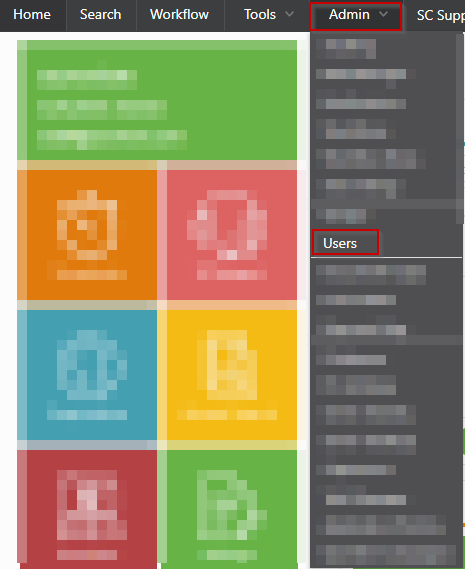
1. Click Admin-> Users
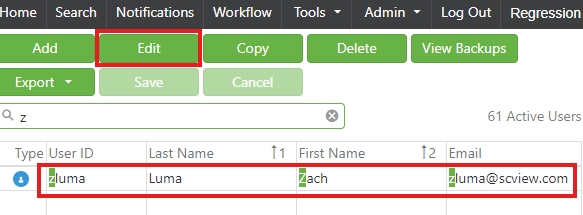
2. With the user selected, click "Edit" to make changes to permissions for the user
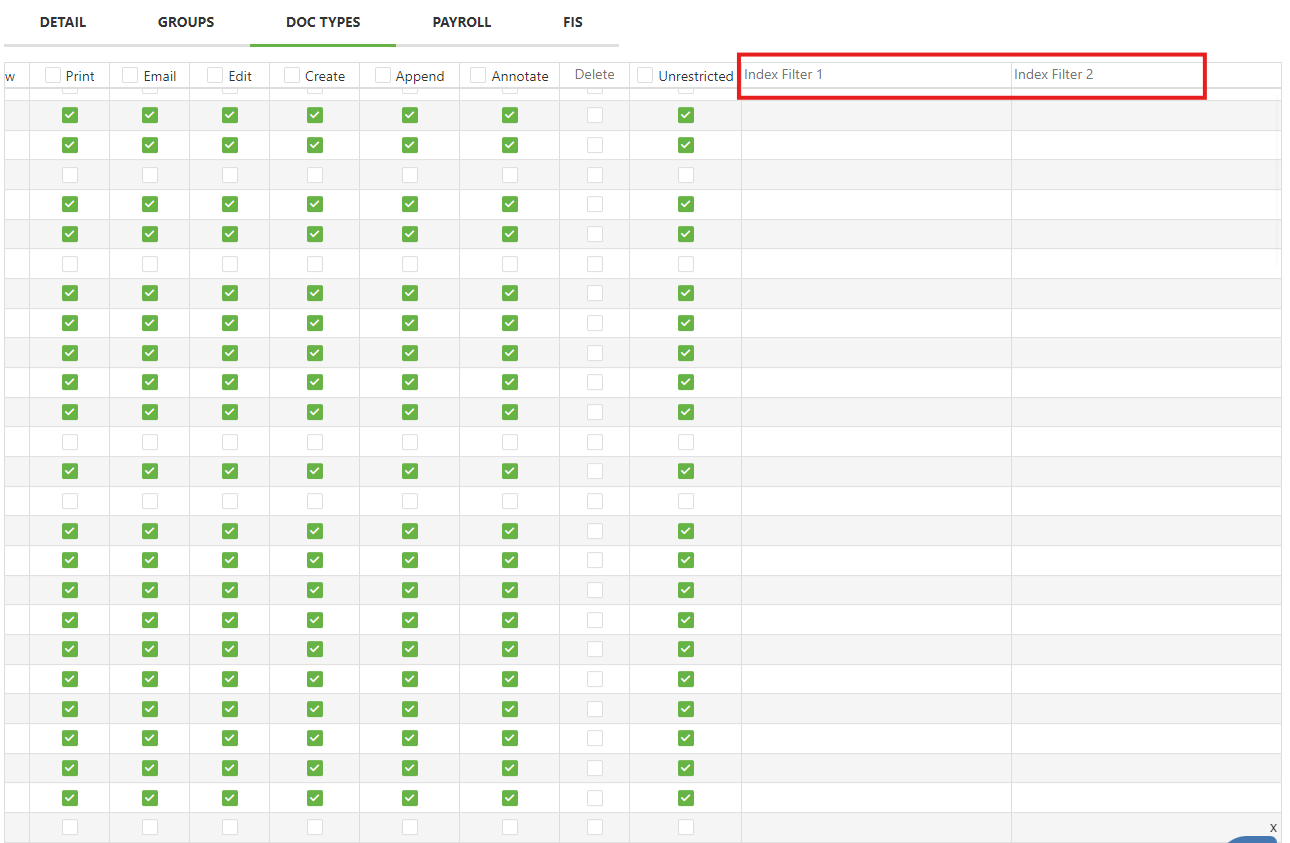
3. Select the 'Doc Types' tab
4. Scroll to the left in order to see the Index Filter 1 and Index Filter 2.
5. Populate the index with a valid option for the filter. In this example Index Filter 1 is the Building Index and Index Filter 2 is the Parental Consent index. The user will also need "Unrestricted" rights to the Doc Type.
6. Save the changes
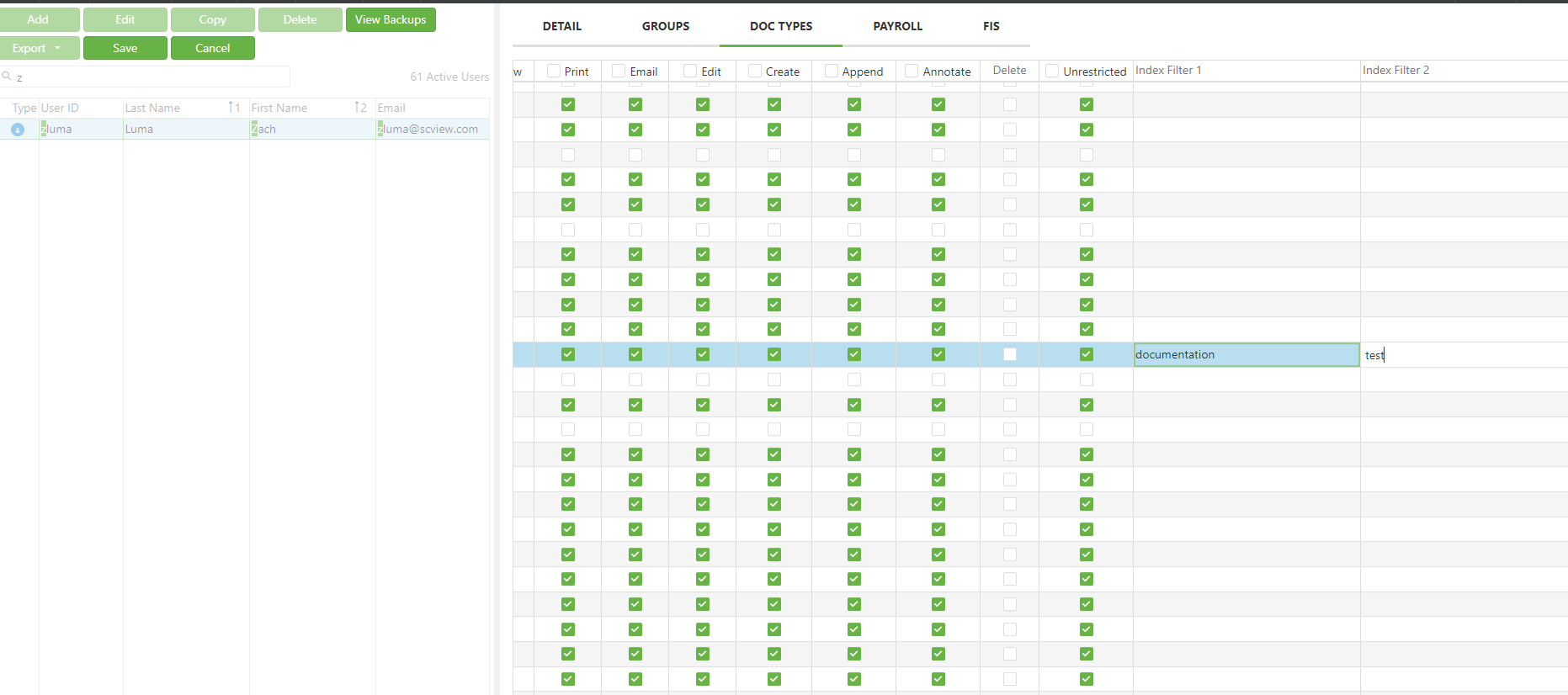
The user will now only see documents that match the filters.
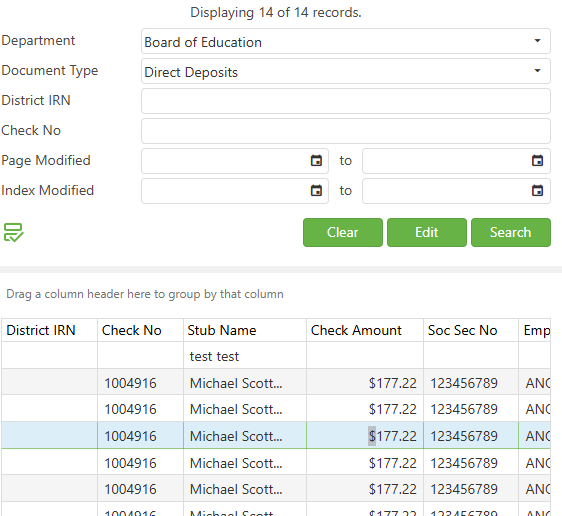
Please Note: It is not recommended to set these filters within Groups, as there could be conflicts if a User is part of multiple Groups with different filters.
C. Best Practices
- Clear Definition of Access Requirements: Before setting up filters, clearly define which documents a user needs access to, based on their role within the organization.
- Regular Updates and Audits: Periodically review and update the indexing filters to accommodate changes in organizational structure or user roles.
- Documentation of Settings: Maintain detailed documentation of all user access settings and changes for auditing purposes and to quickly troubleshoot or reconfigure settings if needed.
- Training for Administrators: Ensure that all system administrators are trained on how to configure and manage search filters effectively.
- Consult SCView Support for Setup: Since filterable indices require setup by SCView support, coordinate closely with them to ensure indices are configured correctly and aligned with organizational needs.
D. Troubleshooting
- Filter Does Not Work as Expected: If users are able to view documents they shouldn’t, verify that the indices are set up correctly in the user’s settings. Check for typos or incorrect index names.
- Access Denied Errors: If a user reports inability to access documents they should see, double-check that the 'Unrestricted' rights are properly assigned alongside the correct indices in their profile settings.
- Changes Not Taking Effect: Ensure that all changes are saved correctly in the system. It may also be necessary to log out and log back in to refresh user permissions
E. Related Articles
Search: OCR Search Functionality
Search: Paste Document to a New Document
Conclusion
Properly setting up search filters in SCView is essential for maintaining operational efficiency and data security within any organization. By restricting document access to only those necessary for a user's role, organizations can prevent unauthorized access and reduce the risk of data leaks while streamlining document search processes. With the correct implementation of best practices and regular monitoring, SCView users can optimize their document management system to meet specific operational requirements effectively.