 | ||
Introduction
This article explains how to refresh purchase order data from the USAS (Uniform School Accounting System) within SCView. You'll learn the difference between Auto Refresh and Force Refresh options, understand permission requirements, and master the step-by-step process for keeping your PO data synchronized and up-to-date.
A. Problem Statement
Purchase order information in SCView can become outdated when changes are made in USAS, leading to discrepancies between systems. Users need a reliable method to synchronize PO data to ensure they're working with the most current information. Without proper refresh procedures, staff may make decisions based on outdated purchase order details, potentially causing processing delays and data inconsistencies.
B. Solution
SCView provides two refresh options to synchronize purchase order data from USAS. The system allows for both single and multiple PO refresh operations, with different refresh types depending on your specific needs and permission level.
Step 1: Navigate to Purchase Orders
Go to the Tools menu and select "Purchase Orders" to access the PO management interface where you can view and manage your purchase orders.

Step 2: Select Purchase Orders for Refresh
Locate the purchase order(s) you wish to refresh. You have several selection options:
Single Selection: Simply click on one PO
Multiple Individual Selection: Check the checkbox next to each desired PO, or hold CTRL while clicking multiple lines
Step 3: Access Refresh Options
Right-click on your selected purchase order(s) and choose "Refresh PO from USAS" from the context menu. This will display the available refresh options.
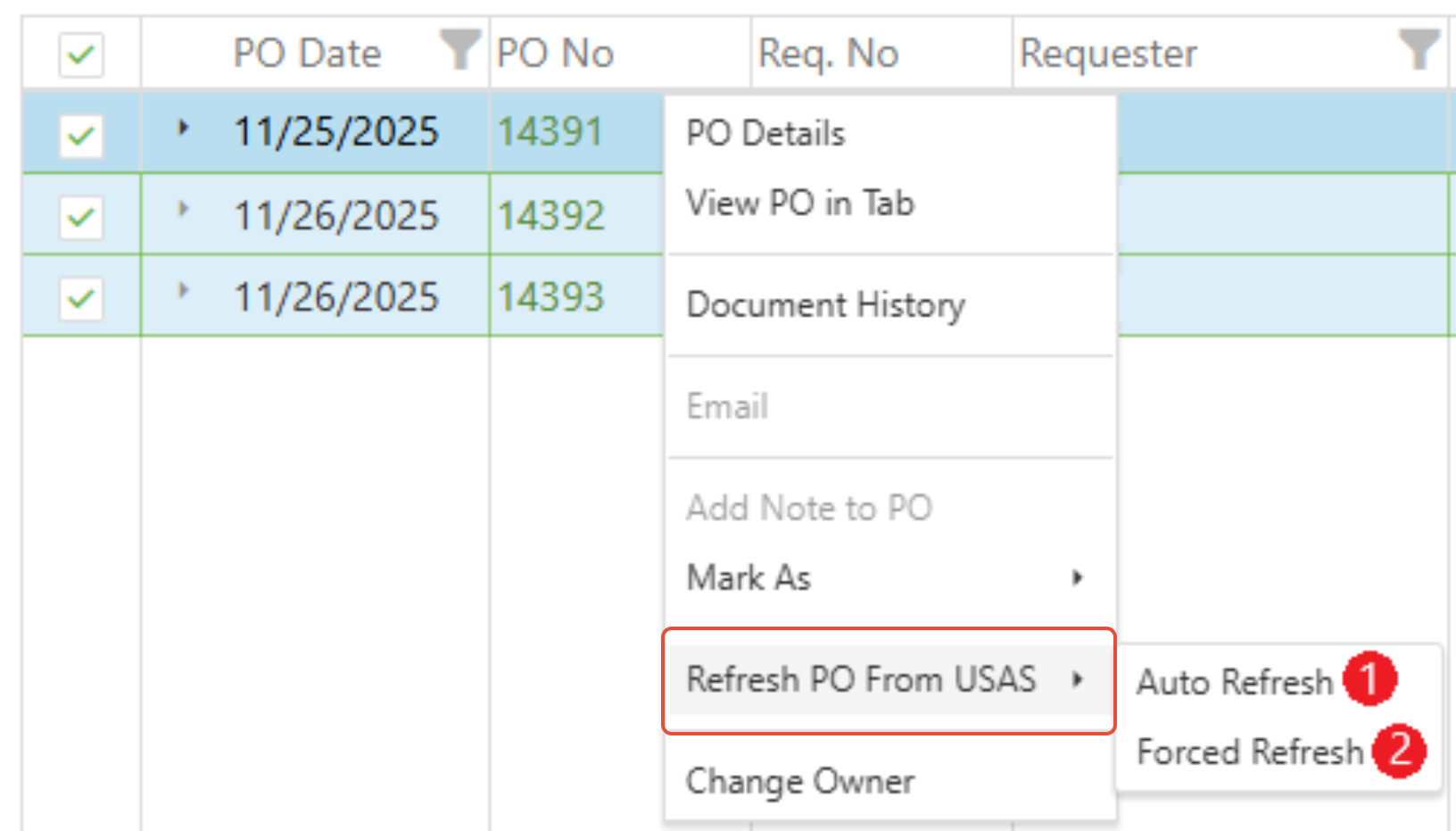
Step 4: Choose Refresh Type
Select the appropriate refresh option based on your needs:
- Auto Refresh: This option will only bring in a new PO image if there has been a change detected in USAS since the last synchronization.
- Force Refresh: This option will bring in a new PO image regardless of whether changes have been detected in USAS. (Note: This option may not be available depending on your user permissions)
Step 5: Monitor Completion
Watch the upper right-hand corner of the screen for the completion status indicator. Once it shows "completed," your purchase order(s) have been successfully refreshed in SCView.

C. Best Practices
- Use Auto Refresh First: Start with Auto Refresh as it's more efficient and only updates when necessary
- Strategic Timing: Refresh POs at the beginning of your work session to ensure current data
- Batch Processing: When possible, select multiple POs for refresh to save time on routine updates
- Monitor Permissions: Understand your access level to determine which refresh options are available
- Verify Completion: Always wait for the completion indicator before proceeding with PO-related tasks
- Regular Maintenance: Establish a routine for refreshing frequently-used POs to maintain data accuracy
D. Troubleshooting
- Missing Force Refresh Option: This indicates insufficient permissions - contact your system administrator for access if needed.
- Refresh Takes Too Long: Large batches may take extended time - consider breaking into smaller groups.
- No Changes Detected: If Auto Refresh shows no updates, verify the PO has actually been modified in USAS.
- Completion Status Not Showing: Check your browser settings and ensure JavaScript is enabled.
- Selection Issues: If multi-select isn't working, try using checkboxes instead of keyboard shortcuts.
E. Related Articles
Updating PO Statuses and Open PO Reports in USAS
I need to make a change to a PO that is in USAS. How do I fix?
Conclusion
Refreshing purchase orders from USAS ensures you're working with the most current and accurate data in SCView. By understanding the difference between Auto and Force refresh options and following the proper selection and execution procedures, you can maintain synchronized purchase order information efficiently. Implement regular refresh routines to prevent data discrepancies and ensure smooth purchase order processing across your organization.
Was this article helpful?
That’s Great!
Thank you for your feedback
Sorry! We couldn't be helpful
Thank you for your feedback
Feedback sent
We appreciate your effort and will try to fix the article