 | ||
Introduction
In an effort to streamline document management and enhance organizational efficiency, SCView incorporates a feature that allows the merging of multiple documents into a single master document. This capability is especially useful in consolidating information that is spread across several files, reducing clutter and simplifying data retrieval.
A. Problem Statement
Managing multiple documents that relate to the same case, project, or subject can become cumbersome and error-prone. Users often struggle with data fragmentation which can lead to inefficiencies in document retrieval and management. Furthermore, this dispersion of information across multiple documents increases the risk of overlooking critical data.
B. Solution
The merging documents feature in SCView provides a robust solution to these challenges. By enabling users to combine multiple related documents into a single master document, this feature not only ensures data integrity and continuity but also simplifies the management process. However, it is vital that users with administrative permissions oversee this process to ensure that it is executed properly and securely.
Must have admin permissions to do the following.
1. Go to Search
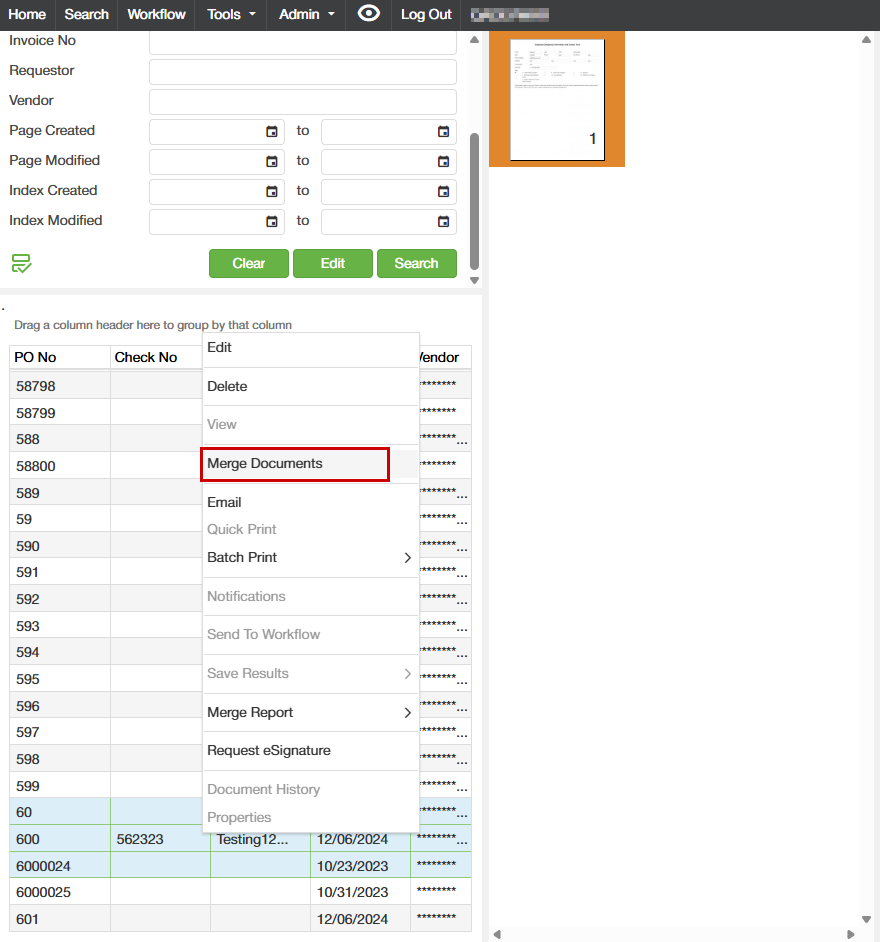
2. Select multiple documents from results by holding down the Ctrl key and clicking on each document. Then right click and click "Merge Documents"
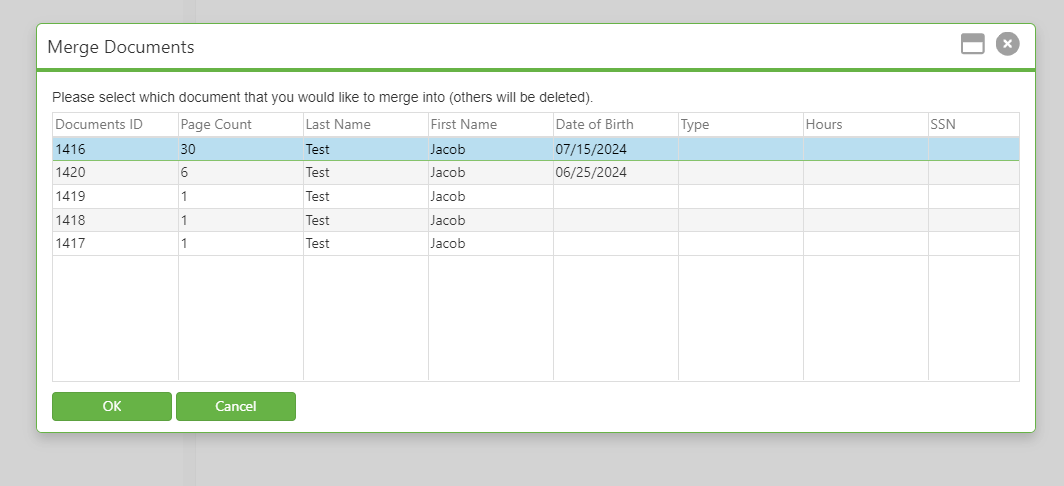
3. Select the master (the one(s) not selected will be merged and deleted) and click "OK"
C. Best Practices
- Clear Criteria for Merging: Establish and follow clear criteria for which documents should be merged. This ensures consistency in how documents are handled across the organization.
- Regular Training and Guidelines: Train users with admin permissions on the proper steps for merging documents. Provide guidelines to help them decide when and how to merge documents appropriately.
- Backup Before Merging: Always ensure that there are backup copies of all original documents before proceeding with a merge. This safeguards against data loss in the event of a merging error.
- Audit Trail: Maintain an audit trail of all mergers including details of the documents merged and the users who performed the merge. This enhances traceability and accountability.
D. Troubleshooting
- Merge Option Not Available: If the merge option isn’t available, ensure that the user has admin permissions as required. Check with IT support if permissions are correctly set but the issue persists.
- Incorrect Document Merging: If documents are incorrectly merged, refer to backups to restore original documents and repeat the merging process more carefully.
- System Errors During Merging: If encountering system errors during the merge process, check for software updates or system glitches. Restart the application or consult SCView support for assistance.
E. Related Articles
Search: OCR Search Functionality
Search: Paste Document to a New Document
Conclusion
The ability to merge documents in SCView is a significant feature that enhances document management capabilities significantly. By consolidating related documents into a single master file, organizations can enjoy improved data management, reduced clutter, and greater efficiency. Following best practices for document merging and troubleshooting common issues effectively ensures that this functionality can be maximized to its full potential, leading to a more organized and streamlined document management system.
Was this article helpful?
That’s Great!
Thank you for your feedback
Sorry! We couldn't be helpful
Thank you for your feedback
Feedback sent
We appreciate your effort and will try to fix the article