
 | ||
Introduction
In the course of handling documents within an enterprise-level workflow system like SCView, users might encounter situations where documents are accidentally removed from the workflow or when there is a need to introduce newly scanned documents into a specific workflow. This guide aims to provide clear instructions on how to effectively reintegrate or input those documents back into the workflow.
A. Problem Statement
Accidental removal of documents from a workflow or the requirement to add new documents can disrupt the continuity and efficiency of business processes. Users may struggle with reintegrating these documents due to lack of knowledge on the correct steps or insufficient permissions to carry out the necessary actions.
B. Solution
The solution involves using SCView's "Send to Workflow" functionality, which allows users to select and reintroduce documents into the appropriate stages of the workflow. This feature is designed to be straightforward, but its success depends on the user having the correct permissions and understanding which workflow queue to use.
If you do not see the actions as listed below, it means your account does not have the correct permissions and you'll need to get that from your admin.
1. Go to Search
2. Select the Doc Type from the drop down you wish to send to workflow and search for the document. In this example we are doing Financial Packet
3. Click on the document and right click and click "Send to Workflow"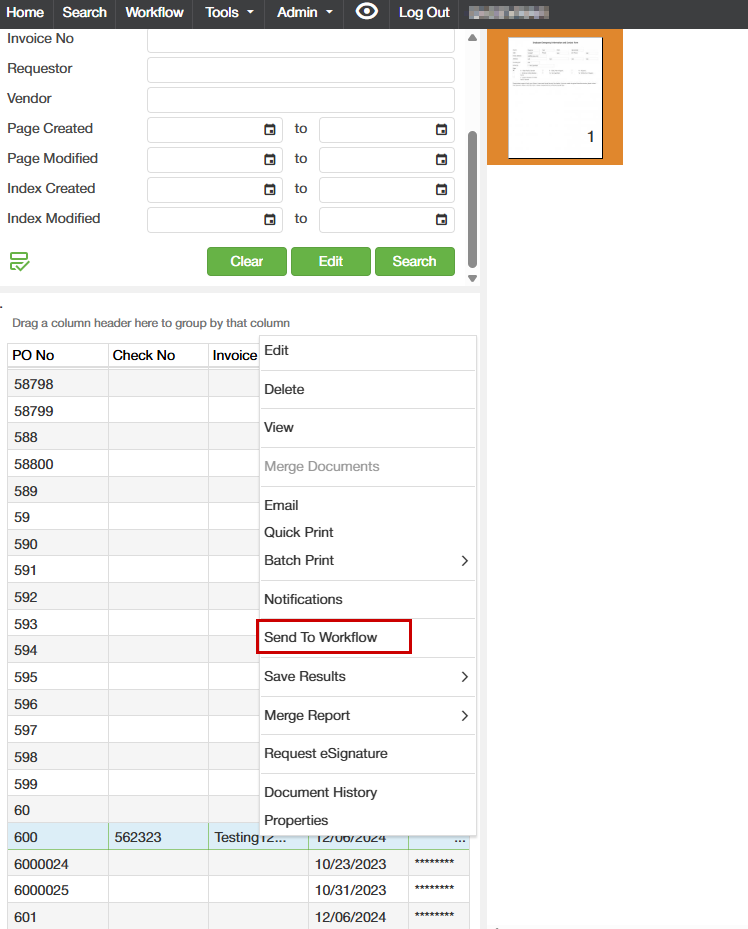
4. Select the queue you wish to send it to and click "OK"
If you do not see a queue listed here, it is because it does not have the "Allow Start" flag on the queue. It is recommended not to change that setting and to send to the queue that is closest to your final destination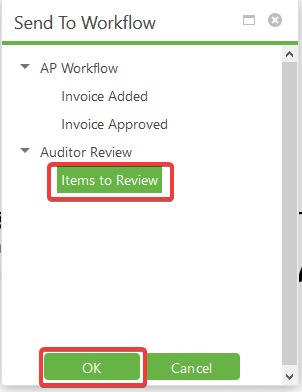
If you receive error that item is already in workflow, you must remove it from its current queue and then you'll be able to send it. A document can only be in 1 queue at a time.
C. Best Practices
- Correct Queue Selection: Always choose the appropriate queue for sending documents back into the workflow to maintain the process integrity and prevent bottlenecks.
D. Troubleshooting
- Missing Document Actions: If the option to "Send to Workflow" is not visible, verify that you have the necessary permissions. Contact your system administrator to adjust your access rights if necessary.
- Unavailable Workflow Queue: If the required queue isn’t listed, it's likely because the queue isn’t configured to start new items ("Allow Start" setting). Do not attempt to modify this setting yourself; instead, choose the closest appropriate queue or consult your workflow administrator.
- Error Messages About Existing Workflow Items: If there's an error indicating that the document is still in another queue, remove the document from its current queue before attempting to reintegrate it. Only one queue should contain the document at any given time.
E. Related Articles
Search: OCR Search Functionality
Conclusion
Handling document workflows efficiently requires a thorough understanding of SCView’s functionalities and appropriate user permissions. By following the outlined procedures and best practices, users can effectively manage document integrations and corrections within the workflow, enhancing overall productivity and maintaining the integrity of business processes. Ensure continuous education and permission management to keep workflows smooth and error-free.