
 | ||
Introduction
Managing vendor information effectively is crucial for any organization that relies on a streamlined procurement process. In SCView, updating vendor details in your system's database can sometimes become a challenge, especially when changes made in the Uniform School Accounting System (USAS) do not automatically synchronize with SCView's configuration. Understanding how to manually refresh the vendor list in SCView is essential to maintaining accurate and up-to-date information for requisition and procurement activities.
A. Problem Statement
When vendor information is updated in USAS, these changes do not automatically reflect in SCView, particularly in the Department information section. This discrepancy can lead to inconsistencies in vendor data used for various approval workflows and Purchase Order processing within SCView, potentially impacting procurement operations.
B. Solution
To align the vendor information in SCView with updates made in USAS, system administrators must manually refresh the vendor list from within SCView’s Admin settings. This ensures that only active, valid vendors from USAS are available in SCView for requisition and procurement processes.
Sometimes you may need to update the vendor information within your system. When you update the Vendor information in USAS the Department information does not automatically update within SCView. In order to do this an administrator will need to follow the following steps.
Go to Admin > Site Settings > Requisitions

Click on "Refresh" next to "Deliver To List Refresh"
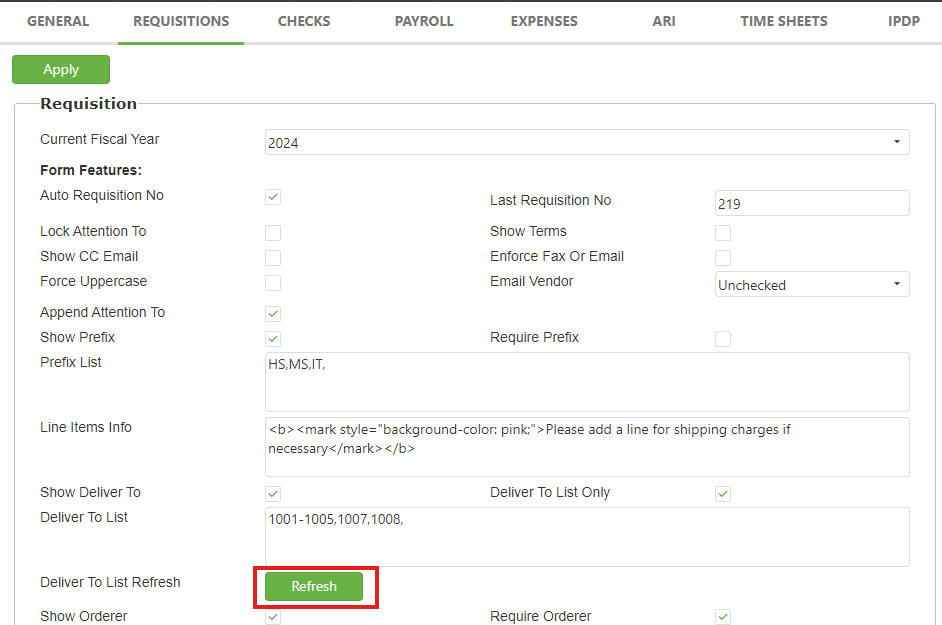
Your Vendor information should now be updated! If you continue to have issues, please contact support.
Additional Notes:
The Deliver To List box above the Refresh button is a list of all vendors available for the Approval List and Deliver To drop-down options for Requisitions. Approval List is for Workflow approvals. Deliver To is for Purchase Order Shipping Addresses.
When we click Refresh, we will only validate and display active vendors from USAS. If a vendor is removed or marked as inactive in USAS, and we click Refresh, it will not display as an option. It does not matter if it is in the Deliver To List box in the site settings.
If you do not see these options when creating a requisition, either the vendor is no longer in USAS, or your user permissions are limited to certain options.
If you need to add to this list, you would enter the new vendor number separated by a comma in between the other vendors. There should be no spaces in between. Then click Apply. Then click Refresh to load the current information from USAS.
If you are adding to this list in order to add an additional approval path in the workflow, there are additional steps needed to make sure Requisitions using that Approval List reach the correct destination.
Please contact support if you need assistance adding approval paths for your Requisition workflows.
C. Best Practices
- Regular Updates: Administrators should routinely refresh the vendor list in SCView after any updates in USAS to ensure consistency across platforms.
- Monitor Vendor Status: Keep track of active versus inactive vendors in USAS to manage expectations and prevent confusion when vendors do not appear in SCView after a refresh.
- Clear Communication: Inform relevant procurement and financial teams of changes in the vendor list and the requirements for refreshing data in SCView.
- User Permissions: Ensure that users have appropriate permissions to view updated vendor lists when creating requisitions, to prevent any disruptions in the procurement process.
D. Troubleshooting
- Vendors Not Showing: If refreshed vendors aren’t appearing, ensure that they are marked as active in USAS. Check to see if the refresh process was completed successfully in SCView.
- Access Issues: If users cannot see certain vendors while creating requisitions, verify their user permissions and the vendor’s status in USAS.
- Technical Errors: For any persisting issues or errors during the refresh process, contact SCView support for further assistance.
- Approval Paths Problems: If adding new vendors for specific approval paths, ensure that all steps to configure requisitions and workflows are correctly followed. Contact support if issues persist.
E. Related Articles
Requisitions: Copy Requisition
Requisitions: Create a Requisition
Conclusion
Refreshing the vendor list in SCView is a crucial administrative function that ensures the integrity and functionality of the procurement and requisition processes within an organization. By adhering to best practices for regular updates and employing effective troubleshooting strategies, administrators can manage vendor information efficiently, ensuring seamless procurement operations and compliance with organizational policies. Always ensure that updates and changes are well-documented and communicated to all relevant stakeholders.