
 | ||
Introduction
Each year, organizations close their fiscal periods to mark the end of one financial year and the beginning of another. This pivotal transition requires updates to be made in systems that manage financial operations and data. For administrators entrusted with system updates, ensuring that these changes accurately reflect the transition into a new fiscal year is critical to maintaining operational continuity and accuracy in financial reporting.
A. Problem Statement
As the fiscal year closes, the failure to update the system with the new fiscal year can lead to reporting inaccuracies, data discrepancies, and potential compliance issues. This update is critical as it directly impacts financial analysis and operational strategies for the upcoming year.
B. Solution
To address this, administrators should update the fiscal year in the system following a systematic approach. This involves navigating to the correct administrative settings, selecting the appropriate new fiscal year from available options, and confirming this update to ensure the system operates under the correct financial timeline.
Once you have closed your fiscal year, you will need to make a change in our system to reflect this.
You must be an admin to do the following. If you're an admin and do not see the following settings, please contact support by chat or email to support@scview.com
Navigate to Administration Settings:
- Log into your account.
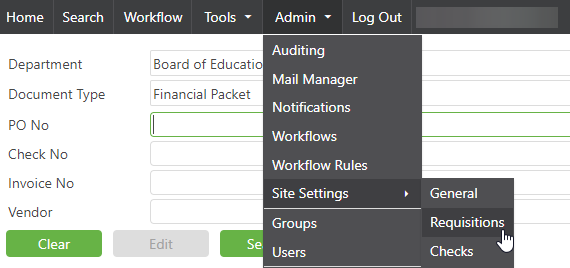
- Locate and hover over the ‘Admin’ tab on the main toolbar to reveal a dropdown menu.
- From the dropdown menu, select ‘Site Settings’ followed by clicking on ‘Requisitions’. This will direct you to the settings page specific to requisitions management.
Updating Fiscal Year:
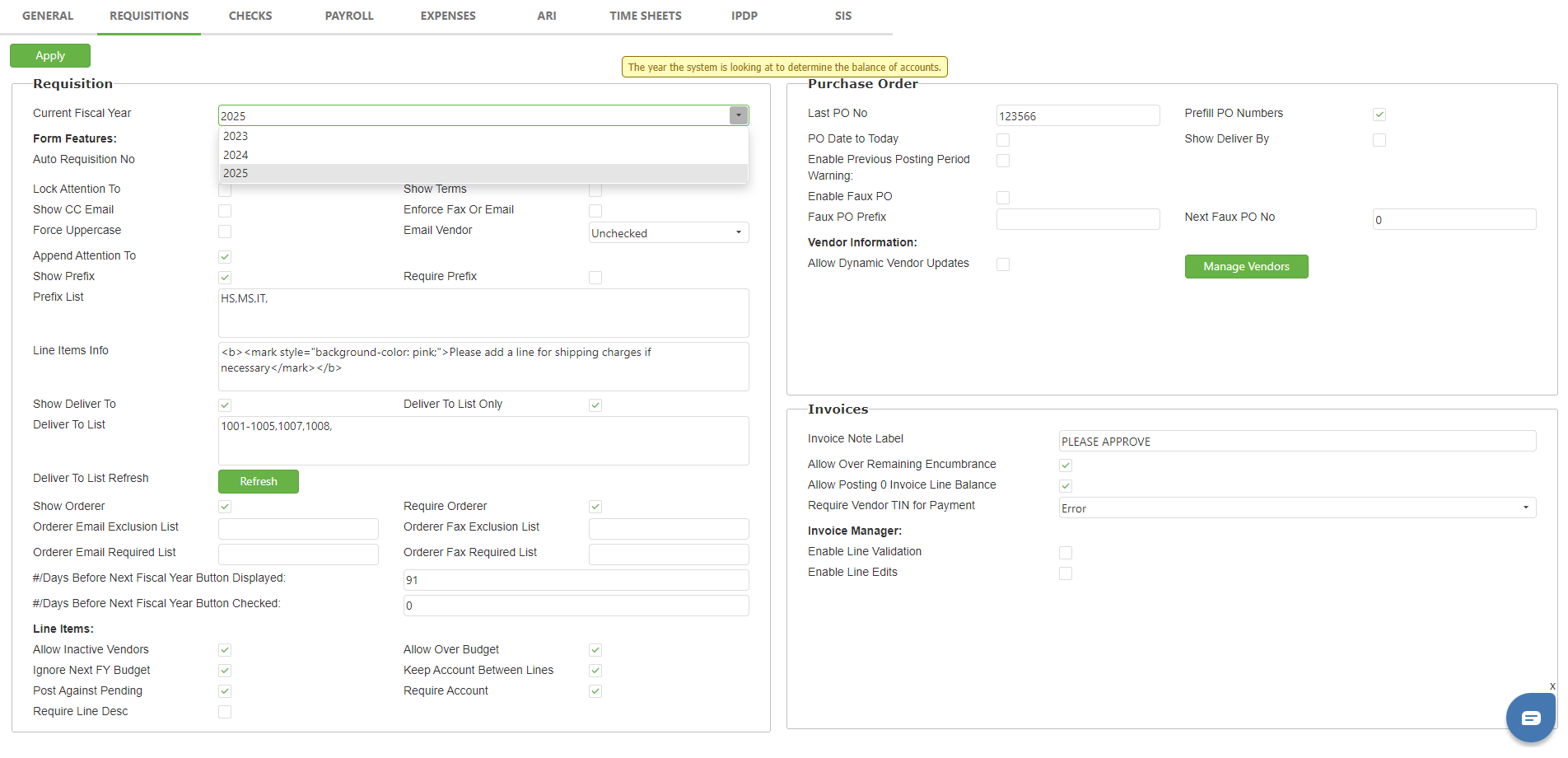
- Once in the Requisitions settings, scan for a field or drop-down menu labeled ‘Current Fiscal Year’.
- Click on the drop-down menu or field, and a list of years should appear.
- Select the year that corresponds to your new fiscal year. Ensure you choose the correct year as this setting can affect data processing and reporting.
Apply Changes:
- After selecting the new fiscal year, look for the ‘Apply’ button, which in the top-right corner of the page.
- Click ‘Apply’ to confirm and save your changes. It is critical to ensure that no errors occur during this step to avoid data discrepancies.
C. Best Practices
- Verify Admin Access: Confirm that you have the necessary administrative rights before attempting to make changes. Only users with admin privileges can update fiscal year settings.
- Double-Check the Year: Ensure that the correct year is selected when updating the fiscal year. An incorrect setting can cause significant issues in data processing and require corrective actions.
- Communicate Changes: Notify all affected teams of the fiscal year transition to avoid any confusion or misalignment in operations and reporting.
D. Troubleshooting
- Refresh your browser to ensure that any interface issues are resolved.
- Verify that you're using a compatible browser and that it is up to date.
- Recheck whether the updated fiscal year is displayed correctly post-application.
E. Related Articles
Requisitions: Create a Requisition
Helpdesk : SC Strategic Solutions
Conclusion
Updating the fiscal year in the system settings is a critical task that must be handled meticulously to ensure the accuracy of financial data and compliance with reporting requirements. By following the outlined steps, best practices, and utilizing available support resources when needed, administrators can effectively make this transition smooth and error-free. This proactive management helps pave the way for a successful year ahead.