 | ||
Introduction
In many organizational workflows within SCView, the inclusion of additional approvers can be essential for enhancing the review and approval processes. This guide provides a structured method for adding an approver to a specific queue within the SCView system, ensuring that documents are appropriately reviewed and approved by all relevant parties.
A. Problem Statement
Maintaining an effective workflow often requires the dynamic adjustment of roles, particularly when adding new responsibilities or personnel. However, adding an approver to a queue in SCView and ensuring they have the necessary access to pertinent documents can be confusing without a clear understanding of the system’s administrative functions.
B. Solution
SCView simplifies the process of modifying workflow settings to add an approver to a queue. This involves selecting the appropriate queue under workflow settings, modifying approver settings, and ensuring the new approver has access to the necessary document types. Following a straightforward procedure ensures the new approver is integrated seamlessly into the workflow without disrupting the ongoing processes.
This guide covers how to add an additional approver to a queue. To see the documents they will also need their user profile updated to provide Document Type Access to the documents. This is covered in the Add New User guide.
- Navigate to Admin >Workflows
- Select the Queue
- Click Edit Queue
- Check the name of any Approvers to be added
- Note: To remove access you would unselect the checkbox next to their name
- Click Save
(Click to Enlarge)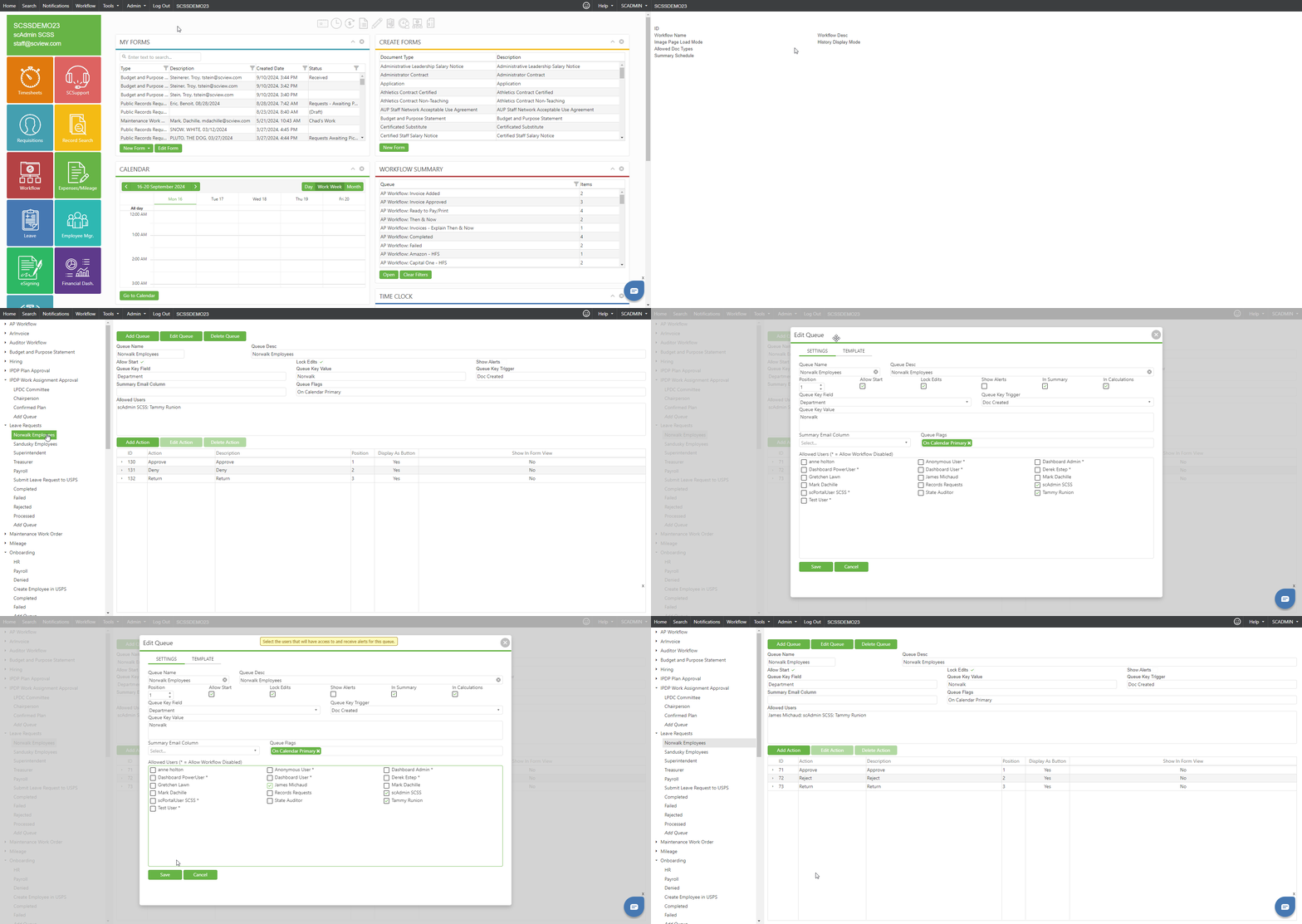
C. Best Practices
- User Access Review: Regularly review user access rights and document type permissions to ensure all approvers have appropriate access to the documents they are expected to review.
- Clear Documentation: Maintain clear records of changes made to workflow settings and user permissions for auditing and training purposes.
- Training for Approvers: Ensure new approvers are adequately trained on how to use SCView, focusing on how to handle documents within their assigned queues.
- Regular Updates: Keep the workflow settings updated to reflect any changes in team structure or approval responsibilities to maintain the efficacy of the process.
D. Troubleshooting
- Approver Cannot See Documents:
- Double-check that the approver’s user profile has been updated to include access to the relevant Document Types. This setup is crucial for ensuring they can view and approve the documents assigned to their queue.
- Changes Not Saving:
- If changes to the workflow settings are not being saved, ensure that you have the necessary administrative permissions to make these changes. If permissions are adequate, try clearing your browser cache or using a different browser to check if the issue persists.
- Approvers Not Listed:
- If you cannot find the approver’s name in the queue settings, ensure that they have been added to the system correctly. Refer to the 'Add New User' guide to verify their profile setup.
- Removing Access Issues:
- If trying to remove access for an approver, ensure that unselecting their name is followed by saving the changes. If issues continue, verify network stability and SCView server access.
E. Related Articles
Conclusion
Adding an approver to a workflow in SCView is a crucial function that enhances the approval process and ensures efficient document management. By adhering to the outlined steps and best practices, organizations can efficiently manage user roles within their workflows, ensuring that all documents undergo necessary reviews and approvals. This not only streamlines the process but also reinforces the organizational structure and accountability within the system.
Was this article helpful?
That’s Great!
Thank you for your feedback
Sorry! We couldn't be helpful
Thank you for your feedback
Feedback sent
We appreciate your effort and will try to fix the article