
 | ||
Introduction
This article provides a comprehensive guide on how to communicate with the treasurer's office staff regarding purchase order management. You'll learn how to add notes, request PO closures, and submit modification requests through the PO manager system. These essential functions help streamline communication between departments and ensure proper purchase order lifecycle management.
A. Problem Statement
Users often need to communicate with the treasurer's office regarding changes to existing purchase orders, whether to add clarifying information, request closure of completed orders, or modify details on active POs. Without a clear process, these requests can create delays, miscommunication, and inefficient workflow management between departments.
B. Solution
The PO manager system provides three distinct options for communicating purchase order requests to the treasurer's office staff. Each option serves a specific purpose and follows the same access method while targeting different workflow queues.
Step 1: Access the PO Request Options
Navigate to the PO manager and locate the purchase order you need to address. Right-click on the specific PO to open the context menu with available request options.
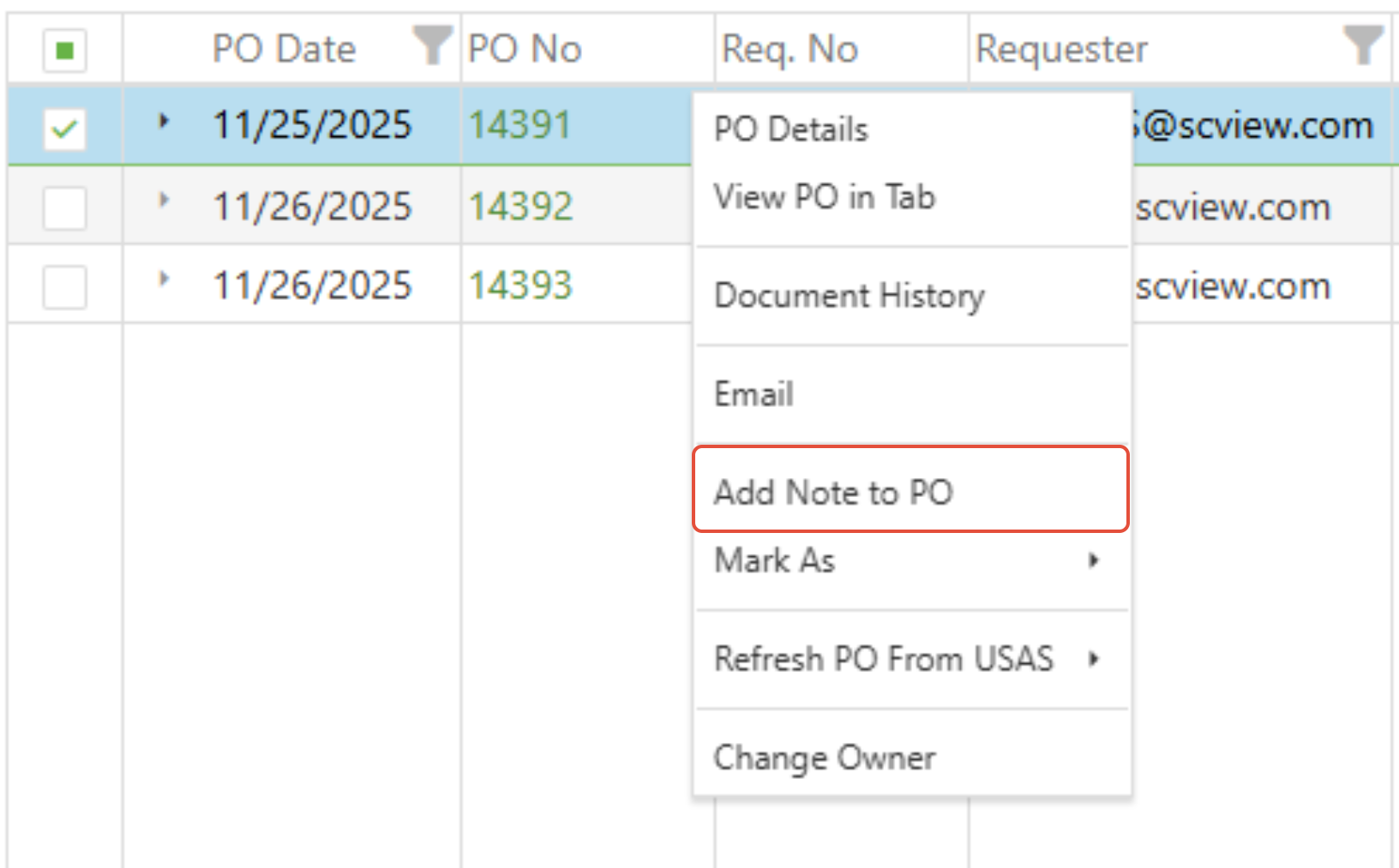
Step 2: Select Your Request Type
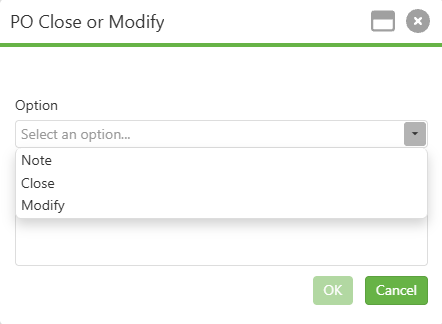
Add Note to PO: Select this option when you only need to add supplementary information or documentation to the purchase order's audit history.
- Close: Choose this option when the purchase order should be closed and you need to notify AP staff of completion.
- Modify: Select this option when changes need to be made to the existing purchase order details.
Step 3: Complete the Request
- For Add Note: Enter notes in the text field, which will be added directly and only to the PO audit history.
- For Close/Modify: Insert notes in the text field to provide detailed information explaining why this action was selected. This information will be sent to the appropriate workflow queue for AP staff processing.
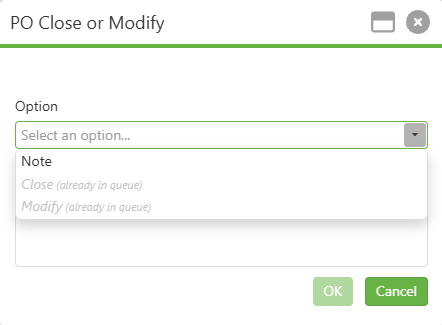
NOTE: When a record is currently in a workflow queue, the Close and Modify options will be disabled.
C. Best Practices
- Be Specific: When adding notes or requesting changes, provide clear, detailed explanations to avoid back-and-forth communication.
- Include Relevant Details: For modification requests, specify exactly what needs to be changed and why.
- Use Appropriate Timing: Submit close requests promptly after PO completion to maintain accurate financial records.
- Check Workflow Status: Understand that requests target specific workflow queues, or will default to audit history notes if no queues are configured.
- Document Everything: Use the note feature to maintain a clear audit trail for all PO-related communications.
D. Troubleshooting
- Workflow Queue Problems: If requests aren't being processed, verify that appropriate workflow queues are set up in the system
- Note Not Saving: Ensure all required fields are completed before submitting your request
E. Related Articles
Purchase Orders: Open PO Reports
I need to make a change to a PO that is in USAS. How do I fix?
Conclusion
Managing purchase order requests through the PO manager system streamlines communication with the treasurer's office staff while maintaining proper documentation. Whether you need to add notes, close completed orders, or request modifications, following the simple right-click process ensures your requests are properly routed and tracked. Implement these procedures to improve your purchase order management efficiency and maintain clear communication channels with AP staff.