
 | ||
Introduction
With each new year, organizations often need to update their standard mileage rates to align with updated federal rates or internal policy changes. This guide provides a clear step-by-step process for administrators on updating the mileage rate in the SCView system, ensuring the accuracy of mileage compensation throughout the organization. If you do not have access to the Site Settings page, please contact support at support@scview.com.
A. Problem Statement
Each year, the challenge arises to promptly and accurately update the mileage rate in the SCView system. Administrators may face difficulties if they lack the necessary access privileges or understanding of where and how to make these updates, potentially leading to errors in mileage reimbursement.
B. Solution
To effectively manage and update mileage rates at the start of a new year or when new rates are implemented, administrators with the appropriate privileges need to navigate to the Site Settings page and accurately input the new rates. If access issues arise, administrators should contact system support for assistance.
1. Navigate to Admin -> Site Settings
2. Click on the Mileage tab
3. Under the section labeled Mileage Rates, click the New button. This will preserve previous rate information
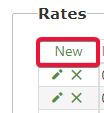
4. Select an Effective Date. Any mileage forms submitted after the effective date will have the new mileage rate
5. Enter the approved mileage rate for staff including any partial amounts (0.545 is acceptable, for example)
6. Click the save icon on the left side of the row
7. Click Apply in the upper left corner of the page
C. Troubleshooting
- Access Issues: If you cannot access the Site Settings, check your user profile to confirm you have admin privileges. If you believe there is an error, contact support@scview.com for access review and adjustment.
- Incorrect Rate Application: If the new rate does not apply correctly to mileage claims post the effective date, verify that the effective date and rate were entered correctly and that the 'Apply' button was clicked to enforce the changes. Revisit the site settings to make necessary adjustments.
D. Related Articles
Expenses/Mileage: How do I use the Mileage Manager?
Conclusion
Updating the mileage rate within the SCView system need not be a daunting annual task. By following the outlined steps and leveraging best practices, administrators can ensure that the process is smooth and that all mileage reimbursements remain accurate and compliant with the latest standards. Should challenges arise, the support team is available to assist, making sure that the system functions optimally for everyone involved.