 | ||
Introduction
Navigating document management systems efficiently is crucial for maintaining operational workflows and ensuring data integrity within an organization. In SCView, documents that are removed from an active workflow are not lost; instead, they are relocated where they can still be accessed and managed. This guide provides an overview of how to locate and manage these documents within SCView, ensuring that users can continue to track and control their documentation effectively.
A. Problem Statement
Users may experience confusion or concern when documents are removed from the active workflow, often fearing that these documents may have been lost or deleted. This can lead to inefficiencies and disruptions in workflow management, as users spend time searching for or recreating the supposed "lost" documents.
B. Solution
SCView addresses this concern by preserving the accessibility of removed documents through its Search and Admin functionalities. By using the Search area to locate removed documents and the Auditing option under the Admin tab for users with administrative access, documents can be effectively tracked, viewed, or returned to the workflow as needed, with their audit trails intact.
When a document is removed from workflow, it does not disappear.
 It can be found within the Search area of SCView.
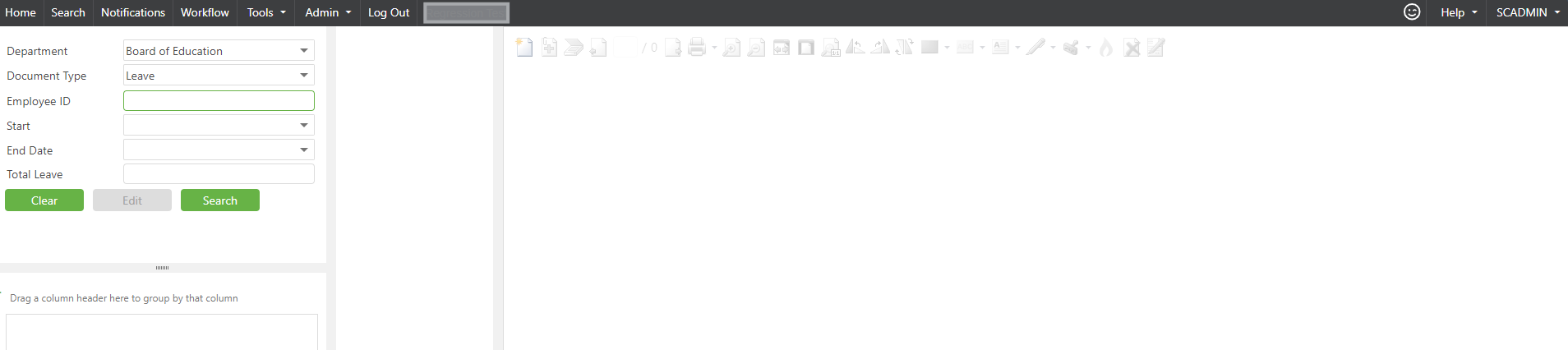
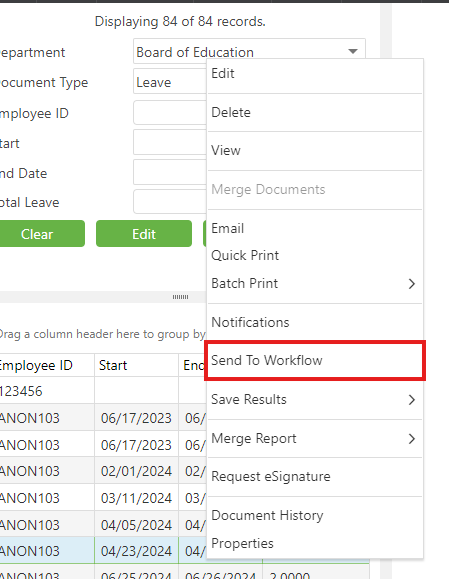
Simply change the drop-down selections to match the type of document you are looking for. Once there, you can right click and send it back to workflow or simply view it. The audit trail follows the document to the Search page as well.
Additionally with Admin access, you can locate the document via the Auditing option under the Admin tab.

C. Best Practices
- Familiarize with Navigation Tools: Ensure that all users understand how to use the Search feature and, for admins, the Auditing tools to locate documents efficiently.
- Regular Training: Conduct regular training sessions to keep all users updated on any changes in the document management protocols or updates in SCView functionalities.
- Maintain Clear Documentation: Keep clear records and documentation of all procedures related to managing documents in and out of the workflow to assist users in following established protocols without confusion.
- Utilize Admin Privileges: For those with admin access, regularly use the Auditing function to check on the status of documents and ensure that no information is lost or overlooked.
D. Troubleshooting
- Issues Locating Documents: If users cannot find a document in the Search area, ensure that they are using the correct filters and document types in the dropdown selection. If the document still cannot be found, confirm whether the document was archived or permanently removed by checking with an admin.
- Workflow Management Problems: When sending documents back to workflow, if issues arise, ensure that the workflow settings are configured correctly and that there are no system restrictions or errors causing the disruption.
- Access Problems: If users with admin rights cannot access the Auditing options, verify their permissions in the system settings and adjust as necessary. If the problem persists, consider consulting SCView's technical support for a resolution.
E. Related Articles
Conclusion
Understanding how to effectively navigate and manage documents within SCView, particularly those removed from workflow, is essential for maintaining continuity and integrity in document management processes. By adhering to best practices and knowing how to troubleshoot common issues, users can ensure that no document is ever truly lost and that business operations continue smoothly with minimal disruption. The ability to track and manage these documents reinforces the robustness of SCView as an indispensable tool for effective organizational management.
Was this article helpful?
That’s Great!
Thank you for your feedback
Sorry! We couldn't be helpful
Thank you for your feedback
Feedback sent
We appreciate your effort and will try to fix the article