
 | ||
Introduction
This article provides a comprehensive guide to deleting requisitions in SCView, covering role-based permissions, status requirements, and proper deletion procedures. You'll learn how different user roles (standard users, approvers, and administrators) can delete requisitions under various circumstances, understand the workflow restrictions that apply, and discover best practices for maintaining procurement integrity. This guide ensures you can confidently manage requisition deletions while adhering to organizational protocols.
A. Problem Statement
Organizations frequently need to delete requisitions in SCView due to duplicate entries, incorrect information, or changing purchase requirements. However, SCView's structured workflow system restricts deletion capabilities based on user roles and requisition status, creating confusion about when deletions are permitted and what the proper procedures are. Without clear understanding of these restrictions, users may attempt unauthorized deletions, disrupt procurement workflows, or violate organizational protocols, potentially causing delays and audit issues.
B. Solution
The deletion of requisitions in SCView follows a role-based permission system with specific status requirements. The process varies depending on your user role and the current status of the requisition.
Step 1: Identify Your User Role
- Standard User: Basic requisition creation and management capabilities
- Approver: Can review and approve requisitions in workflow queues
- Administrator: Has elevated system privileges and broader deletion access
Step 2: Check Requisition Status
Verify the current status of the requisition you want to delete. The status determines whether deletion is possible:
- Draft Status: Requisition has not been submitted for approval
- Submitted Status: Requisition is in the approval workflow
- Returned Status: Requisition was sent back to the originator
- Submitted to USAS: Requisition has been processed to the external system
Step 3: Determine Deletion Eligibility Based on Role
For Standard Users:
- You can only delete requisitions that are in Draft status
- Once submitted (even if returned), deletion is no longer possible
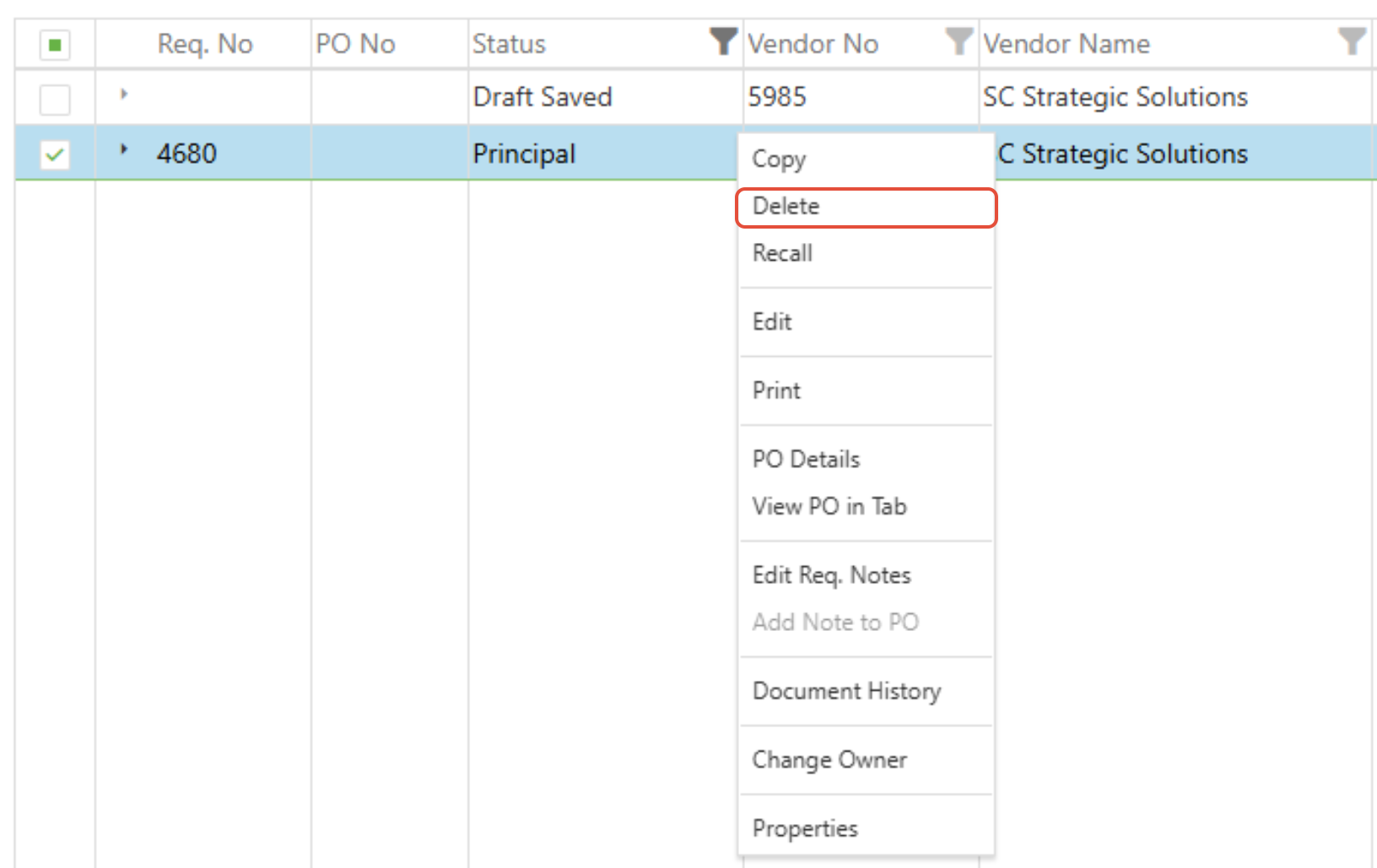
- Right-click on the draft requisition and select "Delete"
For Approvers:
- Delete draft status requisitions by right-clicking and selecting "Delete"
- Delete requisitions in your workflow queue (requires Search privileges or must be listed under "Items I affected")
- Delete returned requisitions if you have delete permissions
For Administrators:
- Delete any requisition that has not reached "Submitted to USAS" status
- Must have delete privileges enabled for your admin account
- Access deletion through the requisition manager with right-click menu
C. Best Practices
- Validate Permissions: Confirm you have the appropriate role-based permissions before attempting deletion
- Regular Permission Reviews: Periodically audit user roles and deletion permissions to ensure appropriate access levels
- Workflow Optimization: Design approval workflows to minimize the need for deletions through better initial review processes
- Alternative Solutions: Consider modification or cancellation options before resorting to deletion
D. Troubleshooting
Delete Option Disabled: Verify your user role and permissions, check requisition status, and ensure it hasn't progressed to submission status in USAS
E. Related Articles
Users: User Manager - Add and Edit
Conclusion
Successfully deleting requisitions in SCView requires understanding role-based permissions, status requirements, and proper procedures. Whether you're a standard user creating requisitions, an approver managing workflow items, or an administrator managing documents system-wide, following the appropriate steps ensures compliance with organizational protocols. Implement these procedures along with comprehensive documentation practices to maintain procurement integrity while efficiently managing requisition lifecycles. Take action by reviewing your current deletion practices and ensuring they align with the guidelines outlined in this article.