
 | ||
1. Introduction
Printing checks efficiently and correctly is a vital task for any organization's financial management. With the Check Manager feature in our system, you can manage and print checks directly from financial data files such as DAT or XML, originating from software like USAS. In this FAQ article, we've compiled a list of commonly asked questions to guide you through the process and help troubleshoot common issues. By understanding how to utilize the Check Manager tool, you can streamline your check printing tasks and ensure that this crucial function operates without error.
2. FAQ
How do I print a refund check?
You can print from either Warrant or Refund "Check Type".
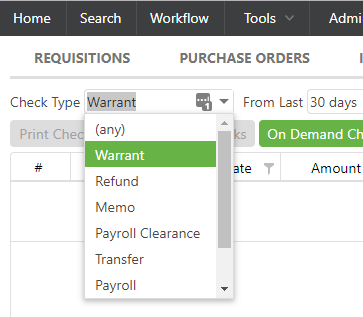
Why do I see two checks in my financial packet?
When refund checks are brought into our system, they are seen as two different checks: Warrant and Refund.
I only want to see it listed as the refund check type, not the warrant. Can this be done?
Yes, you can delete the warrant version if you wish. You will need to have delete permissions for the financial packet to do this.
Is there a limit to the number of checks I can print at once?
Yes, the Check Manager tool limits the print run to 250 checks to ensure optimal performance and manageability.
How do I ensure correct check alignment during printing?
Make sure the "Fit to page" option isn't enabled and that the print scale is set to 100% to maintain the correct alignment during the printing process.
What do I do if the Print Checks button isn't visible?
If the Print Checks button isn’t visible, check to ensure that the correct check type is selected in the filter. It may be hidden due to an incorrect filter setting.
Can I sort the checks in a specific order before printing?
Yes, you can sort the checks by check number, payee name, or department (for payroll checks) before printing.
What should I do if I receive an error regarding missing email information during check uploads?
Make sure the vendor email information is encoded accurately in the XML file, following the priority sequence of remittance, standard, and order email addresses.
I had to void a check. What do I do next?
The next steps after voiding a check depend on what actions were taken prior.
- I initiated my check run and immediately noticed an error prior to taking any other action, so I voided the checks.
- No steps need to be taken in SCView. Simply void the checks and re-process as necessary to fix the error.
- I initiated my check run and then uploaded the checks into SCView, but did not take any other action prior to voiding the checks.
- Contact SC Support to roll back the check import so that checks are not duplicated in the system. Then re-process as necessary to fix the error.
- I initiated my check run, uploaded the checks, and printed them out. No vendors have been paid yet.
- Follow the above steps for II.
- I initiated my check run, uploaded the checks, and printed them out. A vendor has cashed their check.
- You will need to contact the vendor and bank to reverse the payment. Then you will need to contact your ITC to reverse the payment status of the check so that you can void the check and begin at step II above.
Positive Pay
Does your system handle positive pay?
Yes, SCView can output a CSV formatted positive pay file.
What formats do you output for positive pay?
We only output CSV for Positive Pay.
My current process is a text file, why can't I keep doing that with your system?
All banks accept .csv formats. Depending on your bank, you can either make the change in your settings or you can call them to make the change.
I need X, Y, Z in my positive pay file, can you handle it?
Please provide a sample positive pay or a file from your bank breaking down the formatting. Once we have this we can configure your Positive Pay to match the banks specifications.
Is there an additional fee to create a positive pay file through your system?
No, this is included with the check module.
My bank rejected the file, what do I do now?
Please ask your bank for the exact reason why the file was rejected, then send in a ticket to support@scview.com with this information and we will get it taken care of for you.
3. Related Articles