
 | ||
Introduction
Welcome to the comprehensive guide on configuring settings for the Mileage module. Managing mileage submissions effectively is vital for maintaining budget control and ensuring compliance with internal policies. This step-by-step guide is designed to assist administrators in navigating the Site Settings and making precise adjustments to optimize the functionality of the Mileage module. Whether you are setting up odometer readings, configuring daily commute calculations, or customizing invoice generation, each setting within the module can be tailored to meet the specific needs of your organization, enhancing both operational efficiency and user experience.
A. Problem Statement
Admin users often face challenges in navigating and applying the myriad of configurable options within the Mileage Site Settings. This complexity can lead to suboptimal settings that do not fully align with the specific operational needs or compliance requirements of the organization.
B. Solution
To address these challenges, we propose the implementation of a comprehensive, step-by-step guide dedicated to configuring the Mileage module settings. This guide will provide detailed instructions on accessing the Site Settings, adjusting individual features like mileage requisition workflows, odometer readings, and invoice automation, and will cover advanced options such as setting up daily commute calculations and preferred routing. By adopting a structured approach to training and system configuration, administrators will be able to tailor the module to meet specific organizational needs more efficiently, thereby enhancing the functionality and user experience of managing mileage submissions. This solution will streamline operations, reduce errors, and ensure consistency across all user interactions with the module.
Step-by-Step Guide for Configuring the Mileage Module Settings
Accessing Site Settings
- Navigate to Admin dropdown: Begin by logging into the system. From your dashboard, go to Admin > Site Settings.
- Enter Mileage Settings: On the Site Settings manager screen, click on the Mileage tab to open the Mileage Site Settings manager.
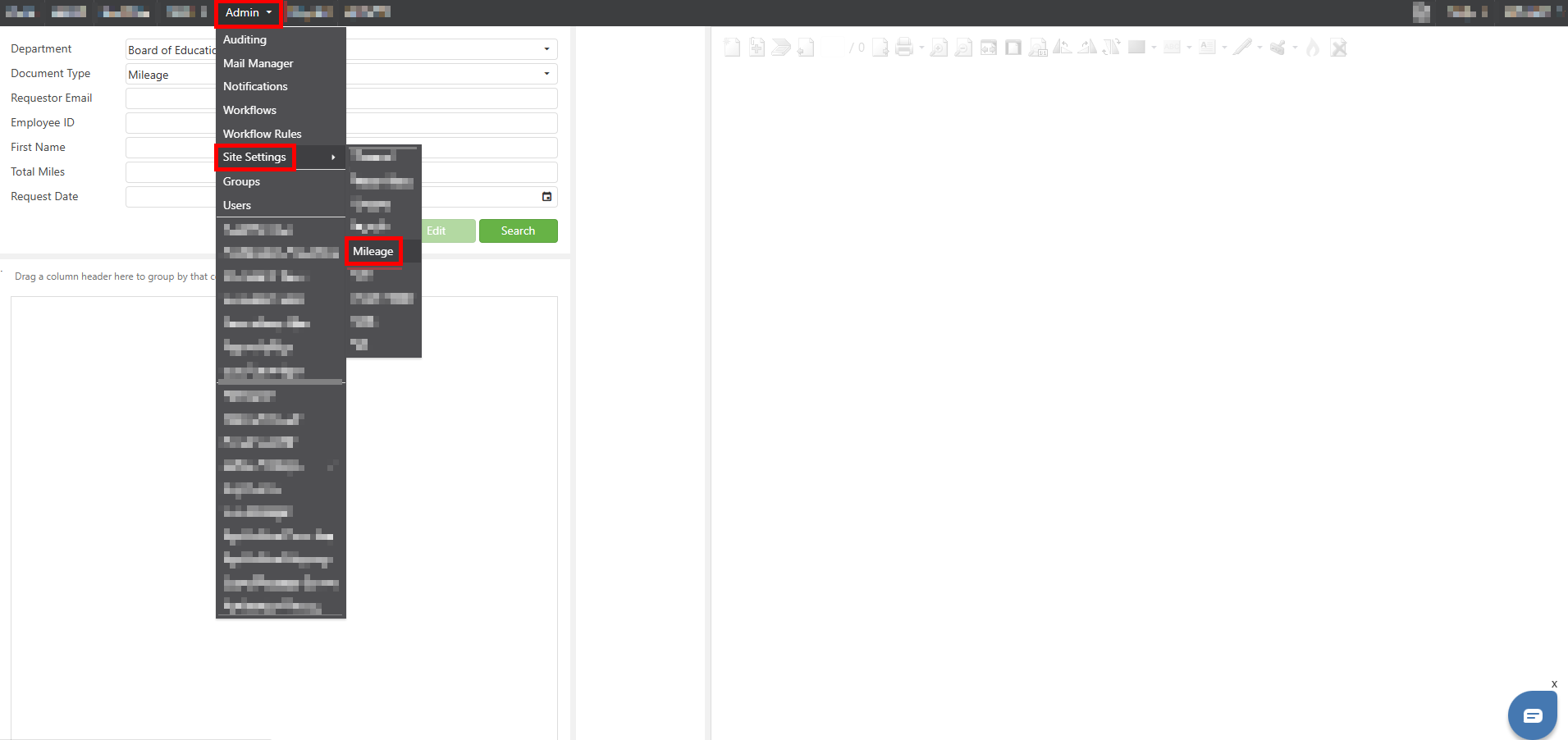
Note: You must be an admin to view these settings. Settings changed here apply to all users using the Mileage module.
Configuring Mileage Settings
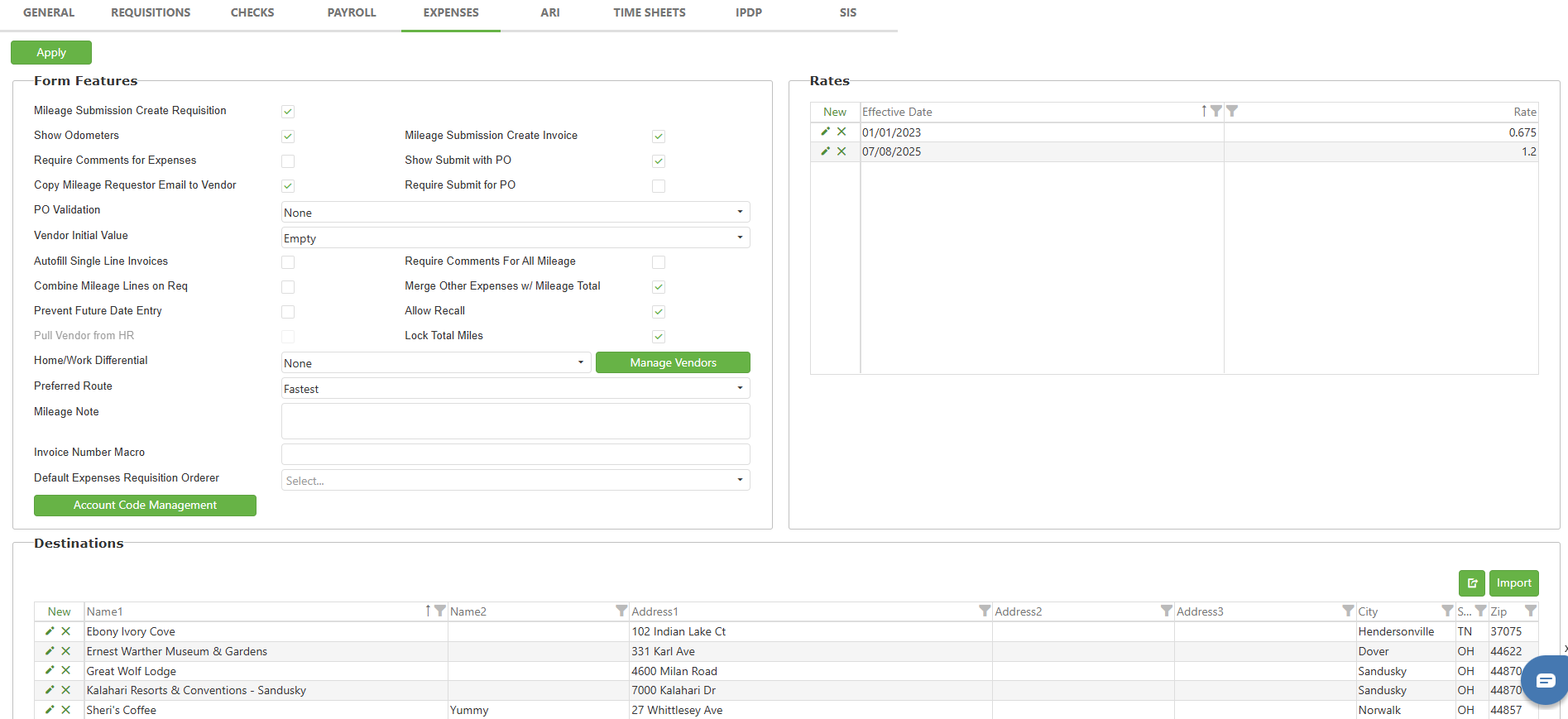
Mileage Submission Create Requisition - Enable this option to allow Mileage Requests to enter the Requisition workflow for approval before submission to USAS.
Show Odometers - Displays the option to enter the user's vehicle odometer reading from the trip. Entering the odometer start and end will auto calculate the Total Miles field.
Require Comments for Expenses - Set this to require comments when users enter "other" expenses on their mileage forms. This ensures proper documentation for all expense items.
Copy Mileage Requestor Email to Vendor - Instead of using the vendor email (pulled from vendor), it will use the requestor email.
Autofill Single Line Invoices - Single line POs will be automatically populated when an invoice is generated.
Note: You will still have to set the status of the line on the invoice.
Combine Mileage Lines on Req - Mileage lines are combined when a requisition is created.
Prevent Future Date Entry - This will prevent users from submitting a mileage request for a future date. Users will still be able to add past entries. Users can also save future dates as a draft but will be unable to submit until that day arrives.
Note: The prevent future date entry calculates based off the submission date of
the mileage.
Home/Work Differential - If set to shortest, it will calculate the shortest distance from Home/Work to destination. Differential will calculate actual distance from Home/Work to the destination and subtract from School to destination
mileage.
Note: Differential would only apply to entries with home as a start or destination.
When used, the options should be None and Shortest. User should have Home Vendor
ID* specified.
Daily Commute - Daily commute dictates that requestors are only to receive mileage compensation if their total traveled mileage goes above and beyond the normal daily commute (Home>Work, Work>Home). Your home/work vendor can be set up under your user FIS settings.

Preferred Route - Determines if the fastest or shortest route is automatically selected via Google API.

Invoice Number Macro - Will auto generate an invoice number for the mileage invoice.
Note: Macros you may use are {{Initials}}, {{CurDate}}, {{CurTime}}, and {{SCID}}Mileage Submission Create Invoice - Allows the form to create an invoice which automatically goes into the AP Workflow once the mileage has been approved.
Show Submit with PO - This option adds a checkbox to allow the submission to create an invoice. If "Show Submit with PO" is unchecked at any point. The "PO Validation" dropdown will automatically be changed to "None".
Require Submit for PO - Automatically checks the Submit with PO box, disables it, and forces a PO number to be entered before the form can be submitted for approval. If "Show submit with PO" is not checked and you check the "Require Submit for PO" both checkboxes will be automatically checked.
PO Validation - Dropdown that has 3 options. "None", "Warning", "Error".
- None - Creates no validation against the PO that is entered.
- Warning - Creates a yellow toast message and allows you to still submit the expense/mileage.
- Error - Creates a popup message and prevents you from being able to submit till the error is resolved.
Please follow this guide this guide for more information about PO validation on the form.
Vendor Initial Value - The value affects the initial value loaded in the Vendor box on Expenses Entry. This setting is defaulted to "Empty".
Dropdown options:
- Empty
- Empty - Locked (cannot be changed by the user)
- Home Vendor
- Home Vendor - Locked (cannot be changed by the user)
Pull Vendor from HR - This setting allows enable pulling a vendor from an external HR system such as Tyler Munis, during an expenses entry. This setting will be disabled if your FIS endpoint is not pointed to "Tyler Munis".
Require Comments for All Mileage - Requires a comment for each mileage line before it can be added.
Merge Other Expenses w/ Mileage Total - Merge other expenses on mileage lines into the mileage total.
Allow Recall - Give users ability to recall submitted mileage forms from the workflow
Lock Total Miles - Disable editing of the total mileage calculation on the mileage form
Mileage Note - Places a note on the mileage form for creators to read before submitting.
Account Code Management - For users without FIS connections, custom account codes can be maintained here
Note: Custom account codes must be enabled in order for this button to be visible.
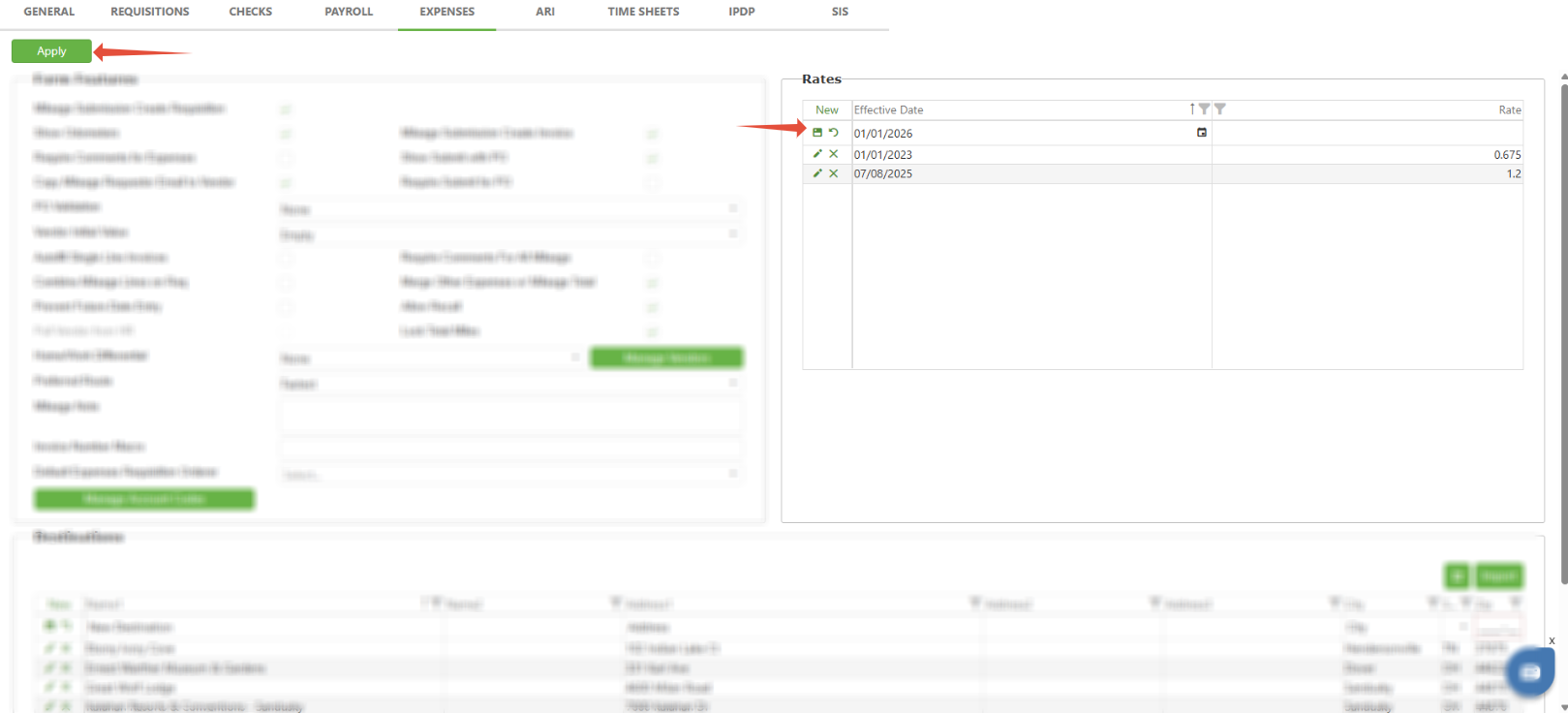
Mileage Rates - Add mileage rates in order to auto calculate the cost per mile.
To create a new rate, click the New button and type out the Effective Date and Rate in the fields labeled. Then click the Save icon. Lastly, click the Apply button on the top left corner of the Settings page.
Note: Always add a new effective date and keep previous.
Mileage Destinations - Add destinations on this setting page (shown below) in order to display them on the mileage form as drop-down options for both From and To destinations rather than typing them out on the form.
To create a destination, click the New button and type out the values in the fields labeled. Then click the Save icon. Lastly, click the Apply button on the top left corner of the Settings page.
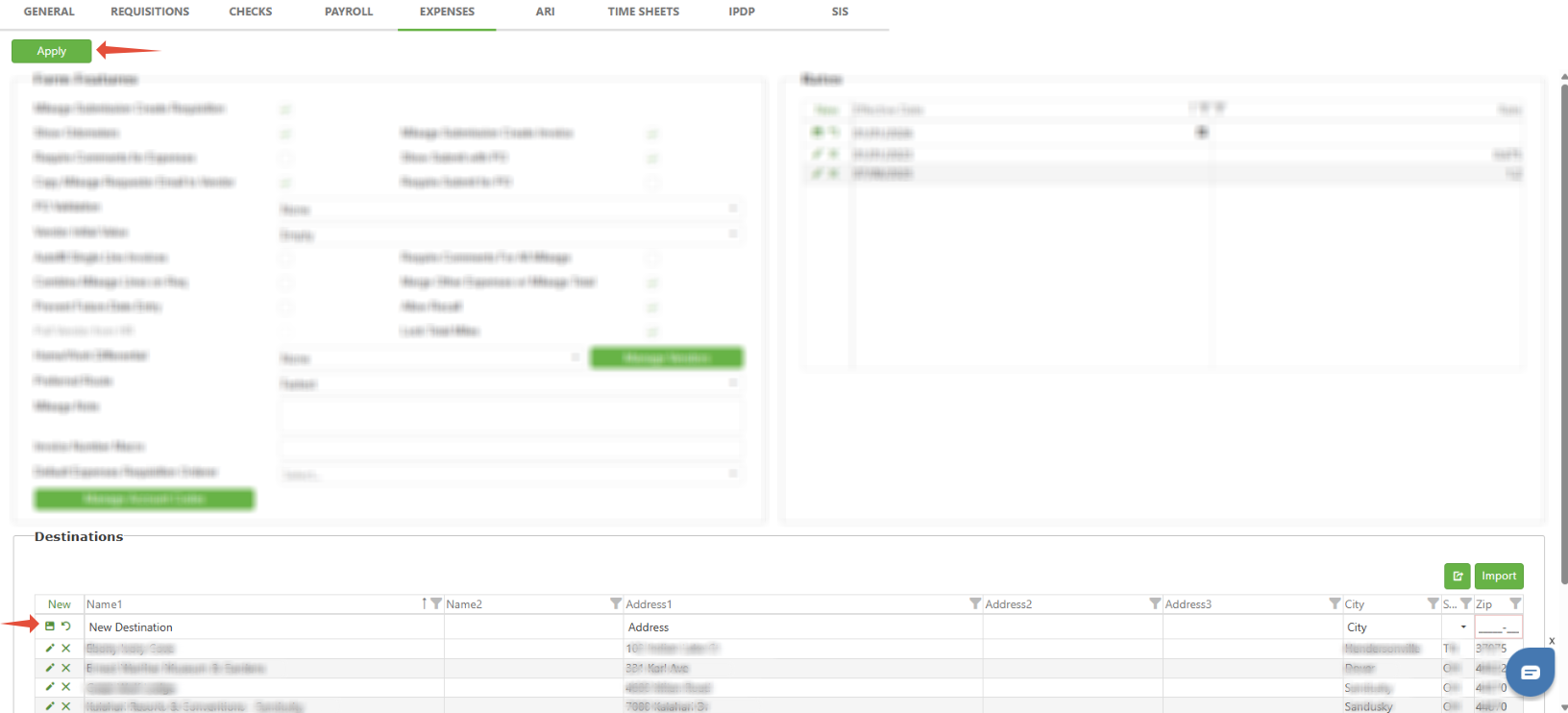
At the end of this guide is an Excel document which allows a mass upload of destinations through our Import option.

Note: If the user does not already have a vendor in USAS, please create one and ensure there is an address associated with it. If the user is already a vendor in USAS, ensure it is tied to their user under the Admin > Users > FIS tab.
C. Best Practices
- Regular Access Checks: Always begin by accessing settings through the Admin dropdown to ensure that modifications are made under proper authorization.
- Strategic Configuration Management: For every setting changed, such as enabling odometer readings or configuring daily commute calculations, ensure clarity on its impact and necessity to avoid unintended consequences.
- Required Comments Enforcement: Enforce comment requirements systematically to maintain detailed logging and justifications for mileage submissions, enhancing tracking and accountability.
- Email Use Considerations: When setting up email preferences, carefully decide whether to utilize the requestor's email or the vendor's default to ensure communications are sent correctly.
- Future Date Control: Prevent future-dated entries where appropriate to avoid forecasting errors, while allowing past entries for accurate record-keeping.
- Routing and Mileage Calculation: Choose the most suitable routing options (fastest or shortest) and mileage differential settings based on organizational policy and typical journey characteristics.
- Daily Commute Configuration: When implementing daily commute settings, ensure all users have properly configured home/work vendor information to avoid calculation errors.
- Dynamic Rate and Destination Management: Continuously update mileage rates and destinations to reflect the most current data. Utilize batch upload features for efficiency when handling multiple entries.
- Vendor Management in USAS: For user accounts associated with vendors, always verify and update address details to ensure alignment with USAS requirements, particularly when changes occur.
- Use of Mass Upload Capabilities: Leverage tools such as Excel documents for mass uploading of destinations to save time and reduce errors during data entry.
D. Troubleshooting
- Access to Site Settings: If you're unable to access the Admin dropdown or Site Settings, check that you have the necessary administrative permissions. Contact your system administrator if your access needs to be adjusted.
- Changes Not Taking Effect: Ensure you've clicked Save and then Apply after making changes to the settings. Changes will not be effective until they are properly saved and applied. Refresh your browser or log out and log back into the system to ensure new settings are loaded correctly.
- Issues with Mileage Requisition Workflow: Verify that the Mileage Submission Create Requisition setting is enabled. If issues persist, check the workflow configuration to ensure it is set up correctly.
- Odometer Reading Problems: If odometer calculations are not working correctly, ensure the Show Odometers setting is enabled and verify that users are entering both start and end readings.
- Daily Commute Calculation Errors: Verify that users have proper home/work vendor setup in their FIS settings. If calculations seem incorrect, check that the Home/Work Differential setting is configured appropriately.
- Submission of Future-Dated Mileage Requests: If future-dated entries are still possible despite restrictions, recheck the Prevent Future Date Entry setting to make sure it's active.
- Vendor Management Discrepancies in USAS: Ensure that users set up as vendors have an affiliated address listed correctly in USAS. If there are discrepancies, reenter the address information or create a new vendor profile if necessary.
- Difficulties with Mass Uploading of Destinations: Ensure correct usage of the provided Excel document for destination uploads. Check file formats and content layout against the specified template to prevent errors during the mass import process.
E. Related Articles
Expenses/Mileage: User Permissions
Expenses/Mileage: How to Update the Mileage Rate
Expenses/Mileage: How do I use the Mileage Manager?
Expenses/Mileage: How do I use the Mileage Form?
Conclusion
Successfully configuring the Mileage module through the outlined steps ensures that the settings are meticulously tailored to meet your organization's specific needs. By navigating through the Admin dropdown to access Site Settings and methodically adjusting each parameter from mileage requisition workflows to daily commute calculations, administrators can significantly enhance operational efficiency and compliance. Additionally, setting up dynamic features such as odometer readings, autofill invoices, and controlling future date entries contribute to a more streamlined and intuitive user experience. It's crucial for administrators to periodically review these settings to keep up with evolving organizational needs and regulatory changes. Furthermore, ensuring proper vendor management in USAS solidifies the foundational data integrity required for accurate mileage reporting. By embracing these practices, organizations can expect a robust, efficient, and compliant mileage management system that aligns with their operational standards and goals.